Attendance Formula in Excel: Half Day, LOP, Late Marks
Arjun researches attendance, leave, and workforce trends for Indian small businesses. He writes data-driven comparisons and guides.
TL;DR: This page gives you the attendance formulas for Excel and Google Sheets, each in a code block with a worked example: present, absent, half day, leave by type, weekly offs, holidays, payable days, loss of pay (LOP), late marks, hours worked, overtime, and attendance percentage. You can download a free
.xlsxfile with every formula already written.
The basic attendance formula in Excel is COUNTIF: it counts the codes in one employee’s row of days, such as =COUNTIF(D8:AH8,"P") for present days. Every other total on this page, from payable days to attendance percentage, adds or divides those counts.
If you already have an attendance sheet in Excel and want the totals to calculate themselves, start here. The monthly attendance sheet guide covers the layout and the leave codes. This page explains each formula, why it is written that way, and where it fails.
Download the attendance formula sheet
| File | What it contains |
|---|---|
| Attendance formula sheet (.xlsx) | Monthly sheet, in-out times sheet, holiday list, and a “How it works” sheet. All formulas written |
| Formula cheat sheet (PDF) | One page with every formula on this page |
The file has no watermark and does not ask for an email address. It opens with November 2026 and three sample employees, so you can see each formula produce a number before you replace the sample data. Type the first day of your month into cell D3 and the weekday row, the working days, and the weekly-off marks update.
The layout the formulas assume
The formulas in this post use the same columns as the monthly template, so the two files agree.
| Columns | Content |
|---|---|
| A to C | Serial number, employee code, employee name |
| D to AH | Day 1 to day 31, one code in each cell |
| AI to AR | Present, Half day, CL, SL, EL, Weekly off, Holiday, Absent, Payable days, Attendance % |
| AS, AT | LOP days and Unmarked days (added in this file) |
The codes are P (present), A (absent), HD (half day), CL (casual leave), SL (sick leave), EL (earned leave), WO (weekly off), and H (holiday). In the formula sheet, employee rows start at row 8. Cell D3 holds the first day of the month and cell D4 holds the working days.
The worked examples use Priya Reddy’s row for November 2026. The month has 30 days and starts on a Sunday, so it has five Sundays. Her marks are:
- 18 days P
- 2 days HD (the 20th and the 27th)
- 1 day CL (the 12th)
- 2 days SL (the 16th and the 17th)
- 5 days WO (every Sunday)
- 1 day H (the 9th, a sample holiday)
- 1 day A (the 24th)
That adds up to 30 days.
Formula reference
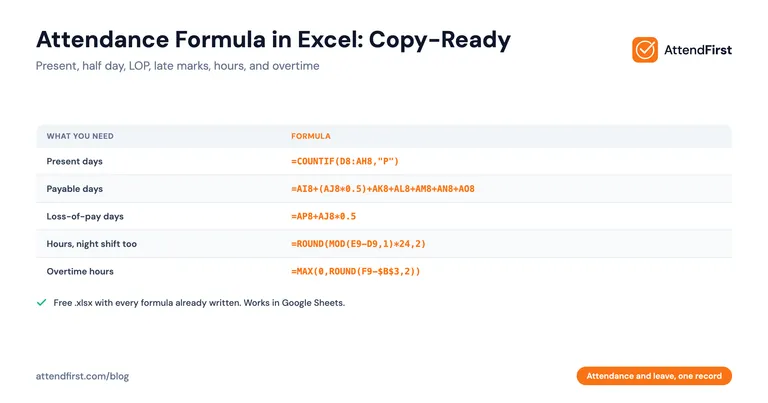
| What you need | Formula | Priya’s result |
|---|---|---|
| Present days | =COUNTIF(D8:AH8,"P") |
18 |
| Half days | =COUNTIF(D8:AH8,"HD") |
2 |
| Casual leave | =COUNTIF(D8:AH8,"CL") |
1 |
| Sick leave | =COUNTIF(D8:AH8,"SL") |
2 |
| Absent days | =COUNTIF(D8:AH8,"A") |
1 |
| Payable days | =AI8+(AJ8*0.5)+AK8+AL8+AM8+AN8+AO8 |
28 |
| LOP days | =AP8+AJ8*0.5 |
2 |
| Attendance % | =IF(OR($C8="",N($D$4)=0),"",(AI8+AJ8*0.5)/$D$4) |
79% |
| Working days | =NETWORKDAYS.INTL($D$3,EOMONTH($D$3,0),11,Holidays!$A$2:$A$31) |
24 |
| Hours worked | =ROUND(MOD(E9-D9,1)*24,2) |
9.08 (09:05 to 18:10) |
| Late mark | =IF(G9>$B$4,"Late","") |
blank |
| Overtime hours | =MAX(0,ROUND(F9-$B$3,2)) |
1.08 |
The sections below explain each group.
How do you count present, absent, half day, and leave in Excel?
COUNTIF counts the cells in a range that equal a value. Point it at one employee’s day cells and give it a code.
=COUNTIF(D8:AH8,"P")     -> 18   present days
=COUNTIF(D8:AH8,"A")     -> 1    absent days
=COUNTIF(D8:AH8,"HD")    -> 2    half days
=COUNTIF(D8:AH8,"CL")    -> 1    casual leave
=COUNTIF(D8:AH8,"SL")    -> 2    sick leave
=COUNTIF(D8:AH8,"EL")    -> 0    earned leave
=COUNTIF(D8:AH8,"WO")    -> 5    weekly offs
=COUNTIF(D8:AH8,"H")     -> 1    holidays
COUNTIF matches the whole cell, so "H" does not count HD. It ignores capital letters, so p and P both count. It does not ignore a trailing space, so a cell that holds "P " counts as nothing. The in-sheet dropdown on the day cells prevents that mistake.
Count each leave type in its own column. Casual, sick, and earned leave have different balances, so one combined leave column cannot tell you what is left.
Count half days as 0.5
A half day counts as 0.5 of a day. Multiply the half-day count by 0.5 wherever you add days.
Payable days = P + (HD x 0.5) + CL + SL + EL + WO + H

=AI8+(AJ8*0.5)+AK8+AL8+AM8+AN8+AO8
 = 18 + (2 x 0.5) + 1 + 2 + 0 + 5 + 1
 = 28
For the policy side of half days, such as how many to allow and how to charge them against leave, read the half-day leave policy guide.
Calculate loss-of-pay days
Loss-of-pay days are the days the employee is not paid for. Absent days count in full. A half day counts as half a day, if your policy treats it that way.
=AP8+AJ8*0.5
 = 1 + (2 x 0.5)
 = 2
Check the result against payable days. When every day of the month carries a code, payable days plus LOP days equal the days in the month: 28 + 2 = 30. If they do not add up, a day has no code or has a code you did not count. The Unmarked days column in the sheet finds that case:
=IF($C8="","",DAY(EOMONTH($D$3,0))-SUMPRODUCT(--(LEN(D8:AH8)>0)))This counts the days in the month and subtracts the cells that hold a mark. LEN ignores cells that look empty but hold an empty text value, which happens when you paste the calendar row as values. Any number above zero means the employee has days with no code. This sheet only calculates the days. It does not calculate the salary deduction.
Fill weekly offs and holidays automatically
Put the holiday dates in a second sheet named Holidays, one date per row. Then use two formulas.
The first finds the working days in the month, which excludes Sundays and your holidays. The number 11 tells NETWORKDAYS.INTL that only Sunday is a weekly off.
=NETWORKDAYS.INTL($D$3,EOMONTH($D$3,0),11,Holidays!$A$2:$A$31)
 -> 24   (30 days - 5 Sundays - 1 holiday)
The second goes in a helper row above the employees and gives the code for each date. Row 6 holds the dates, and WEEKDAY(date)=1 is true on a Sunday.
=IF(D$6="","",IF(WEEKDAY(D$6)=1,"WO",IF(COUNTIF(Holidays!$A$2:$A$31,D$6)>0,"H","")))Copy that row and paste it as values into each employee row. Then type P, A, HD, or a leave code on the remaining working days. For a Saturday weekly off, use 7 in the WEEKDAY test and 17 in NETWORKDAYS.INTL. For a Monday weekly off, use 2 and 12.
Calculate attendance percentage
Attendance percentage is the share of working days the employee worked: present days plus half of each half day, divided by working days. To check a single figure without a sheet, use the attendance percentage calculator.
=IF(OR($C8="",N($D$4)=0),"",(AI8+AJ8*0.5)/$D$4)
 = (18 + 1) / 24
 = 79%
Use present days and half days only. Paid leave, weekly offs, and holidays count toward payable days, but they are not days at work. If you divide payable days by working days, the figure goes above 100% in any month with a weekly off or a holiday. In Priya’s row, 28 / 24 is 117%. The IF returns an empty cell instead of a #DIV/0! error when D4 is blank.
Find late marks from the in time
You need three cells: the shift start, the in time, and a grace period in minutes. The direct formula compares the in time with the start plus the grace period.
=IF(D9>C9+TIME(0,15,0),"Late","")Here C9 is the shift start, D9 is the in time, and 15 is the grace period. Excel stores a time as a fraction of a day, so a time that looks like 09:15 can differ from 09:00 plus 15 minutes by a tiny fraction. That can mark someone late who arrived exactly on the limit. Round the difference to whole minutes first:
Minutes after start:
=MAX(0,ROUND((MOD(D9-C9+0.5,1)-0.5)*1440,0))

Late mark:
=IF(G9>$B$4,"Late","")
Worked examples, with a 09:00 shift start and a 15-minute grace period in B4:
| In time | Minutes after start | Late mark |
|---|---|---|
| 09:05 | 5 | blank |
| 09:15 | 15 | blank |
| 09:40 | 40 | Late |
The MOD(...+0.5,1)-0.5 part keeps the result correct for night shifts. If the shift starts at 23:50 and someone arrives at 00:05 after midnight, the formula returns 15 minutes late, not a large negative number.
Calculate hours worked, including night shifts
Subtract the in time from the out time and multiply by 24. For a day shift, that is enough. For a shift that crosses midnight, the out time is smaller than the in time and the result is negative. MOD fixes this.
=ROUND(MOD(E9-D9,1)*24,2)

Day shift     09:05 to 18:10  ->  9.08 hours
Night shift   22:10 to 06:30  ->  8.33 hours
Half day      09:00 to 13:00  ->  4.00 hours
MOD(x,1) returns the part of a number after the decimal point, so a negative gap becomes the positive time after midnight. Enter the shift start date as the date for the whole shift, so the night worker’s row stays on one date.
Calculate overtime hours
Overtime is the hours worked above the standard day. Keep the standard hours in a cell, B3 in the sheet, so you can change them without editing formulas.
=MAX(0,ROUND(F9-$B$3,2))

9.08 hours with 8 standard hours  ->  1.08 overtime hours
8.00 hours with 8 standard hours  ->  0.00
MAX(0,...) stops a short day from showing negative overtime. Overtime pay depends on your employer’s policy and on state rules, so this formula gives you the hours only. To work out the amount, use the overtime calculator or confirm the rate with your accountant.
Turn hours into P, HD, or A
If you record in and out times instead of typing codes, a formula can choose the code from the hours worked.
=IF(F9>=$B$5,"P",IF(F9>=$B$6,"HD","A"))

With B5 = 7 and B6 = 4:
9.08 hours -> P
4.00 hours -> HD
2.67 hours -> A
B5 holds the hours that make a full day and B6 holds the hours that make a half day. Pick thresholds that match your shift and write them into your policy.
Color the A, leave, and H cells
Conditional formatting makes a wrong mark visible without reading every cell. Select the day cells, choose Conditional Formatting, then New Rule, then Use a formula to determine which cells to format. Add one rule for each code. These formulas assume the top-left selected cell is D8.
Red fill for absent:        =D8="A"
Amber fill for leave:       =OR(D8="CL",D8="SL",D8="EL")
Orange fill for half day:   =D8="HD"
Gray fill for off days:     =OR(D8="H",D8="WO")
Add one more rule to the Attendance % column that turns the text red when the value is below 85%. The downloadable sheet includes all of these rules, plus a dropdown on the day cells that accepts only the eight codes.
Do the formulas work in Google Sheets?
Yes. The sheet uses COUNTIF, SUMPRODUCT, LEN, NETWORKDAYS.INTL, EOMONTH, WEEKDAY, MOD, ROUND, MAX, IF, TIME, and N. Google Sheets supports each of them with the same arguments, so you can paste the formulas as written. To use the file, upload the .xlsx to Google Drive and open it with Google Sheets, or choose File, then Import inside a new sheet.
Expect two differences. Google Sheets may separate function arguments with a comma or a semicolon, depending on your locale setting. Conditional formatting and dropdowns usually survive the import, but open the file and check them before you rely on it.
Where do attendance formulas break?
Formulas calculate what you type and cannot check whether it is true. These five failures come up again and again.
- The file is overwritten. Two people open the same file, one saves over the other, and a week of marks is gone. Version history helps if you notice, but nothing tells you that a loss happened.
- Marks are back-filled. On the 28th, someone types the marks for the whole month from memory. The formulas calculate those guesses without complaint.
- Nothing records who marked a day or when. If an employee says they came on the 14th and the sheet says A, you have one cell and no history. The formula cannot settle it.
- A broken formula looks like a right answer. A range that stops one column short, a pasted value that replaced a formula, or a code with a trailing space gives a plausible total. The
Unmarked dayscolumn catches only one of these. - One code per day.
P,A, andHDcannot represent a split shift, a long lunch, or two check-ins. The hours formulas above help, but you type every time by hand.
When is a spreadsheet enough?
A formula sheet is the right tool in these cases:
- You have a small team in one location, and one person marks attendance.
- Everyone works fixed hours at one site, so the in time matters less than the day.
- Nobody has disputed a day count in the last few months.
- Your accountant asks for a monthly sheet and nothing more.
In that case, use the file above, keep one master copy on a shared drive with version history on, and write down who updates it and by when. You do not need an app for this.
What AttendFirst calculates from check-ins
The formulas above exist because someone types the marks. AttendFirst, an attendance app, records each check-in, so the counts come from the record instead.
- Each shift has a late-after setting in minutes. A first punch that comes later than that after the shift start is marked late.
- A shift can set the worked minutes that make a full day and a half day. When the day closes, its status follows the worked time.
- Employees request leave in the app. Balances and the org-wide leave calendar sit in the same record as attendance.
- The attendance export is a CSV file that Excel opens, with total time, work time, and break time in hours and minutes. Days with no check-in appear as absent rows.
- Employees check in by GPS, selfie, or QR code, and each check-in keeps its time and location. A past day that an admin enters by hand is recorded as a manual entry.
You can keep your formula sheet and stop typing into it. Export the month, then run the same formulas on the export if your accountant wants them. Teams of 4 to 10 employees pay a flat ₹3,000 a year, and teams of up to 3 employees pay nothing. No payment is required to start. Read the daily attendance report guide to see what the export contains, or start tracking attendance and leave.
Frequently asked questions
What is the formula for attendance in Excel?
Use COUNTIF to count the codes you typed in a row. If the day columns run from D to AH and you mark present days with P, the formula is `=COUNTIF(D8:AH8,"P")`. Change "P" to "A" for absent days, "HD" for half days, or "CL", "SL", and "EL" for each leave type. Payable days then adds the counts: `=AI8+(AJ8*0.5)+AK8+AL8+AM8+AN8+AO8`, where AI is present days and AJ is half days.
How do I calculate a half day in an Excel attendance sheet?
Mark the day with the code HD, count the codes with `=COUNTIF(D8:AH8,"HD")`, and multiply the count by 0.5 wherever you add days. Payable days is present days plus half days times 0.5 plus paid leave, weekly offs, and holidays. If you record in and out times instead of codes, use `=IF(F9>=$B$5,"P",IF(F9>=$B$6,"HD","A"))`, where F9 is hours worked, B5 is the hours that make a full day, and B6 is the hours that make a half day.
How do I calculate loss of pay days in Excel?
Loss-of-pay (LOP) days are absent days plus half of each half day if your policy treats a half day as half unpaid: `=AP8+AJ8*0.5`, where AP is absent days and AJ is half days. If every day of the month carries a code, LOP days equal the days in the month minus payable days. Check your leave policy before you use the half-day part, because some employers treat a half day differently.
How do I calculate hours worked in Excel when the shift crosses midnight?
Use MOD to handle the day change: `=ROUND(MOD(E9-D9,1)*24,2)`, where D9 is the in time and E9 is the out time. For an in time of 22:10 and an out time of 06:30, a plain subtraction gives a negative number, while MOD returns 0.3472 of a day, which is 8.33 hours after multiplying by 24.
How do I mark late arrivals in Excel?
Compare the in time with the shift start plus a grace period. The direct version is `=IF(D9>C9+TIME(0,15,0),"Late","")`, where C9 is the shift start, D9 is the in time, and 15 is the grace period in minutes. Excel stores times as fractions of a day, so a time that looks equal can differ by a tiny fraction. Round the difference to whole minutes first, as the downloadable sheet does, to avoid a false late mark.
Do these attendance formulas work in Google Sheets?
Yes. The sheet uses COUNTIF, SUMPRODUCT, LEN, NETWORKDAYS.INTL, EOMONTH, WEEKDAY, MOD, ROUND, MAX, and IF, and Google Sheets supports all of them with the same arguments. Upload the .xlsx file to Google Drive and open it with Google Sheets. Conditional formatting and the dropdown for day codes usually carry over, but check them after you open the file.
When does an Excel attendance sheet stop being enough?
A formula sheet is enough for a small team in one location where one person marks attendance and nobody disputes the days. It stops being enough when several people edit the same file, when marks are entered days late, when staff work in the field, or when an employee disputes a count and you have no record of who marked the day and when. Formulas calculate what you type. They cannot check that what you typed is true.
Get attendance tips for Indian businesses
One practical guide per week. No spam.
Put attendance and leave in one record
Indian holidays and weekly offs come already loaded. Setup takes 5 minutes, and no payment is required to start.