QR code attendance
your staff scan at the door.
A QR code attendance system lets staff check in by scanning a QR code, a square barcode, with their own phone. AttendFirst gives each door its own code, checks where the phone is, and records the scan in the same place as leave.
Teams of 4-10 pay ₹3,000 a year in total, and up to 3 employees cost nothing. No payment required to start.
How the code at the door works
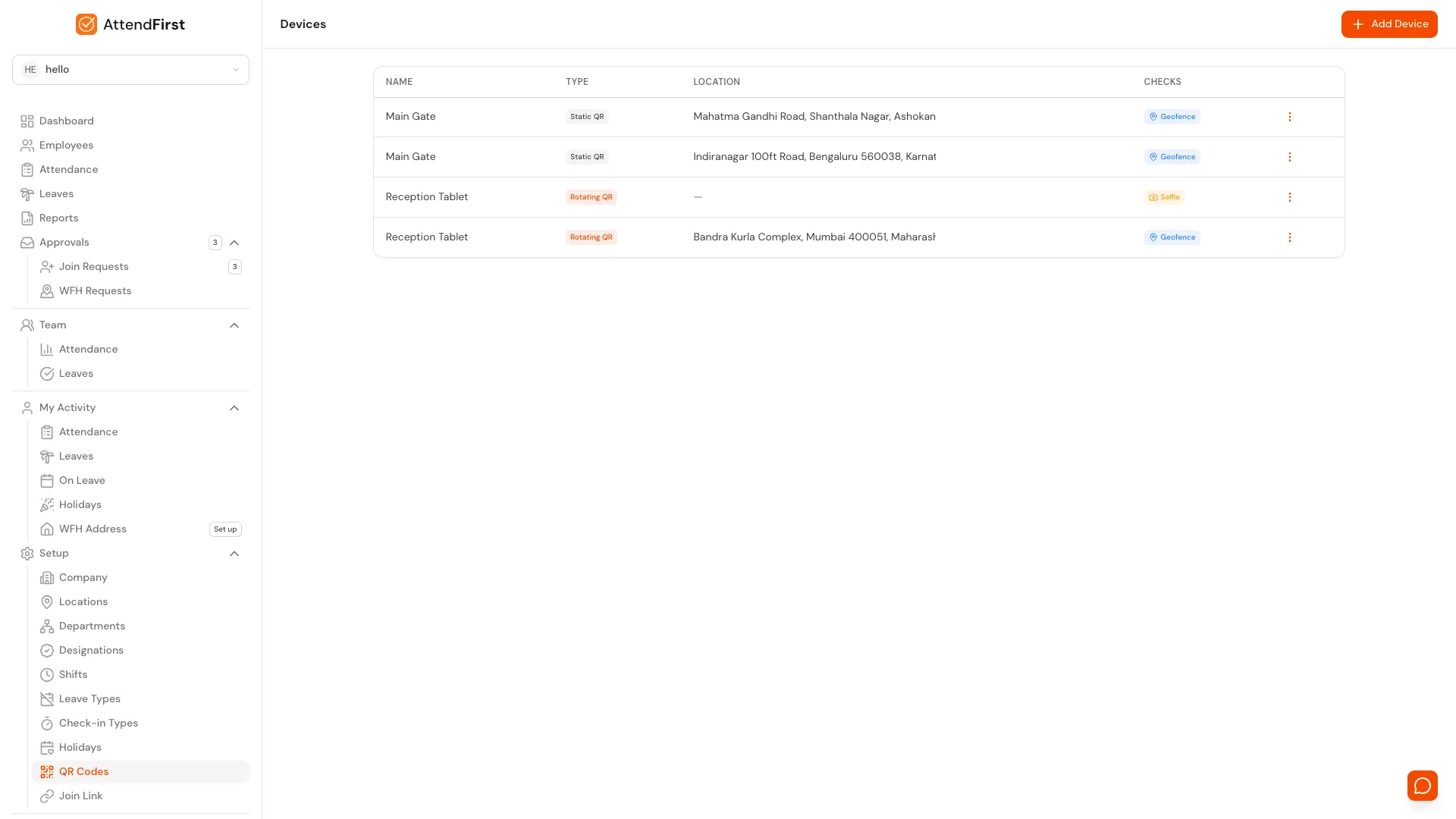
You add a QR device in AttendFirst for each door and give it a location. Staff point their phone camera at the code and tap the link. The phone asks them to sign in the first time. The check-in screen then shows Check in or Check out, depending on whether the employee already has an open session. After the employee taps the button, the scan lands on their attendance record.
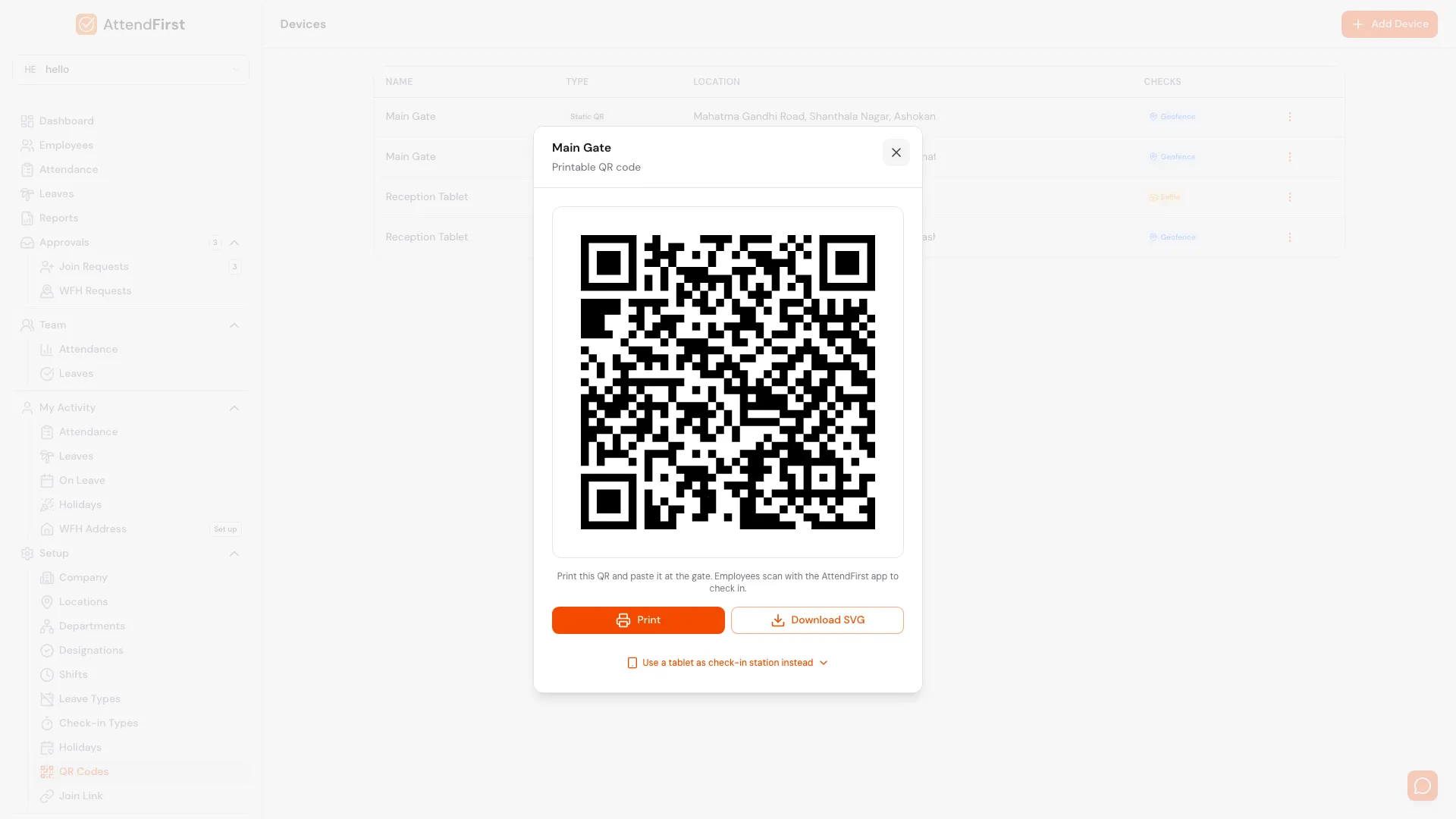
Static QR: a printed code
You print the code and stick it at the door. It does not change, so it needs no power and no screen. Open View QR on the device, then click Print or Download SVG.
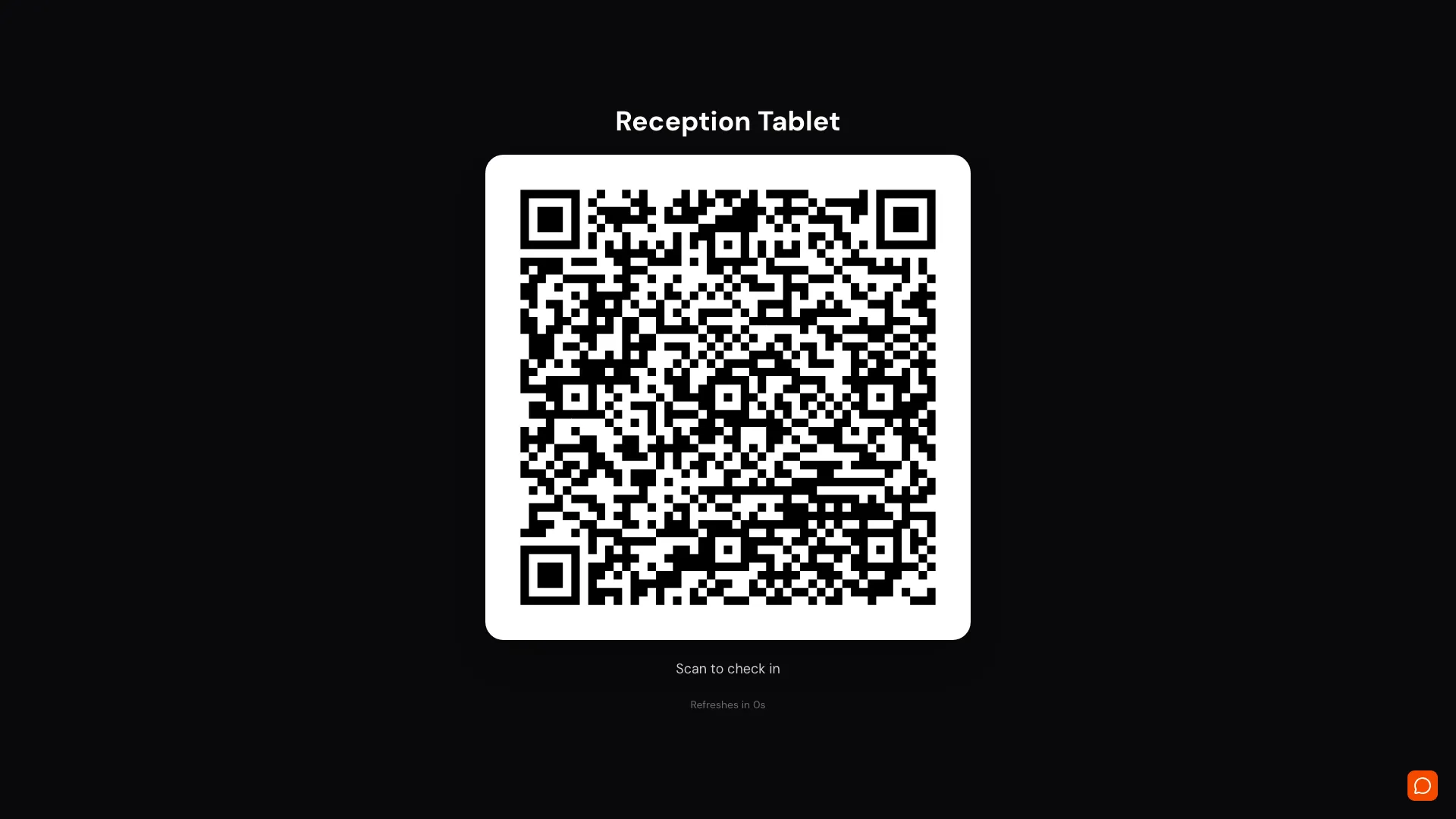
Rotating QR: a code on a screen
You open a station page on a spare tablet or monitor. The code on the screen changes every 15 seconds, 30 seconds, 1 minute, or 5 minutes, depending on what you set. The tablet needs only a browser.
| Static QR | Rotating QR | |
|---|---|---|
| What you need | A printer and paper | A tablet or monitor with a browser, kept on |
| If someone photographs the code | Replace the code when you want to retire the old one | The photo stops working within the interval plus 5 seconds |
| If the code leaks | Choose Rotate static token. The old code fails at once. Print a new one. | Choose Rotate display token to invalidate the old station link. |
| Best for | One shop or a small office where you trust the team | A busy gate, or a team that shares codes in a chat group |
What each check records
Every scan lands on the employee's attendance record. You can add a location check, a selfie, or a rotating code to the scan. This table shows what each one saves and what you see.
| Check | What AttendFirst records | What you see |
|---|---|---|
| Signed-in account | The scan is tied to one employee account in your company. A code from another company is rejected. | The scan on that employee's record, with the time. |
| Verify location | The phone's position against the pin and radius you set on the device. A scan from outside the circle is marked unverified. | The day is flagged for review and admins get a notification. |
| Require selfie | A photo taken on the check-in screen, stored with the record. | You open the photo next to the time and the location result. |
| Rotating QR | A signed timestamp in the code. The server accepts it for the interval you set plus 5 seconds. | An expired code shows "This QR has expired" to the person scanning. A shorter interval, such as 15 seconds, narrows the window. |
| Add attendance by hand | An admin adds a missed check-in with a reason. | The entry on the record, with the reason you gave. |
Read more on how the checks compare in how small businesses stop buddy punching and biometric vs selfie attendance.
Set up QR code attendance in seven steps
Do the steps once for the first door. Each extra door repeats steps 2 to 6.
- 1
Add your staff
Create an account and add your employees, or share the join link so they add themselves. Every scan needs a signed-in employee account in your company.
- 2
Add a QR device for each door
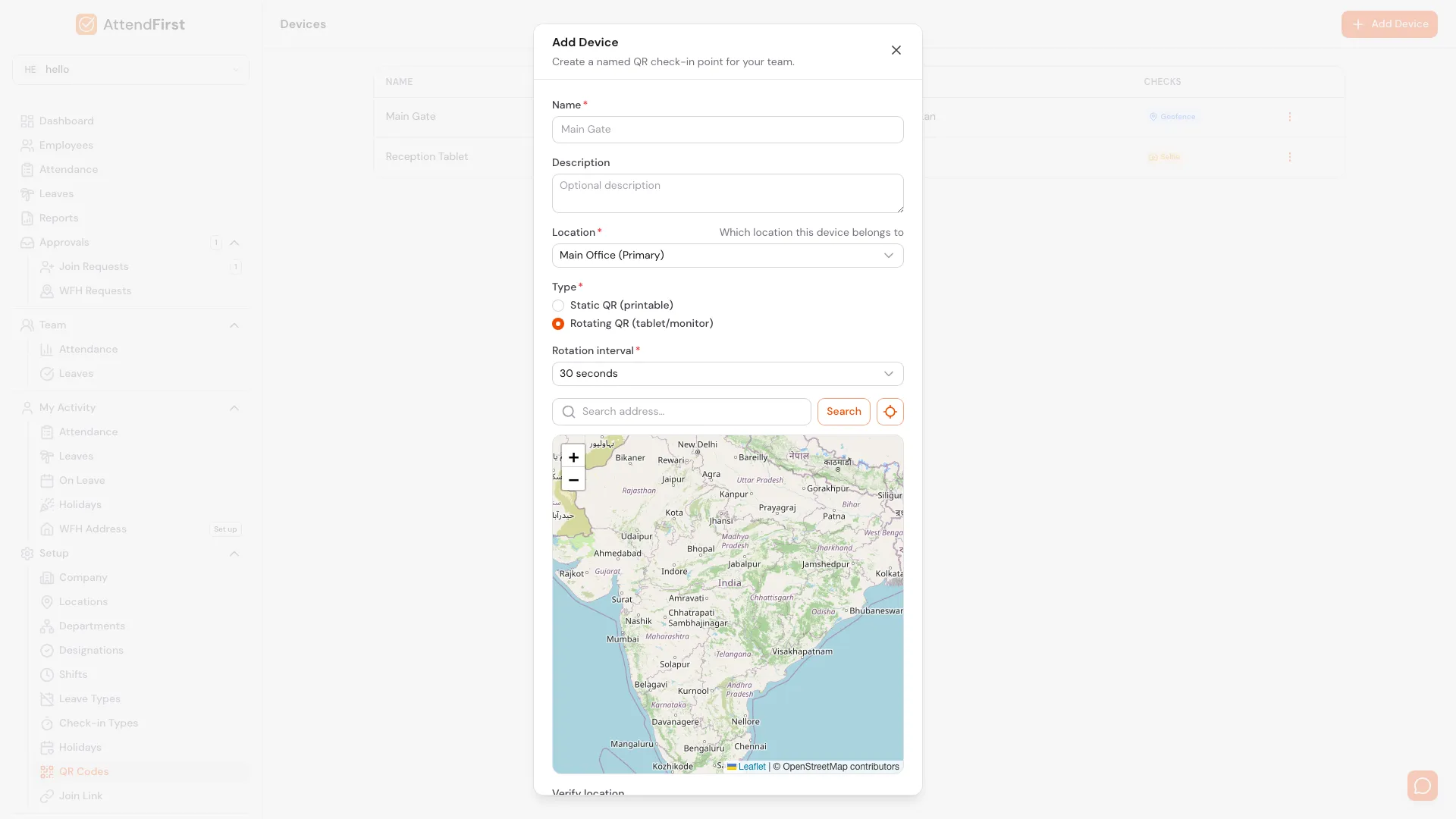
Go to Setup, then QR Codes, and click Add Device. Name it for the door, such as Main Gate, and choose the location it belongs to.
- 3
Choose Static QR or Rotating QR
Pick Static QR for a printed code. Pick Rotating QR if you have a spare tablet or monitor, and set how often the code changes: 15 seconds, 30 seconds, 1 minute, or 5 minutes.
- 4
Set the location check
Drop a pin on the map and set the radius. Leave Verify location on. Scans from outside the circle are marked unverified and flagged for you.
- 5
Turn on Require selfie if you want a photo
With Require selfie on, the check-in screen asks for a photo before it records the scan. The photo is stored with the attendance record.
- 6
Put the code at the door
For a Static QR, open View QR, click Print, and stick the code at eye level. Our free poster has a box for it. For a Rotating QR, open View QR, then open app.attendfirst.com/pair on the tablet and enter the 6-digit code.
- 7
Test with your own phone
Scan the code with your phone camera, sign in, and tap Check in. Then open Attendance in AttendFirst and confirm the record shows the time, the location result, and the selfie if you turned it on.
For every screen and option, read the QR attendance guide in the docs. For pros, cons, and common mistakes, read QR code attendance in India.
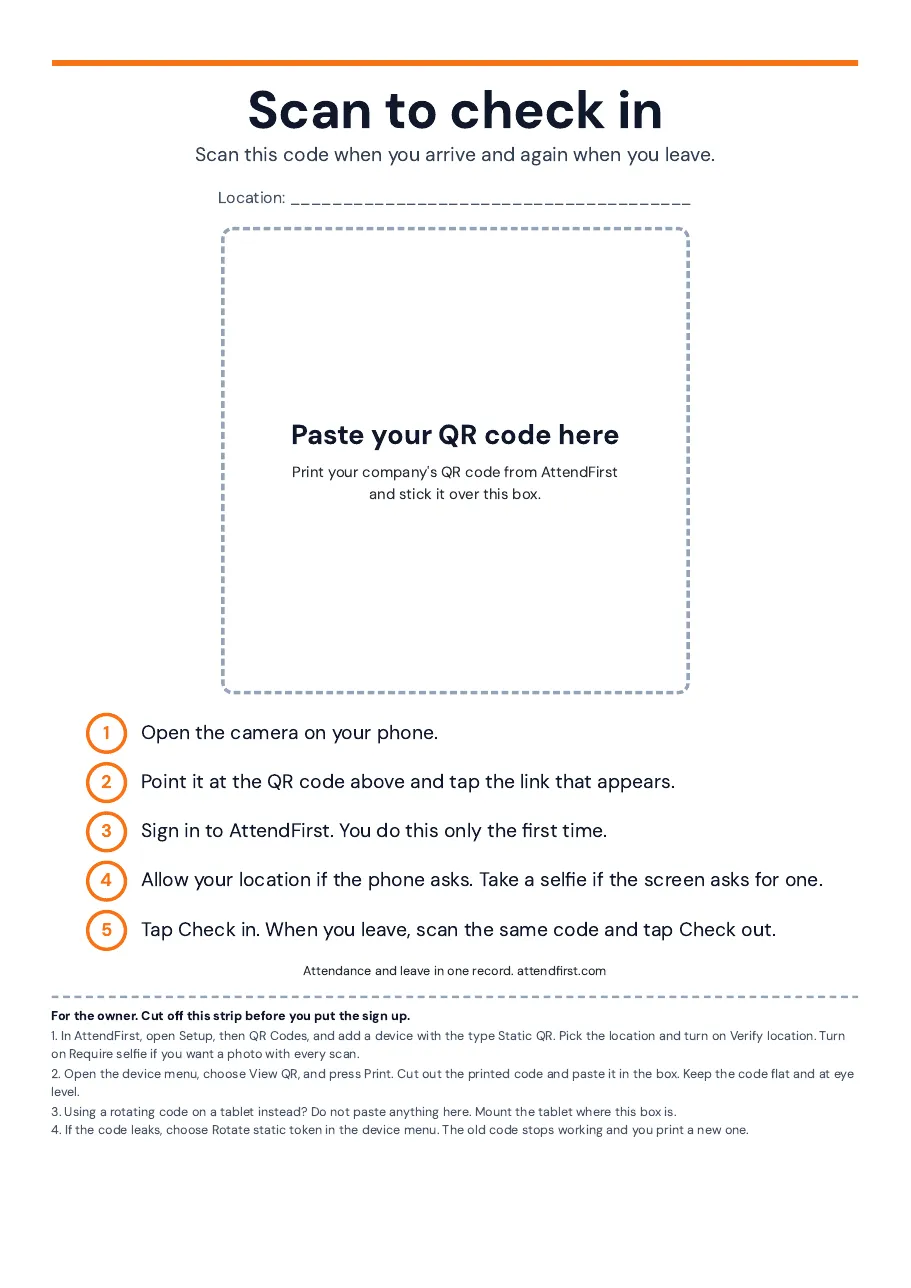
Free A4 check-in poster
Print this sign and put it at the door. It has a box for your own QR code and five steps for staff, in plain language. A cut-off strip at the bottom tells you how to get the code out of AttendFirst.
- ✓ A blank box where you stick your company's own code
- ✓ Check-in and check-out steps for staff
- ✓ A line to write the location, for owners with more than one door
- ✓ Prints in black and white on any A4 printer
The poster has no code printed on it. A code printed here would not belong to your company and would not work.
Using a QR code instead of a biometric machine
Small teams often look at a fingerprint machine because they want a record of who came in and when. A QR code at the door gives you that record without the machine. A team of 10 pays ₹3,000 a year in total, and up to 3 people pay nothing. A printed code needs no wiring, power point, or maintenance contract.
| Biometric machine | QR code attendance | |
|---|---|---|
| What staff use | Their finger or face, on the machine | Their own phone |
| Set-up | Mount, wire, power, and enrol every person | Print a sheet, or open a page on a spare tablet |
| Worn or wet fingers | A fingerprint reader can reject them | Not affected |
| What the record holds | A punch time | Time, location result, and an optional selfie |
| Leave | Kept somewhere else | In the same record as attendance |
| A second shop or gate | Another machine | Another QR device in the same account |
For machine prices, see biometric attendance machine price in India. For a side-by-side view, see AttendFirst as a biometric machine alternative. Running several gates? Read attendance for factories and multi-shift teams.
Who QR code attendance fits
QR check-in suits you if these describe your workplace.
Your staff carry smartphones
Each person scans the code with their own phone, so you buy no machine for the door.
Your team checks in at a fixed place
A QR code is tied to one place, such as a shop, an office, or a factory gate. Staff who work in the field check in with GPS or selfie, which AttendFirst also supports.
QR code attendance FAQs
What is QR code attendance?+
QR code attendance is a way to record check-ins where staff scan a code at the workplace with their own phone. The code sits on a printed sheet or a tablet screen. The scan records the time, and AttendFirst can also check the phone's location and ask for a selfie.
How does a QR attendance system work?+
You add a QR device in AttendFirst for each door and set its location. Staff scan the code with their phone camera, sign in once, and tap Check in. The app records the time and the location result against that employee. Scanning again later records Check out.
How does AttendFirst check who scanned the QR code?+
Every scan needs a signed-in employee account in your company. The location check marks scans from outside your radius as unverified, and the selfie gives you a photo of each check-in to review. A rotating code expires after the interval you set, so a shared photo of the screen stops working.
Should I use a static or a rotating QR code?+
Use a static code if you want no hardware at all, such as one shop with a few staff. Use a rotating code if you have a spare tablet and worry that someone shares the code in a chat group. A rotating code stops a shared photo within the interval you set plus 5 seconds.
Do staff need to install an app?+
No. The phone camera opens the link in the browser. Staff sign in once and stay signed in for later scans.
How much does QR code attendance cost?+
QR check-in is included on every plan. A team of 4 to 10 pays ₹3,000 a year in total. Above 10, each extra employee is ₹499 a year. A team of up to 3 pays nothing. Printing the code costs the price of a sheet of paper.
Can one QR code cover two shops?+
Each QR device belongs to one location. Add a separate device for each shop, gate, or site. Every device has its own code and its own location check, and you see all of them in one account.
Page last reviewed on 19 October 2026. Product behavior described here matches the AttendFirst app on that date.
Put a QR code at your door today
Add your first door, print the poster, and test with your own phone. Every scan lands in the same record as leave, weekly offs, and the Indian holiday list. No payment required to start.