QR code attendance in AttendFirst: static and rotating QR
Set up QR code attendance in AttendFirst. Print a static QR for the wall, or use a spare tablet as a rotating station, and every scan lands in the same record as leave.
QR code attendance gives your team a fixed check-in point at a gate or a counter. You print a QR code on paper or display one on a spare tablet, and employees scan it with their own phones. Each scan is recorded against the same employee as their leave requests and balances, so the month reconciles itself. There is no wiring, no app to install on their devices, and no yearly service contract.
This page shows you how to set up QR attendance for your company. For a deeper look at the cost and security trade-offs against biometric attendance machines, see QR attendance vs biometric below.
The Devices list
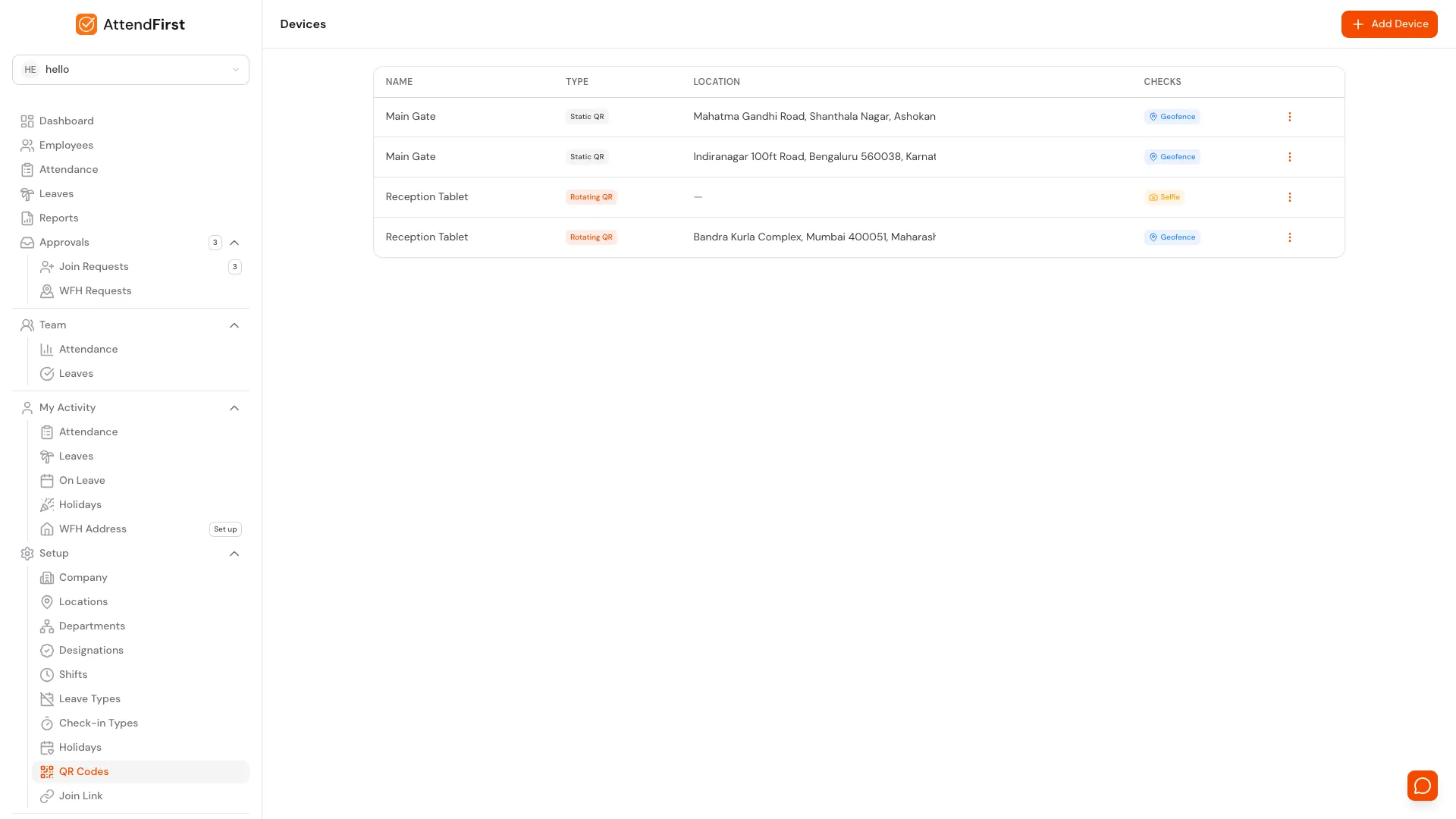
Setup → QR Codes. One row per check-in point, with the type badge, address, and the checks required at that device.
Open Setup → QR Codes. The list shows every device in your company with:
- Name - what employees see above the QR (Main Gate, Reception, Site 2).
- Type - Static QR for printable codes, Rotating QR for tablet-based stations.
- Location - the address you picked on the map.
- Checks - badges for Geofence (location verification) and Selfie (photo required).
Click Add Device in the top right to create a new one.
Add a device
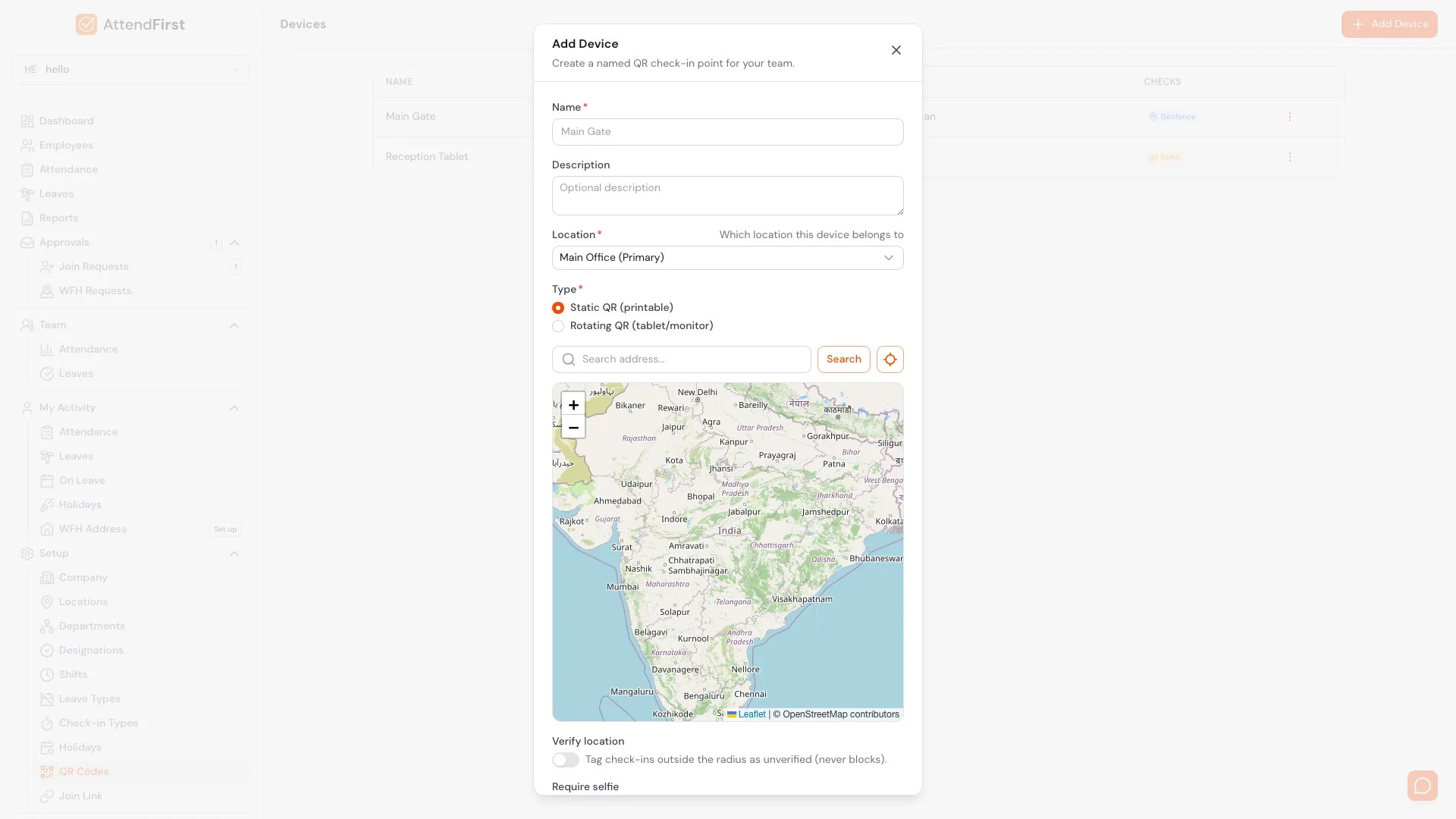
The Add Device form. Pick a name, a type, a location on the map, and optional checks.
The form has five parts:
- Name (required). Shown on the QR display and on employee check-in records. Use the location, not the device model. “Main Gate” is better than “Samsung Tab S”.
- Description (optional). A note for admins.
- Type (required). Pick Static QR or Rotating QR. See the comparison below.
- Location (optional but recommended). Search an address or click the map to drop a pin. Drag the pin to fine-tune. The blue radius is the geofence.
- Checks (optional).
- Verify location - tag scans outside the geofence radius as unverified. Never blocks a check-in.
- Require selfie - ask for a photo with every scan.
Choosing the type
| Use case | Pick | Why |
|---|---|---|
| Small shop or one-person site | Static QR | No tablet, no power, no extra hardware. Print once, stick it up. |
| Factory gate or reception with a spare tablet | Rotating QR | The QR changes every 15-60 seconds, so a photo of the code is useless after a minute. |
| Mobile or temporary site | Static QR | Printed paper travels. |
| Office where employees try to ghost-scan from home | Rotating QR with geofence | Rotation defeats photo-sharing. Geofence tags off-site scans as unverified. |
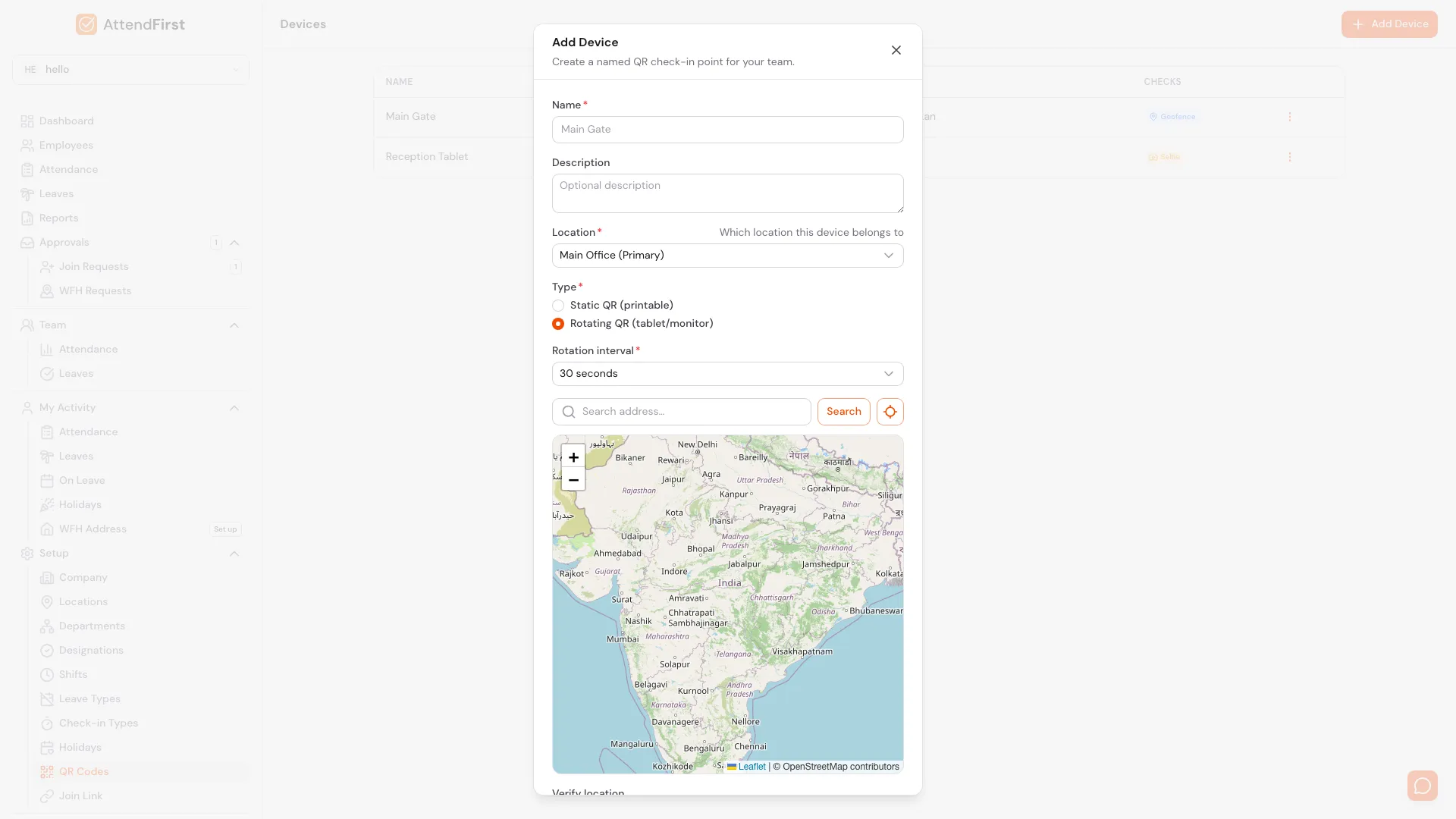
Rotating QR asks for a Rotation interval (15 seconds, 30 seconds, 1 minute, 5 minutes). Shorter intervals are stricter but refresh more often on the tablet screen.
Click Add Device to save. The device appears in the list right away.
Print a Static QR
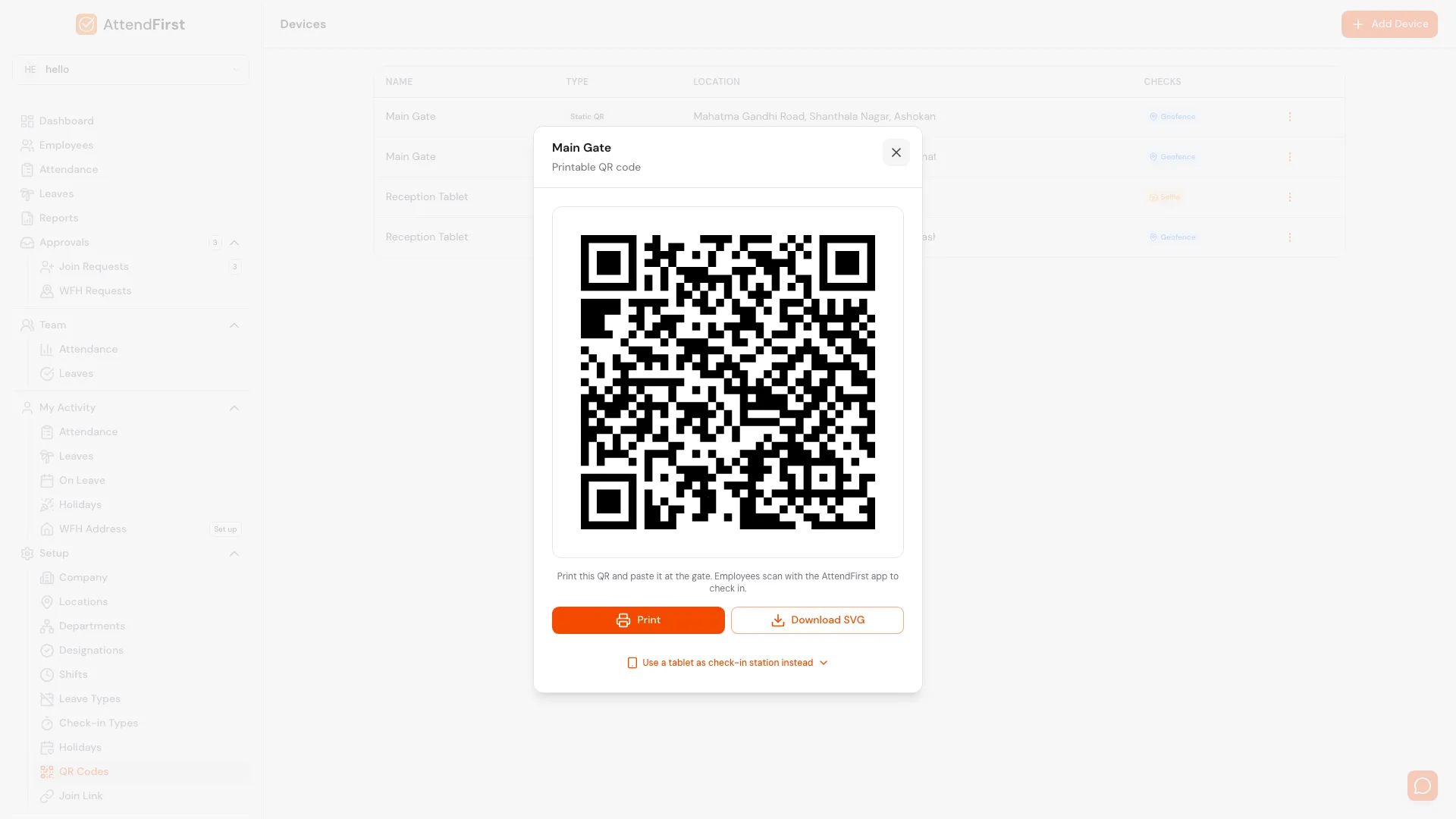
Open the device’s three-dot menu and click View QR. For Static QR devices you see:
- The QR code, full resolution.
- Print - opens a print-ready page with the device name and QR centered.
- Download SVG - save the code to reuse in posters, printers, or branded signage.
- Use a tablet as check-in station instead - opens the tablet setup flow (see below) if you change your mind later.
Print the QR, stick it near your entrance at eye level, and you are done. Employees open their phone camera, point it at the QR, tap the link, and check in.
Set up a tablet station
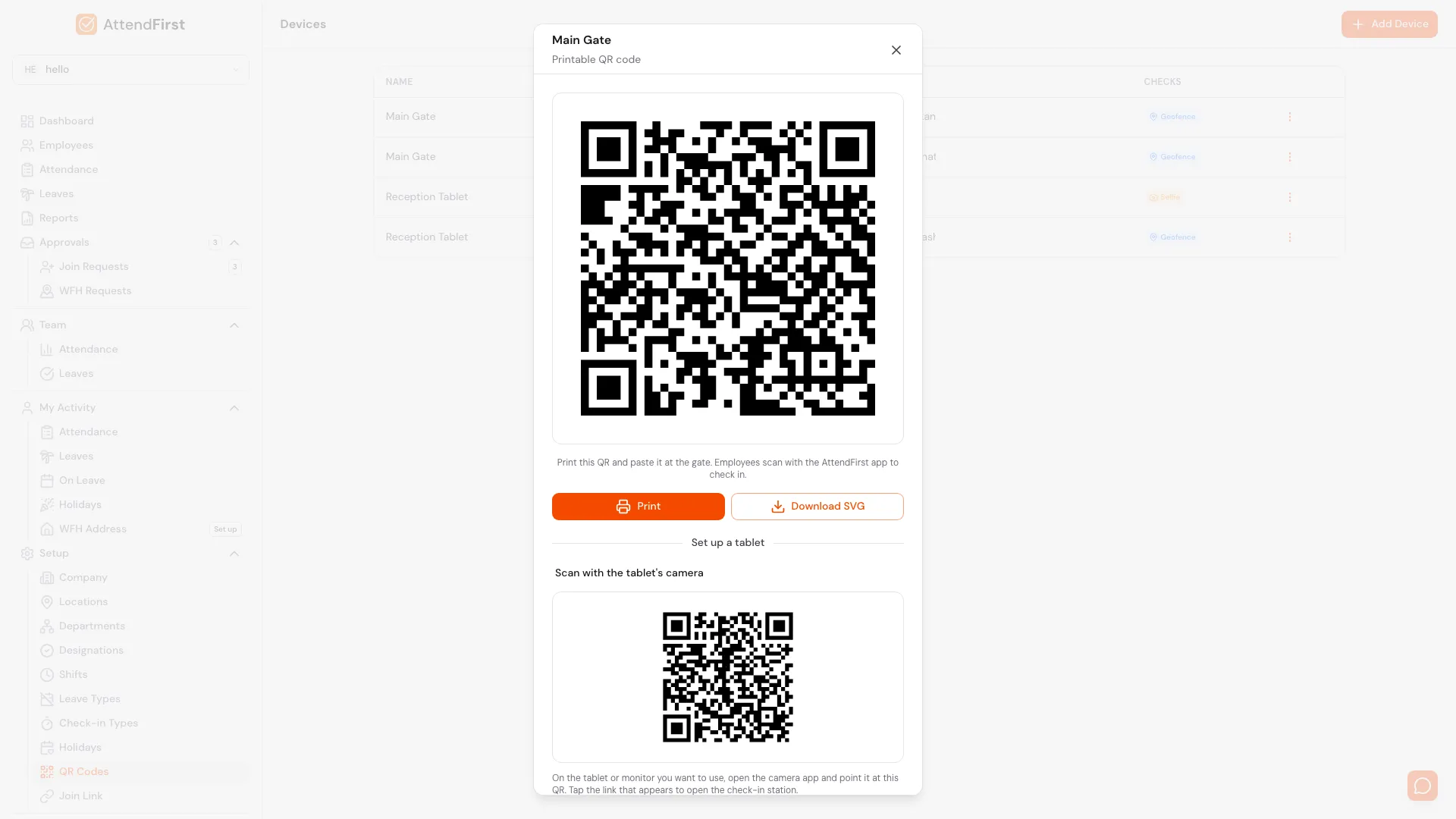
Rotating QR tablet setup. Three ways to get the station link onto the tablet.
For Rotating QR devices, the View QR modal is the setup flow for the tablet that will display the rotating code. You have three ways to get the station URL onto the tablet:
Option 1: Scan a setup QR with the tablet’s camera
Open the tablet’s camera app, point it at the setup QR on the modal, and tap the link that appears. The station loads and starts displaying rotating QRs. Easiest if the tablet is already powered on.
Option 2: Enter a 6-digit code
On the tablet, open app.attendfirst.com/pair and enter the 6-digit code shown on the modal.
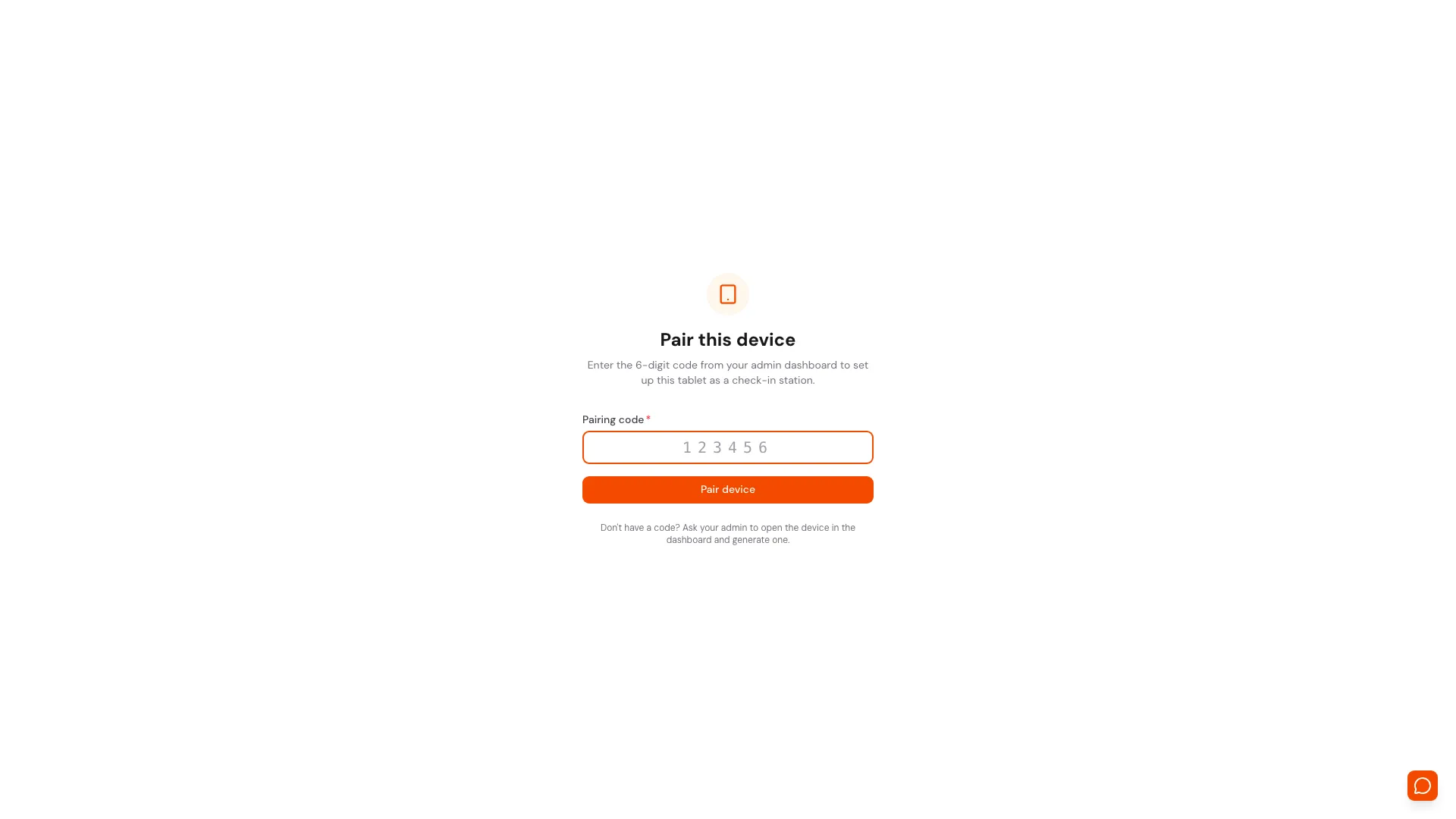
The /pair page. Enter the code from the admin dashboard and tap Pair device.
The code is valid for 24 hours or until used once, whichever comes first. Tap the refresh icon on the modal to generate a new code.
Option 3: Share the link
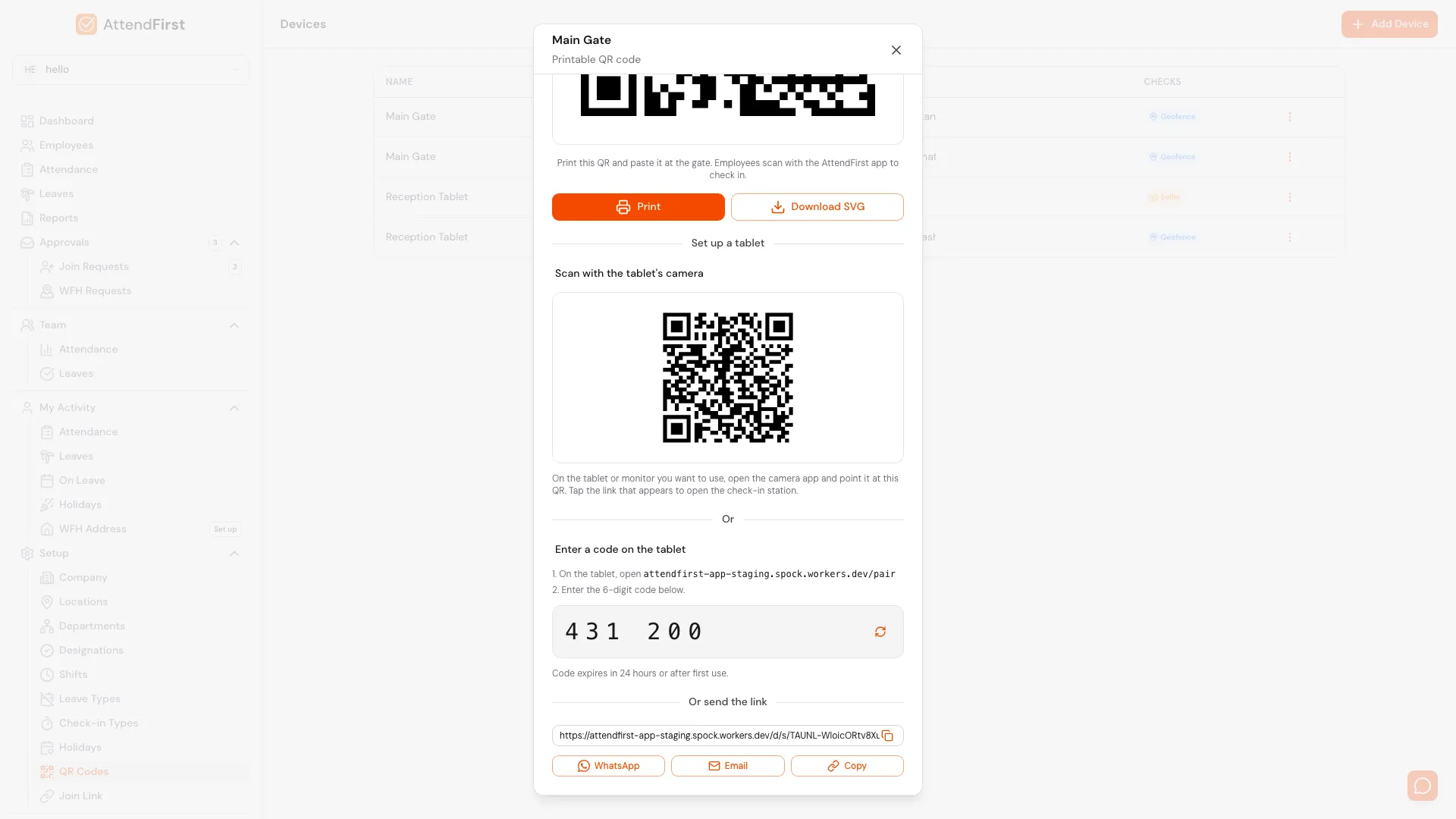
If someone else will mount the tablet, paste the URL to them:
- WhatsApp - opens WhatsApp with the link pre-filled.
- Email - opens your mail client with subject and body ready.
- Copy - drops the URL on your clipboard.
Whoever opens the link on the target tablet lands straight on the rotating display. No login needed on the tablet.
The live QR display
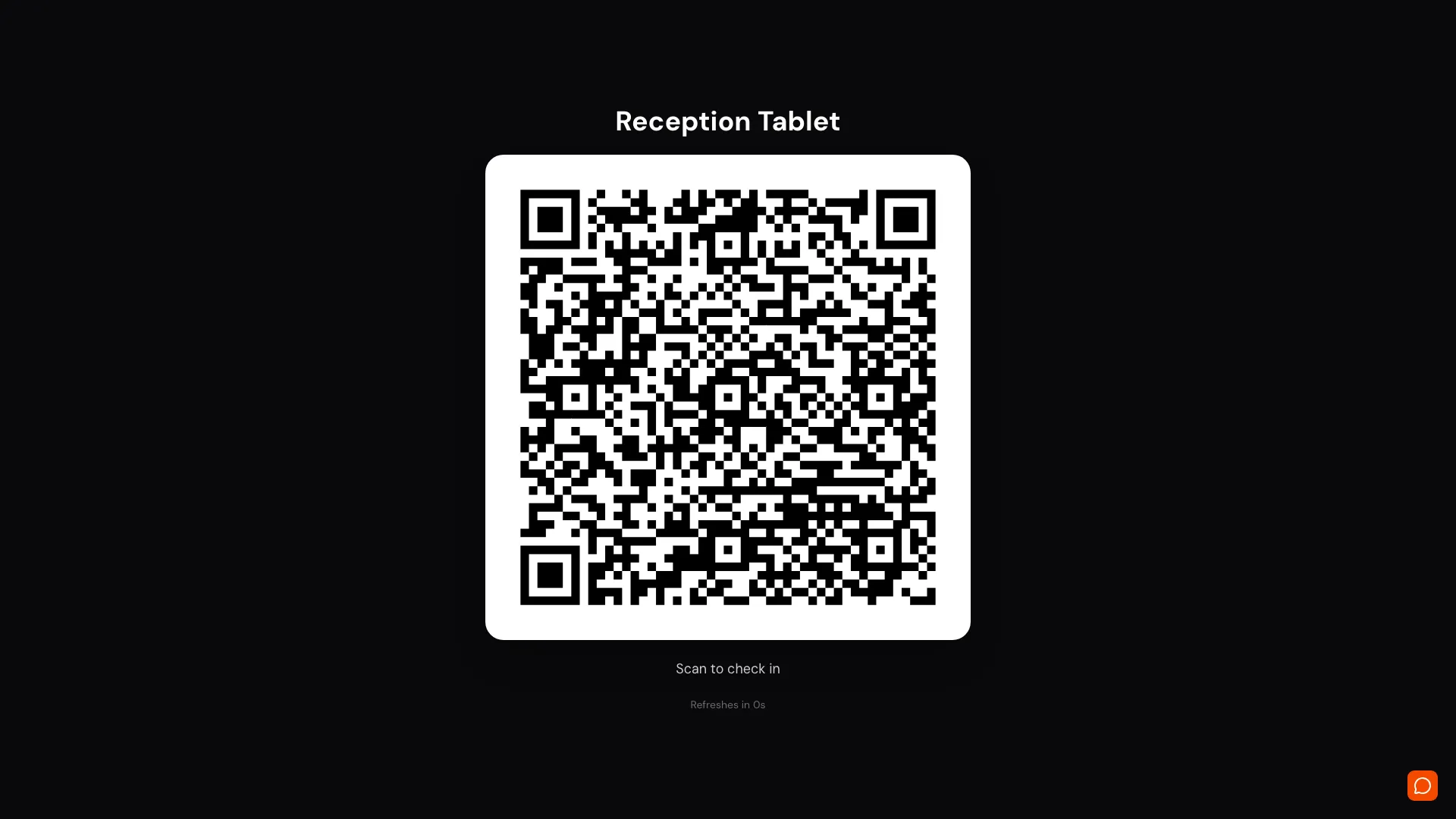
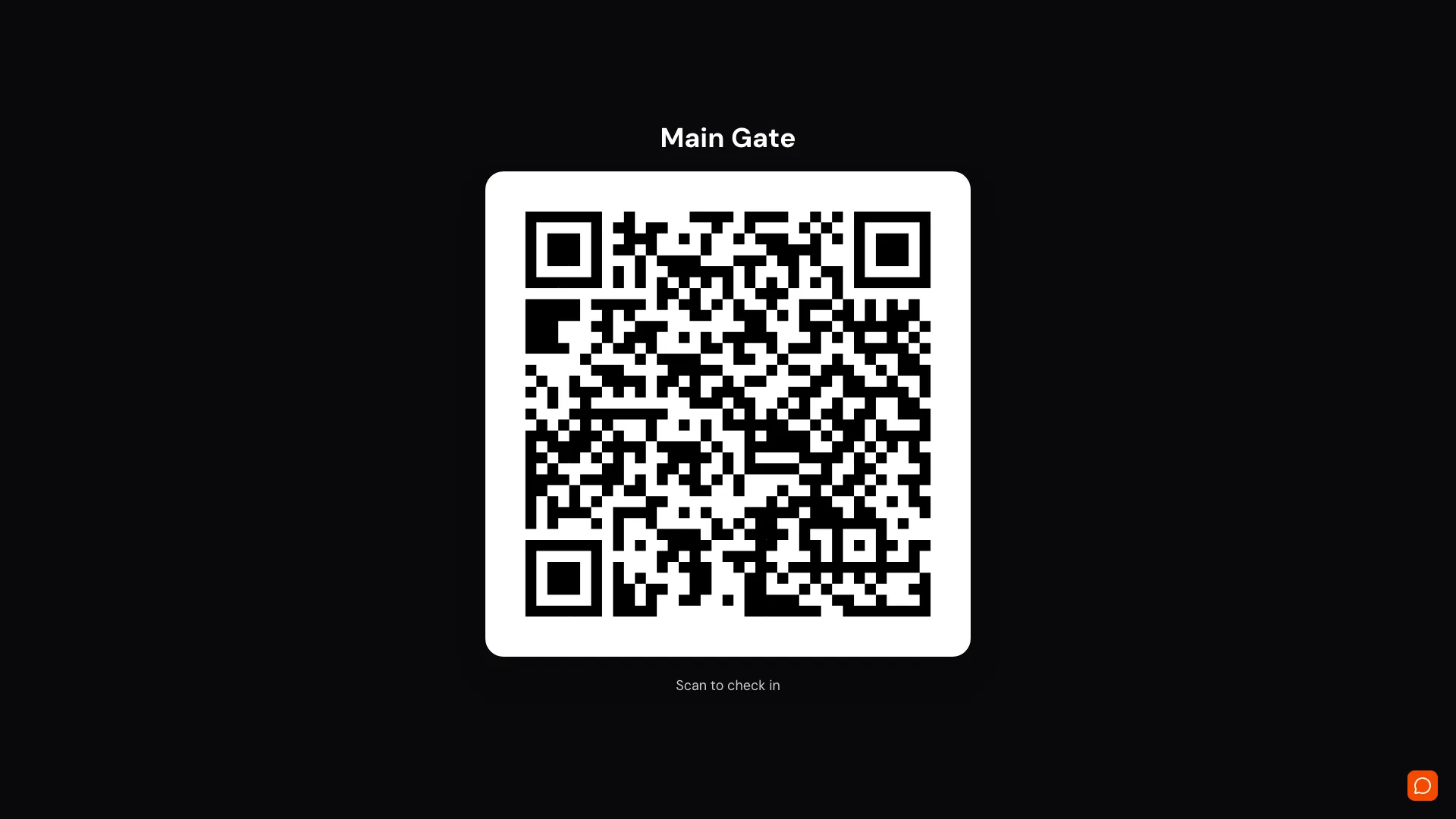
Once the tablet is paired, it shows a full-screen display with the device name, the QR, and a countdown timer. The QR refreshes on the interval you set (15s, 30s, 1 min, 5 min). If the tablet loses internet, the display flips to an Offline screen with a Retry button and resumes automatically when the connection returns.
Static QR devices use a similar display page if you opt in via the “Use a tablet as check-in station instead” link:
Row actions
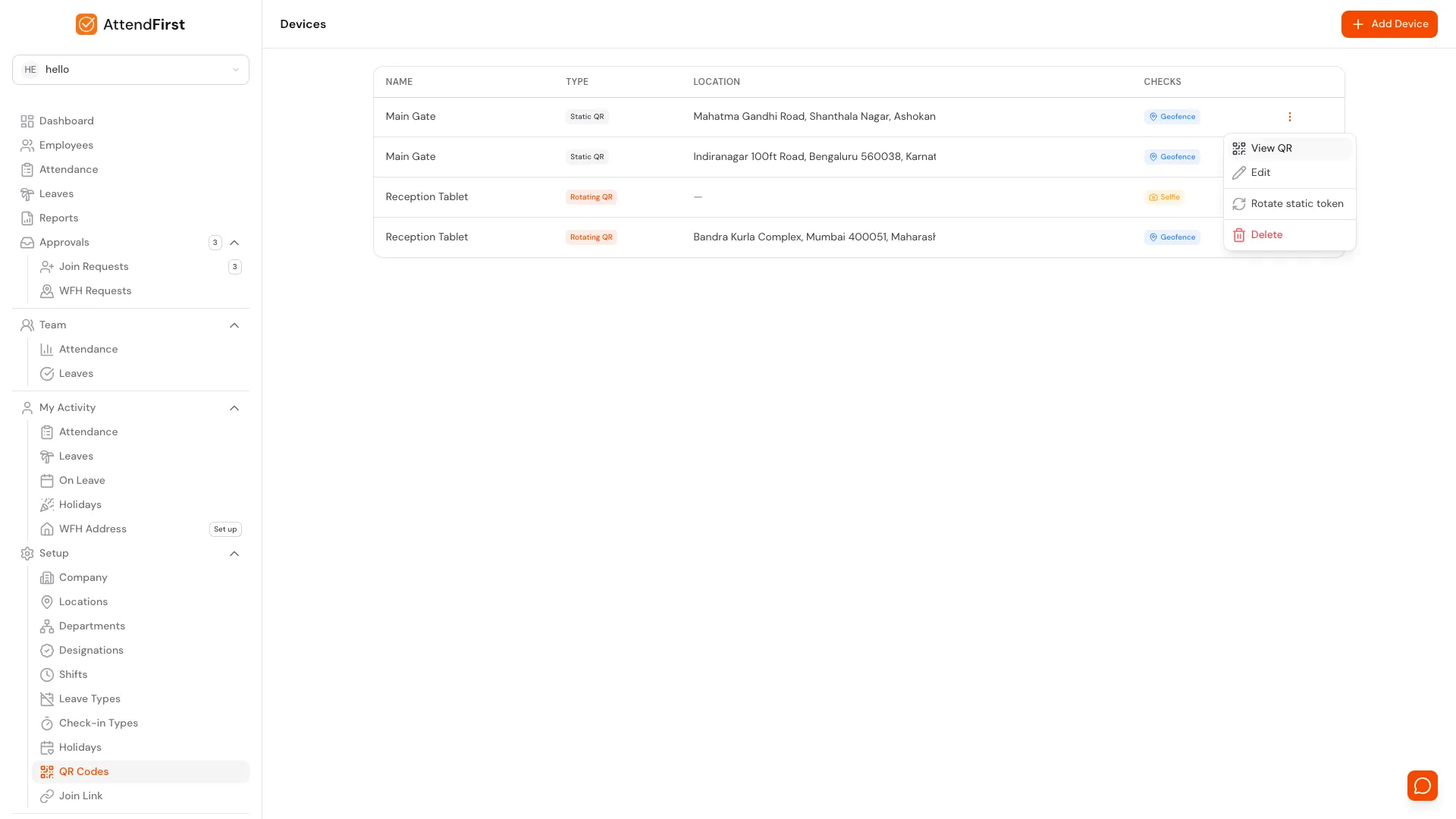
The three-dot menu. View the QR, edit settings, rotate the token, or delete the device.
Every device row has a three-dot menu:
- View QR - opens the modal described above.
- Edit - change name, location, checks. Type cannot be changed after creation.
- Rotate static token (Static QR) or Rotate display token (Rotating QR) - invalidates the current QR and generates a new one. Use when a printed QR leaks or a tablet is stolen.
- Delete - removes the device. Past check-ins stay linked to the device name in reports.
Both rotate actions ask for confirmation before they destroy the old token.
QR attendance vs biometric attendance machine
In India, the default attendance system is a fingerprint or face-recognition biometric attendance machine at the office gate. It works, but it is expensive, breaks often, and needs an electrician every time you move it. QR attendance is the same outcome at a fraction of the cost.
| Biometric attendance machine | QR attendance (AttendFirst) | |
|---|---|---|
| Hardware cost per gate | ₹3,000 - ₹15,000 | ₹0 (print a QR) or a spare tablet |
| Installation | Electrician, wiring, power outlet | Stick a paper on the wall |
| Software fee | ₹2,000 - ₹10,000 per year | ₹499/employee/year from the 11th (first 3 free) |
| Employee setup | Each person enrolls fingerprint or face | Scan once, log in, done |
| Works across branches | Separate device per branch | One account, unlimited QR devices |
| Location verification | No | Yes (geofence, optional) |
| Selfie audit trail | No | Yes (optional) |
| Hygiene | Shared sensor touched by everyone | No contact |
| Breakdown recovery | Call a technician | Reprint the QR |
| Remote / field staff | Not possible | Works anywhere with a phone |
20-person office, year one. A biometric attendance machine costs roughly ₹6,000 upfront plus ₹3,000 per year in AMC - ₹9,000 in year one and ₹3,000 every year after. AttendFirst charges ₹7,990/year for the same 20-person office. Year one comes out cheaper than the machine. From year two AttendFirst costs a little more than the bare AMC, but there is still no mechanical sensor to replace, no engineer call-out, and no power dependency.
If you are shopping for a biometric attendance machine, try QR attendance first. If your team still prefers fingerprints after a week, you have lost nothing. If QR works, you have just saved ₹6,000 and every future AMC bill.
Frequently asked questions
Is QR attendance cheaper than a biometric attendance system?
Yes, by a wide margin. A biometric attendance machine costs ₹3,000-15,000 upfront per gate plus ₹2,000-10,000 per year in AMC. AttendFirst charges ₹3,000/year for teams of 4 to 10, then ₹499 per employee per year from the 11th (launch price). A 20-person office pays ₹7,990/year total and needs zero hardware.
Can QR attendance replace a fingerprint attendance machine?
Yes. Both record the same thing: who was physically at a specific place at a specific time. QR attendance adds GPS verification and selfie capture, which a fingerprint machine does not offer. And if the phone works, QR attendance works - no mechanical sensor to wear out.
Can QR attendance replace a face recognition attendance system?
For most small businesses, yes. Face recognition hardware is expensive, sensitive to lighting, and a privacy liability. QR attendance with the optional selfie check gives you the same audit trail (a photo of the person at check-in time) without the dedicated hardware or the biometric data storage.
What’s the difference between Static QR and Rotating QR?
Static QR is a single printable code. Paste it on a wall, and the same QR works forever (until you rotate the token). Rotating QR lives on a tablet or monitor and refreshes every 15 seconds to 5 minutes. Use Static for zero-hardware setups; use Rotating when you want to stop employees from sharing a photo of the code.
Can one device cover multiple locations?
No. Each device is tied to one name and one geofence. Create a separate device per gate, branch, or site.
Does the tablet need AttendFirst installed?
No. Any browser on any tablet, phone, or old monitor works. Open the station URL once and leave the tab open. Employees still scan with their own phones.
What happens if the tablet goes offline?
The display shows an Offline message and stops generating new QRs. It reconnects automatically as soon as Wi-Fi or mobile data comes back.
Is the 6-digit pairing code one-time use?
Yes. The code expires 24 hours after generation or immediately after the tablet pairs successfully. Generate a new code from the View QR modal whenever you need one.
What does “Verify location” actually do?
It does not block check-ins. If an employee scans from outside the geofence radius, the record is tagged unverified and admins can filter those entries in reports. This matters for field staff with weak GPS or remote work exceptions - nobody gets locked out.
Can someone fake a check-in by photographing the QR?
With Static QR, a photo of the code would technically work, but every check-in still needs an employee account to log in and will be tagged as unverified if location is off. Rotating QR defeats photo-sharing entirely: the code changes every few seconds, so yesterday’s screenshot is useless today.
How do I invalidate a printed QR that leaked?
On the device row, open the three-dot menu and pick Rotate static token. The old QR returns an error instantly. Print a fresh one from View QR.
Related docs
- Kiosk mode and the scan flow. What employees see after scanning a device QR.
- Check in and check out. The three check-in methods: GPS, selfie, and QR.
- Company settings. Configure timezone and work schedule that drives attendance rules.
- Reports and CSV export. Filter unverified check-ins and audit device usage.
Steps
- Open QR Codes.Go to Setup → QR Codes to see every QR check-in point in one list.
- Add a QR device.Click Add Device. Pick a name like Main Gate, choose the location it belongs to, pick Static QR or Rotating QR, set the geofence on the map, and save.
- Print or mount the QR.For Static QR, click View QR and print. For Rotating QR, open the station link on a tablet or monitor by scanning a setup QR or entering a 6-digit pairing code.
- Employees scan with their phone.Anyone with a company account opens their phone camera, scans the QR, and confirms check-in or check-out. No biometric hardware, no fingerprint reader.
Frequently asked questions
How is QR attendance different from a biometric attendance machine?
A biometric attendance machine costs ₹3,000-15,000 per unit plus wiring, power, and yearly maintenance. AttendFirst QR attendance uses a printed code or a spare tablet you already own. Nothing to buy, nothing to install on employee phones.
Is QR attendance cheaper than a biometric attendance system?
Yes. Biometric hardware runs ₹3,000-15,000 per gate upfront plus maintenance. AttendFirst has no hardware cost - the first 3 employees are free, and the per-seat launch rate applies only from the 11th employee. No machine to buy, install, or maintain.
Can I replace a fingerprint attendance machine with QR attendance?
Yes. Both answer the same question, who was at a specific place at a specific time. QR attendance adds GPS verification and selfie capture, which fingerprint machines do not.
What's the difference between Static QR and Rotating QR?
Static QR is a single printable code you paste on a wall. Rotating QR lives on a tablet or monitor and refreshes every few seconds. Use static for low-cost setups, rotating when you want to stop employees from sharing a photo of the QR.
Can I use one QR device for multiple locations?
No. Each device belongs to exactly one location. Set the Location field when you create the device. Scans through that QR record the check-in against that location, regardless of where the employee is normally assigned. Create separate devices for each gate, branch, or site.
Does the tablet need the AttendFirst app installed?
No. Any tablet with a browser works. Open the station URL in Chrome or Safari and leave the tab open. Employees scan with their own phones.
What happens if the tablet loses internet?
The display shows an Offline message and stops generating new QRs. It resumes automatically when the connection comes back.
How do I share the tablet link without the admin dashboard?
Open View QR on the device row and use the WhatsApp, Email, or Copy buttons. Anyone with the link can open it on the tablet - no login needed.
How does the 6-digit pairing code work?
Open View QR on the device. A 6-digit code is shown. On the tablet, visit app.attendfirst.com/pair and enter the code. The tablet is paired and the code expires on use.
What does Verify location do?
AttendFirst tags check-ins outside the geofence radius as unverified, but never blocks them. Admins can filter unverified check-ins in reports for follow-up.
Can employees fake a QR check-in with a photo?
With static QR, in theory yes - but the check-in still requires an employee account and is tagged unverified if location is off. Rotating QR defeats this entirely because the QR changes every few seconds.
How do I invalidate a printed QR that leaked?
Open the device, click the three-dot menu, and choose Rotate static token. The old QR returns an error the moment you confirm. Print a new one from View QR.