Working hours and shifts in AttendFirst: schedule your team
Configure shifts and work days in AttendFirst. Set late and half-day thresholds, assign different shifts per day, and override the schedule per employee.
A shift in AttendFirst is a named time window with a start time, end time, late threshold, and half-day threshold. AttendFirst derives every attendance status (Present, Late, Half day, Absent) from the shift assigned to that day. Every company starts with one default shift called General Shift 09:00-18:00; add more under Setup → Shifts.
The org-wide schedule maps shifts to days of the week. Per-employee overrides let one person work a different schedule from the rest of the team.
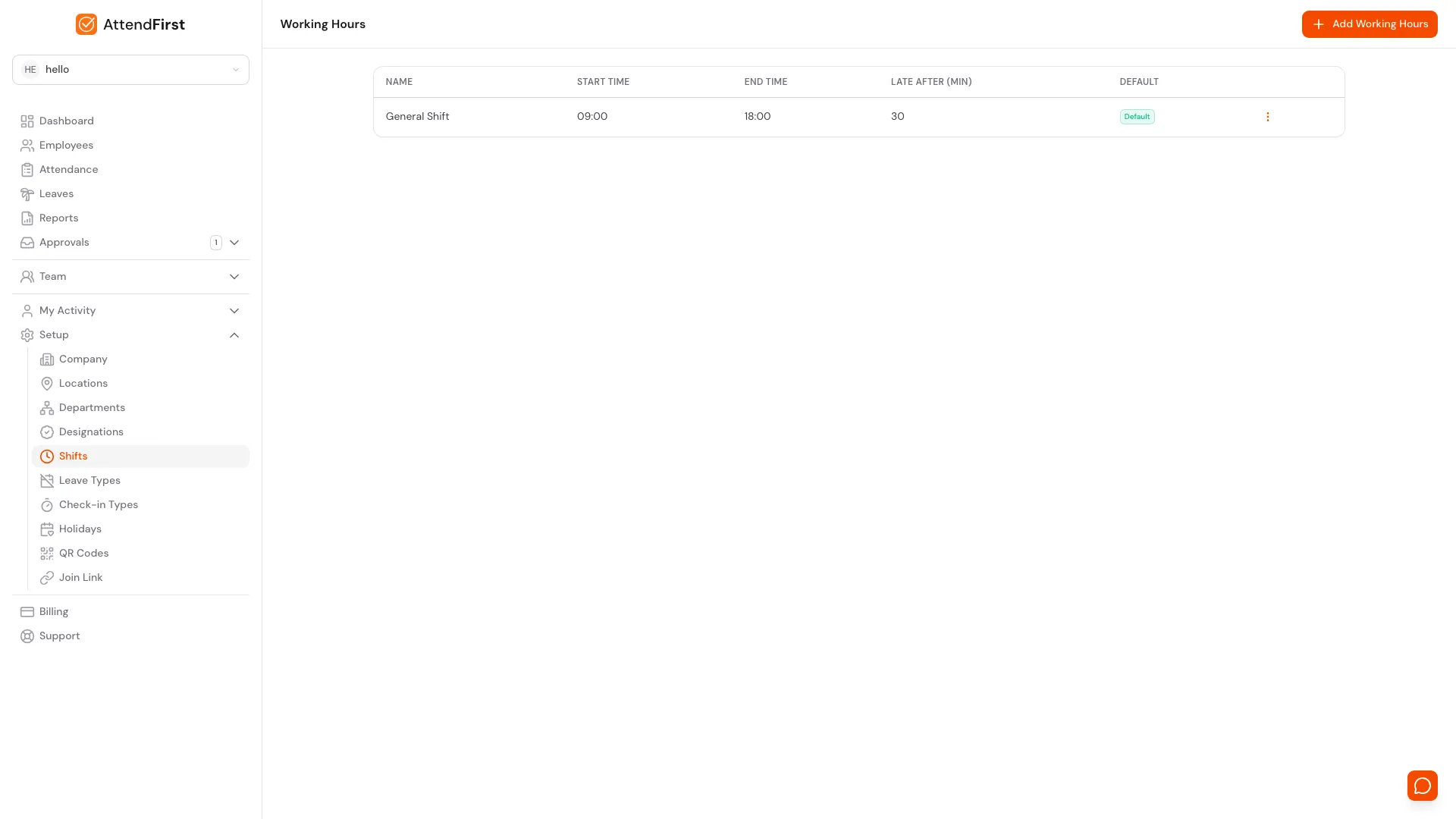
/admin/settings/working-hours. Every shift in one list under Setup → Shifts.
What a shift is
A shift has four settings:
| Setting | Purpose | Default |
|---|---|---|
| Start time | Expected check-in time | 09:00 |
| End time | Expected check-out time | 18:00 |
| Late threshold | Minutes after start time before a check-in counts as Late | 30 minutes |
| Half-day threshold | Minimum work time below which the day counts as Half day | 4 hours |
Every company starts with one shift called General Shift 09:00-18:00. You can edit it, rename it, or add more.
Creating more shifts
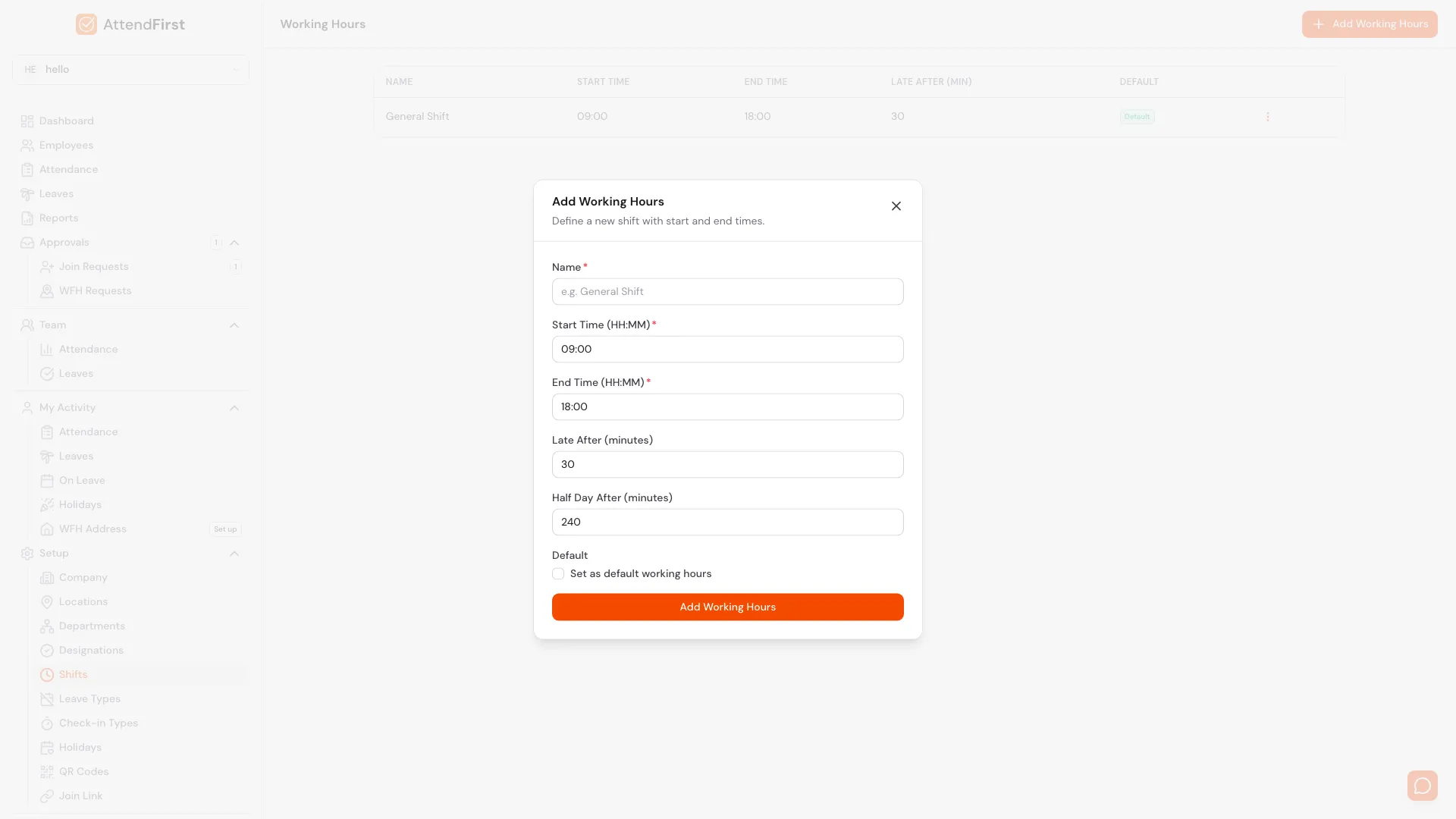
Click Add Working Hours to open this modal. Every threshold has a sensible default.
Click Add Working Hours in the top right. Typical setups:
- Morning Shift 06:00-14:00, late after 15 min
- General Shift 09:00-18:00, late after 30 min
- Night Shift 22:00-06:00, late after 15 min
- Half-day Shift 09:00-13:00, late after 15 min, half-day after 120 min
Shifts that cross midnight (like Night Shift) are supported. If the end time is earlier than the start time, AttendFirst treats it as the next day.
Assigning shifts to the work week
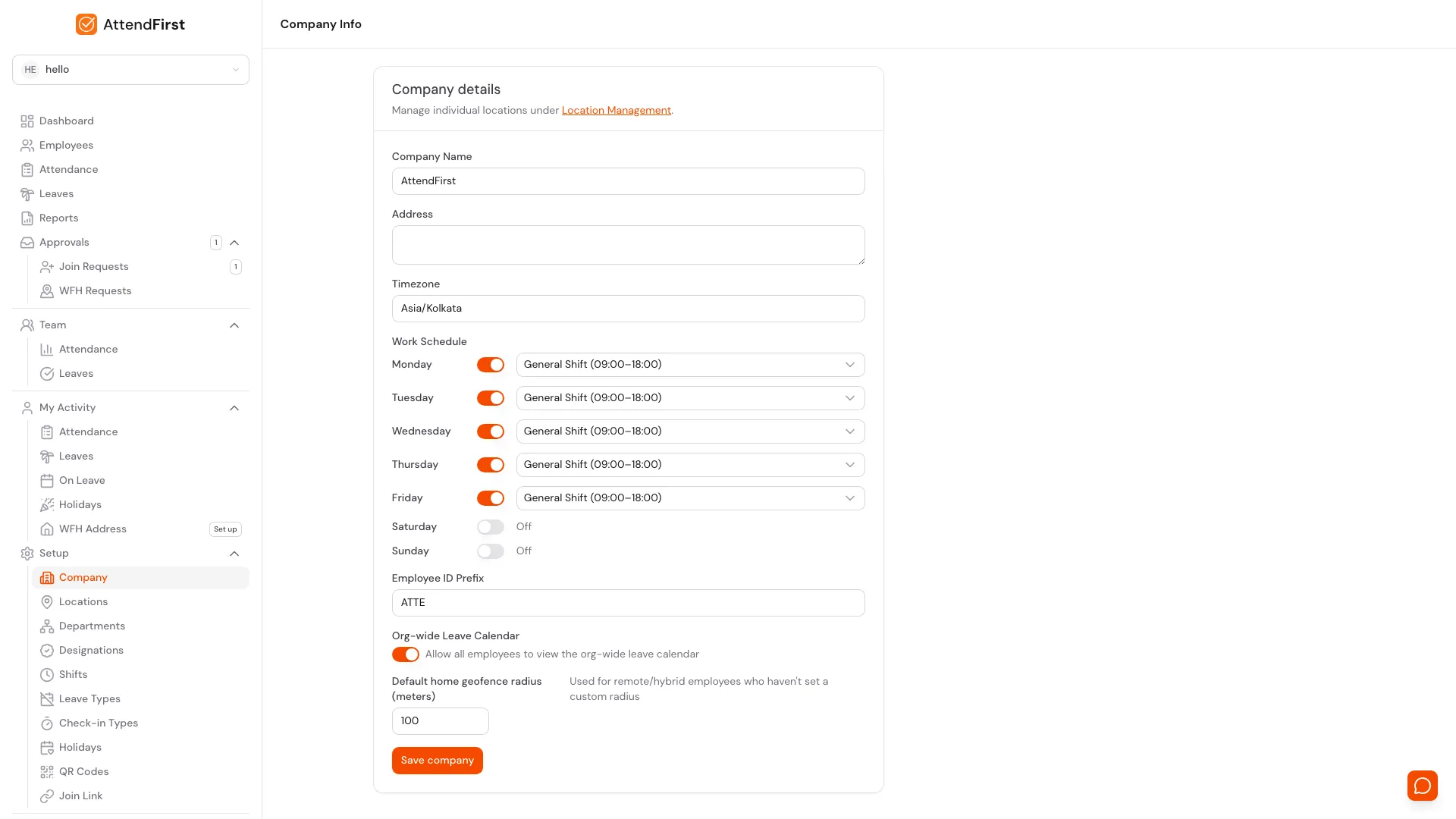
The Work Schedule sets which shift runs on each day of the week. Each day is either disabled (non-working) or enabled with a shift.
Default Indian SMB schedule:
| Day | Shift |
|---|---|
| Monday | General Shift 09:00-18:00 |
| Tuesday | General Shift 09:00-18:00 |
| Wednesday | General Shift 09:00-18:00 |
| Thursday | General Shift 09:00-18:00 |
| Friday | General Shift 09:00-18:00 |
| Saturday | Disabled |
| Sunday | Disabled |
Change the schedule under Setup → Company (Work Schedule section). Toggle a day with the pill button; tap the day to pick which shift applies.
You can assign different shifts to different days. For example, a half-day Saturday schedule with the Half-day Shift and General Shift Monday-Friday.
Timezones
Every company has a timezone on the settings page, defaulting to Asia/Kolkata. All shift calculations run in this timezone:
- A 09:00 start time means 09:00 in the company’s timezone, not UTC.
- Reminders and reports run at local clock time in your company’s timezone.
- Employees in a different physical timezone still check in against company time. If you have remote staff abroad, make the expectation clear.
Supported timezones: India, Sri Lanka, Bangladesh, Nepal, UAE, Singapore, United Kingdom, and US-East.
Per-employee shift overrides
The Work Schedule above is the organization default. Some employees work different hours - a night shift engineer, a part-time consultant, or a sales rep on Tuesday-Saturday. Override per employee from their profile:
- Open Employees and click the employee.
- Switch to the Shift tab.
- Pick Custom shift for this employee.
- Toggle working days on or off and pick which shift applies on each working day. Save.
The override replaces the org default for that employee only. Switching back to Use organization default removes the override.
Per-employee overrides apply to all attendance calculations for that employee: late thresholds, half-day cutoff, weekend detection. Everyone else continues to follow the org default.
How a day’s status is computed
Given a shift and an employee’s sessions for that day, AttendFirst decides the status in this order:
- If an approved leave covers the day → On leave.
- Else if a holiday covers the day → Holiday.
- Else if the day is not a working day → Weekend.
- Else if there are zero sessions → Absent.
- Else if total work time is below the half-day threshold → Half day.
- Else if the first check-in is after shift start plus the late threshold → Late.
- Else → Present.
See Attendance status reference for the full table.
Frequently asked questions
Can different employees have different shifts?
Yes. Open the employee profile, switch to the Shift tab, and pick Custom shift for this employee. The override stores per-day working days and shifts on that employee’s record. Everyone you have not overridden keeps following the org default.
What if we work alternate Saturdays?
Enable Saturday with the shift you want, then submit manual attendance entries for the off-Saturdays, marking those days as Holiday. Or add the off-days as company holidays under Setup → Holidays.
Can I change the late threshold mid-month?
Yes, but it only affects new check-ins. Past days keep their calculated status unless you recalculate manually.
Does AttendFirst handle overtime?
It tracks work time precisely, but there is no built-in overtime rate or automatic overtime classification. If you run payroll separately, export the CSV from Reports and apply overtime rules in Excel.
Related docs
- Check in and check out. How sessions get captured.
- Managing employees. Override the org-default shift per employee on the Shift tab.
- Holidays. Block specific dates from being working days.
- Attendance status reference. All possible status codes.
- Manual attendance. Override a calculated status.
Steps
- Open Shifts.Go to Setup → Shifts. The General Shift (09:00-18:00) ships by default.
- Click Add Working Hours.The Add Working Hours modal opens. Enter Name, Start Time, End Time, Late After (minutes), and Half Day After (minutes). Optionally mark as default.
- Save the shift.Click Save. Shifts that cross midnight (like 22:00 to 06:00) are supported - the system treats end-before-start as next day.
- Open Company settings.Go to Setup → Company. The Work Schedule section lists each day of the week with a shift selector.
- Assign shifts per day.Toggle any day on or off. For each working day, pick which shift applies. Defaults to Monday-Friday on General Shift, weekends off. Click Save to apply.
- Override for one employee.Open the employee profile and switch to the Shift tab. Pick Custom shift for this employee to override the organization default with a per-day schedule just for that person.
Frequently asked questions
Can different employees have different shifts in AttendFirst?
Yes. Open the employee profile, switch to the Shift tab, and pick Custom shift for this employee. The override stores per-day working days and shifts on that employee's record.
Does AttendFirst support night shifts that cross midnight?
Yes. When the end time is numerically less than the start time, AttendFirst interprets it as the next day. A 22:00-06:00 shift works correctly.
What if we work alternate Saturdays?
Enable Saturday with your preferred shift, then mark off-Saturdays as company holidays. The day becomes a non-working day and no one is marked absent.
Can I change the late threshold mid-month?
Yes, but it only affects new check-ins. Past days keep their calculated status unless you recalculate manually.
Does AttendFirst track overtime automatically?
It tracks work time precisely but does not classify overtime automatically. Export the CSV from Reports and apply overtime rules in Excel or your payroll software.