Session types in AttendFirst: work and break categories
Categorize check-ins as work or break types in AttendFirst. Control the Take Break and Switch activity pickers, and set per-type GPS and selfie rules.
Every check-in in AttendFirst belongs to a session type. Work sessions add to work minutes; break sessions add to break minutes. Session types fill the Take Break and Switch activity pickers on the mobile home screen, and each type can carry its own GPS and selfie rule.
What’s in the list (Setup → Check-in Types)
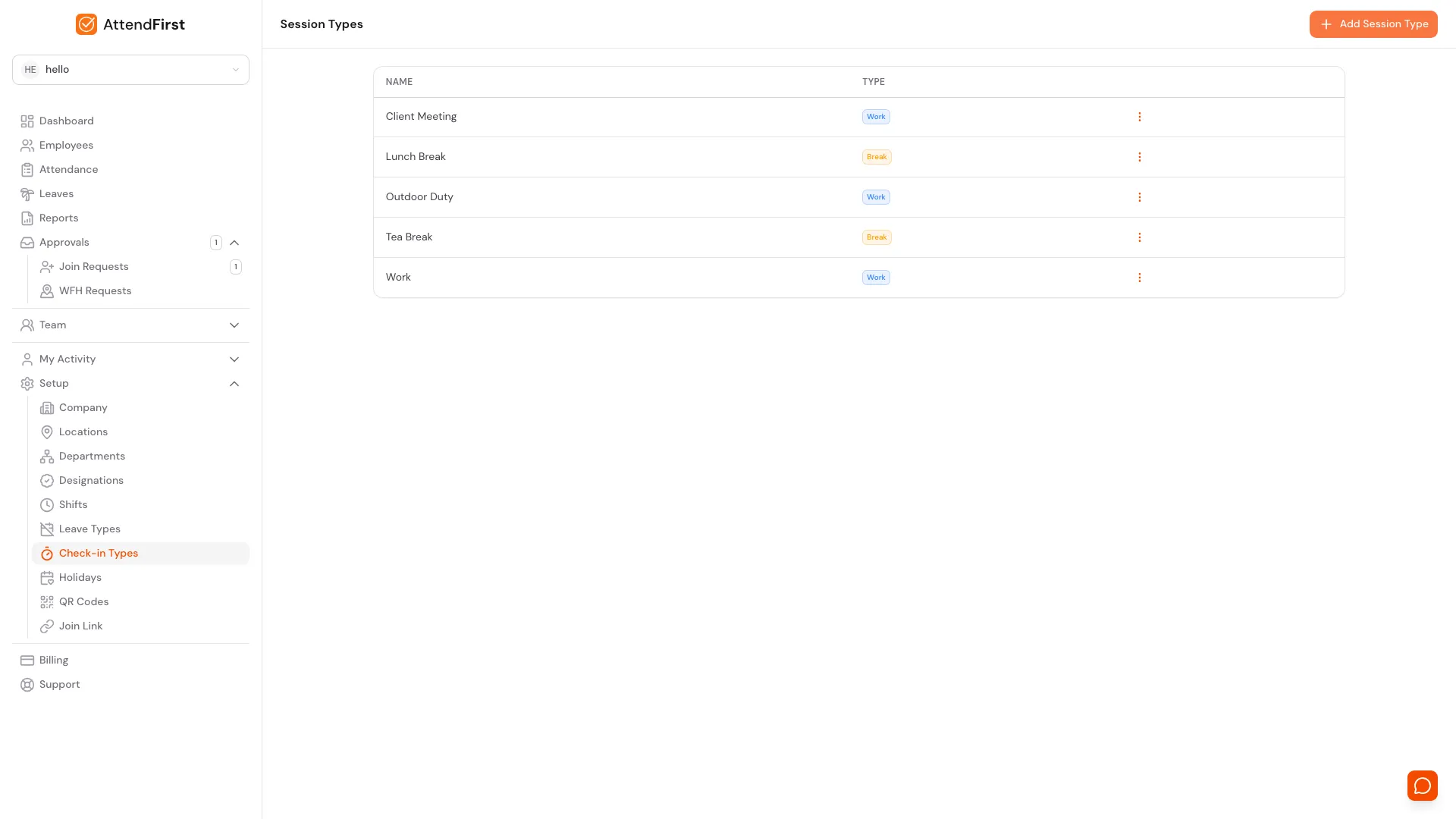
/admin/settings/session-types. Each row has a name and a Work or Break badge.
Go to Setup → Check-in Types. Each row shows the session name and a Work or Break badge. The name is what an employee sees when tapping Take Break or Switch activity on the mobile home screen.
Every new company starts with three defaults: Work, Lunch Break, and Tea Break. Add more to match how your team tracks time.
Adding a session type
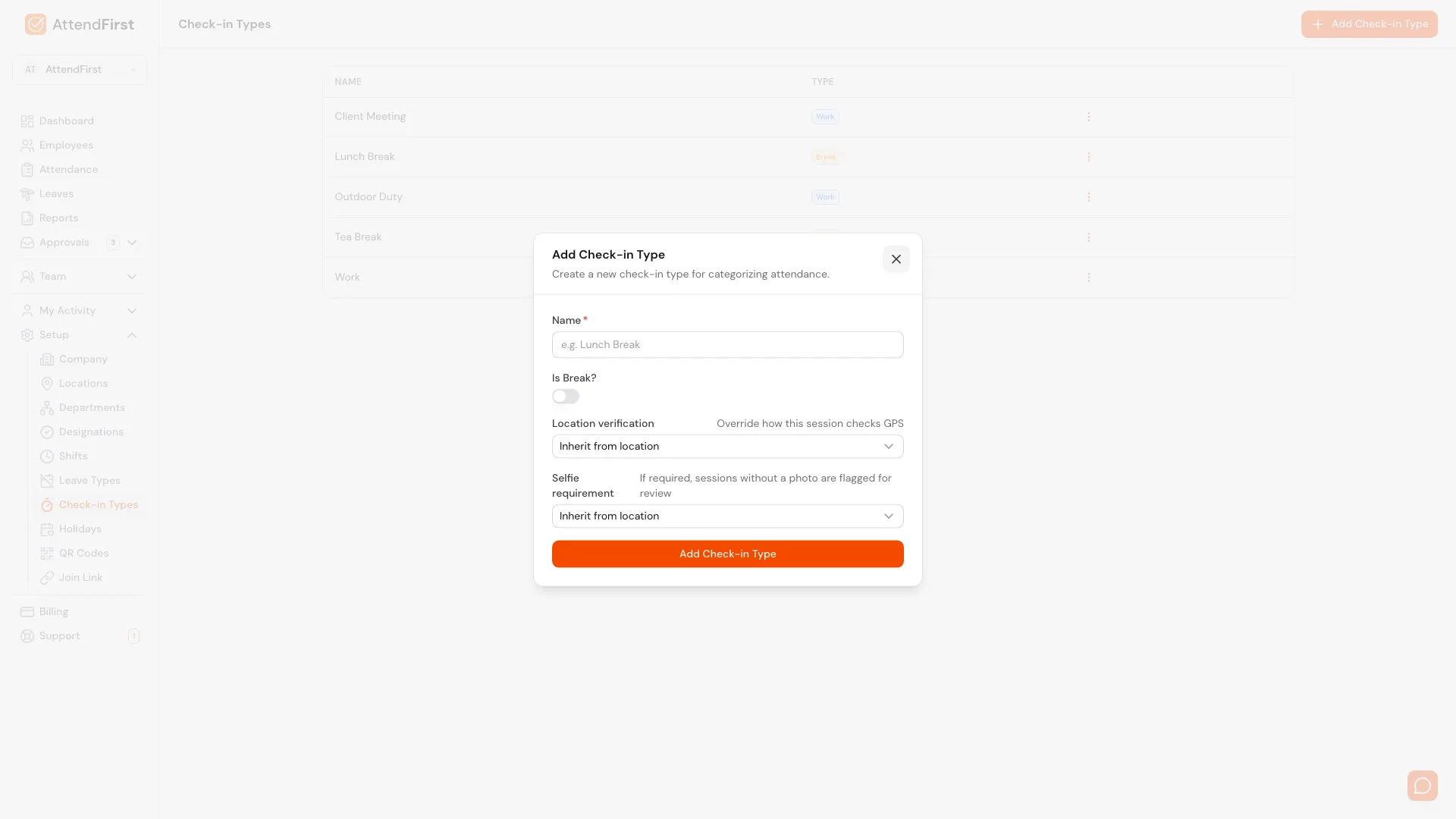
Click Add Check-in Type to open this modal. A name, a Work/Break toggle, and two override dropdowns.
Click Add Check-in Type in the top right. The modal has four fields:
- Name (required). Example: Site Visit, Client Meeting, Lunch Break.
- Is Break? Toggle off for a Work type (adds to work minutes). Toggle on for a Break type (adds to break minutes).
- Location verification. How this session type checks GPS. See below.
- Selfie requirement. Whether this session type forces a selfie. See below.
Click Add Check-in Type. The new category is available on every employee’s mobile home screen immediately.
Location verification and Selfie requirement
Both dropdowns override the rules of the employee’s location for this one session type. Each has three options:
| Option | What it does |
|---|---|
| Inherit from location | Uses the location’s Verify location or Require selfie setting. The default. |
| Skip - no verification | Turns the check off for this type, even if the location has it on. |
| Required - always check | Forces the check on for this type, even if the location has it off. |
Use Skip for a type where presence at a fixed spot does not apply - for example a Work From Home or Field type. Use Required for a type where it always matters - for example a Cash Counter type, even at a location that normally skips verification. A session set to Required selfie that has no photo is flagged for review.
How session types appear to employees
After an employee checks in, the first session is always Work. From there, two pickers on the mobile /m home screen change the active session type.
Take Break - switch to a break type
While working, the employee taps Take Break. The picker opens with every break session type. Picking one closes the Work session and starts a Break session. Tapping End Break closes the break and starts a fresh Work session.
Switch activity - switch to another work type
While working, if you have more than one work type configured, a Switch activity link appears under the working badge. Tapping it opens a picker of the other work types. Picking one closes the current work session and opens a new work session tagged with that type - no break in between.
This is how an employee logs that they moved from Work to a Site Visit, or from Client Meeting back to Work, without their break minutes being affected. If you have only one work type, the Switch activity link does not appear.
Work vs Break on reports
| Metric | What counts |
|---|---|
| Work minutes | Sum of every session tagged as a Work type |
| Break minutes | Sum of every session tagged as a Break type |
| Attendance % | Work minutes against shift length, per working day |
| Half-day | Triggered when work minutes fall below the threshold |
Only work minutes count toward attendance status. A 9-hour day with a 1-hour lunch is 8 hours of work - Present.
Typical session type setup
| Name | Type | Why |
|---|---|---|
| Work | Work | Default session after every check-in |
| Lunch Break | Break | Midday meal, usually 30-45 minutes |
| Tea Break | Break | Short morning / afternoon break, 10-15 minutes |
| Site Visit | Work | Field visit logged from the Switch activity picker |
| Client Meeting | Work | External meeting logged as a separate session for reporting |
| Outdoor Duty | Work | General field duty outside the office |
Start with the three defaults and add more as needed.
Renaming or removing a session type
Click the three-dot menu on any row:
- Edit: change the name, the Is Break toggle, or the two override dropdowns. Historical sessions keep their original tag; only new sessions use the updated definition.
- Delete: hides the type from future pickers. Historical sessions tagged with it are preserved and continue to roll up into work/break totals based on the flag at the time of creation.
Frequently asked questions
What comes pre-configured?
Three types: Work, Lunch Break, Tea Break. Edit, delete, or add more.
When does an employee actually pick a session type?
The first check-in of the day always starts a Work session. After that, Take Break switches to a break type and Switch activity switches to another work type. Both are on the mobile home screen.
What do the Location verification and Selfie requirement dropdowns do?
They override the GPS and selfie rules of the employee’s location for that session type only. Skip turns the check off, Required forces it on, and Inherit uses the location’s own setting.
Do break minutes affect pay or attendance status?
Breaks do not auto-deduct from pay - that happens in your payroll tool. Breaks do reduce work minutes, and if work minutes fall below the half-day threshold, the day’s status becomes Half day.
Can I delete a session type that was used in the past?
Yes. Deleting hides the type from future pickers. Historical sessions tagged with the deleted type are preserved and continue to show correctly on reports.
Does changing Is Break affect past sessions?
No. Past sessions keep their original classification. Only sessions created after the edit use the new flag.
Related docs
- Check in and check out. The employee-side flow where the Take Break and Switch activity pickers appear.
- Locations. The per-location Verify location and Require selfie settings that session types can override.
- Working hours and shifts. The half-day threshold that uses work minutes (not elapsed time).
- Reports and CSV export. Where work minutes and break minutes are summed separately.
Steps
- Open Session Types.Go to Setup → Check-in Types. Every session category your company uses is listed here.
- Click Add Check-in Type.A modal opens with a Name field, an Is Break toggle, and Location verification and Selfie requirement overrides.
- Fill in the fields.Name is what employees see in the Take Break or Switch activity picker. Toggle Is Break on for break time, off for work time. Leave the two override dropdowns on Inherit unless this type needs its own GPS or selfie rule.
- Save.Click Add Check-in Type. The new category is available on the mobile check-in screen immediately.
Frequently asked questions
What's the difference between a Work and a Break session type?
Work types (Work, Client Meeting, Site Visit) contribute to work minutes and count toward daily work-hour totals. Break types (Lunch Break, Tea Break) contribute to break minutes. They sit separately on the daily report.
What session types ship by default?
AttendFirst ships with three defaults - Work, Lunch Break, and Tea Break. Edit or delete them and add your own.
Can an employee pick a session type when they check in?
The first check-in of the day always starts a Work session. After that, Take Break switches to a break type and Switch activity switches to another work type, both from the mobile home screen.
What do the Location verification and Selfie requirement dropdowns do?
They override the GPS and selfie rules of the employee's location for this one session type. Skip turns the check off for this type, Required forces it on, and Inherit uses whatever the location is set to.
Can I delete a session type with historical data?
Yes. Deleting a session type hides it from future pickers. Historical sessions tagged with that type are preserved on reports and audit trails.