My profile in AttendFirst: view details and change photo
The AttendFirst employee profile. View your name, employee code, department, designation, phone, and email. Change your profile photo from your phone.
The Profile sheet shows your own record in AttendFirst. Open it on your phone to see your name, avatar, department, designation, employee code, phone, email, and joining date.
Opening the profile
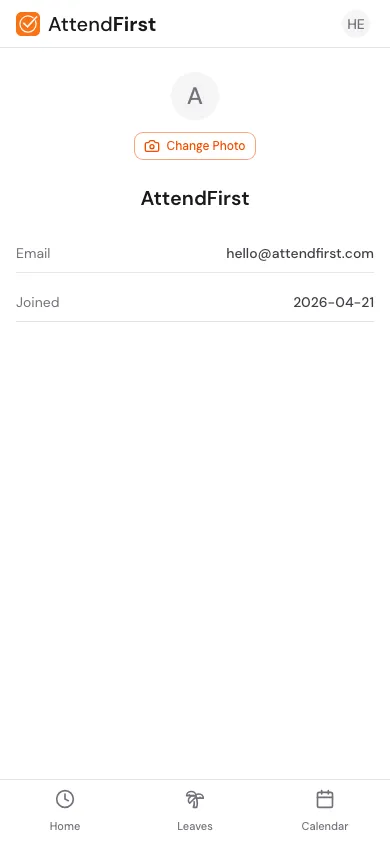
The mobile profile sheet at /m/profile. Tap your avatar in the top right of the mobile home to open it.
Open AttendFirst on your phone and tap your avatar in the top-right corner of the home screen. That opens the profile sheet.
The profile shows:
- Avatar: your profile photo, or your initials if no photo is set. Tap Change Photo to upload one.
- Name: your full name.
- Designation: your job title, if set by your admin.
- Employee Code: your internal employee code (optional).
- Department: your department, if set.
- Phone: your phone number, if set.
- Email: the email you use to sign in.
- Joined: your joining date. Used to pro-rate leave quotas in the joining year.
Optional fields only appear once filled in. A new employee sees just the name, email, and joined date until their admin adds the rest.
Changing your photo
Tap Change Photo. Your phone opens the camera or photo picker. On iOS, you get the native action sheet with “Take Photo” and “Photo Library” options. On Android, the same two options appear.
- Supported formats: JPEG, PNG, WebP.
- Maximum size: 10 MB.
- The new photo appears instantly on your profile, in attendance lists, and in the leave calendar.
What admins can update
Admins (not employees) manage these fields from Employees → your name → Edit:
- Name
- Employee code
- Department
- Designation
- Phone
- Joining date
- Manager
Email changes happen through a separate flow. See Managing employees for the admin side, and Admin account for admins changing their own login email.
Desktop
There is no dedicated desktop profile page. Your avatar, name, and email are shown in the top-right user menu in the console. To see or update the full profile card, open app.attendfirst.com/m/profile on a phone browser.
Frequently asked questions
Can I update my own phone or department?
No. Those fields are managed by your admin. This keeps payroll exports accurate and prevents accidental edits.
Where is the desktop profile page?
There is no dedicated desktop view. The top-right user menu shows your name, avatar, and a sign-out action. For the full profile card, use the mobile route.
What file types are accepted for the profile photo?
JPEG, PNG, WebP. Up to 10 MB. Larger photos are compressed automatically by AttendFirst’s storage pipeline.
Why don’t Department or Designation appear on my profile?
They are optional fields. They only show once your admin has set them. Ask your admin to add them if your company uses those categories.
Can I change my email?
Employees cannot. Admins can change their own under Admin account. For employees, ask your admin to update it under Employees → your name → Change Email.
Related docs
- Check in and check out. Day-to-day use of the mobile home.
- Managing employees. Admin-side view of employee records.
- Admin account. Admins changing their login email.
- Push notifications. Also enabled from the profile sheet.
Steps
- Open your profile.On mobile, tap your avatar in the top right of /m to open the profile sheet. On desktop, your profile is shown inline in the sidebar and there is no dedicated profile page.
- Change your photo.Tap Change Photo, pick an image from your gallery or take a selfie, and the new photo appears everywhere AttendFirst shows your avatar.
- Ask admin to update name, phone, or department.Those fields are managed by your admin. Ask them to edit your record under Employees → your name → Edit.
Frequently asked questions
Can I change my own name or phone number in AttendFirst?
Not directly. Those fields are managed by your admin to keep payroll exports accurate. Ask your admin to edit your employee record.
Where is the profile page on desktop?
There is no dedicated desktop profile page. Your name, avatar, and email appear in the top-right user menu. For the full profile card, open /m on a phone browser.
What file types can I upload as a profile photo?
JPEG, PNG, and WebP. Photos are compressed and served through AttendFirst's R2 storage. Size limit: 10 MB.
Why don't I see a Department or Designation?
Those fields are optional. They only appear in the profile if your admin has set them. Ask your admin to add them if your company uses those categories.
Can I change my email from my profile?
No. Employees cannot change their own email. Admins change their own under user menu → Login Email; employee emails are changed by admins under the Change Email action on the employee record.