Attendance reports and Excel export in AttendFirst
Daily and monthly AttendFirst attendance reports with one-click CSV export for payroll. Filter by date range, department, or individual employee name.
Reports has three attendance views - daily, monthly, and per-employee - plus a one-click CSV export that downloads everything visible on screen. The CSV is UTF-8 with a BOM so Excel on Windows opens Indian names correctly.
Daily report
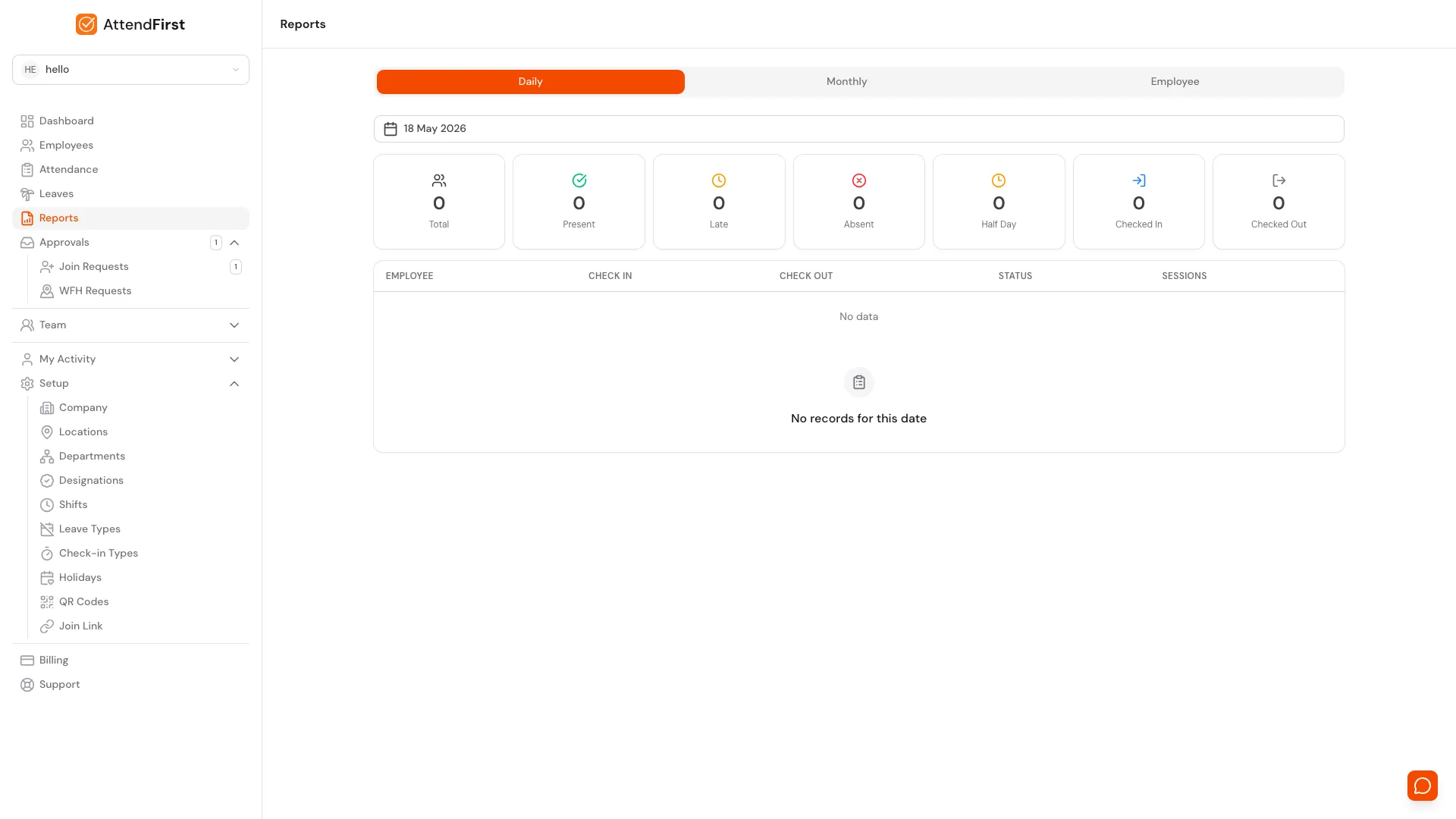
Reports → Daily. Pick any date. The top row shows seven counts: Total, Present, Late, Absent, Half Day, Checked In, Checked Out. The table below lists every employee with:
| Column | Meaning |
|---|---|
| Employee | Name and employee code |
| Status | Present, Late, Half day, Absent, On leave, Holiday |
| First check-in | Earliest session start time |
| Last check-out | Latest session end time |
| Work hours | Total minutes in non-break sessions, displayed as h:mm |
| Break hours | Total minutes in break sessions |
| Sessions | Count of check-in/out pairs for the day |
The report defaults to today. Use it at end-of-day to spot who forgot to check out or who came in late.
Monthly report
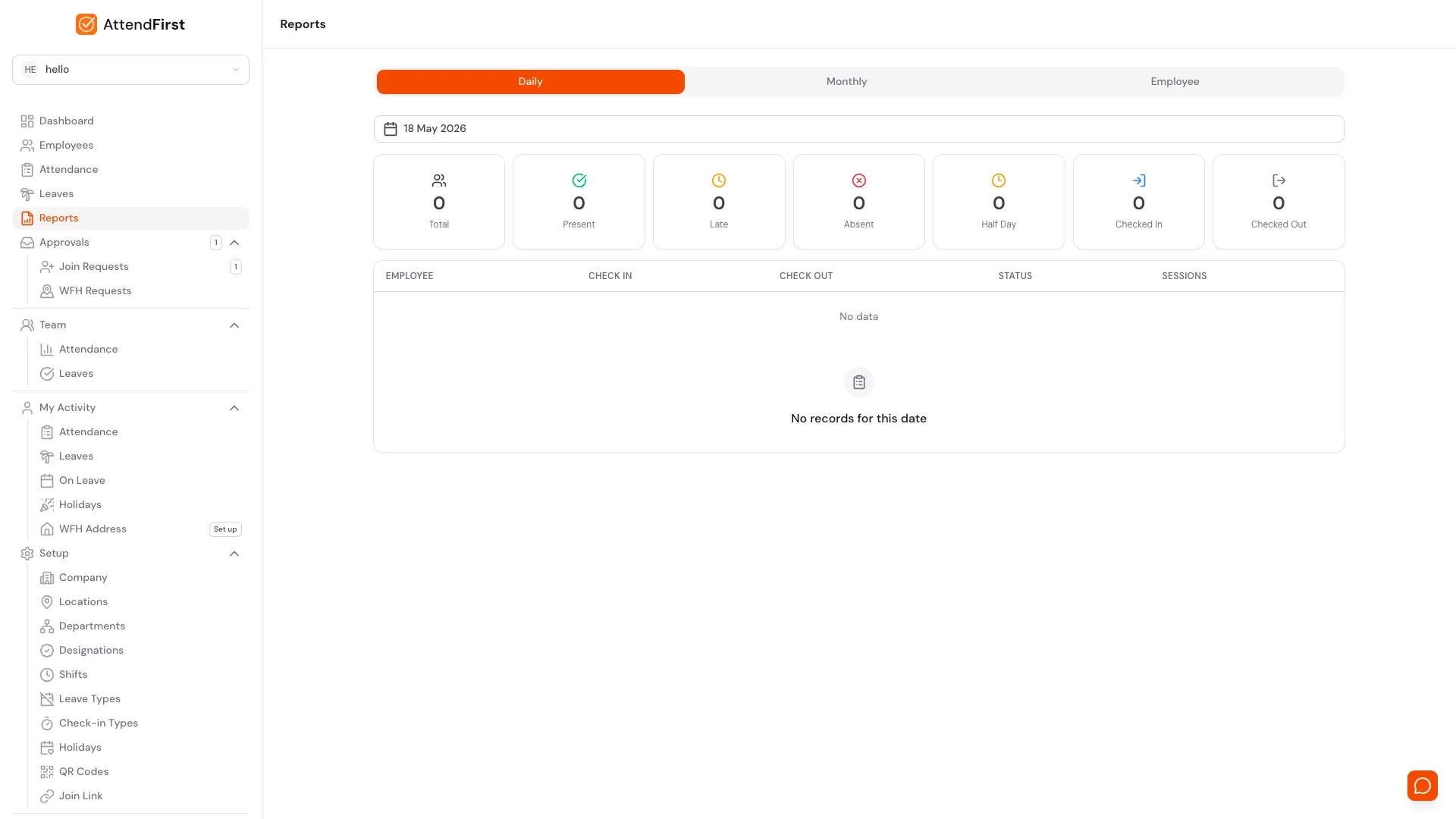
Monthly tab. One month at a time with an Export CSV button in the top right.
Reports → Monthly. Pick a month with the prev/next arrows. You get a row per employee with aggregated counts:
| Column | Meaning |
|---|---|
| Present days | Days with status Present or Late |
| Late days | Days with status Late (subset of Present) |
| Half days | Days with status Half day |
| Absent days | Days with status Absent |
| Leave days | Days with status On leave |
| Holidays | Holidays in the month |
| Weekends | Non-working days in the month |
| Total work hours | Sum of work minutes across the month |
This view is what most teams use for monthly payroll.
Employee report
Reports → Employee. Pick an employee from the dropdown, choose a date range, and see the same KPI cards and attendance history as their profile page, scoped to that range. Use this for one-on-one reviews or payroll reconciliation for a specific person.
CSV export
Every report has a Export CSV button top right. The CSV contains every visible column plus a few extras (employee email, department, manager) so you can pivot or sort in Excel.
Filename format: attendfirst-{reportType}-{companySlug}-{dateRange}.csv. Example:
attendfirst-monthly-acme-2026-04.csv.
The file is UTF-8 with a BOM. Dates are YYYY-MM-DD, times are HH:MM in company timezone.
Filtering
Both reports support filters:
- Date range: a calendar picker. Monthly report is month-at-a-time; daily is any single day.
- Department: dropdown of your departments.
- Employee: multi-select to compare specific people.
- Status: filter to a subset of statuses (for example, only show Late and Absent).
Filters apply to both the on-screen view and the CSV export.
Live dashboard vs reports
The admin dashboard has a today summary and a 7-day trend chart that refresh whenever you open or refocus the tab. These are for at-a-glance checks, not for payroll. Use Reports for anything you need to audit, share, or archive.
Frequently asked questions
Can I export a date range across multiple months?
Yes, but only from the daily report with a custom date range. The monthly report is one month at a time by design.
Why does the CSV sometimes show fewer rows than the on-screen report?
Filter state is preserved in the export. If you filter by department “Sales” and then export, only Sales rows are written. Clear filters before exporting if you want the full company.
Can I email the report on a schedule?
The daily report is emailed to the admin automatically at 7 PM company time. A weekly summary goes out every Monday 9 AM, unless the company had zero attendance that week.
Does the CSV include GPS coordinates?
No. The CSV omits latitude and longitude, so you can share the file without revealing where anyone was. To see a punch on a map, open the daily attendance page, which shows the GPS and selfie details for each session.
The CSV does report the result of location verification, in three columns:
Check In GPS:Yesif every check-in punch that recorded a location was inside the geofence,Noif any failed, and-if no punch recorded one.Check Out GPS: the same answer for the check-out punches.GPS Reason: why aNohappened, such asout_of_radius,denied, orlow_accuracy. On a day where every punch passed, the column reports the first passing reason instead, such asin_radius, so read it together with the two columns before it.
These columns describe the whole day rather than a single punch, so a day with a clean 9 AM punch
and a 2 PM punch 300 meters away reads No. To find every day with a location problem in a month,
filter on these columns.
How accurate are the hour totals?
Down to the second, rounded to the minute for display. Every session has a precise start and end timestamp, and reports sum the differences.
Related docs
- Check in and check out. Where the raw attendance data comes from.
- Working hours and shifts. How status is decided before it rolls into a report.
- Manual attendance. Backfill past days so reports match reality.
Steps
- Open the Reports section.Go to Reports. Three tabs are available - Daily, Monthly, and Employee.
- Pick the report type.Use Daily for a single date, Monthly for a calendar month summary per employee, or Employee for one person's attendance across a date range.
- Apply filters.Narrow the view with Department, Employee (multi-select), and Status filters. Filters persist in the URL so you can bookmark or share a specific view.
- Click Export CSV.The Export CSV button in the top right downloads the current view. The file is UTF-8 with a BOM so Excel opens Indian names correctly. Dates are YYYY-MM-DD in company timezone.
- Open in Excel for payroll.The filename follows the pattern attendfirst-{type}-{company}-{range}.csv. Paste into your payroll spreadsheet or upload to Keka, greytHR, or Zoho for processing.
Frequently asked questions
Can I export AttendFirst attendance data to Excel?
Yes. Every report has an Export CSV button. The file is UTF-8 with a BOM so Excel on Windows opens Indian names correctly. Dates are YYYY-MM-DD in company timezone.
Does AttendFirst email attendance reports automatically?
Yes. The daily report emails to the admin at 7 PM company time. A weekly summary goes out every Monday at 9 AM, unless the company had zero attendance that week.
Can I export attendance across multiple months?
Yes, using the daily report with a custom date range. The monthly report is one month at a time by design.
Does the AttendFirst CSV include GPS coordinates?
No. The CSV omits latitude and longitude, so you can share the file without revealing where anyone was. It does report whether each day passed location verification, in the Check In GPS, Check Out GPS, and GPS Reason columns.
How accurate are AttendFirst hour totals?
Down to the second, rounded to the minute for display. Every session stores precise start and end timestamps and reports sum the deltas.