GPS, selfie and QR attendance check-in for employees
How employees mark attendance in AttendFirst using GPS, selfie, or QR check-in. Covers multiple daily sessions, breaks, late detection, and half-day rules.
Open AttendFirst on your phone, tap Check In, and the browser captures your GPS in about a second. Turn on the Selfie toggle if your admin wants photo proof too. You can check in and out as many times as you need during the day. Work sessions, breaks, and field visits all count separately. Nothing to install. It runs in any browser on Android, iPhone, or desktop.
The mobile check-in screen
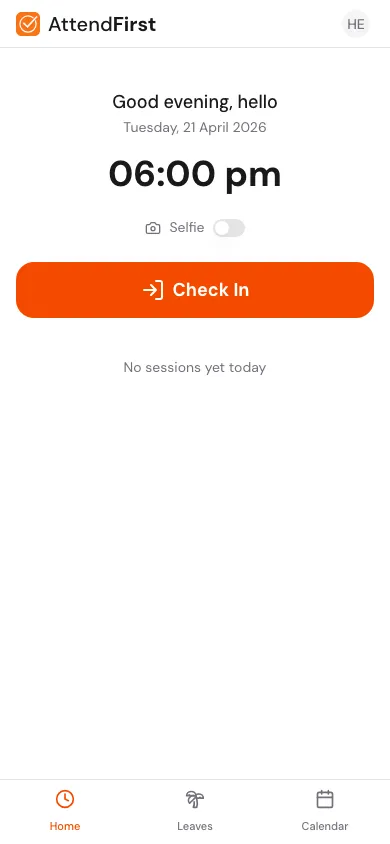
The mobile home at app.attendfirst.com/m. Tap the orange Check In button to capture your GPS and start a work session.
Open app.attendfirst.com/m on any phone browser. The screen has four zones, top to bottom:
- Greeting + clock:
Good morning/afternoon/evening, <name>, today’s date, and the live time in 12-hour format. The clock ticks every second. - Selfie toggle: turn on to require a selfie with every check-in. The toggle is remembered per device in local storage, not synced to the account.
- Home location banner (remote and hybrid employees only): a prompt to pin where you work so check-ins can be verified. See Home locations.
- Primary action button: one of Check In, Take Break + Check Out, or End Break, depending on your current state (see below).
- Today’s Sessions: a live list of sessions for today. A pulsing green dot marks the open session. Tap the list to see all sessions with start and end times and durations.
A bottom nav bar switches between Home, Leaves, and Calendar.
How check-in works
Tap Check In. AttendFirst does one of two things, depending on the Selfie toggle:
- Selfie off (default): the browser asks for location permission on first use, then silently captures GPS coordinates. The check-in completes in about one second.
- Selfie on: a full-screen camera opens. Tap the shutter, review the frame, and tap Use Photo. The selfie and GPS are sent together.
If the check-in cannot get GPS it still goes through; it is never blocked. What you see depends on why GPS failed:
- Permission denied: a Location unverified banner appears with a How to enable link. The check-in is saved and your admin reviews it.
- GPS unavailable (hardware or network failure): a warning toast says the check-in was recorded without GPS.
- GPS timed out after 10 seconds, common indoors: a warning toast says location took too long. The check-in is recorded without GPS.
A successful check-in flashes a green Checked in! toast and the button layout flips to the Working state.
States and buttons
AttendFirst never shows more than two buttons at once. The mobile home adapts to your current state:
| State | What you see | What tapping does |
|---|---|---|
| Not checked in | Big Check In button | Starts your first work session |
| Working | Activity badge + a Switch activity link + Take Break and Check Out | Take Break opens the break picker; Switch activity opens the work-type picker; Check Out closes the day |
| On break | On <break name> Xh Ym warning badge + End Break |
Closes the break session and starts a new work session automatically |
| All sessions closed | Today’s In/Out times + Check In Again | Opens a new work session |
The Take Break picker shows whatever break types the admin has configured under Check-in Types (common examples: Lunch Break, Tea Break).
Switch activity
While you are working, a Switch activity link sits under the activity badge - as long as your company has more than one work type. Tap it to move from one work type to another, like Work to Site Visit, without taking a break. It closes the current work session and opens a new one tagged with the type you picked. Your break minutes are untouched.
Multiple sessions per day
You can check in and out any number of times in one day. Each session is one row in the sessions list. Work minutes and break minutes are totaled separately.
| Time | Action | Session |
|---|---|---|
| 09:05 | Check In | Work |
| 13:00 | Take Break → Lunch Break | Lunch Break |
| 13:40 | End Break | Work |
| 16:00 | Take Break → Tea Break | Tea Break |
| 16:15 | End Break | Work |
| 18:10 | Check Out | (session closes) |
The day’s record shows 8 h 30 m worked, 55 m on break, status Present.
The desktop view
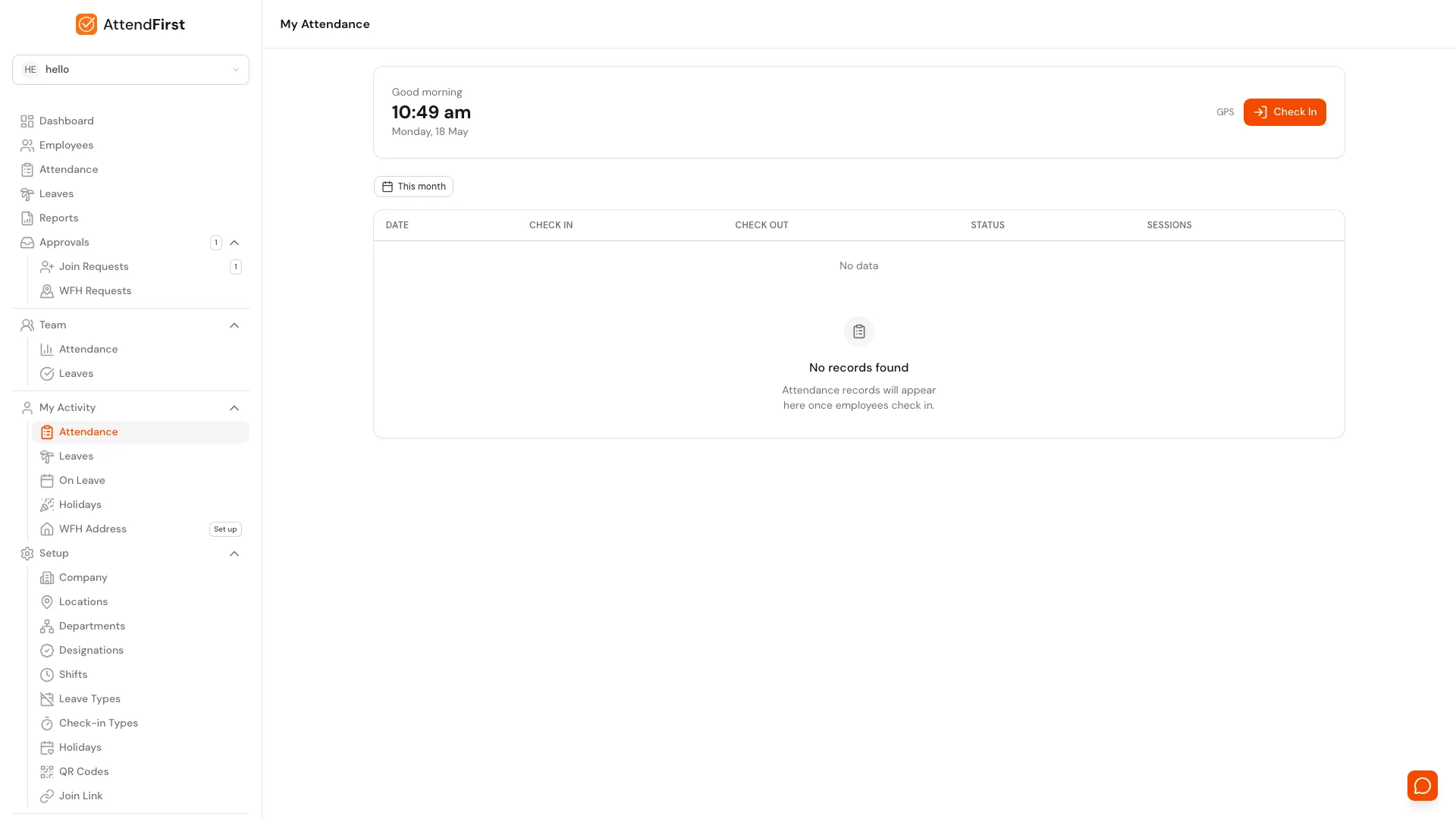
The desktop attendance page at app.attendfirst.com/attendance. Same check-in card as mobile, with your full attendance history in the table below and a date-range filter at the top.
The desktop route app.attendfirst.com/attendance has the same check-in card plus a history table. Use the This month filter to switch between date ranges. Each row shows date, first check-in, last check-out, status, and the number of sessions. For the full day-by-day rules behind the status column, see Attendance status reference.
Late, half-day, and absent
Attendance status is calculated from the first check-in against the shift assigned to that day of the week.
- Present: first check-in is within the shift’s grace window.
- Late: first check-in is after the late threshold (default 30 minutes after shift start).
- Half day: total work time is less than the half-day threshold (default 4 hours).
- Absent: no check-in at all on a working day, with no approved leave.
- On leave: the day falls inside an approved leave request.
Thresholds are configured per shift. See Working hours and shifts.
Frequently asked questions
Can I check in without GPS or a selfie?
The Selfie toggle defaults to off. If you leave it off and deny location permission, the check-in
is recorded with method manual and no location proof. Your admin can still see the timestamp and
the attempt.
What if my location is wrong?
GPS uses the browser’s built-in location service. Indoors with a weak signal, it can drift by a few hundred meters. Toggle Selfie on for a second proof of presence, or move near a window and retry.
What happens if I forget to check out?
The open session stays open. Your admin can close it from the /admin/attendance page. Work time is calculated from check-in to whenever the session was closed (not to the end of the day), so forgetting to check out can still cost work hours. Set a 6 PM phone reminder if this keeps happening.
Can my admin backdate attendance for me?
Yes. See Manual attendance. Admins can backfill any date with a status and work hours. Useful for days when the phone was dead or the internet was down.
Do I need to install an app?
No. Open AttendFirst in Chrome, Safari, or any modern mobile browser, sign in, and use it like any website. On Android, you can also install the AttendFirst app from Google Play. On iPhone, tap the share menu and Add to Home Screen for a one-tap icon. See Install AttendFirst.
I’m the admin. Do I check in the same way?
Yes. Admins are also employees. The same /m and /attendance routes work for anyone with a login.
Related docs
- QR attendance setup. Give your team a fixed check-in point with a printable QR or a tablet station.
- Kiosk mode and QR check-in. What the scan flow looks like for employees.
- Onboarding. Set up the company before the first check-in.
- Working hours and shifts. Configure shift timings, late rules, and half-day rules.
- Session types. Configure what appears on the Take Break picker.
- Manual attendance. Admin backfill for missed days.
- Home locations. How remote and hybrid employees verify check-ins from home.
- Attendance status reference. Full list of statuses and what each one means.
Steps
- Open AttendFirst on your phone.Open app.attendfirst.com/m in any mobile browser (Chrome, Safari, Edge). No app install needed. Tap Add to Home Screen for one-tap access next time.
- Tap Check In.The big orange Check In button sits in the middle of the screen. With Selfie off, the browser silently captures GPS in about a second. With Selfie on, the front camera opens for a photo.
- Allow location if asked.The first tap asks for location permission. Allow it so check-ins can be verified. If location is denied, the check-in still records as manual and your admin sees it flagged.
- Take breaks during the day.Tap Take Break while working to switch to a break session type (Lunch, Tea, Site Visit). Tap End Break to return to work. Break minutes are tracked separately from work minutes.
- Tap Check Out before leaving.The Check Out button replaces Take Break once you are working. Tap it to close the day's session. Forgetting to check out leaves the session open until the location's max session duration (12 hours for new locations).
Frequently asked questions
Can I check in without GPS or a selfie?
Yes. The Selfie toggle is off by default, so AttendFirst only asks for GPS. If you also deny location, the check-in still records but is marked "manual" with no location proof, and your admin sees the flag.
What happens if I forget to check out of AttendFirst?
The session stays open. The admin can close it from /admin/attendance. Work time is calculated from check-in to whenever the session was closed, not to the end of the day, so forgetting to check out can cost you work hours.
Can the admin backdate attendance for me?
Yes. Admins can backfill any date with a status and work hours. See Manual attendance. Useful for days when the phone was dead or the internet was down.
Do I need to install an app to use AttendFirst?
No. AttendFirst works in any mobile browser (Chrome, Safari, Edge). On Android, you can also install the AttendFirst app from Google Play. On iPhone, tap Add to Home Screen for one-tap access.
How does AttendFirst detect late arrivals?
The first check-in of the day is compared to shift start plus the late threshold (default 30 minutes). If it's after, the day's status becomes Late. Thresholds are configurable per shift.
How does AttendFirst handle breaks?
Tap Take Break while working to switch to a break session type. Tap End Break to return to work. Break minutes are tracked separately from work minutes.