Install AttendFirst on Android, iPhone, or desktop
Get the AttendFirst app from Google Play on Android, add it to the home screen on iPhone, or install it on desktop. Opens full-screen and updates the same day.
AttendFirst has an Android app on Google Play. On iPhone and iPad, you add AttendFirst to the home screen from Safari. On desktop, you install it from Chrome, Edge, or Brave. Every version has its own icon, opens full-screen, and gets updates on the same day they ship.
This page covers installing on Android, iPhone, iPad, and desktop, and what changes after you install.
Install it yourself, or share the link
To install on the Android phone you’re reading this on, tap Get it on Google Play. To set up your team, copy the link below and send it on WhatsApp. The link opens the AttendFirst listing on Google Play.
https://attendfirst.com/installAndroid phones open Google Play. iPhone users add AttendFirst to the home screen from Safari.
iPhone users can’t install from Google Play. Send them to Install on iPhone or iPad instead.
What an installed AttendFirst looks like
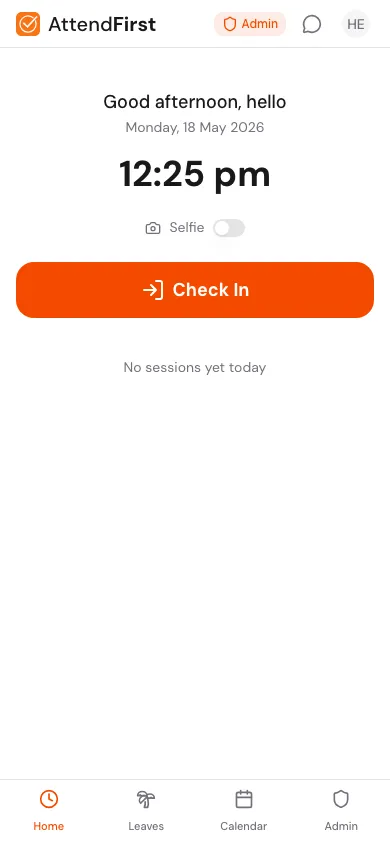
Mobile home after installing. Tap Check In, request leave, or open the calendar.
The app opens with no browser address bar. The bottom tabs (Home, Leaves, Calendar, and an Admin tab for admins and managers) are always one tap away. This is the screen most employees use every day - check-in, leave request, and calendar all live here.
Install on Android
- Open the AttendFirst listing on Google Play, or search for AttendFirst in the Play Store app.
- Tap Install.
- Tap Open, then sign in with your AttendFirst account.
The AttendFirst icon appears in your app drawer and home screen. Open it like any other app.
Install on iPhone or iPad
AttendFirst is not on the App Store. Add it to the home screen from Safari instead.
- Open Safari and go to
app.attendfirst.com. Sign in. - Tap the Share icon at the bottom of Safari (the square with the up-arrow).
- Scroll the share options and tap Add to Home Screen.
- Confirm the name as
AttendFirstand tap Add in the top-right.
The icon lands on your home screen. Open it from there, not from Safari, so push notifications work and the app shows full-screen.
Chrome and Firefox on iPhone also work, but Add to Home Screen is faster from Safari and is the only path that enables push notifications on iOS.
Install on desktop
AttendFirst also installs as a desktop app on Chrome, Edge, and Brave.
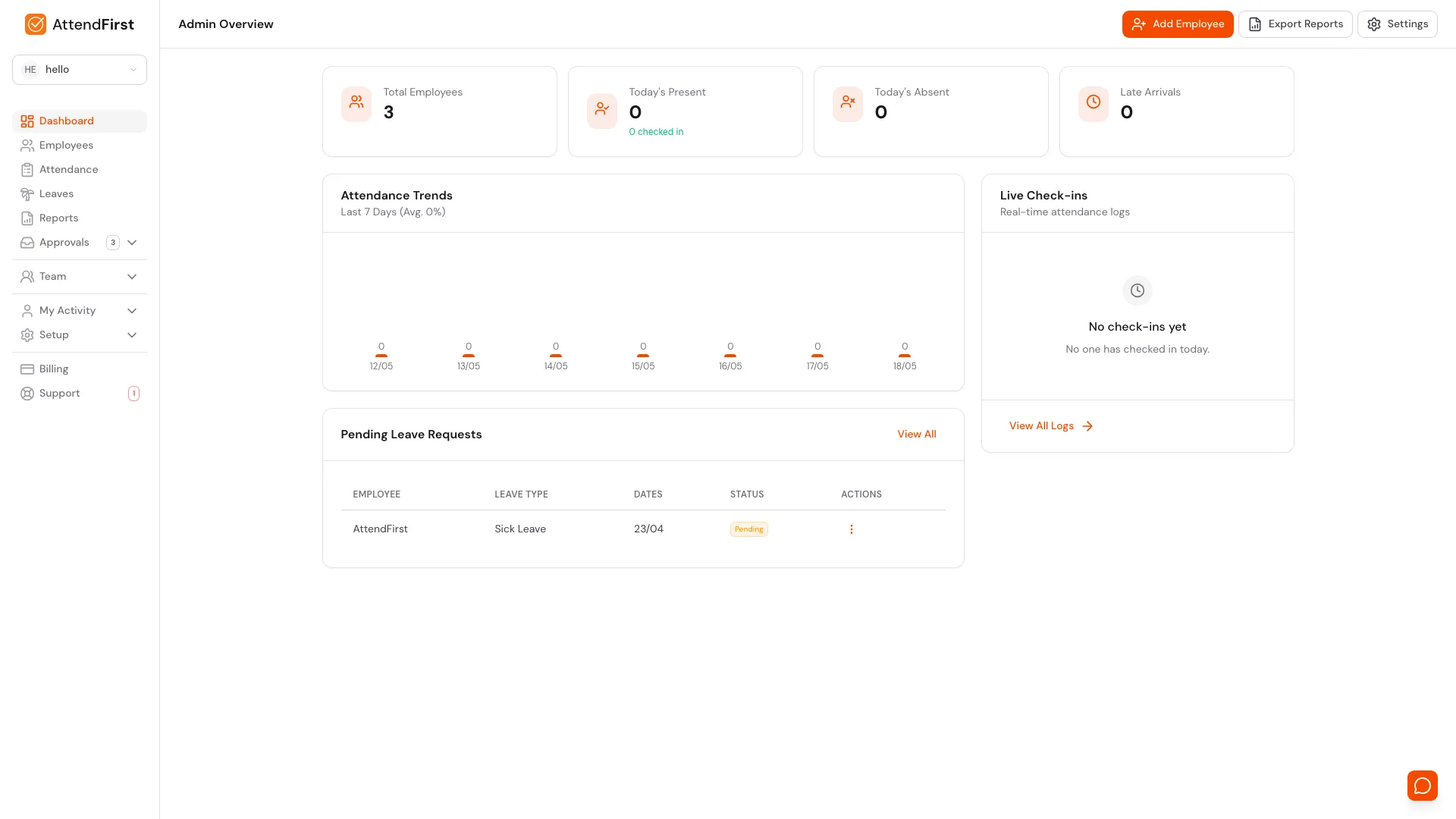
Desktop dashboard after install. Same app, runs in its own window with no browser chrome.
- Open Chrome, Edge, or Brave and go to
app.attendfirst.com. Sign in. - Look for the install icon in the address bar - a small monitor with a down-arrow.
- Click it, then click Install.
The app launches in its own window with no browser tabs or address bar. It also shows up in your Mac Dock, Windows Start menu, or Linux app launcher.
What changes after you install
- Home screen icon. AttendFirst sits next to WhatsApp and Gmail with the orange logo.
- No browser bar. The app uses the full screen.
- Push notifications on iPhone. iOS only delivers push to apps added to the home screen. After you add it, leave approvals arrive as phone notifications.
- Faster open. The app shell is cached on first open, so the home screen loads even on a slow network.
- Same-day updates. New features reach the app the day they ship. You don’t need to update anything.
The same URL (app.attendfirst.com) keeps working in any browser, and admins can
switch between the browser and the installed app whenever they want.
Frequently asked questions
Is there an AttendFirst app on the Play Store or App Store?
Yes on Android. Install AttendFirst from
Google Play.
There is no App Store app. On iPhone, open app.attendfirst.com in Safari and tap
Share, then Add to Home Screen. You get the same icon, full-screen view, and
features.
Does the AttendFirst app look like a real mobile app?
Yes. The app opens with its own icon and runs full-screen with no browser bar or tabs. The home, leaves, calendar, and admin tabs sit at the bottom like any other phone app.
Will AttendFirst work without internet after installing?
The login screen and home tab open even when offline. New check-ins need a network connection to record the time and selfie. If you are on the move with bad signal, AttendFirst retries when the network comes back.
Do push notifications work after I install AttendFirst on iPhone?
Yes, but only after you add AttendFirst to the home screen. iOS restricts web push to apps added to the home screen (Safari 16.4 and later). Once added, leave approvals and team updates arrive as normal phone notifications. The Android app and desktop receive push notifications directly.
How do I uninstall AttendFirst from my phone?
Long-press the AttendFirst icon on your home screen and tap Uninstall (Android)
or Remove App (iPhone). Your account and data stay safe on the server. You can
reinstall any time from Google Play or by adding app.attendfirst.com back to the
home screen.
Do I have to install the app from Google Play?
No. The Play Store app is the recommended way on Android, but app.attendfirst.com
also works in any phone browser. Updates reach both the Play Store app and the
browser on the same day.
Can I install AttendFirst on a tablet?
Yes. Android tablets install the app from Google Play. On an iPad, use Safari and Add to Home Screen. The app uses the larger screen and shows the desktop-style dashboard for admins. Tablets in the office can also run as kiosks - see kiosk mode.
Related docs
- Onboarding. Set up your company, then install on every team phone.
- Check in from the phone. The flow that runs inside the installed app every day.
- Push notifications. Turn on reminders after you install.
- Kiosk mode. Lock a shared tablet to a single check-in screen.
- Self-join link. Share one link so the team can install and sign up themselves.
Steps
- Open the AttendFirst listing on Google Play.On Android, open play.google.com/store/apps/details?id=com.attendfirst.mobile, or search for AttendFirst in the Play Store app.
- Install the app.Tap Install. The AttendFirst icon appears in your app drawer and home screen.
- Sign in.Open AttendFirst and sign in with your AttendFirst account.
- On iPhone, add AttendFirst to the home screen.Open app.attendfirst.com in Safari, tap the Share icon, then tap Add to Home Screen and Add.
- Open from the home screen.Tap the AttendFirst icon. The app opens full-screen, with no browser address bar, and remembers your login.
Frequently asked questions
Is there an AttendFirst app on the Play Store or App Store?
Yes on Android. Install AttendFirst from Google Play at play.google.com/store/apps/details?id=com.attendfirst.mobile. There is no App Store app. On iPhone, open app.attendfirst.com in Safari and tap Share, then Add to Home Screen. You get the same icon, full-screen view, and features.
Does the AttendFirst app look like a real mobile app?
Yes. The app opens with its own icon and runs full-screen with no browser bar or tabs. The home, leaves, calendar, and admin tabs sit at the bottom like any other phone app.
Will AttendFirst work without internet after installing?
The login screen and home tab open even when offline. New check-ins need a network connection to record the time and selfie. If you are on the move with bad signal, AttendFirst retries when the network comes back.
Do push notifications work after I install AttendFirst on iPhone?
Yes, but only after you add AttendFirst to the home screen. iOS restricts web push to apps added to the home screen (Safari 16.4 and later). Once added, leave approvals and team updates arrive as normal phone notifications. The Android app and desktop receive push notifications directly.
How do I uninstall AttendFirst from my phone?
Long-press the AttendFirst icon on your home screen and tap Uninstall (Android) or Remove App (iPhone). Your account and data stay safe on the server. You can reinstall any time from Google Play or by adding app.attendfirst.com back to the home screen.
Do I have to install the app from Google Play?
No. The Play Store app is the recommended way on Android, but app.attendfirst.com also works in any phone browser. Updates reach both the Play Store app and the browser on the same day.
Can I install AttendFirst on a tablet?
Yes. Android tablets install the app from Google Play. On an iPad, use Safari and Add to Home Screen. The app uses the larger screen and shows the desktop-style dashboard for admins. Tablets in the office can also run as kiosks - see kiosk mode.