Manager view in AttendFirst: team attendance and leaves
How managers see their direct reports' attendance and approve leave in AttendFirst. Manager capability comes from reporting lines, not a separate role.
AttendFirst has no separate manager role. Any employee set as another employee’s Manager automatically gets a Team group in the sidebar, with Attendance and Leaves under it. From there, managers can review their reports’ attendance and approve their leave.
Becoming a manager
In AttendFirst, being a manager is not a role you are assigned. It is the side-effect of having at least one direct report.
- An admin goes to Employees and edits any employee.
- In the edit form, they set the Manager field to your name.
- On your next page load, the sidebar grows a Team group with Attendance and Leaves under it, and the mobile bottom nav grows a Team tab.
To stop being a manager, the admin needs to clear the Manager field on every employee that points to you. Once you have zero reports, the Team group disappears automatically.
See Managing employees for the admin side.
Team Attendance
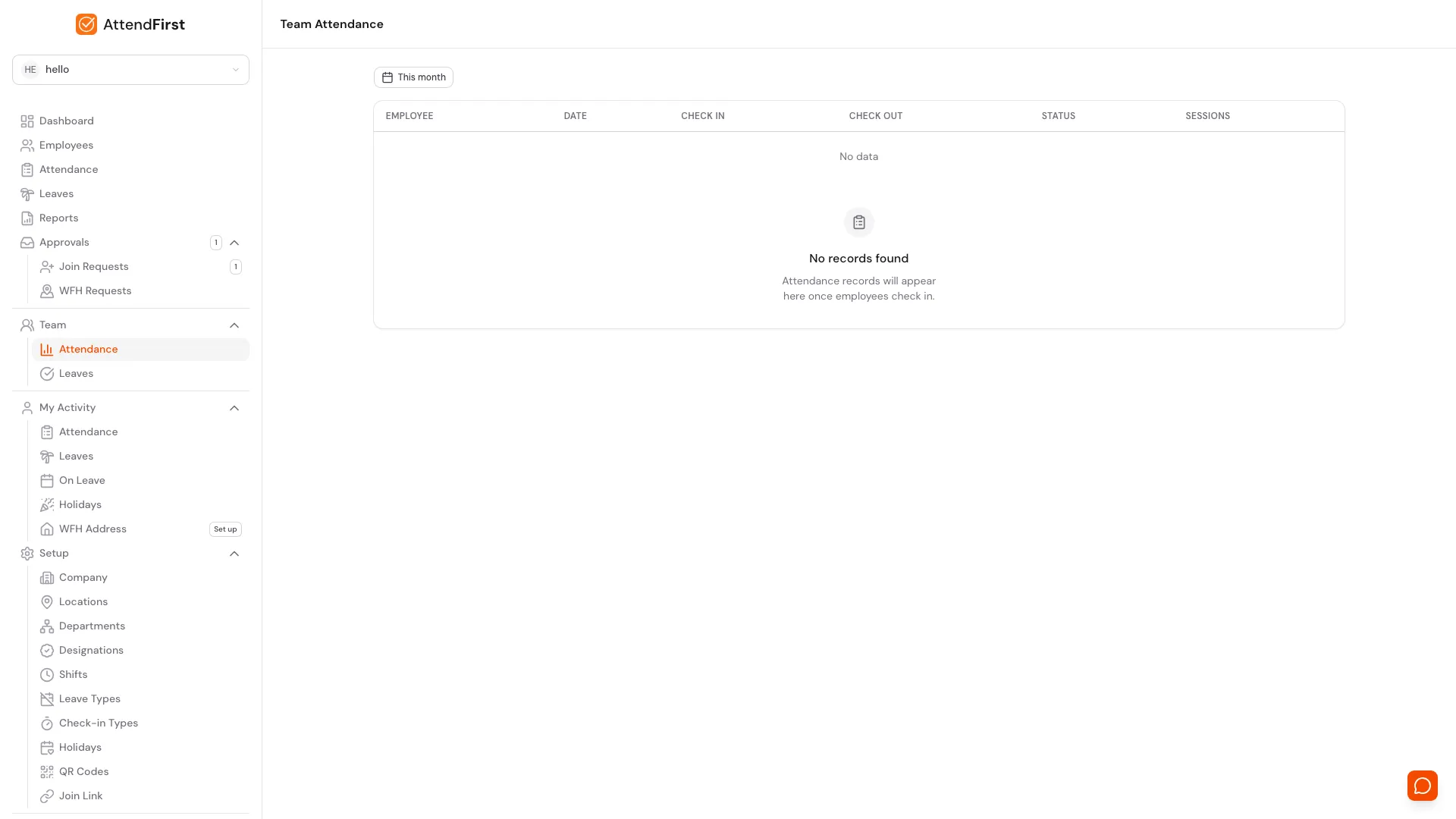
/team/attendance. One row per direct report per day in the selected range.
Click Team → Attendance in the sidebar. The table shows every direct report’s attendance with these columns:
- Employee: the report’s name.
- Date: click to open the day’s full session list in a slideover.
- Check In and Check Out: first check-in, last check-out.
- Status: Present, Late, Half day, Absent, On leave, Holiday, or Weekend.
- Sessions: number of check-in/out pairs. Click to see each session.
Use the This month filter to change the date range. Filters persist in the URL so you can bookmark a view.
This page shows attendance for your direct reports only. Admins viewing the same page see every employee in the company.
Team Leave Requests
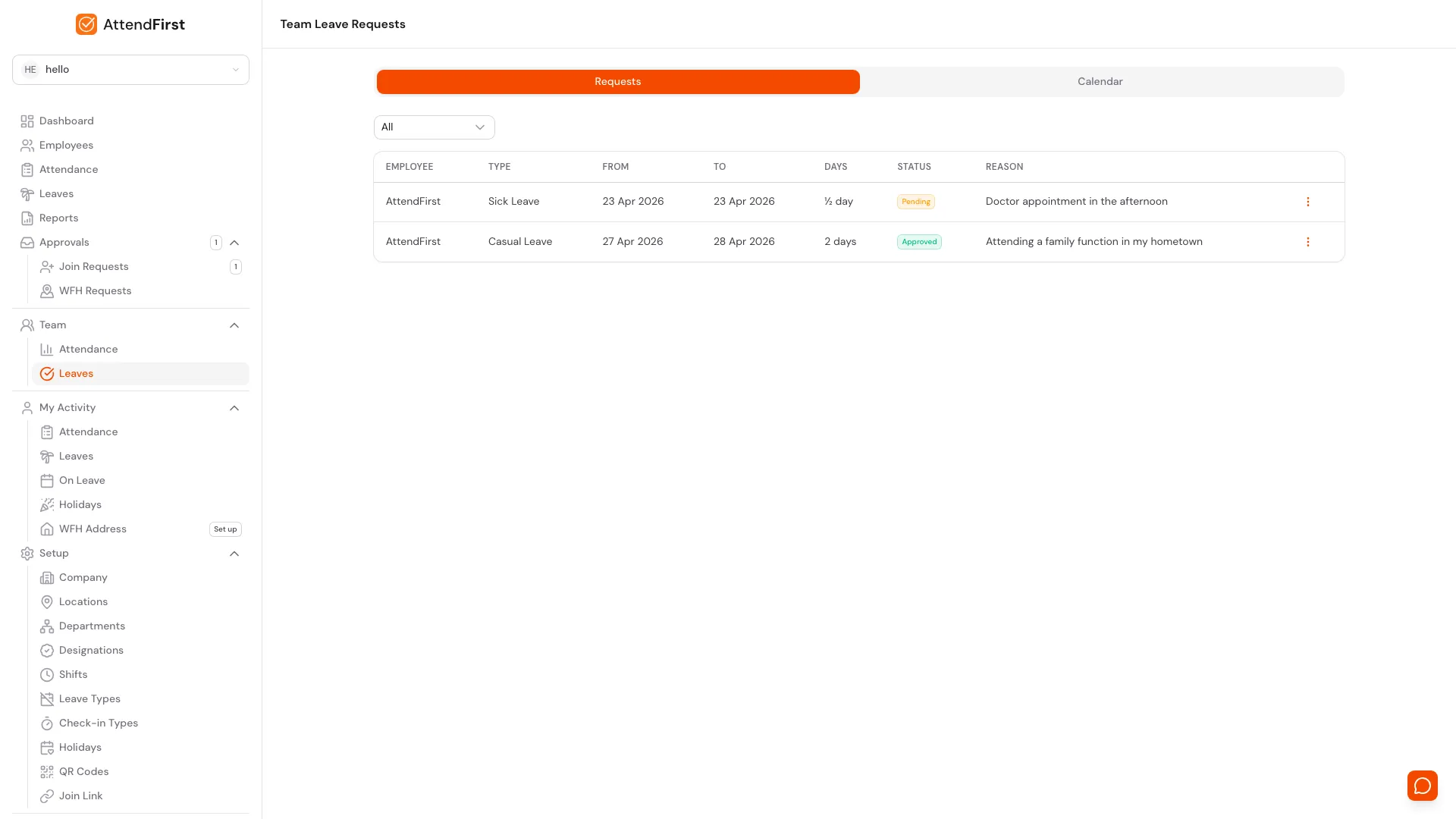
/team/leaves. The Requests tab lists pending and historical leaves from your reports.
Click Team → Leaves. The Requests tab shows every leave request from your direct reports with these columns:
- Employee, Type, From, To, Days, Status, Reason.
Use the status filter above the table (All, Pending, Approved, Rejected) to narrow the view. The filter persists in the URL.
Approving and rejecting
Click the three-dot menu at the end of any Pending row:
- Approve: confirms the leave immediately. AttendFirst marks those days as On leave in the employee’s attendance and emails them.
- Reject: opens a confirmation dialog. Once confirmed, the employee is notified and the request stays visible as Rejected.
You can also cancel an approved leave from the three-dot menu, which removes the on-leave attendance records. A confirmation dialog warns you before this happens.
Managers cannot edit a request’s dates. If a report needs to change their leave, they cancel and resubmit.
Team Leave Calendar
Click the Calendar tab for a monthly grid view:
- Each row is one of your direct reports.
- Each column is a day. Weekends are shaded grey; holidays are shaded red; today has a blue tint.
- Approved leaves show as green dots; pending leaves as yellow. Half-days are two-tone.
- Click a dot to see the employee, leave type, dates, status, and reason.
Use this view when checking for leave clashes before approving the next request. When your team has no leaves in the month, the calendar shows No leave requests this month.
Mobile team view
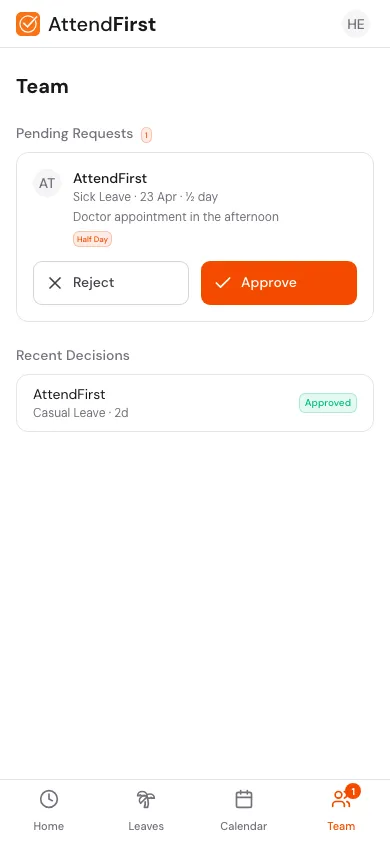
On mobile, tap Team in the bottom nav. The layout is optimized for thumb use:
- Pending Requests section at the top with one card per pending leave. Each card has large Approve and Reject buttons.
- Recent Decisions section below with the last five approved or rejected requests.
- Pull down to refresh.
- Reject asks for confirmation; Approve is immediate.
The mobile Team tab lets you clear your approval queue quickly. Push notifications for new requests deep-link here.
What managers cannot do
Managers see only what they need to manage their team. They cannot:
- Approve or reject leave outside their reporting line.
- Add, edit, deactivate, or exit any employee (including their own reports).
- Change company settings or reports.
- Export CSV attendance reports.
- See other teams’ attendance or leaves.
For company-wide work, the company admin handles it. See Roles and permissions for the full matrix.
Frequently asked questions
How do I become a manager?
Have an admin set your name in the Manager field of at least one employee. The Team menu appears automatically on your next page load.
What does a manager see that an employee does not?
Direct reports’ attendance and leave requests, and the ability to approve or reject those leaves. Nothing else.
Can I approve my own leave as a manager?
No. Self-approval is blocked. Your leave goes to the company admin.
What if I am on leave when my report submits?
The request stays pending. The admin can approve it from Leaves while you are out.
Am I notified when a report submits a leave?
Yes. A push notification is sent immediately if push notifications are enabled on your device. See Push notifications.
Related docs
- Roles and permissions. The full permission matrix across admin, manager, and employee.
- Managing employees. Admin-side flow to assign a manager.
- Leave approvals. Admin-side leave queue (similar layout).
- My attendance. Your own attendance page.
Steps
- Open Team Attendance.Managers see a Team group in the sidebar. Click Team → Attendance to see every direct report's attendance for the selected date range.
- Approve or reject a leave request.Click Team → Leaves. The Requests tab lists pending and historical leaves from your reports. Use the three-dot menu to approve or reject.
- Review on mobile.Tap Team in the bottom nav at /m. Pending requests are listed with Approve and Reject buttons. Recent decisions are shown below.
- See team-wide leave on a calendar.Click the Calendar tab on Team Leaves for a monthly grid of every approved and pending leave across your direct reports.
Frequently asked questions
How do I become a manager in AttendFirst?
There is no separate manager role. The moment an employee is set as your direct report (by your admin editing their Manager field), you gain manager capabilities: the Team group appears in your navigation automatically.
What can a manager see that a regular employee cannot?
Only their direct reports' attendance and leave requests. Managers cannot see other teams, approve outside their team, or change company settings. Admins, on the other hand, see everything.
Can a manager approve their own leave?
No. Self-approval is blocked. A manager's own leave requests go to the company admin.
What if my manager is on leave when I submit a request?
The request stays pending. Your admin can approve it directly from Leaves while your manager is out.
Do managers get notified of new leave requests?
Yes. The New leave request push notification is sent immediately to the manager. Email is also sent if they have it enabled.