AttendFirst login & password: sign in, reset, and verify
How to sign in to AttendFirst, reset a forgotten password, and set a new password after an admin invite. Also covers the email verification step on signup.
Every person in your company uses the same login page at app.attendfirst.com/login. Admins, managers, and employees share the flow - the only difference is what you see after signing in.
Sign in
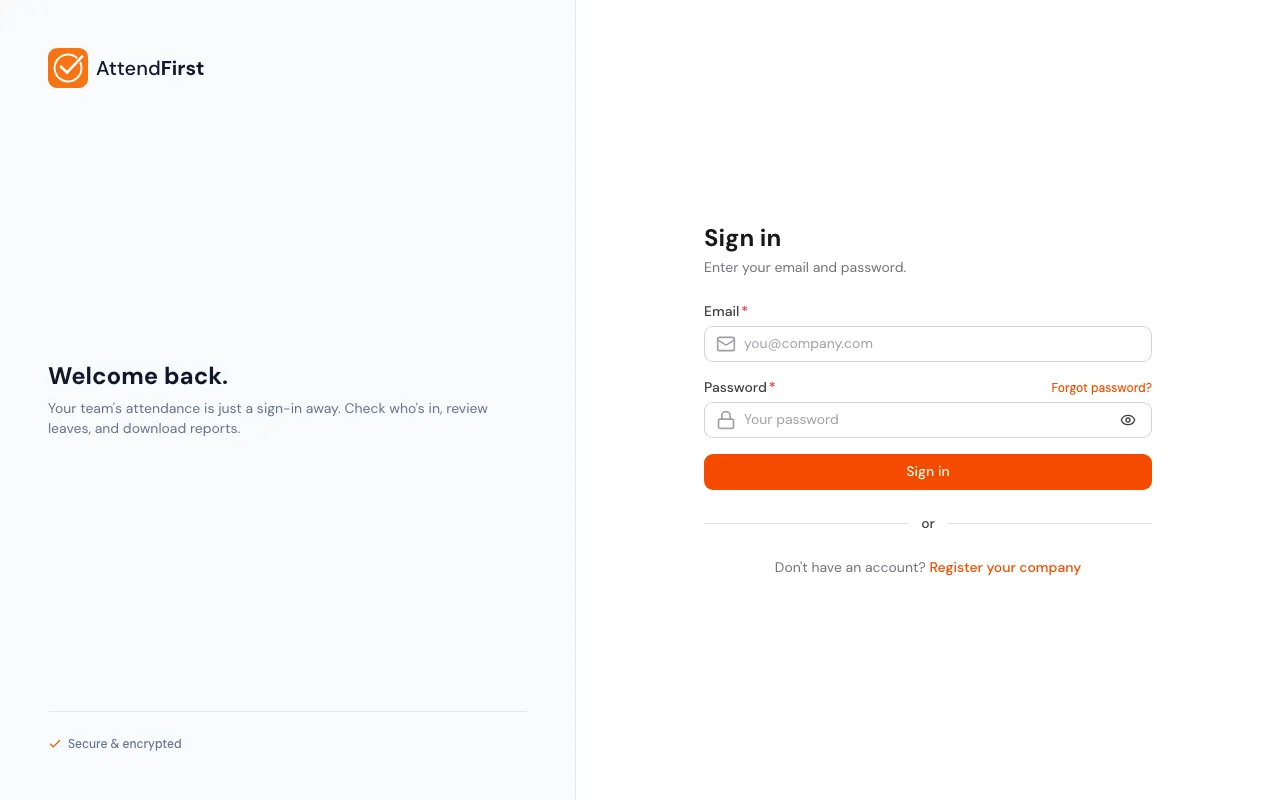
The login page. Same form for everyone; the dashboard you land on depends on your role.
Open app.attendfirst.com/login. Enter your Email and Password, then click Sign in.
- Admins land on
/admin/dashboard. - Managers and employees land on
/attendance(desktop) or/m(mobile). - Wrong credentials show a red error banner with a hint to try again or reset.
The password field has an eye icon to show or hide what you are typing. The Forgot password link to the right of the Password field opens the reset flow.
Forgot your password
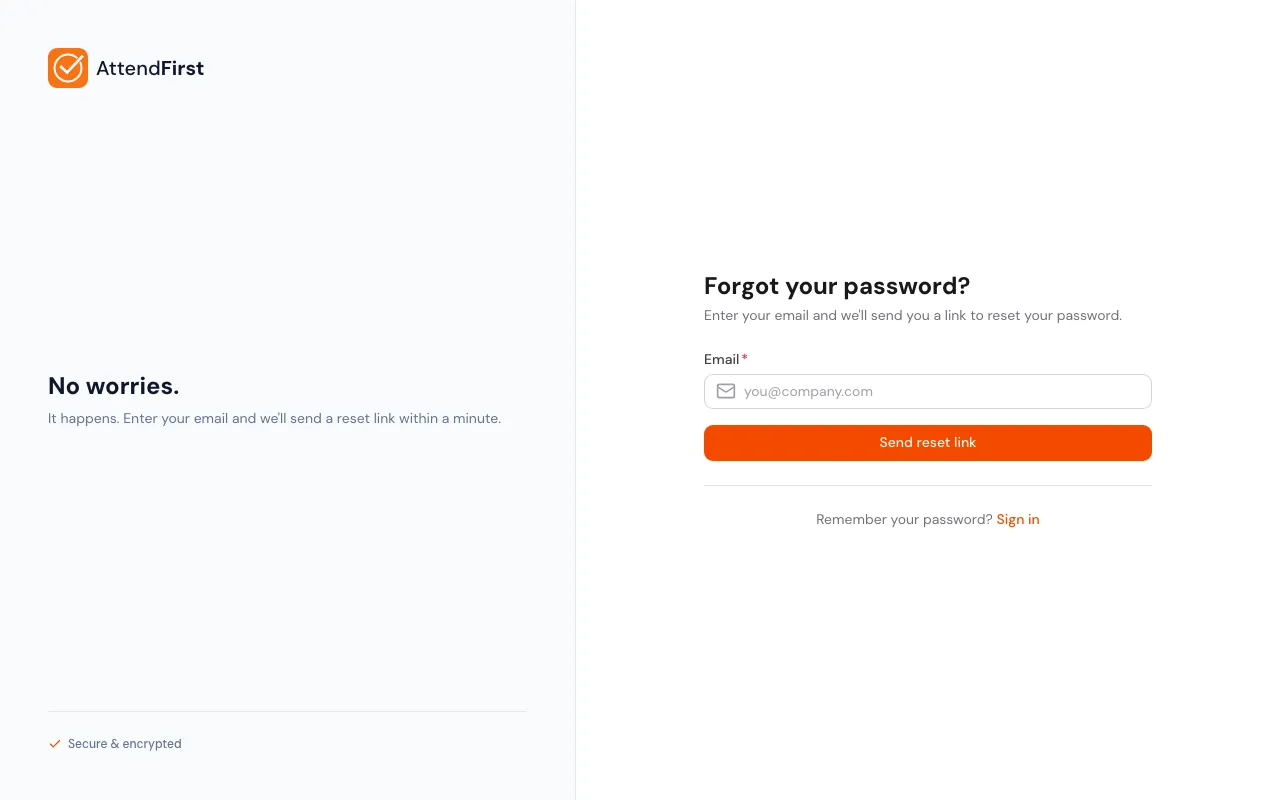
If you cannot remember your password, click Forgot password on the login page. Enter your email and click Send reset link.
- The response is the same whether the email exists or not. This stops anyone from testing whether a given address is registered.
- The reset email arrives within about a minute. Check spam if it does not show up.
- The link expires in 1 hour. Request a fresh one if it has been longer.
- Click Try again on the confirmation screen to resend without navigating back.
Reset your password
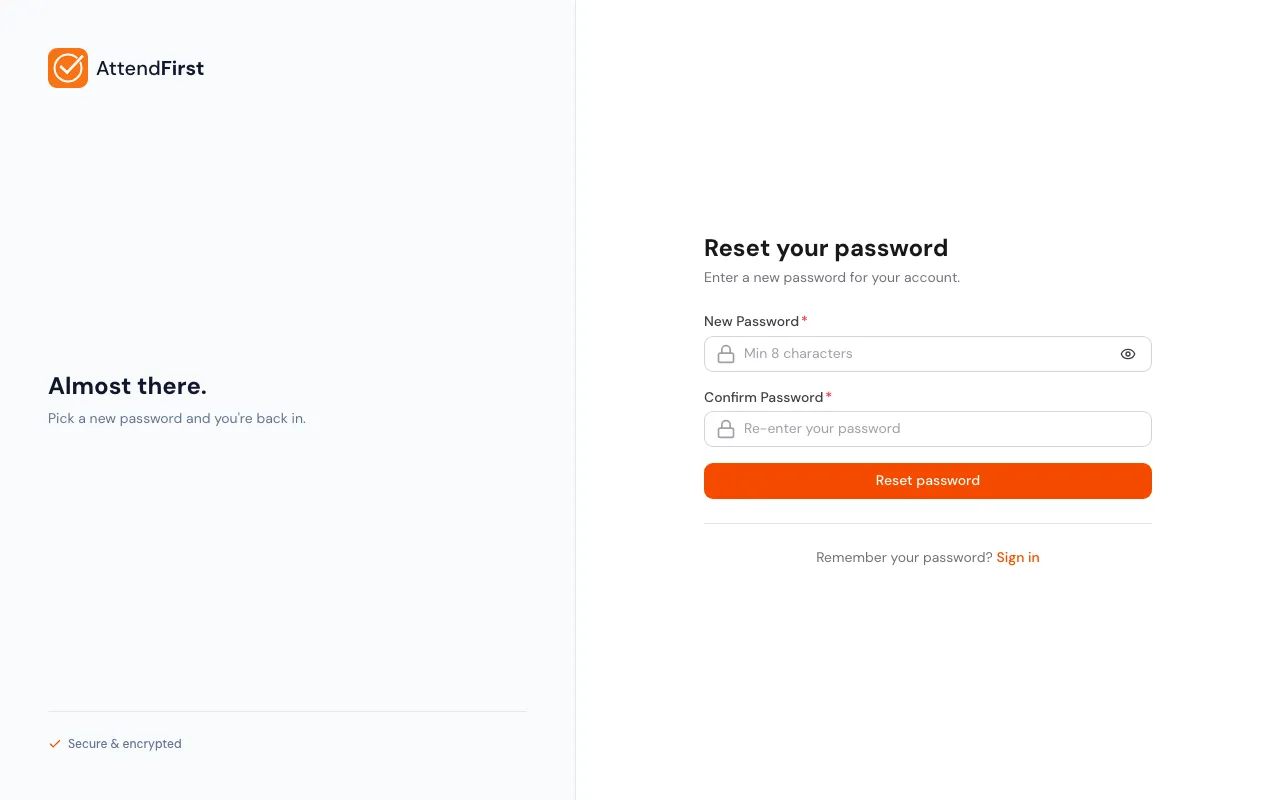
Click the link in the reset email to reach this page. Both passwords must match.
Opening the reset link takes you here. Enter a new password (minimum 8 characters), confirm it, and click Reset password.
- Every other signed-in session is signed out the moment the reset succeeds.
- Sign in again with the new password on each device.
- If the link says Invalid link, it probably expired. Go back to Forgot password and request a fresh one.
Change your password while signed in (admins)
Admins do not need the reset email to change a password. Open Account from the user menu and find the Change password card.
- Enter your Current password.
- Enter a New password (minimum 8 characters) and confirm it.
- Click Change password.
The device you made the change on stays signed in. Every other session - phones, other browsers, tablets - is signed out and needs the new password. If the current password is wrong, the form shows an error and nothing changes.
Set a password after an admin invite
When an admin adds an employee, AttendFirst emails them a Set your password link. Open the email, click the link, pick a password, confirm it, and sign in.
- The set-password link works the same way as a reset link but for first-time use.
- If the link expired, ask the admin to resend by editing and saving your employee record.
Verify your email
After registering a company, AttendFirst emails the admin a verification link. Open the email and click the link. The verification page opens with a Verify my email button - click it to confirm the address. Verification stops a persistent banner from showing up on every dashboard load.
The two-step flow (open link, then click button) is deliberate. Email security scanners - Outlook Safe Links, Defender for Office 365, Proofpoint, Mimecast, Gmail prefetch - visit every URL in incoming email. If verification triggered on link open, those scanners would consume the one-time token before you saw the page. The button click ensures only a real person can verify.
The link:
- Arrives at the registration email within a minute.
- Works whether you are signed in or not. If signed in, you go straight back to the dashboard after verifying.
- Works exactly once. Requesting a new one invalidates any earlier link.
If you change your admin login email under user menu → Login Email, the new address goes through the same verification flow before the change takes effect.
Frequently asked questions
I didn’t get the reset email
Check spam first. If it’s still missing, click Try again on the confirmation screen to resend. Reset links expire after 1 hour, so a stale request does not work.
How long is a reset link good for?
1 hour. After that, request a new one.
Will resetting log me out of my other devices?
Yes. Resetting the password signs out every other session. You will need to sign in again on each device.
Can I change my password without Forgot password?
Admins can. Open Account from the user menu and use the Change password card. Employees use the Forgot password flow. Admins who want to change their email (not password) can do so under user menu → Login Email.
What is the minimum password length?
8 characters. Longer is better. Consider a passphrase.
My reset link says “Invalid link”
The link either expired, was already used, or got truncated when copy-pasted. Request a new one and click the link directly from your email client.
Related docs
- Onboarding. Creating your admin account for the first time.
- Admin account. Changing the email you sign in with.
- Self-join link. How employees join without being manually added.
Steps
- Sign in.Open app.attendfirst.com/login and enter your email and password. You land on the dashboard or the mobile home depending on your role.
- Forgot password.Click Forgot password on the login page, enter your email, and check your inbox. The reset link arrives within a minute and expires in 1 hour.
- Set a new password from the reset email.Click the reset link, pick a new password of at least 8 characters, and confirm it. Every other session is signed out.
- Set a password on a brand-new invite.If an admin added you, open the welcome email and click Set your password. Pick a password and sign in.
- Change your password while signed in (admins).Open Account from the user menu, fill in Current password and New password in the Change password card, and click Change password. Every other device is signed out.
Frequently asked questions
I didn't receive the password reset email. What do I do?
Check your spam folder first. If it's not there, click Try again on the confirmation screen to resend. Password reset links expire after 1 hour, so request a fresh one if it has been longer.
How long is a password reset link valid?
1 hour from the moment it's sent. After that, the link stops working. Request a new one from the Forgot password page.
What happens to my other sessions when I reset my password?
Every other signed-in session (other browsers, phones, the mobile home screen shortcut) is signed out. Sign in again on each device with the new password.
Can I change my password without going through Forgot password?
Admins can. Open Account from the user menu and use the Change password card - enter your current password and a new one. Employees use the Forgot password flow.
What's the minimum password length?
8 characters. There are no special-character requirements. Use a long passphrase if you can.
My reset link says "Invalid link". Why?
Either the link expired (older than 1 hour), it was already used, or part of the URL got truncated when it was copy-pasted. Request a new reset email and click the link directly from your inbox.