Push notifications in AttendFirst: reminders and alerts
Enable browser push for AttendFirst leave approvals and daily summaries. No app install needed. Works on Android, iOS, and desktop.
AttendFirst sends browser push notifications for leave approvals and daily attendance summaries. They work on Android, desktop, and iOS (from the home screen) without installing an app. Each notification is encrypted end-to-end, so only your device can read it. This uses the same Web Push standard as Gmail and WhatsApp Web.
Turning on notifications
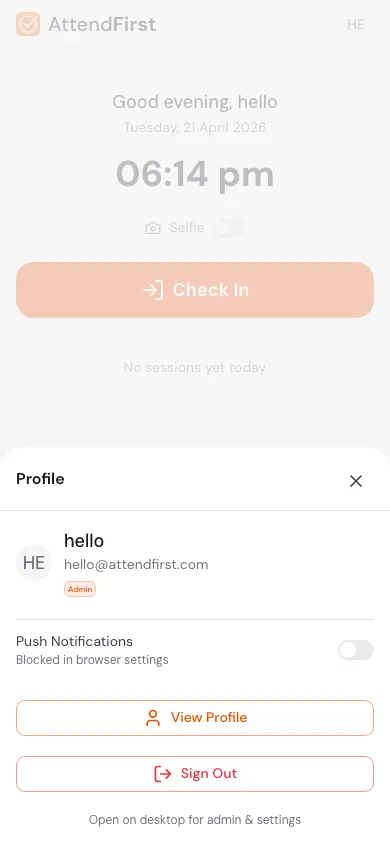
Tap your avatar in the top right of /m to open this sheet, then flip the Push Notifications toggle on.
- Open AttendFirst in Chrome, Safari, Edge, or any Chromium-based browser.
- Tap your avatar in the top right of
/m(or wait for the in-app “Get reminders to check in on time” banner). - Flip the Push Notifications toggle on.
- Accept the browser’s permission prompt when it appears.
- If the toggle shows Blocked in browser settings, unblock notifications for
app.attendfirst.comin your browser, then retry.
You can subscribe on as many devices as you want (phone, tablet, office laptop). Each device is a separate subscription.
What you get notified about
Employee notifications
| Trigger | Example | When |
|---|---|---|
| Leave approved | “Your leave for Fri, Apr 24 was approved.” | Immediately on approval |
| Leave rejected | “Your leave for Fri, Apr 24 was rejected.” | Immediately on rejection |
| Leave balance low | “You have less than 2 casual leaves left.” | 1st of month at 9 AM, if balance < 2 |
| On-leave tomorrow | “Reminder: you’re on leave tomorrow.” | 6 PM the previous day |
Manager and admin notifications
| Trigger | Example | When |
|---|---|---|
| New leave request | “Priya submitted a leave request for Apr 24-25.” | Immediately on submission |
| Join request | “New employee wants to join: Amit Kumar.” | Immediately on submission |
| Late alert | “3 employees checked in late today.” | 10:30 AM company time |
| Daily report | “Today: 12 present, 2 late, 1 absent.” | 7 PM company time |
| Weekly summary | “Week in review: 95% present, 3 late days.” | Monday 9 AM |
Disabling or unsubscribing
- On one device: Profile → Notifications → Disable for this device.
- Everywhere: Profile → Notifications → Disable all.
- Browser-level: click the lock icon next to the URL bar and revoke notifications permission.
Unsubscribing is instant. AttendFirst removes your subscription, so no more notifications reach the device.
Troubleshooting
I enabled it, but nothing arrives
- Some corporate Wi-Fi networks block push delivery. Try on 4G / 5G to confirm.
- iOS only supports Web Push from Safari 16.4+ and requires adding the app to the home screen first. Tap Share → Add to Home Screen and open from there.
- On Android, check that the browser has notification permission in system settings.
I’m getting duplicate notifications
You probably subscribed on the same device twice (for example, after clearing cookies). Go to Profile → Notifications and remove the older subscription.
Frequently asked questions
Do I need to install an app for push notifications?
No on Android and desktop. The browser delivers them natively. On iOS, you must add the web app to the home screen (iOS restricts push to installed PWAs).
Are notifications encrypted?
Yes. Each notification is encrypted with a key that only your device holds, so no third party can read the contents in transit.
Will notifications drain my battery?
No. Notifications are handled by your browser, not by a background AttendFirst process. Battery impact is the same as any other website you’ve subscribed to.
Can AttendFirst push notifications to WhatsApp instead?
Not today. Web Push is free and works without WhatsApp Business API charges. If you need WhatsApp, copy the notification text from email (also sent for key events).
Related docs
- Check in and check out. Your daily attendance flow.
- Leave requests. Approvals that trigger notifications.
Steps
- Open AttendFirst on your phone.Open AttendFirst in Chrome, Safari, Edge, or any Chromium-based browser. On iOS, first tap Share and Add to Home Screen, then open from there (iOS restricts push to installed PWAs).
- Open the profile sheet.Tap your avatar in the top right of /m. The profile sheet slides up from the bottom.
- Turn on Push Notifications.Flip the Push Notifications toggle. The browser shows a permission prompt; tap Allow.
- Unblock if previously denied.If the toggle shows "Blocked in browser settings", open browser settings for app.attendfirst.com and enable Notifications, then retry the toggle.
- Subscribe on other devices.Repeat on every device where you want notifications. Each device is a separate subscription and can be disabled independently.
Frequently asked questions
Do I need to install an app for AttendFirst push notifications?
No on Android and desktop. The browser delivers them natively. On iOS, you must add the web app to the home screen first, because iOS restricts push to installed PWAs.
Are AttendFirst push notifications encrypted?
Yes. Each notification is encrypted with a key that only your device holds, so no third party can read the contents in transit.
Will AttendFirst push notifications drain my phone battery?
No. Web Push is pull-based and handled by the browser. There is no background process maintained by AttendFirst. Battery impact is the same as any other website you have subscribed to.
Can AttendFirst send notifications on WhatsApp?
Not today. Web Push is free and avoids WhatsApp Business API charges. If you need WhatsApp, use the email copy. Key events are also emailed.
Why am I not getting AttendFirst push notifications?
Check that browser notifications are enabled in system settings. On iOS, the app must be added to the home screen (Safari 16.4+). Some corporate Wi-Fi networks block push delivery, so try 4G to confirm.