Billing and plans
Upgrade your plan, add employees mid-year, and download invoices from Admin → Billing in AttendFirst. Pay by UPI, card, or net banking.
Everything to do with paying for AttendFirst happens on one page: Admin → Billing. That is where you buy a plan, add employees to one you already have, and pick up past invoices. Only the company admin can open it.
Teams of 4 to 10 pay a flat ₹3,000/year. From the 11th employee, ₹499 per employee per year. Up to 3 employees is free, forever.Your trial
Every new company starts with a 30-day trial. During the trial you can add as many employees as you need, and every feature is on. The Billing page and the Employees page show how many days are left.
When the trial ends:
- If you have 3 or fewer employees, nothing changes. You are on the free plan.
- If you have more than 3 employees and have not chosen a plan, employees cannot check in until you do. You keep admin access, and no attendance or leave records are deleted.
You then have two choices on the Billing page: pay for a plan, or click Continue on the free plan and choose which 3 employees stay active. The others are marked as exited today. Their records stay. To bring someone back later, open their profile and click Reactivate once you have a seat for them.
The Billing page
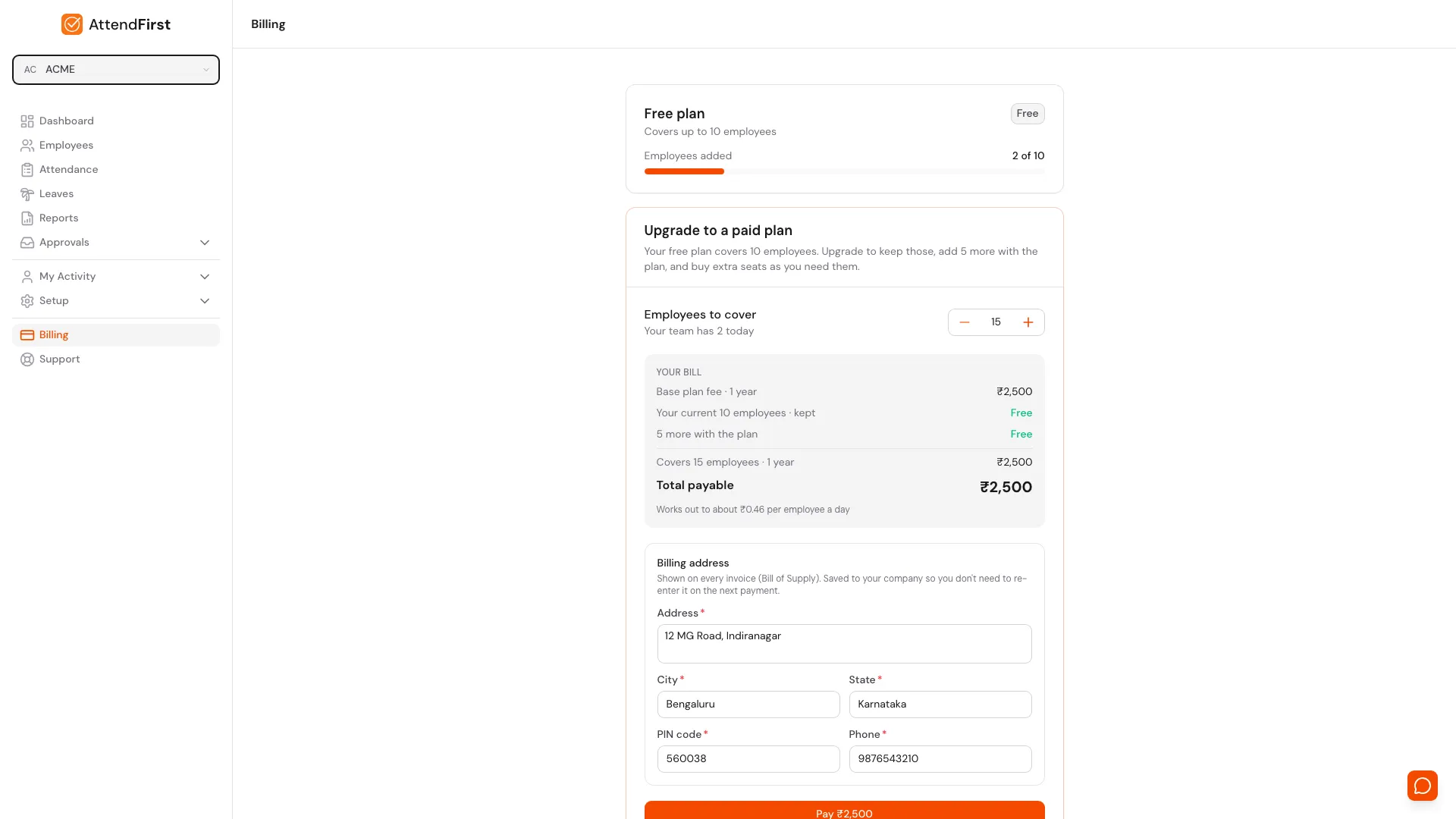
The plan card sits at the top, the upgrade card below it. The seat numbers shown here belong to one example company - yours will match your own plan.
The card at the top names your plan, Free plan or Paid plan, and shows how many employees it covers against how many you have added. The progress bar turns red once you have used every seat.
On a paid plan the card also shows the date your plan runs until.
When you hit the seat limit
You cannot add an employee beyond the number your plan covers. The Employees page tells you when you have reached the limit and links straight here. Adding seats is the fix, and it takes effect as soon as the payment clears.
Upgrading to a paid plan
The Upgrade to a paid plan card has one control: Employees to cover. Set it to the team size you want the plan to hold, and the bill underneath recalculates.
Upgrading adds to what you already have rather than replacing it. The free seats you have today are kept, and they stay free on the paid plan. The base plan adds a further block of seats on top of them, covered by the flat ₹3,000 fee, and the card names that number for your company. Every employee above that line costs ₹499 a year.
So a company on the standard free plan of 3 employees pays the flat ₹3,000 and ends up covered for 10. Some of our earliest companies have a larger free plan than that, which is why the card states your own numbers rather than a fixed figure.
The Your bill panel spells out each line: the base plan fee, the seats you keep for free, the seats the plan adds, and any extra seats with their per-seat rate. Total payable is the amount charged today, and it covers 12 months.
Billing address
The address block below the bill is required. It is printed on every invoice, which AttendFirst issues as a Bill of Supply, so it needs to be the real registered address of the business. Once entered it is saved against your company, so the next payment does not ask again.
All five fields have to be filled in: Address, City, State, PIN code, and Phone.
Paying
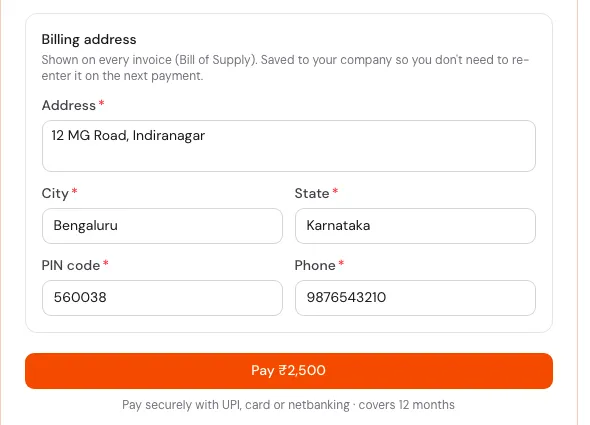
Click Pay. AttendFirst hands you to the payment page, where you can pay by UPI, card, or net banking. After you pay, you land back on the Billing page and a notice tells you your plan is being refreshed. The new seat count appears within a few seconds.
If the payment page fails to open, a message says so and our team is notified automatically. You do not need to chase anyone - someone will reach out to help finish the payment.
Adding employees mid-year
Once you are on a paid plan, the second card becomes Add more employees. Set Employees to add, and the bill shows the per-employee price and the total.
Mid-year seats are pro-rated. You pay for the months left in your current plan rather than a full year, and the card states how many months that is. The line underneath confirms the seat count your plan will cover once the payment goes through.
The extra seats expire on the same date as the rest of your plan, so everything renews together.
Payment history and invoices
Payment history lists every payment against your company, newest first. Each row shows what it was for - Plan purchase or Added employees - along with the date, the number of seats, the amount, and a status badge: Paid, Processing, Failed, Cancelled, Refunded, or Disputed.
Past invoices sits below it. Each row is one invoice, showing its number, date, and total. Click a row to open the invoice in a new tab to print or save. Invoices are issued as a Bill of Supply and carry the billing address on file at the time of payment.
If your plan expires
When a paid plan lapses, a notice appears at the top of the Billing page and your employees cannot check in until you renew. Admins are not locked out, so you can always sign in and pay.
Nothing is deleted. Attendance records, leave history, and employee accounts are exactly as you left them once the plan is active again.
Frequently asked questions
How do I upgrade from the free plan to a paid plan?
Sign in as the company admin and open Admin → Billing. Set Employees to cover, check the total, fill in your billing address, and click Pay. You can pay by UPI, card, or net banking. There is no need to email or message anyone.
Who can see the Billing page?
Only the company admin. Location admins and employees do not see Billing in the sidebar and cannot open the page. If you need a plan change and you are not the company admin, ask whoever owns the account.
What does it cost to add an employee partway through the year?
You pay only for the months left in your plan, not a full year. The Billing page shows the pro-rated per-employee price before you pay, and tells you how many months it covers.
Are there extra taxes or charges on top of the price?
No. The price shown on the Billing page is the total, inclusive of all applicable taxes. Nothing extra is added at checkout.
Where do I download my invoice?
Open Admin → Billing and scroll to Past invoices. Click any row to open that invoice in a new tab. Each one is a Bill of Supply carrying the billing address you entered.
What happens when my plan expires?
Your employees cannot check in until you renew, and a notice appears at the top of the Billing page. Admins keep their access, so you can always sign in and renew. No attendance or leave data is deleted.
Do employees who leave still count towards my seats?
No. Once you mark someone as exited, they stop counting towards the employees your plan needs to cover.
What happens when my trial ends?
If you have 3 or fewer employees, nothing changes. You are on the free plan. If you have more than 3 employees and have not chosen a plan, employees cannot check in until you do. You keep admin access, and no attendance or leave records are deleted.
Can I pay before the trial ends?
Yes. Paying during the trial turns the paid plan on immediately, and the trial no longer applies.
Related docs
- Employees. Add, edit, and exit employees - the count that drives your seat usage.
- Roles and permissions. Why only the company admin sees Billing.
- Admin account. Change the email and password on the account that owns billing.
- Company settings. Company name, timezone, and the details shown across the console.
- Support. Raise a ticket if a payment does not go through.
Steps
- Open Admin → Billing.Sign in as the company admin and click Billing in the left sidebar. The page opens with your current plan at the top.
- Choose how many employees to cover.Set Employees to cover to the team size you want the plan to hold. The bill below updates as you change the number.
- Check your bill.The Your bill panel lists the base plan fee, the seats you keep for free, and any extra seats. Total payable is what you pay today.
- Fill in the billing address.Enter the address, city, state, PIN code, and phone. This is printed on your invoice and saved for next time.
- Pay.Click the Pay button. Complete the payment by UPI, card, or net banking. Your plan turns on once the payment clears.
Frequently asked questions
How do I upgrade from the free plan to a paid plan?
Sign in as the company admin and open Admin → Billing. Set Employees to cover, check the total, fill in your billing address, and click Pay. You can pay by UPI, card, or net banking. There is no need to email or message anyone.
Who can see the Billing page?
Only the company admin. Location admins and employees do not see Billing in the sidebar and cannot open the page. If you need a plan change and you are not the company admin, ask whoever owns the account.
What does it cost to add an employee partway through the year?
You pay only for the months left in your plan, not a full year. The Billing page shows the pro-rated per-employee price before you pay, and tells you how many months it covers.
Are there extra taxes or charges on top of the price?
No. The price shown on the Billing page is the total, inclusive of all applicable taxes. Nothing extra is added at checkout.
Where do I download my invoice?
Open Admin → Billing and scroll to Past invoices. Click any row to open that invoice in a new tab. Each one is a Bill of Supply carrying the billing address you entered.
What happens when my plan expires?
Your employees cannot check in until you renew, and a notice appears at the top of the Billing page. Admins keep their access, so you can always sign in and renew. No attendance or leave data is deleted.
Do employees who leave still count towards my seats?
No. Once you mark someone as exited, they stop counting towards the employees your plan needs to cover.
What happens when my trial ends?
If you have 3 or fewer employees, nothing changes. You are on the free plan. If you have more than 3 employees and have not chosen a plan, employees cannot check in until you do. You keep admin access, and no attendance or leave records are deleted.
Can I pay before the trial ends?
Yes. Paying during the trial turns the paid plan on immediately, and the trial no longer applies.