AttendFirst leave calendar - see who is out and when
See who is out and when across your team. The shared AttendFirst leave calendar shows approved leave, holidays, weekends, and today status in one monthly view.
The Leave Calendar (sidebar: Leave Calendar) shows who is out and when across the company. Approved leaves, holidays, and weekly offs appear on a monthly grid. Employees use it to check team availability before booking time off.
Desktop calendar
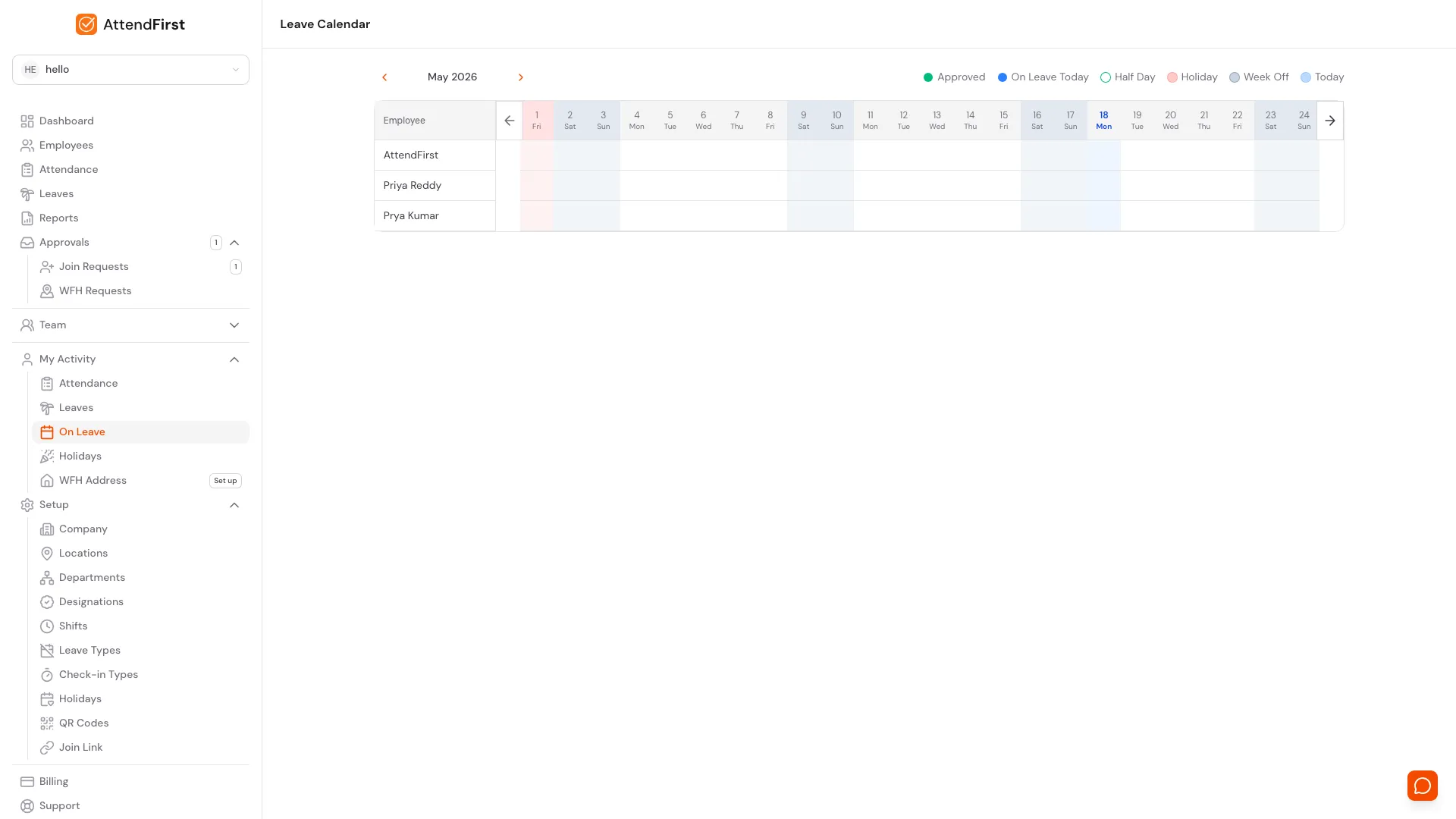
/calendar. Rows are employees, columns are days. The legend explains every colour.
Open Leave Calendar from the sidebar. The page shows the current month by default. Use the prev and next arrows next to the month label to step through months.
The grid
- Rows are employees in your company.
- Columns are days in the selected month.
- Dots mark approved and pending leave. A solid dot is approved; a yellow dot is pending. A two-tone dot is a half-day.
Weekends are shaded grey. Holidays are shaded red. Today has a blue highlight on its column header. These shadings are there so you can skim the grid for exceptions without reading every cell.
Navigation
- Use the arrows to step months.
- Click any coloured dot to open a popover with the employee name, leave type, dates, status, and reason (if any).
- The current month loads instantly; other months load as you navigate.
Mobile calendar
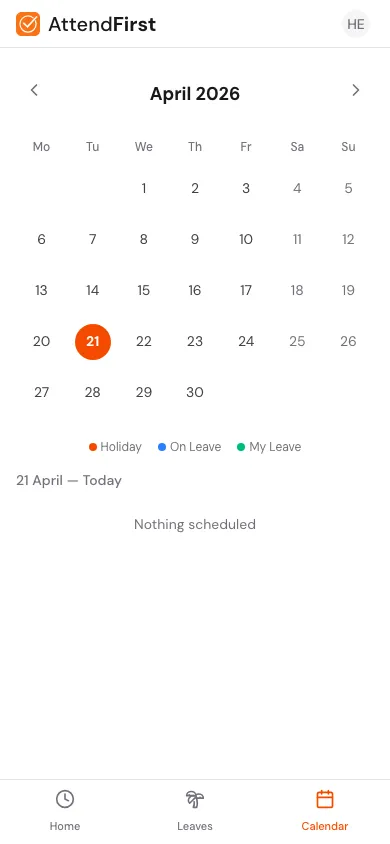
On mobile, tap Calendar in the bottom nav at /m. The layout is a traditional month grid:
- Seven columns, one per weekday.
- Each day cell shows dots for holidays and leaves: red for holidays, blue for anyone on leave, green for your own leave.
- Today is highlighted with a solid orange circle.
- Swipe left or right to change months, or use the arrows.
Tap any date to see a detail list below the grid:
- Holidays on that date (name and whether it’s optional).
- Employees on leave with their leave type.
- If nothing is scheduled, the panel says Nothing scheduled.
What each colour means
| Colour | Meaning |
|---|---|
| Green solid dot | Approved leave |
| Yellow solid dot | Pending leave |
| Two-tone dot | Half-day leave |
| Blue ring | Approved leave that covers today |
| Red cell shading | Company holiday (from the holiday list) |
| Grey cell shading | Week off (disabled day in the work schedule) |
| Blue cell tint | Today’s column |
Who sees the org-wide calendar
Visibility depends on an admin setting:
- On: every employee, manager, and admin sees everyone’s leave.
- Off: only admins and managers see the calendar. Regular employees see only their own leave on the mobile calendar and nothing on desktop.
Admins change this under Setup → Company → Org-wide Leave Calendar. See Company settings.
How leave gets onto the calendar
- An employee submits a leave request from My Leaves.
- The manager or admin approves it on the Leaves page.
- The moment approval happens, the leave appears on the calendar with a solid coloured dot, and on-leave records appear in everyone’s attendance history.
Rejected and cancelled leaves do not appear on the calendar. For the submission side, see Leave requests; for the approval side, see Leave approvals.
Frequently asked questions
I cannot see other employees’ leaves
Your admin has turned off the org-wide leave calendar. Only admins and managers see it when that setting is off. Ask your admin to enable it under Company settings.
Do pending leaves show on the calendar?
Yes, with a yellow dot. Once approved, they turn green; rejected and cancelled leaves disappear.
Can I filter the calendar by department?
No. The calendar is company-wide. For department-level breakdowns, use the Reports page and filter by department.
Why is a holiday red but my attendance says Present?
A holiday blocks absence, not check-ins. If you chose to work that day and checked in, AttendFirst records Present on your attendance and still shows the holiday on the calendar for everyone else.
What do half-day dots look like?
A single dot split into two halves. One side is the leave colour, the other side is grey. If the half-day is today, the dot has a blue ring.
Related docs
- Leave requests. How employees submit leave that ends up on the calendar.
- Leave approvals. How admins approve the leaves that appear here.
- Holidays. Where the red-shaded dates come from.
- Company settings. Where admins toggle company-wide visibility.
Steps
- Open Leave Calendar on desktop.Click Leave Calendar in the sidebar. The current month opens with a row per employee and a column per day.
- Navigate between months.Use the prev and next arrows next to the month label to move between months.
- See who's on leave for a specific day.On desktop, click a coloured dot to see the employee, leave type, dates, and status. On mobile, tap a date to see every holiday and leave for that day.
- Open the mobile calendar.Tap Calendar in the bottom nav at /m. Pick any date to see what's scheduled for that day.
Frequently asked questions
Why can't I see other employees' leaves?
Your admin has turned off the org-wide leave calendar. Only admins and managers see it when that setting is off. Ask your admin to enable it under Setup → Company → Org-wide Leave Calendar.
Does the calendar show rejected or pending leaves?
Pending leaves appear with a yellow dot; approved leaves have a solid colour. Rejected and cancelled leaves don't show on the calendar.
What do the colours mean?
Approved leave in green, today's on-leave in blue, half-day in a two-tone marker, holidays in red, week offs in grey, today highlighted in blue.
Can I filter the calendar by department?
Not today. The calendar is company-wide. For department-level filtering, use the reports page and filter by department.
Why is a holiday red on the calendar but Present in my attendance?
Holidays block absence but don't block check-ins. If you worked on a holiday, the day is recorded as Present; the calendar just reminds everyone it was a holiday.