Managing employees in the AttendFirst attendance app
Add, edit, deactivate, and exit employees in AttendFirst. Covers departments, designations, manager hierarchy, per-employee shifts, and leave assignments.
Employees is where you add joiners, edit details, assign shifts, configure leaves, and deactivate leavers. Every record is private to your company and visible only to admins and managers.
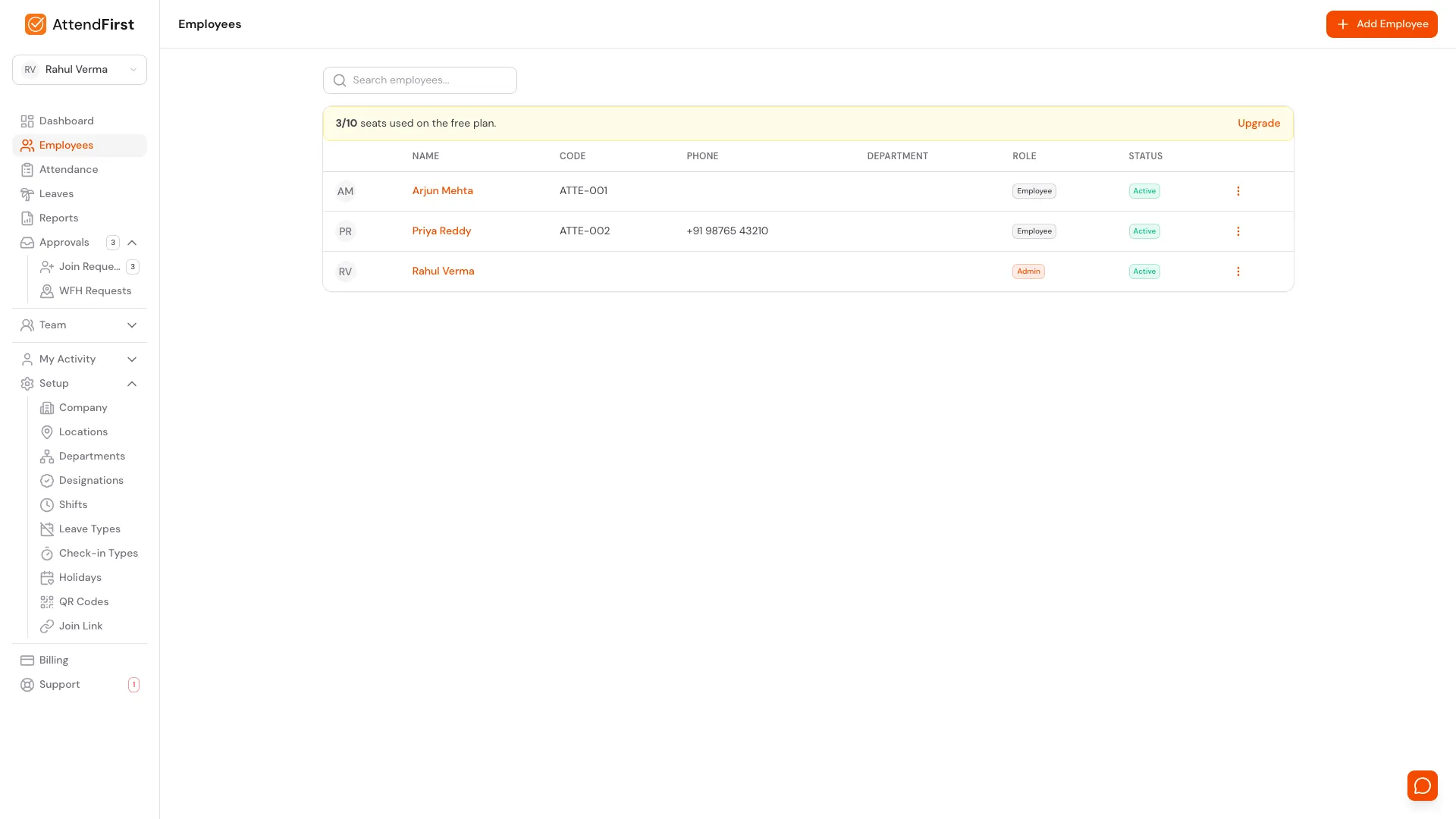
/admin/employees. The Role column shows who is an Admin and who is an Employee. The banner tracks billing toward the 10-seat threshold.
Add an employee
Click Add employee in the top right. An invite dialog opens with your join link, a QR code, and a Share on WhatsApp button. Employees who open the link join with their own phone or email. For details, see Self-join.
To enter an employee’s details yourself, click Add details yourself instead. A slideover opens with a short form that covers the essentials. You set everything else from the profile afterwards.
Required fields:
- Full name.
- Work email - must be unique across your company. The welcome email goes here.
- Work location - the branch they check in from. Decides which geofence, holidays, and leave types apply to them. Defaults to the Primary location.
Optional fields:
- Phone.
- Designation - pulled from the list you set up under Setup.
When you save, AttendFirst creates the account as Active and sends the employee an email with a link to set their own password. Department, manager, employee code, joining date, work type, shift, leave types, and role are all set later from the profile.
The employee profile page
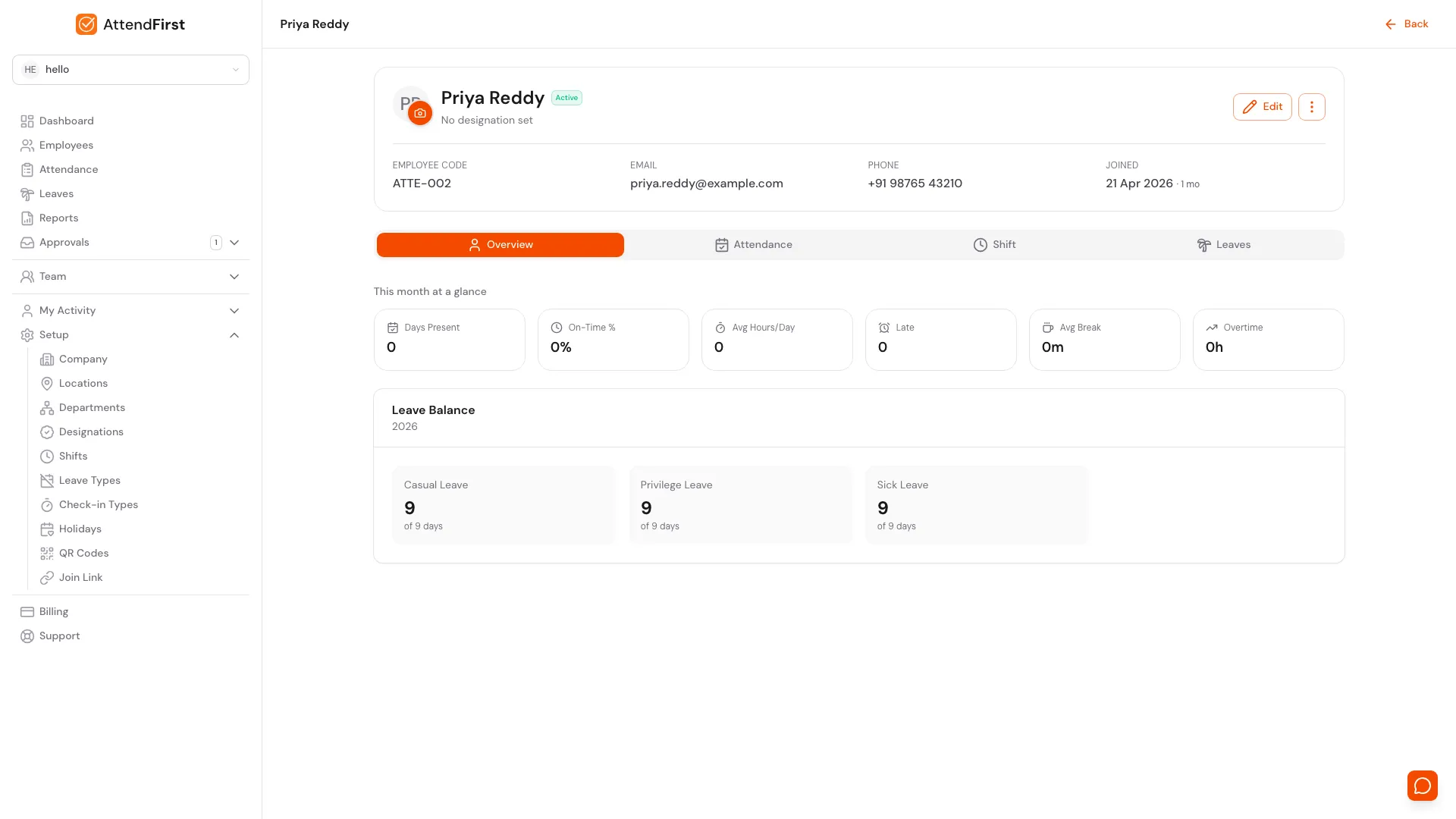
Click any row to open the employee profile. Tabs split overview, attendance, shift, and leaves.
Click any row to open the profile at /admin/employees/[id]. The profile card at the top shows photo, name, status, employee code, email, phone, joining date, and an action menu. Four tabs sit below it:
- Overview - six KPIs for the current month plus current leave balances.
- Attendance - date-range filtered attendance history with the backfill button.
- Shift - toggle between organization default and a custom shift for this employee.
- Leaves - every leave request for this employee plus the Leave Types card listing what they can apply for.
The Manage menu
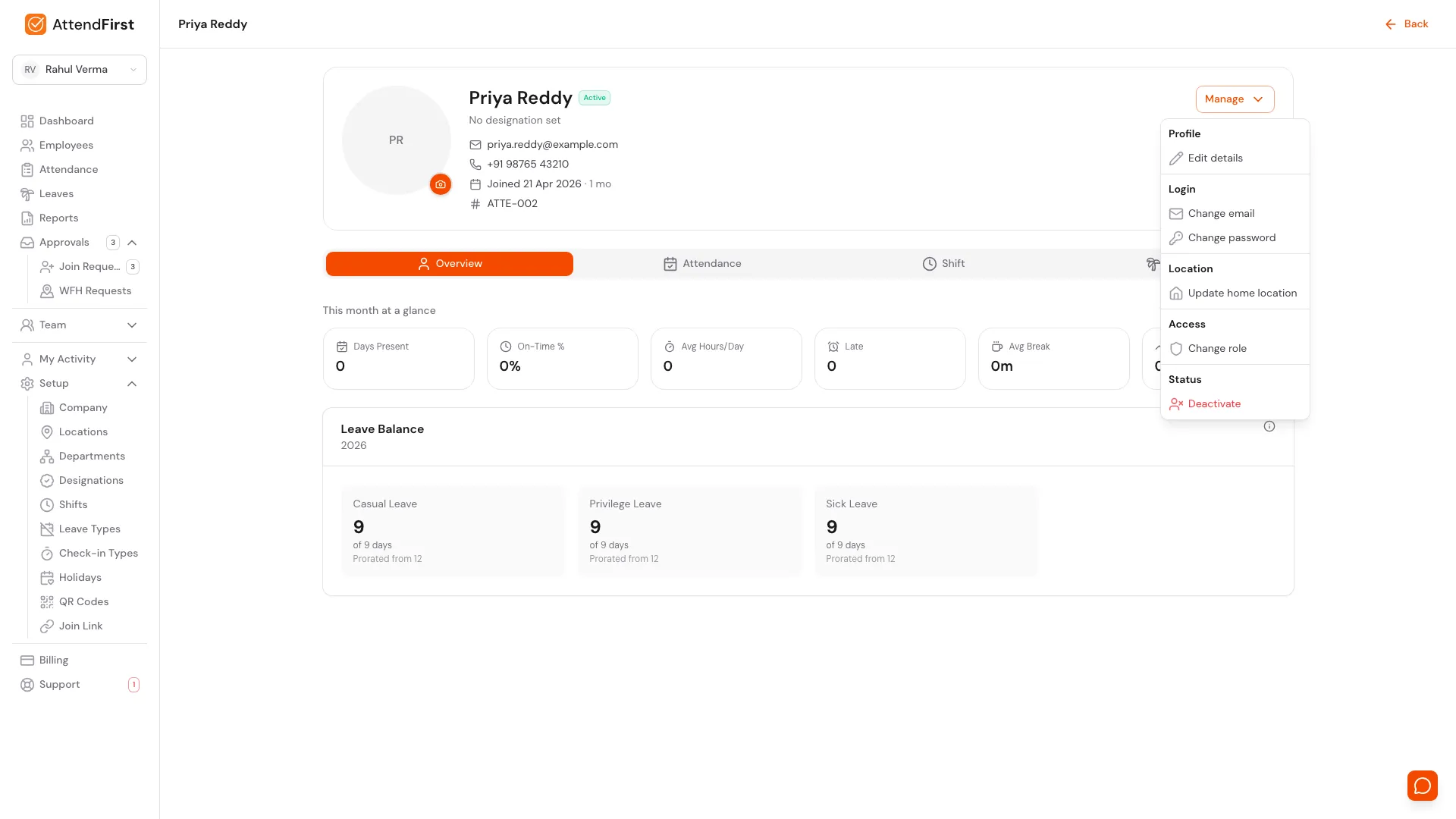
The Manage button on the profile card. Every per-employee action is grouped here.
The Manage button on the profile card opens a grouped menu of everything you can do to this employee:
- Edit details: opens the Edit employee modal, pre-filled with current values.
- Change email: updates the address this employee signs in with.
- Change password: sets a new password directly. The employee is signed out everywhere.
- Update home location: for employees who are not field workers, sets or clears the GPS that verifies their home check-ins. See Home locations.
- Change role: switches the employee between Employee and Admin. See Employee and Admin roles below.
- Deactivate: blocks login but keeps the record. Reversible.
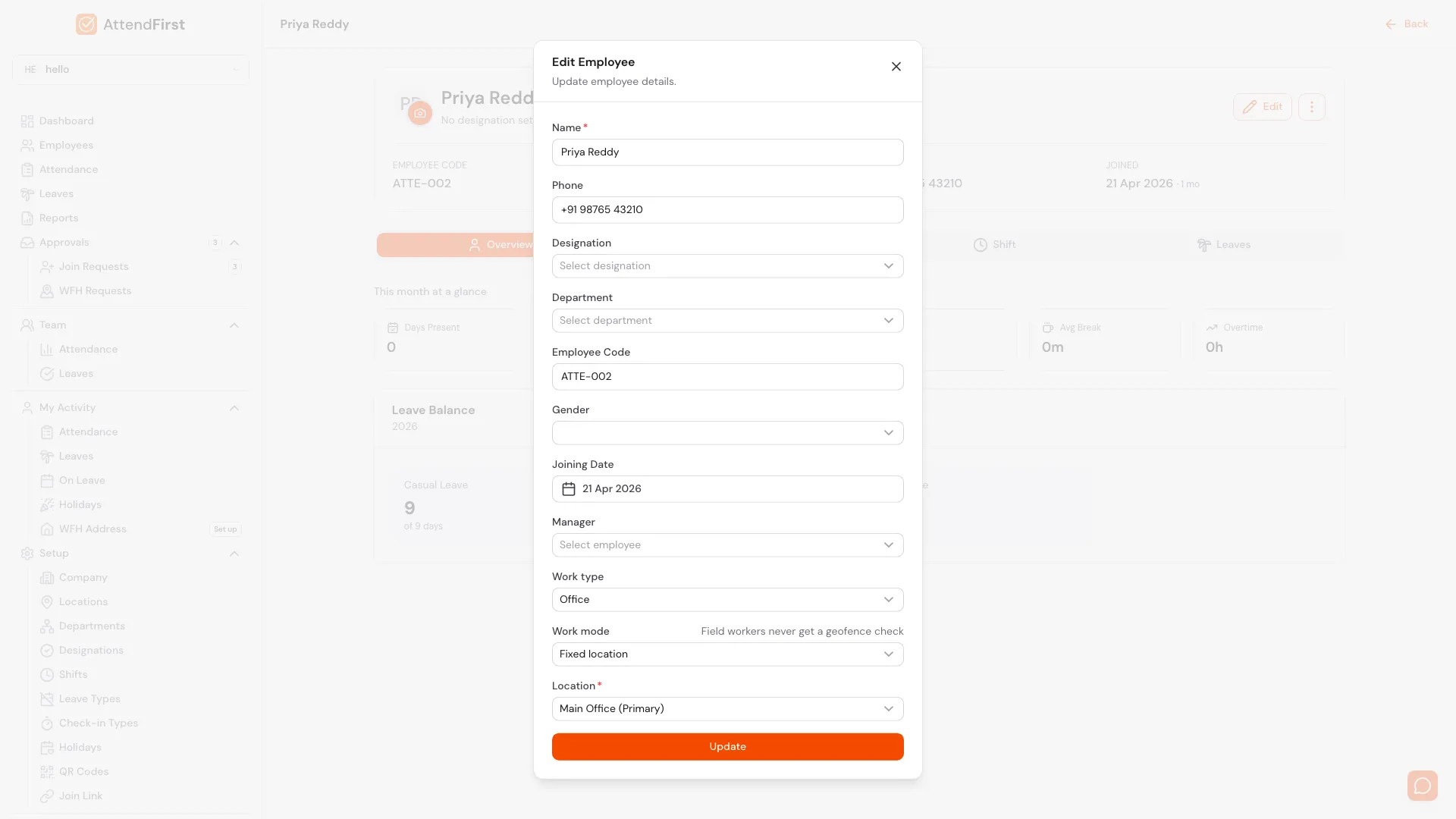
Edit Employee modal. Same form as Add Employee, pre-filled with the current values.
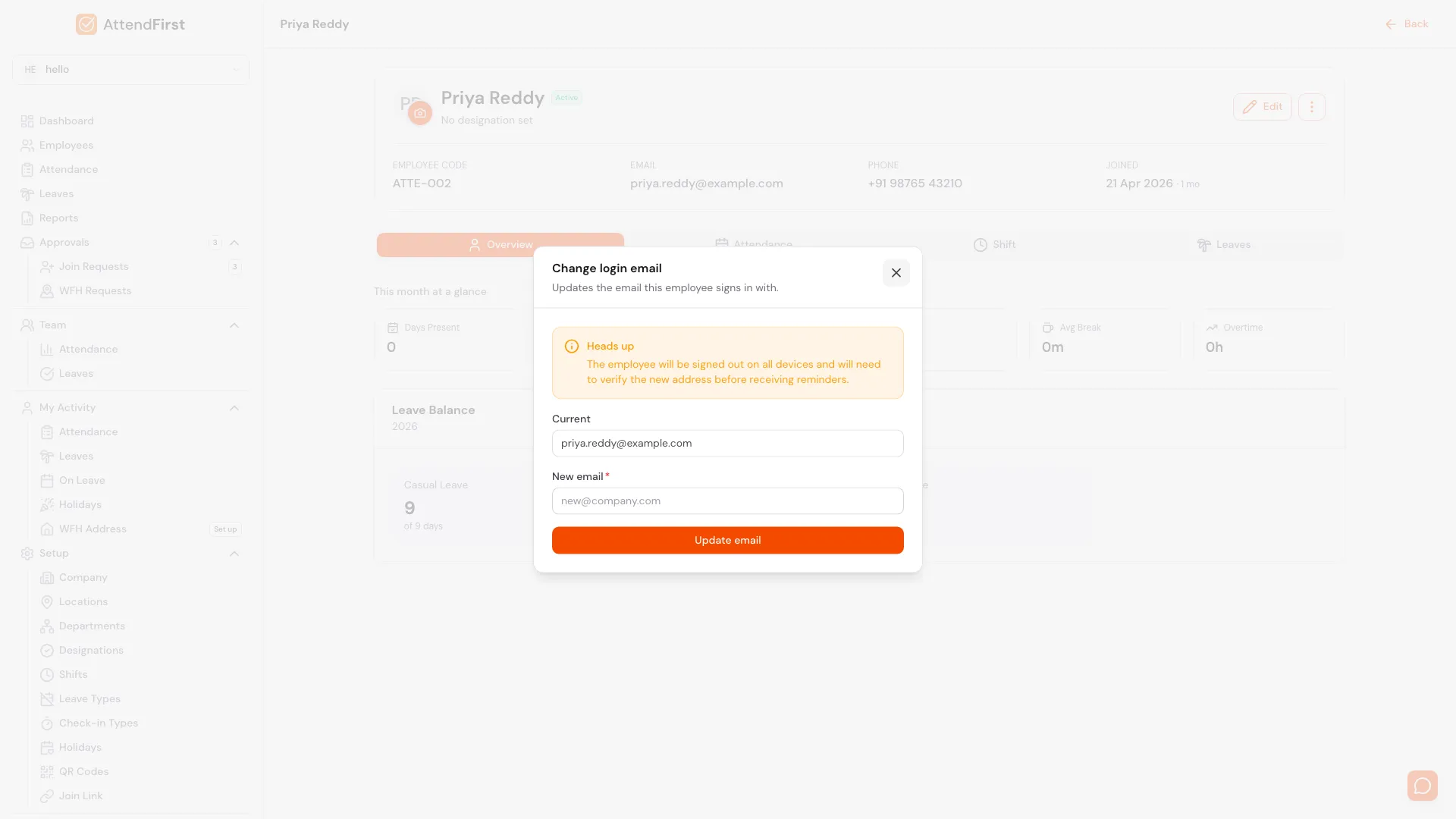
Change login email. The employee is signed out everywhere and must verify the new address before reminders resume.
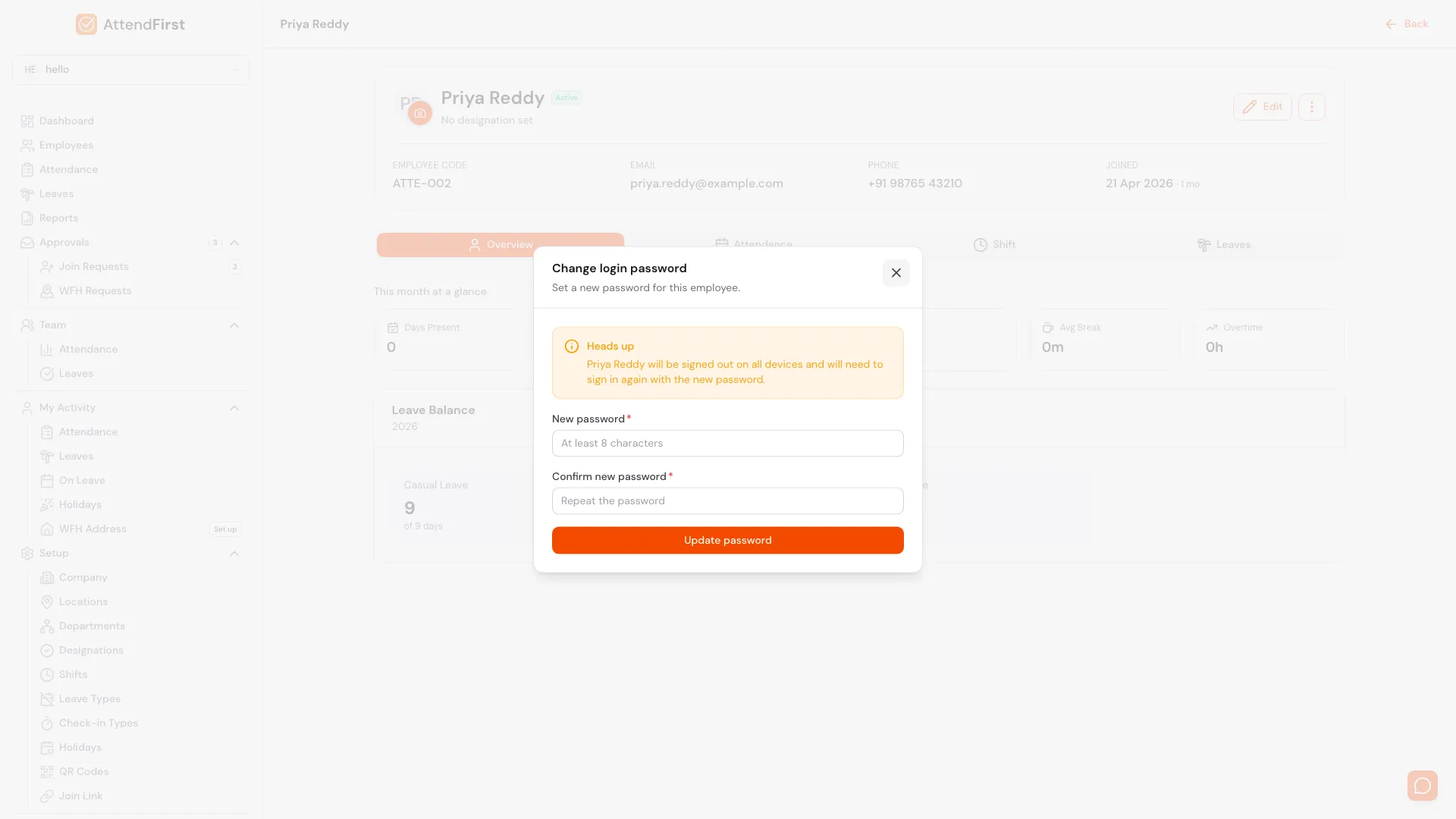
Change login password. The employee is signed out on all devices and must sign in again with the new password.
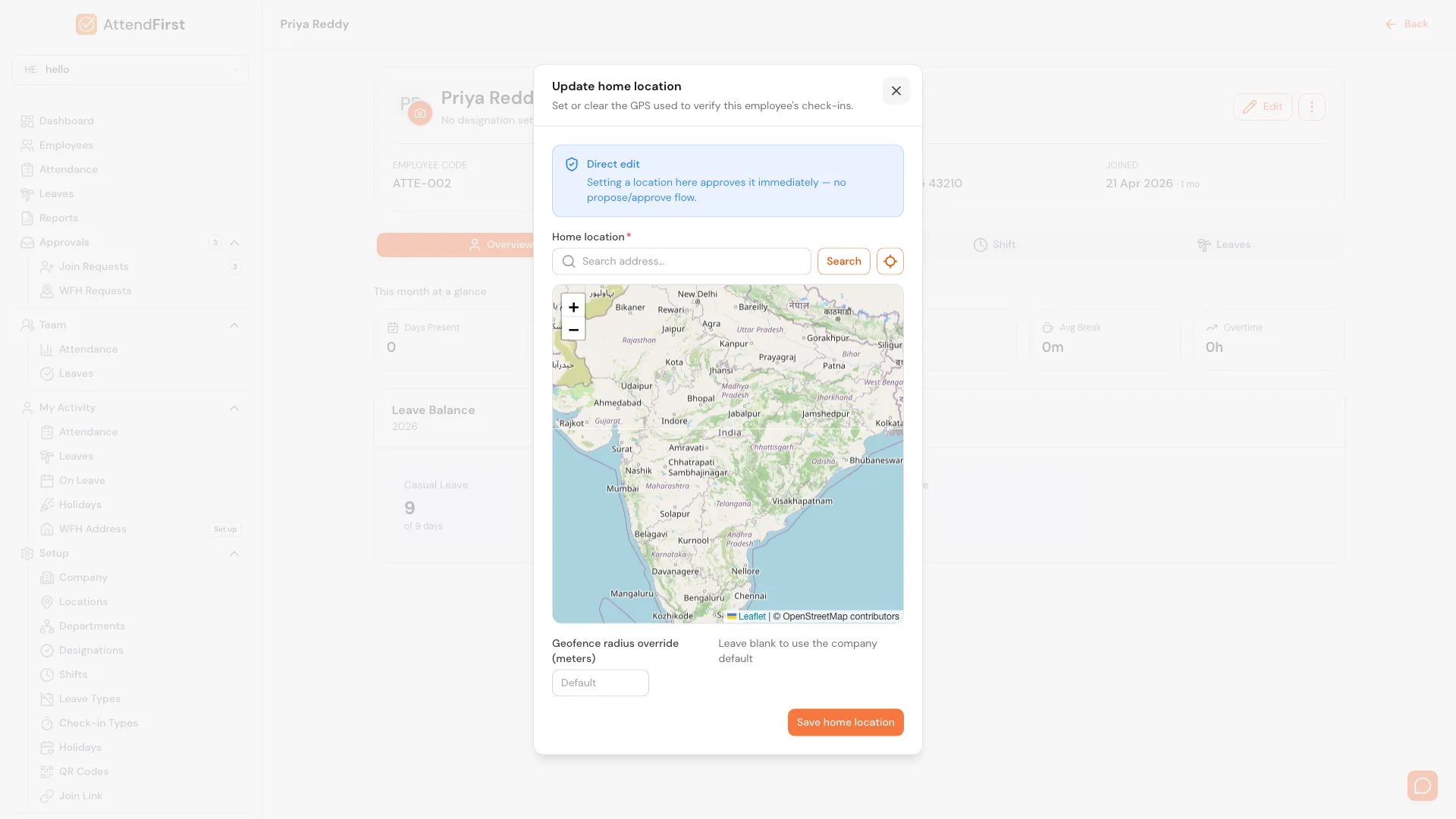
Update home location. Used for WFH employees so check-ins from home count as Verified.
Attendance tab
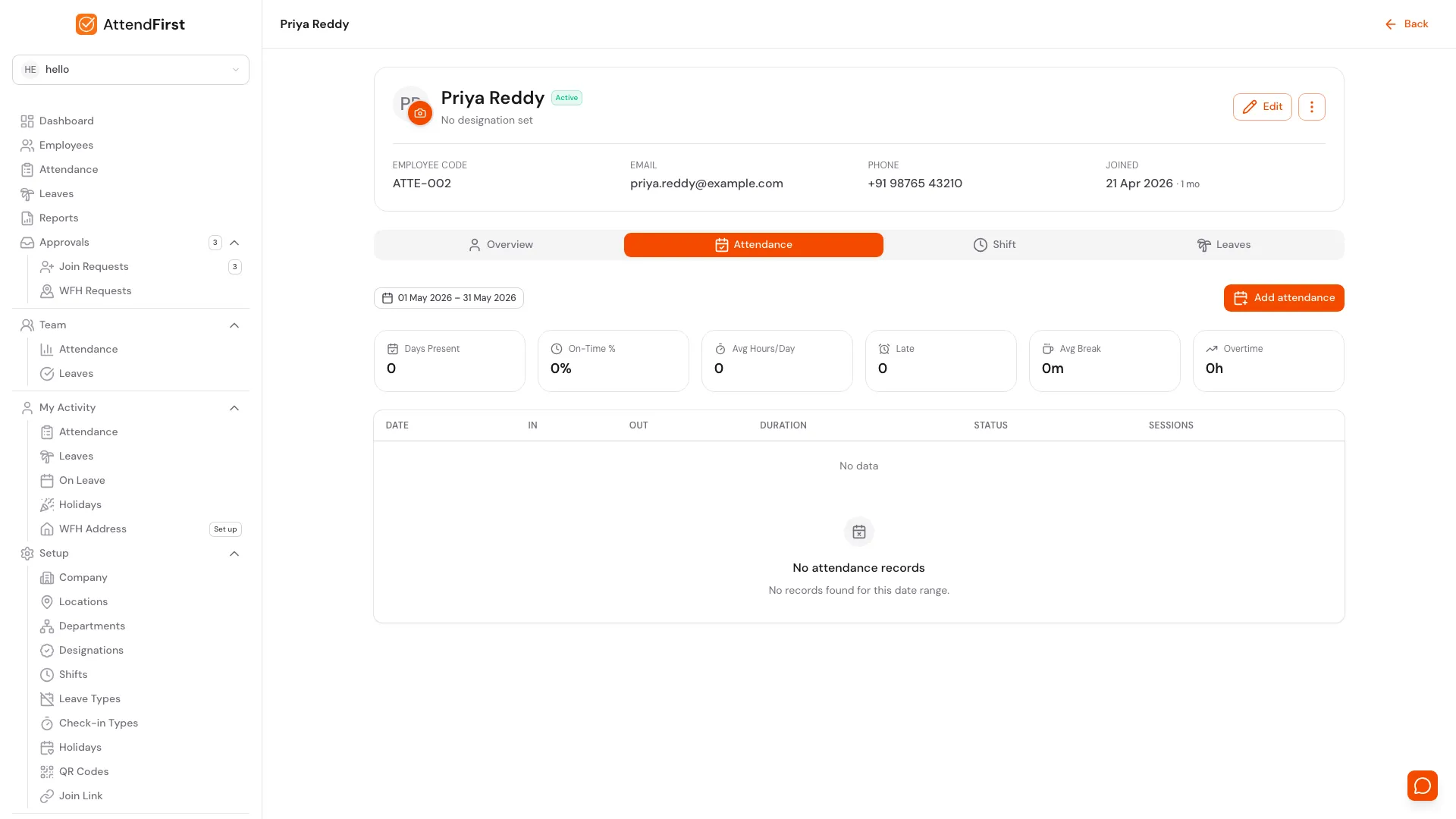
Defaults to the current month. Use the date-range picker to look at any window. The Add attendance button opens the backfill slideover - see Manual attendance for how that works.
Shift tab
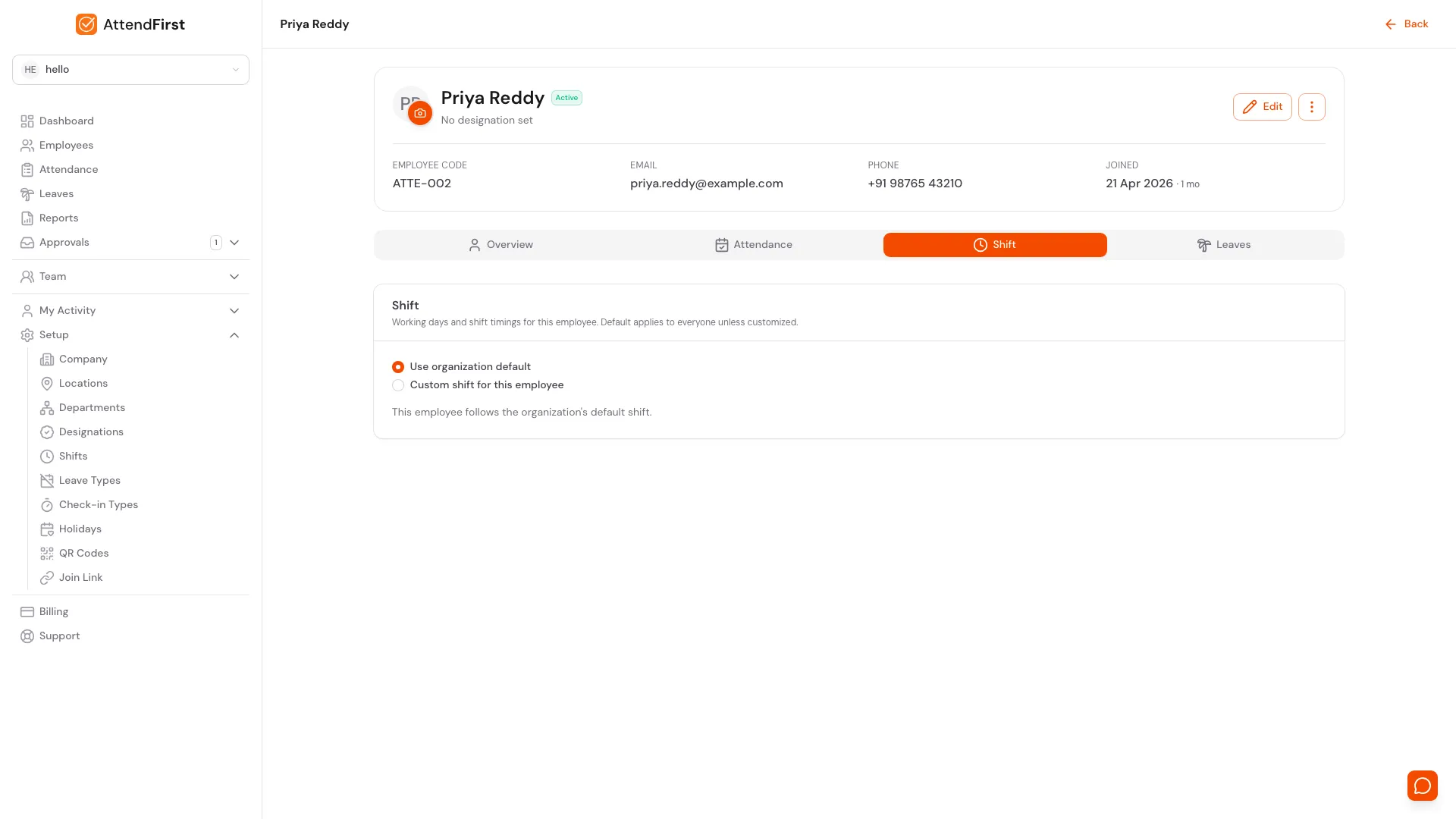
Two radios. The org default applies unless you switch to Custom shift for this employee.
The Shift tab controls which working days and timings apply to this employee:
- Use organization default: this employee follows the schedule set under Setup → Company. This is the starting state for every employee.
- Custom shift for this employee: opens the per-day editor where you set working days and shifts for just this person. Saving the editor stores an override on the employee record. Switching back to Use organization default removes the override.
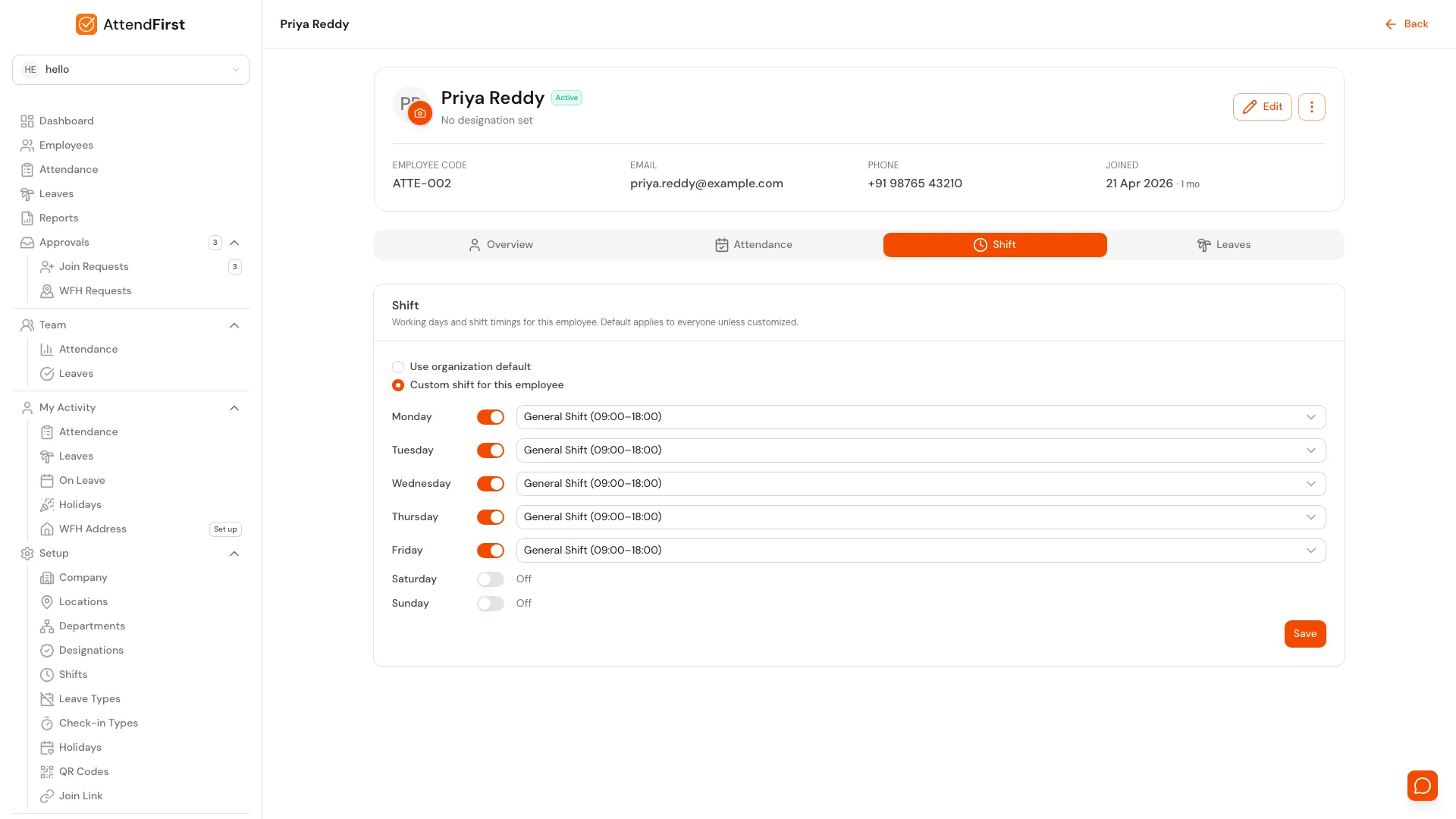
Custom shift editor. Each day has its own toggle and shift picker. Save persists the override.
Use the override when an employee works different hours - a night shift engineer, a part-time weekday-only consultant, or a sales rep on Tuesday-Saturday.
Leaves tab
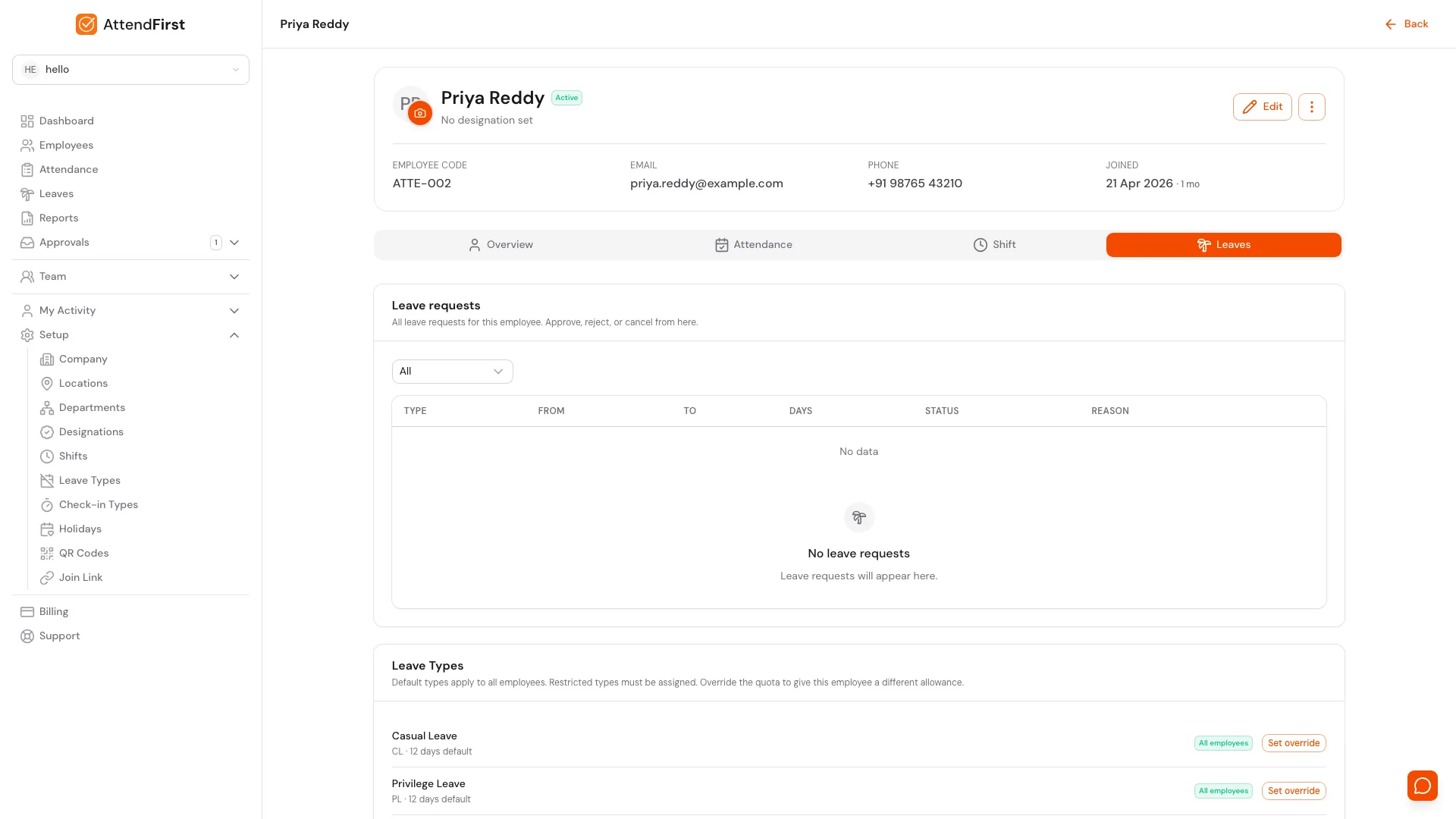
Two cards:
- Leave requests: every leave request this employee has submitted. Approve, reject, or cancel from here just like the global Leave approvals page.
- Leave Types: lists every leave type configured for the company along with how it currently applies to this employee. Use this to confirm what they can apply for.
Leave types themselves are configured under Setup → Leave Types - including which types are default (available to everyone) and which are restricted.
Employee and Admin roles
Every person in AttendFirst has a role, shown in the Role column on the employees list. There are two:
| Role | What they can do |
|---|---|
| Employee | Checks in, requests leave, and sees only their own data. |
| Admin | Full access - manages employees, attendance, settings, and billing. |
A new employee starts as Employee. To make someone an admin - or to demote an admin back to a regular employee - open their profile, click Manage → Change role, and pick the new role.
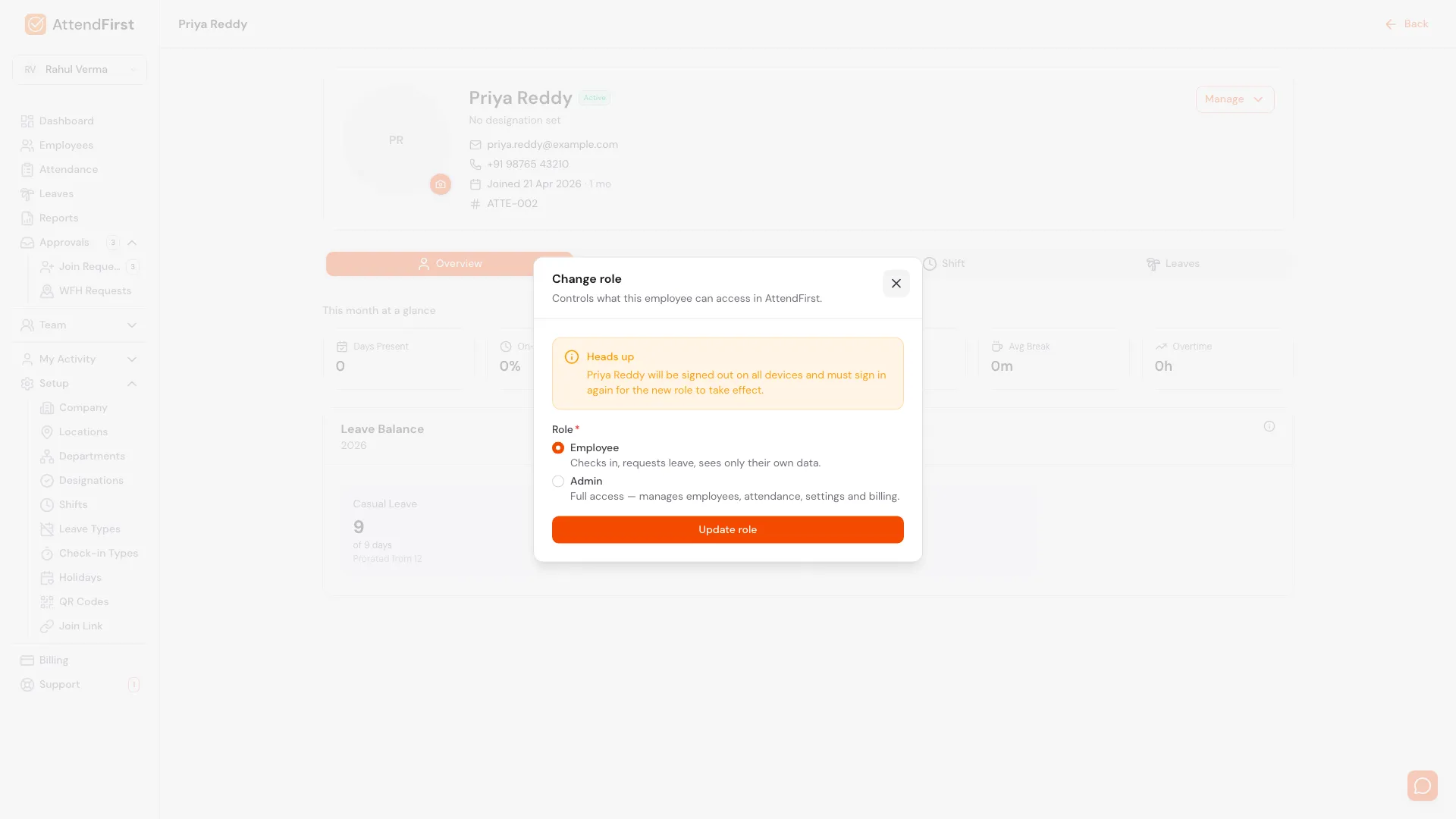
Change role. The employee is signed out everywhere so the new permissions load on their next sign-in.
Two things to know:
- The employee is signed out on all devices and must sign in again for the new role to take effect. The modal warns you before you confirm.
- You cannot change your own role. The Change role action does not appear on your own profile, so an admin can never accidentally lock themselves out.
Promoting an employee to Admin is the right move when you want a second person who can run payroll exports, approve any leave, and manage settings. A manager who only needs to see their own team’s attendance does not need Admin - reporting lines alone grant that. See Roles and permissions for the full breakdown.
Edit or update from the list
The three-dot menu on any list row has the most common actions:
- View profile: opens the profile page above.
- Edit: opens the Edit Employee modal with every field editable except the login email.
- Attendance: opens the profile straight on the Attendance tab.
- Shift: opens the profile straight on the Shift tab.
- Leaves: opens the profile straight on the Leaves tab.
- Deactivate (active employees) or Permanently delete (inactive employees): the destructive options.
Manager hierarchy
AttendFirst has no separate “manager” role. Instead, any employee with others assigned to them as reports automatically gets manager capabilities:
- See their reports’ attendance under Team → Attendance
- Approve or reject their reports’ leaves under Team → Leaves
To make an employee a manager, edit any report’s record and set the Manager field to that employee. Admins can always approve anyone’s leaves regardless of reporting lines.
Deactivate vs permanently delete
| Action | Effect | When to use |
|---|---|---|
| Deactivate | Marks the employee as inactive. They cannot log in. Record stays for history. Can be reactivated any time. | Suspension, long leave, resignation, retirement |
| Permanently delete | Removes the employee record entirely. Only available after deactivation. Past attendance is preserved on aggregates but the personal profile is gone. | Cleaning up test accounts, full data removal |
For nearly every real-world case, Deactivate is the right choice. Deactivated employees don’t count toward billing.
Profile photos
Employees can upload a photo from their own profile. Admins can upload on behalf of an employee by clicking the camera icon on the profile card. Photos are stored securely and shown on the employees list and the attendance page.
Frequently asked questions
What counts as an “employee” for billing?
Only Active employees. Deactivated employees are free. Tiers:
- Up to 3 active employees: free
- 4 to 10 active employees: flat ₹3,000 /year
- 11 or more active employees: ₹3,000 /year covers the first 10, then ₹499 /year for each additional employee (launch price, discounted from ₹599)
Can I bulk-import employees?
Not via the UI yet. The fastest bulk-onboarding path today is the self-join link: share the URL, employees submit, you approve in batches.
Can I assign different shifts to different employees?
Yes. Open the employee profile, switch to the Shift tab, and pick Custom shift for this employee. The per-day editor lets you choose working days and shifts just for this person. Saving stores the override. Switching back to Use organization default removes the override and the employee follows the org schedule again.
Can I give an employee a different leave quota?
Leave types and their quotas are configured at the organization level under Setup → Leave Types. Each type decides whether it is available to every employee or restricted.
Does changing an employee’s department affect past attendance?
No. Department is a current attribute. Past attendance records stay as they were.
Can I move an employee to a different location?
Yes. Edit the employee and change the Location field. Past attendance stays tagged to the original location; new check-ins use the new location’s geofence and holidays.
Can I make another employee an admin?
Yes. Open their profile, click Manage → Change role, and pick Admin. They get full access to employees, attendance, settings, and billing. Switch them back to Employee the same way. The person is signed out on all devices when the role changes and signs in again with the new access.
Related docs
- Roles and permissions. What Admin, Manager, and Employee each can do.
- Home locations. Verify check-ins for remote and hybrid employees.
- Locations. Set up the workplaces employees check in from.
- Self-join link. Let employees submit their own details.
- Working hours and shifts. Define the shifts you can assign per employee.
- Leave types. Decide which types are open to all vs assigned per employee.
- Reports and CSV export. Download attendance for payroll.
Steps
- Open the Employees page.Go to Employees. The list shows every employee with their name, code, phone, department, role, and status.
- Click Add employee.The invite dialog opens with your join link, a QR code, and a WhatsApp share button. To enter an employee's details yourself, click Add details yourself instead. Fill in the required fields - Full name, Work email, and Work location. Phone and Designation are optional.
- Pick the right location.Set Work location to the branch the employee will check in from. Defaults to the Primary location. Determines geofence, holidays, and leave types they see.
- Save to send the welcome email.Click Add employee. AttendFirst creates the employee as Active and sends them an email with a link to set their own password.
- Open the profile to set everything else.Click the employee's name to open their profile. Department, manager, work type, shift, leave types, and role are all set from here.
- Mark an exit when someone leaves.From the employee profile use the Manage menu and pick Deactivate. The record stays for history. Use Permanently delete only after deactivation if you want to remove the record entirely.
Frequently asked questions
What counts as an employee for AttendFirst billing?
Only active employees. Deactivated employees are free. Up to 3 active employees is free. 4 to 10 employees is a flat ₹3,000/year. From 11 employees, the ₹3,000 covers the first 10 and each additional employee is ₹499/year (launch price, discounted from ₹599).
Can I bulk-import employees to AttendFirst?
Not via the UI yet. The fastest bulk-onboarding path is the self-join link: share the URL, employees submit, you approve in batches.
Can different employees have different shifts?
Yes. Open the employee profile, switch to the Shift tab, and pick Custom shift for this employee. The override stores per-day working days and shifts on that employee's record. Everyone you have not overridden keeps following the org default.
Can I give one employee a different leave quota?
Leave types and their quotas are configured at the organization level under Setup → Leave Types. The leave type itself decides if it is available to all employees or restricted.
How does AttendFirst handle managers?
There is no separate manager role. Any employee with others reporting to them gets manager capabilities: seeing their team's attendance and approving their leaves.
Can I make another employee an admin?
Yes. Open their profile, click Manage → Change role, and pick Admin. They get full access to employees, attendance, settings, and billing. You can switch them back to Employee the same way. The person is signed out everywhere when the role changes.