Work-from-home check-in verification in AttendFirst
Verify work-from-home and hybrid check-ins in AttendFirst against an approved home GPS. Remote employees pin their home and admins approve the request.
Not everyone checks in from an office. A home location is the GPS spot a remote or hybrid employee works from. Once you approve it, AttendFirst verifies that employee’s check-ins against their home address instead of an office geofence.
Work type and work mode
Two fields on the employee profile decide whether home locations apply. Open a profile, then Manage → Edit details, and find the Work section.
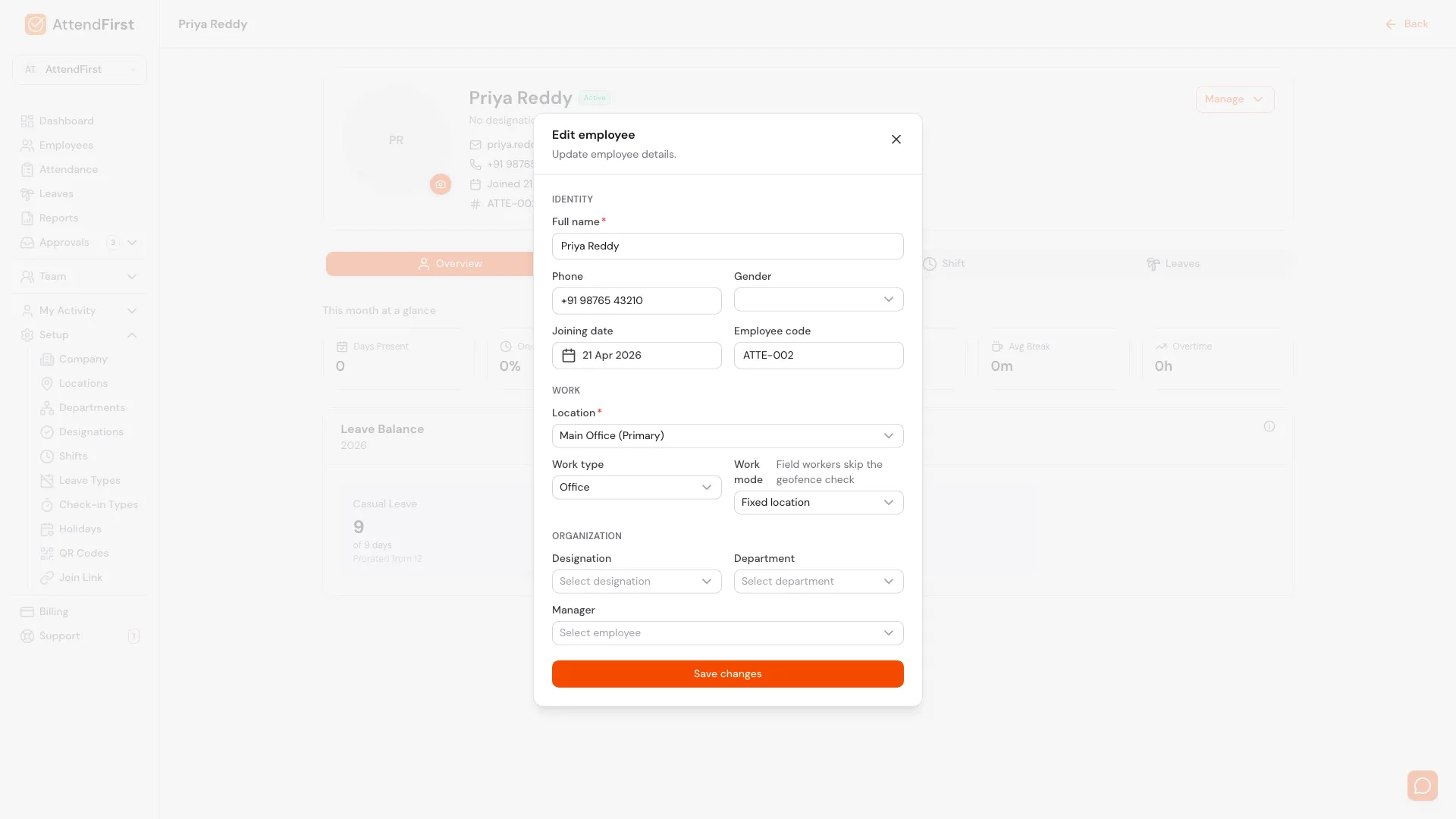
Manage → Edit details → Work section. Work type and Work mode set how an employee’s check-ins are verified.
- Work type - Office, Remote, or Hybrid. Office is the default. Remote and Hybrid employees are the ones who get a home location.
- Work mode - Fixed location or Field worker. Field workers skip the geofence check entirely, so they never get a home location even if their Work type is Remote.
A home location applies to any employee who is Remote or Hybrid and not a field worker.
How an employee sets their home location
A Remote or Hybrid employee sets their own home location from the mobile app. They drop a pin; you approve it.
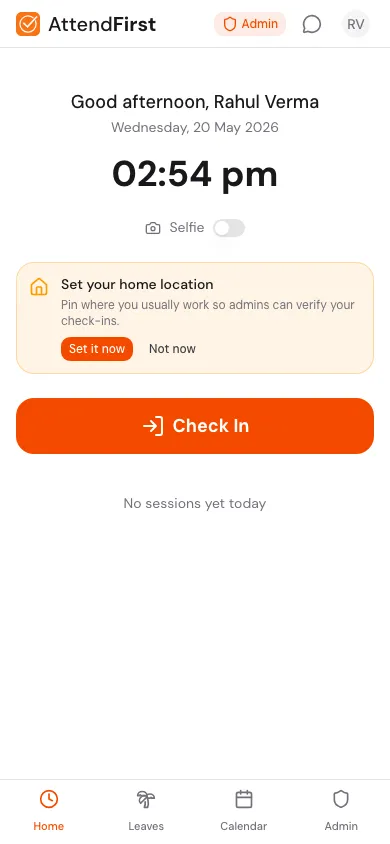
The home location banner on app.attendfirst.com/m. It shows until the employee sets a home location.
When a Remote or Hybrid employee opens app.attendfirst.com/m, a Set your home location banner sits above the Check In button. Tapping Not now hides it on that phone; tapping Set it now opens the pin picker.
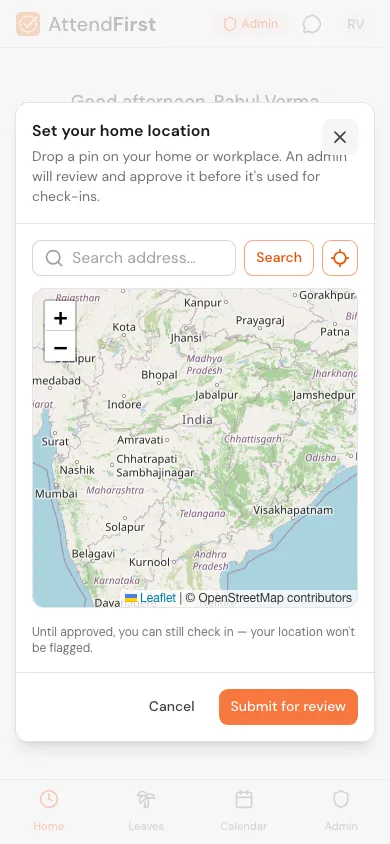
The employee searches for their address or drags the pin, then taps Submit for review.
The employee searches for their address or drags the pin to the exact spot, then taps Submit for review. The request lands in your WFH Requests queue. The note on the screen is honest about what happens next: until you approve it, the employee can still check in and their location is not flagged.
After submitting, the mobile home shows a WFH Address card instead of the banner - it reads Pending admin review until you act, and links to /m/home-location where the employee can see the status or drop a new pin.
Reviewing WFH requests
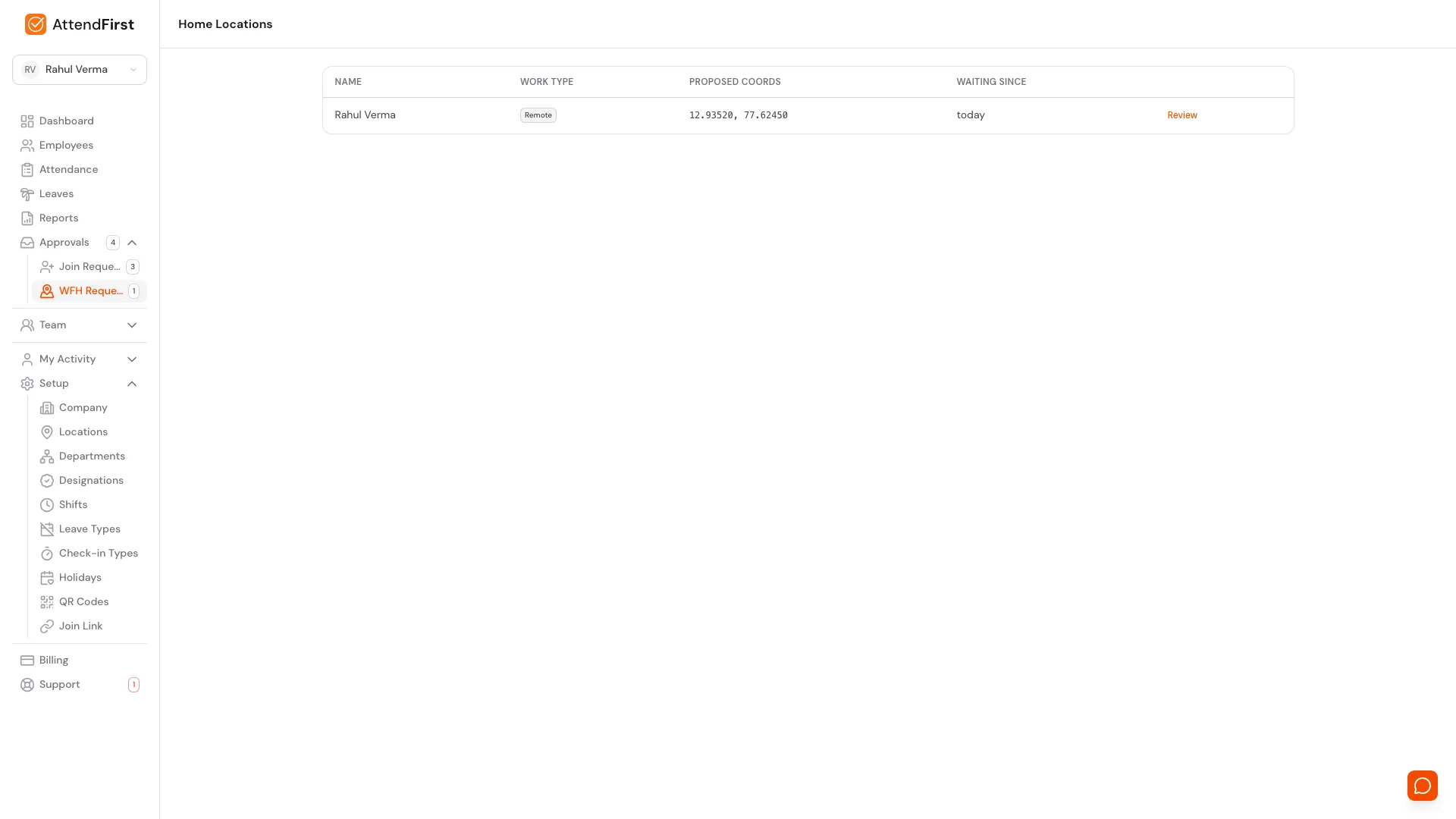
Approvals → WFH Requests. Every employee who has proposed a home GPS, waiting for review.
Open Approvals → WFH Requests in the sidebar. The Home Locations page lists every pending request with the employee name, their work type, the proposed coordinates, and how long they have been waiting. You also get a push notification each time someone submits.
Click Review on a row to open the request.
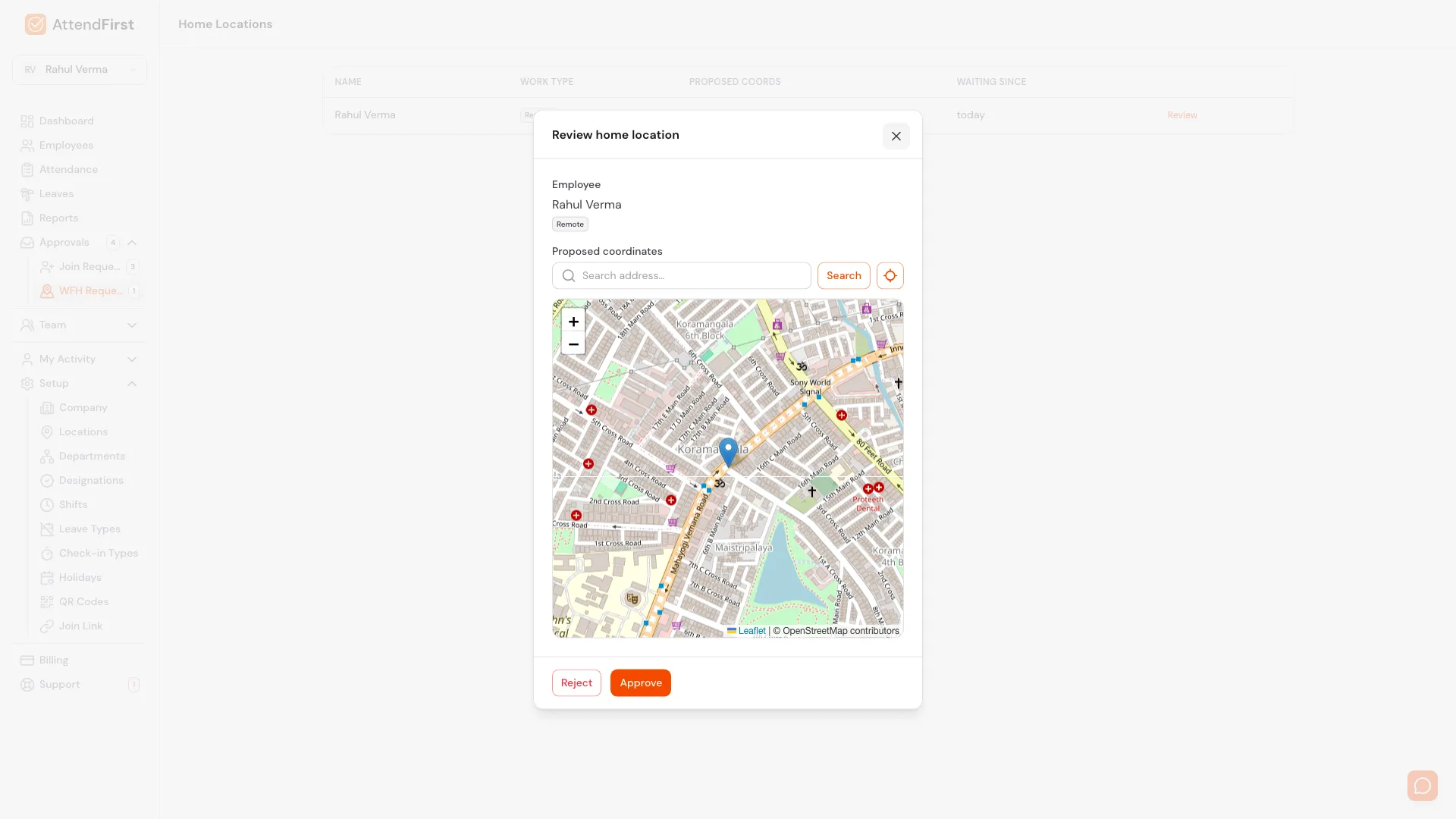
The review modal plots the proposed pin on a map so you can sanity-check it before approving.
The Review home location modal plots the proposed pin on a map. Check that it looks like a real home, then:
- Approve - the proposed pin becomes the employee’s approved home location. AttendFirst starts verifying their check-ins against it. The employee gets a push and an email.
- Reject - click Reject, optionally type a reason, then Confirm reject. The reason is sent to the employee so they know what to fix.
A reject behaves differently depending on history. If this was a first request, the employee goes back to no home location and can submit a fresh pin. If this was a change to an already-approved location, the old approved location stays in place - rejecting a change never strands the employee without a verified home.
Setting a home location from the profile
You do not have to wait for an employee to submit. From any eligible employee’s profile, Manage → Update home location sets the GPS directly.
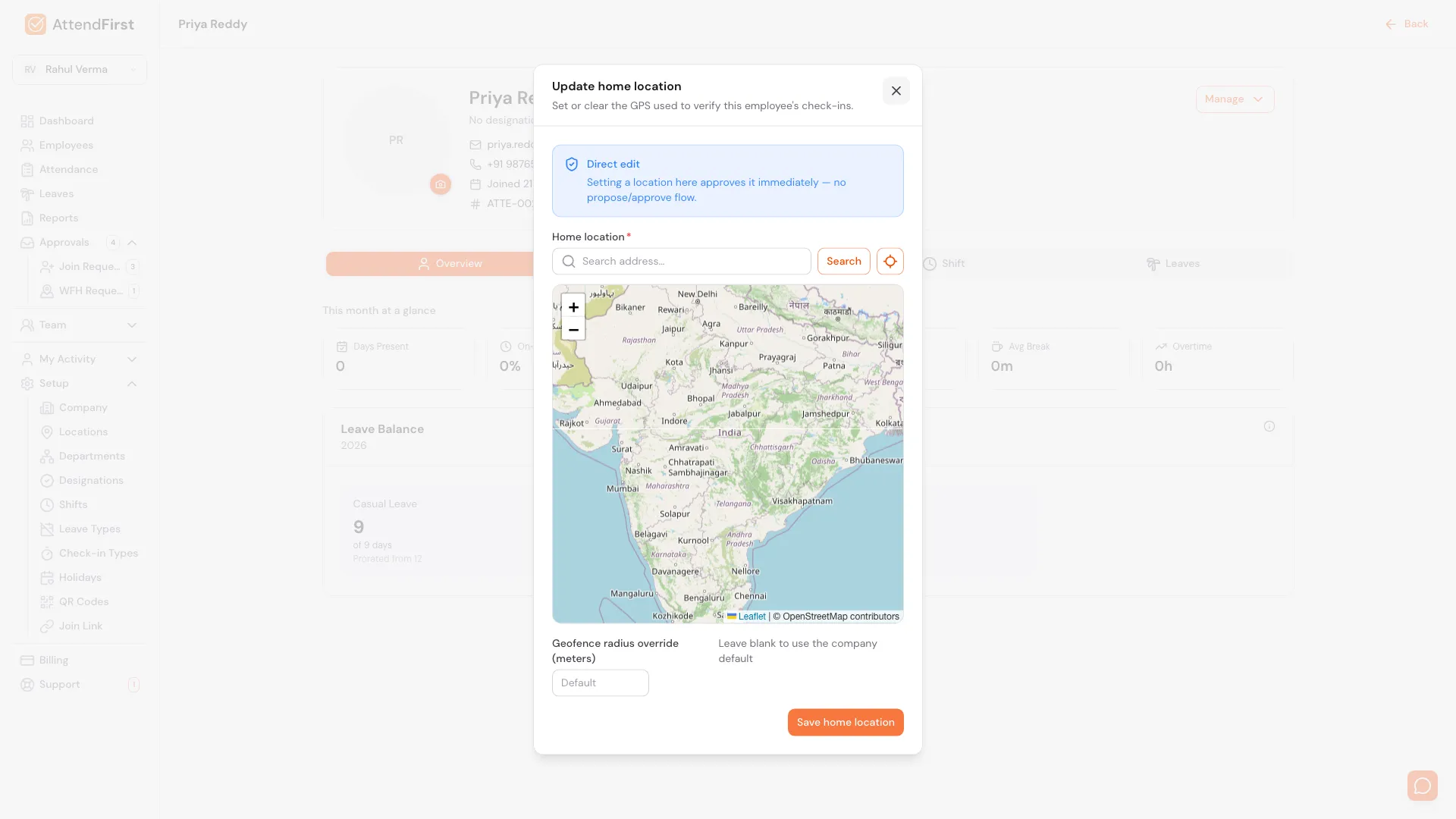
Manage → Update home location. The Direct edit notice flags that this skips the review step.
The Update home location modal makes this an immediate change - the Direct edit notice says so plainly: setting a location here approves it on the spot, with no propose-and-review round trip. Useful when you already know where someone works and want to skip the back-and-forth.
Two extra controls live here:
- Geofence radius override (meters) - the distance from the home pin you want to accept. Leave it blank to use the company default. Set a value (50 to 2000 m) for an employee whose home GPS is noisy, or who works across a larger plot. As at any location, a check-in slightly outside the radius still verifies when the phone’s reported accuracy covers the gap, capped at half the radius - see check-in security in Locations.
- Clear home location - removes the saved home GPS. The employee goes back to the no-home state.
Field workers are not eligible - the modal tells you so instead of letting you set one.
How a home location changes check-in verification
A home location only changes how AttendFirst tags a check-in. It never blocks one. Here is what each employee state does:
| Employee state | What happens on check-in |
|---|---|
| Field worker | Geofence is skipped. Check-ins are never flagged for location. |
| Remote / Hybrid, no approved home | Grace period. Check-ins are recorded without a geofence result and are not flagged. |
| Remote / Hybrid, approved home | Check-ins inside the home radius are verified and tagged WFH. Outside the radius, they are flagged for you to review. |
| Office employee | Check-ins are verified against the office location geofence. |
The home radius is the per-employee override if you set one, otherwise the company default geofence radius. AttendFirst checks the home geofence before the office one, so an employee whose home sits near the office is still tagged WFH, not Office.
You can see the tag - WFH, Office, Field - and the GPS result on each session in the admin attendance day view.
Frequently asked questions
What is a home location in AttendFirst?
It is the GPS spot a remote or hybrid employee works from. Once an admin approves it, AttendFirst verifies that employee’s check-ins against their home instead of an office geofence.
Who needs a home location?
Employees with Work type set to Remote or Hybrid. Office employees use their location’s geofence, and field workers skip GPS verification, so neither needs one.
Can a remote employee check in before their home location is approved?
Yes. Check-ins are never blocked. Until a home location is approved, a remote employee’s check-ins are recorded without a geofence result and are not flagged.
Can an admin set a home location without the review step?
Yes. From the employee profile, Manage → Update home location sets the GPS directly and approves it immediately, with no propose-and-review round trip.
What happens when I reject a home location?
If it was a first request, the employee goes back to no home location and can submit again. If it was a change to an already-approved location, the old approved location stays in place.
Can I change the radius for one employee?
Yes. The Geofence radius override field on Update home location sets a per-employee radius from 50 to 2000 m. Leave it blank to use the company default.
Related docs
- Managing employees. Set Work type and Work mode on the employee profile.
- Locations. Office geofences, used for employees who are not remote.
- Check in and check out. The mobile flow where the home location banner appears.
- Manual attendance. See the WFH tag and GPS result on each session.
- Attendance status reference. How verified and flagged check-ins roll into a day’s status.
Steps
- Set the employee's work type.On the employee profile, open Manage → Edit details and set Work type to Remote or Hybrid in the Work section.
- Employee pins their home.The employee opens app.attendfirst.com/m, taps Set it now on the home location banner, drops a pin on their home, and taps Submit for review.
- Review the request.Go to Approvals → WFH Requests. Click Review on the row, check the pin on the map, and click Approve or Reject.
- Check-ins are verified from home.Once approved, AttendFirst checks the employee's GPS against their home location instead of an office geofence.
Frequently asked questions
What is a home location in AttendFirst?
A home location is the GPS spot a remote or hybrid employee works from. Once an admin approves it, AttendFirst verifies that employee's check-ins against their home instead of an office geofence.
Who needs a home location?
Employees set to Work type Remote or Hybrid. Office employees use their location's geofence, and field workers skip GPS verification entirely, so neither needs one.
Can a remote employee check in before their home location is approved?
Yes. Check-ins are never blocked. Until a home location is approved, a remote employee's check-ins are recorded without a geofence result and are not flagged.
Can an admin set a home location without the review step?
Yes. From the employee profile, Manage → Update home location sets the GPS directly and approves it immediately - no propose-and-review round trip.
What happens when I reject a home location?
If it was a first request, the employee goes back to having no home location and can submit again. If it was a change to an already-approved location, the old approved location stays in place.