Submit and track employee leave requests in AttendFirst
How AttendFirst leave management works for employees. Submit a request, get manager approval, apply for half-days, and track status on the shared calendar.
Leave management in AttendFirst has no HR workflows and no multi-level approvals. An employee submits a leave request, their manager (or an admin) approves or rejects it, and the approved days appear on the shared leave calendar. Balances update the moment an approval happens.
My Leaves page (sidebar: My Activity → Leaves)
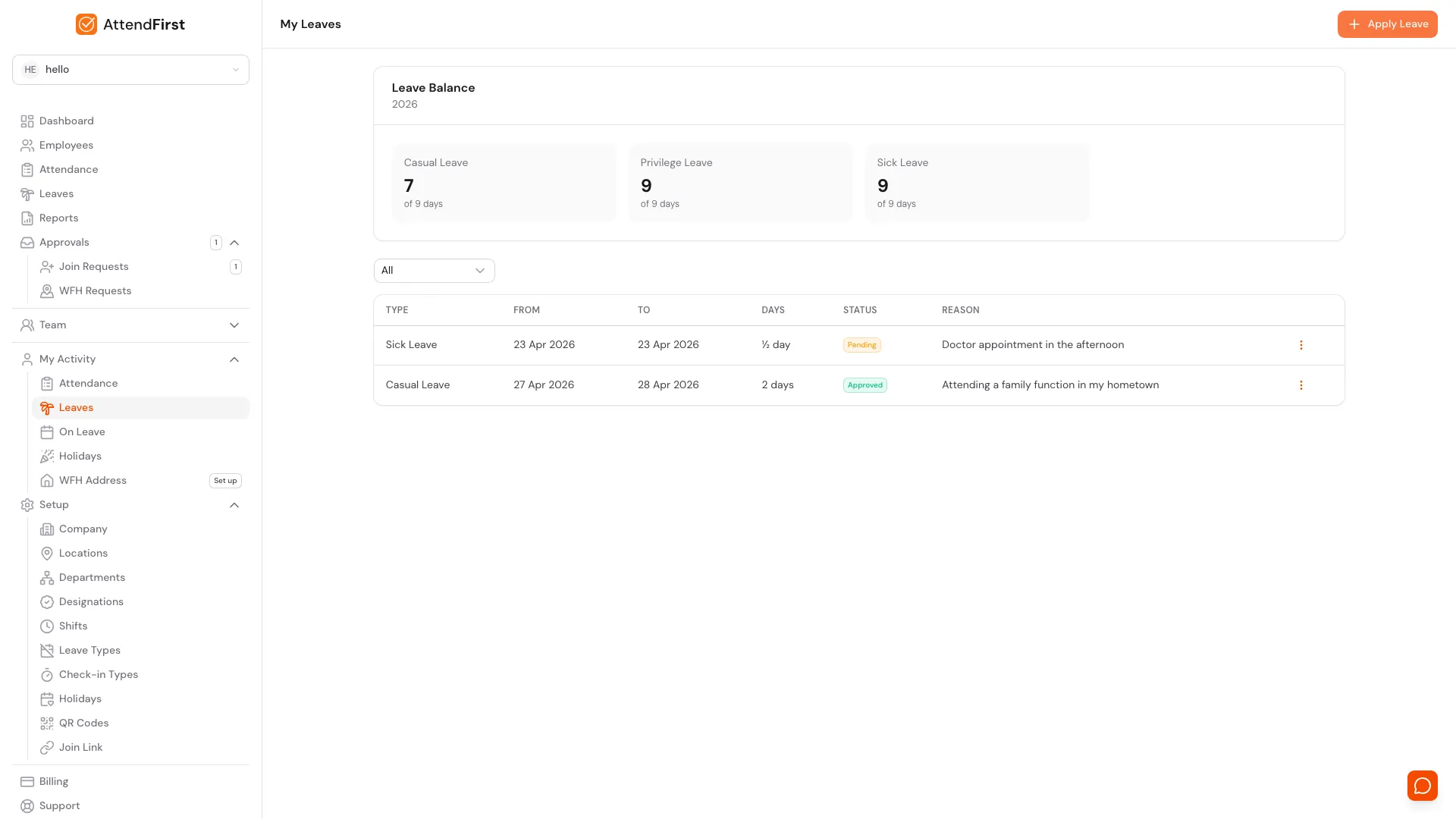
Open My Leaves from the sidebar. The page has three parts:
- Leave Balance cards, one per leave type the admin has configured (Casual, Privilege, Sick by default). The number is days remaining for this calendar year.
- Status filter: All / Pending / Approved / Rejected / Cancelled.
- Request history table: every past and pending request with Type, From, To, Days, Status, Reason columns.
Submitting a leave request
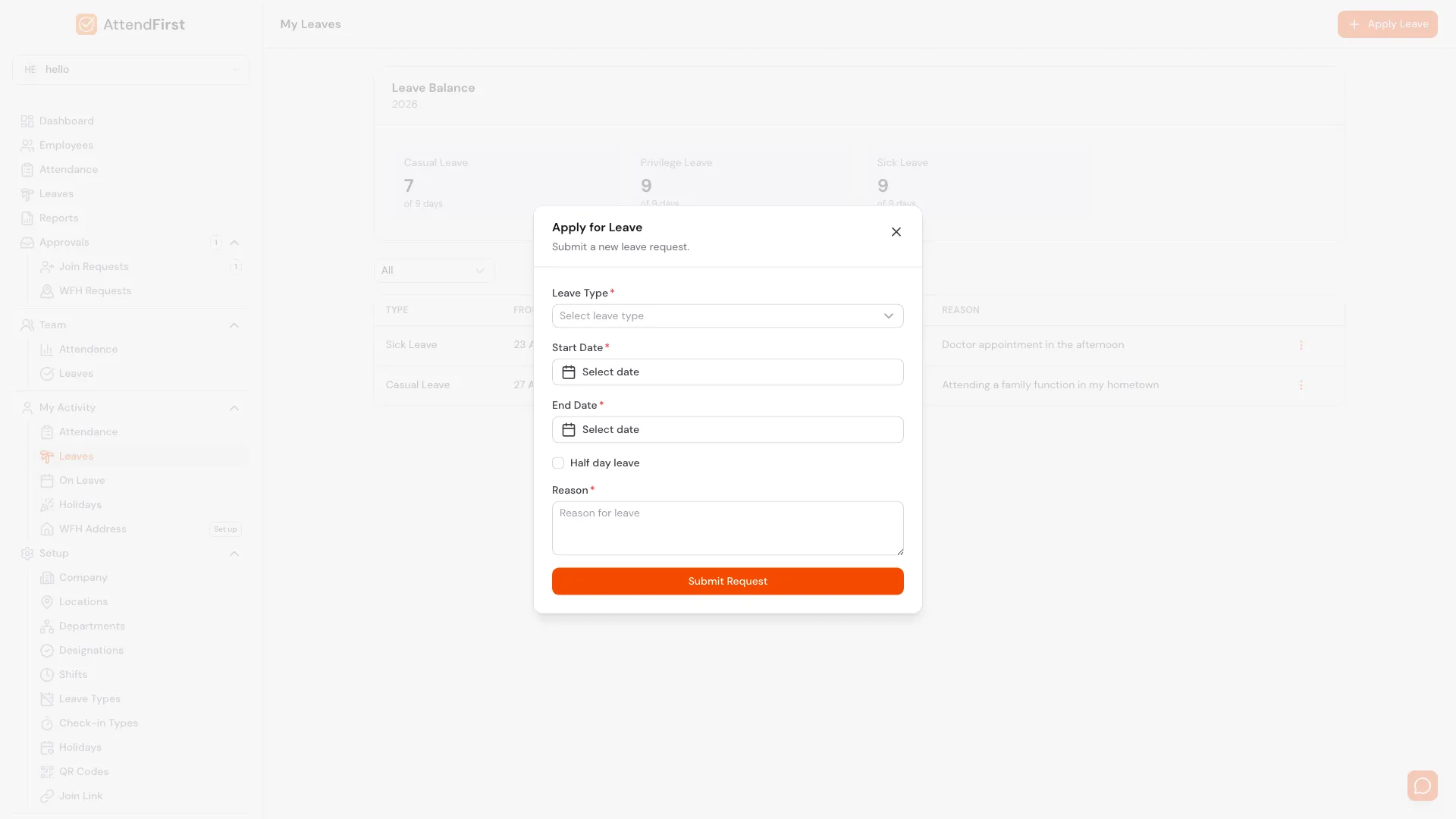
Click Apply Leave to open this modal. Half-day is only enabled when the range is a single day.
Click Apply Leave in the top right. The modal asks for:
- Leave Type (required). Picked from the types the admin has configured.
- Start Date and End Date (required). Cross-year ranges are blocked; split them into two requests.
- Half day leave checkbox. Only available when Start and End are the same day.
- Reason (required). Visible to the approver.
Click Submit Request. The request enters Pending state and appears in the manager’s approval queue.
Manager approval
Managers and admins see pending requests under Team → Leaves. For each request they can:
- Approve: request moves to Approved. On-leave attendance records are created for each working day covered. Existing records are not overwritten.
- Reject: request moves to Rejected. No attendance changes.
- Approve with note: optional comment saved on the request.
An admin can always approve anyone’s leaves. A manager can only approve their direct reports.
The shared leave calendar
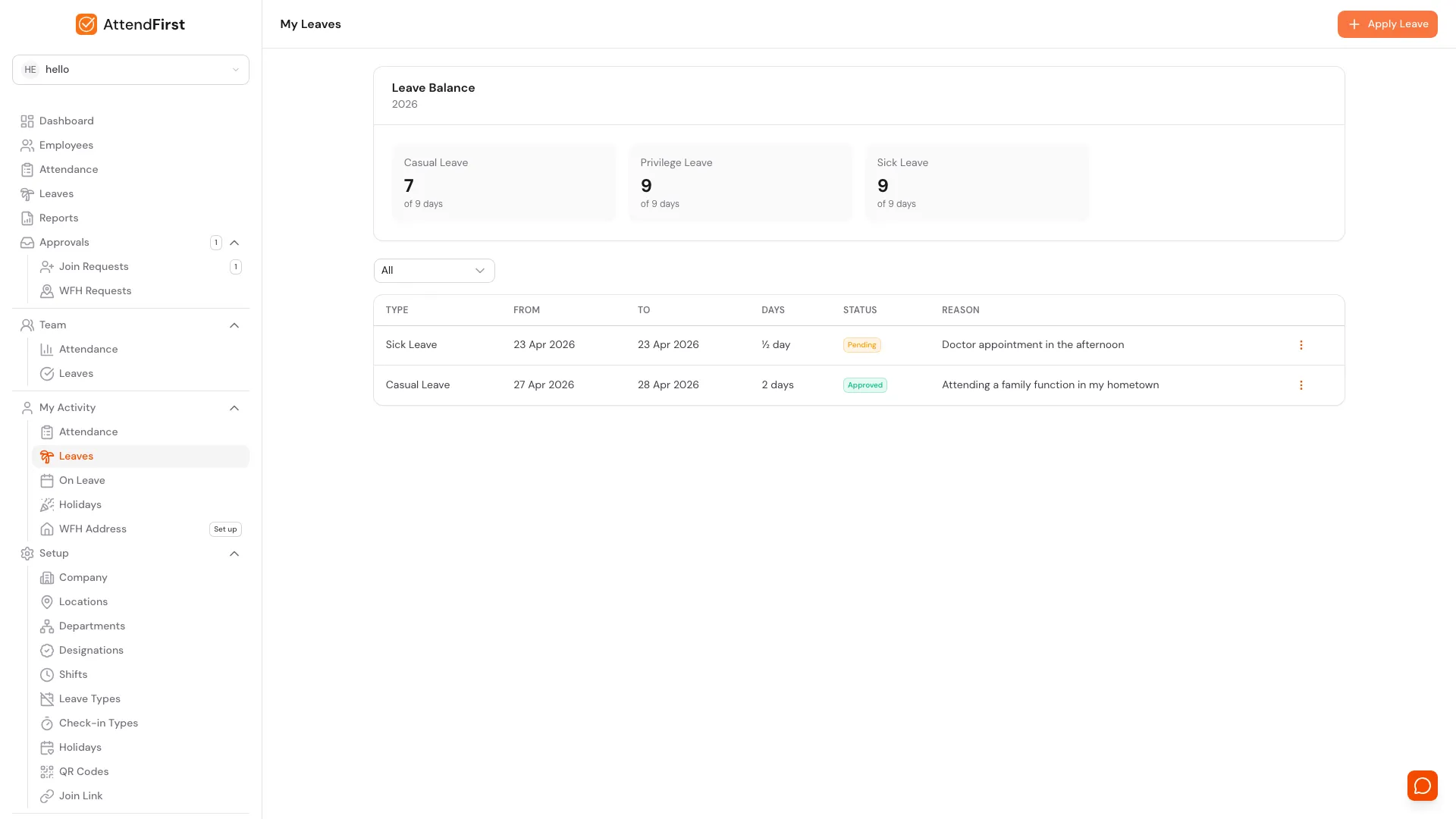
The Leave Calendar link in the sidebar opens a month view of every approved leave across the company. One row per employee, one column per day. Colors mark approved leave, half-days, holidays, weekly off, and today. Prev/next arrows step through months. The admin can disable company-wide visibility under Setup → Company → Org-wide Leave Calendar.
Half-day leaves
Half-day leaves are single-day requests with the Half day checkbox on. They count as 0.5 days against the balance and create an on-leave record marked as half-day. On the attendance page, the employee’s status for that day becomes Half day and work time is still tracked for the half they do attend.
Cross-day half-day requests are rejected at form validation. Submit two single-day half-day requests instead.
Leave balance and quotas
Each leave type has an annual quota. Your remaining balance is the annual quota minus the days you have already had approved.
For mid-year joiners, the quota is pro-rated based on the joining month. A new hire starting on July 1 with a 12-day Casual quota gets 6 days for the rest of that calendar year (12 x 6 months / 12). On January 1, the full 12-day quota resets.
Cancelling leave
- Before approval: the employee can cancel their own pending request any time.
- After approval: only an admin can cancel an approved request. Cancelling removes the on-leave attendance records for the affected days, freeing the balance.
The org-wide leave calendar
All approved leaves show on the calendar at Dashboard → Leave calendar. Each employee’s leave is a coloured block. Holidays and weekends are shaded in the background.
Status flow
| From | To | Who can do it |
|---|---|---|
| Pending | Approved | Manager or admin |
| Pending | Rejected | Manager or admin |
| Pending | Cancelled | Employee (their own request) |
| Approved | Cancelled | Admin |
A rejected request cannot be reopened. Submit a new one if circumstances change.
Frequently asked questions
Can I submit leave spanning two calendar years?
No. Cross-year requests are blocked at submission. Submit one request for the days in year A and another for the days in year B. Each request uses the quota of its own year.
What if a holiday falls inside my approved leave?
On-leave attendance records are only created for working days. Holidays and weekends inside your leave range don’t count against your balance.
Can my manager approve their own leave?
No. Self-approval is blocked. Their leave requests go to the company admin.
Does AttendFirst support comp-off or lieu leave?
Not as a built-in type. Admins can create a Comp-off leave type and add balance manually by adjusting the annual quota for that employee, if needed.
Can I see who’s on leave tomorrow?
The On-leave tomorrow email goes out to the admin at 6 PM the previous day. The same information is on the dashboard’s leave calendar.
Related docs
- Leave types. The admin side for configuring Casual, Sick, and custom types.
- Check in and check out. For days when you’re not on leave.
- Holidays. Company-wide non-working days that never subtract from your balance.
- Push notifications. Get notified when your request is approved.
Steps
- Open My Leaves.Click Leaves under My Activity in the sidebar. You see your Leave Balance cards, a status filter, and every past and pending request.
- Click Apply Leave.The Apply Leave modal opens. Pick a Leave Type (Casual, Sick, Privilege, or any custom type), choose Start and End dates, and enter a Reason.
- Toggle Half day if applicable.For a half-day leave, make Start and End the same date and turn on the Half day leave checkbox. Half-days count as 0.5 days against balance.
- Submit the request.Click Submit Request. The request enters Pending state and appears in your manager's approval queue. You get an email and push notification when it is approved or rejected.
- Cancel a pending request.Before approval, click the three-dot menu on your own request and choose Cancel. After approval, only an admin can cancel, which frees the days back to your balance.
Frequently asked questions
Can I submit an AttendFirst leave request that spans two calendar years?
No. Cross-year requests are blocked. Submit one request for days in year A and another for days in year B. Each request uses the quota of its own year.
What if a holiday falls inside my approved leave?
On-leave records are only created for working days. Holidays and weekends inside your leave range do not count against your balance.
Can my manager approve their own leave in AttendFirst?
No. Self-approval is blocked. A manager's leave requests always go to the company admin.
How does AttendFirst calculate leave balance?
Remaining balance is the annual quota minus days already approved. For mid-year joiners, quota is pro-rated by the number of months left in the calendar year.
Does AttendFirst support half-day leaves?
Yes. Half-day leaves must be single-day requests with the half-day checkbox on. They count as 0.5 days against the balance and show as Half day on the attendance page.
Does AttendFirst support comp-off or lieu leave?
Not as a built-in type. Admins can create a Comp-off leave type and manually adjust balances by updating the annual quota for that employee.