AttendFirst departments - organise employees by team
Organise employees by department in AttendFirst. Add a name and description, then filter attendance reports, leave requests, and employee lists by department.
The Departments page is where admins define the groups their company uses - Engineering, Sales, HR, Operations, or whatever fits your structure. Every employee belongs to one department, and every attendance report and leave queue can be filtered by it.
Department list
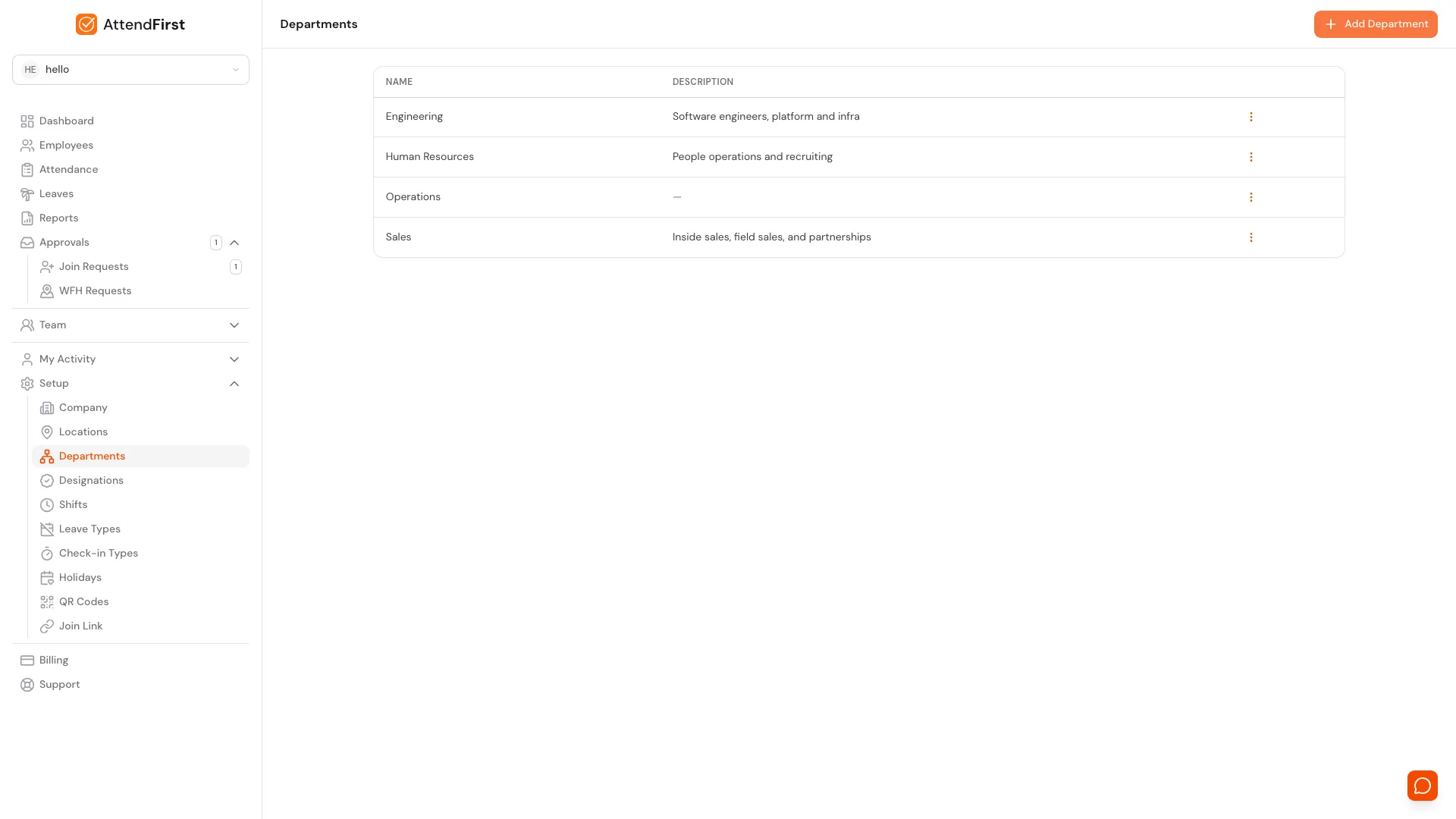
To see the list, go to Setup → Departments. Each row has the department name and an optional description. The name appears on every employee record, report filter, and the join form. The description shows as a tooltip on department pickers - handy when team names are ambiguous.
Click any row’s three-dot menu to Edit or Delete.
Creating a department
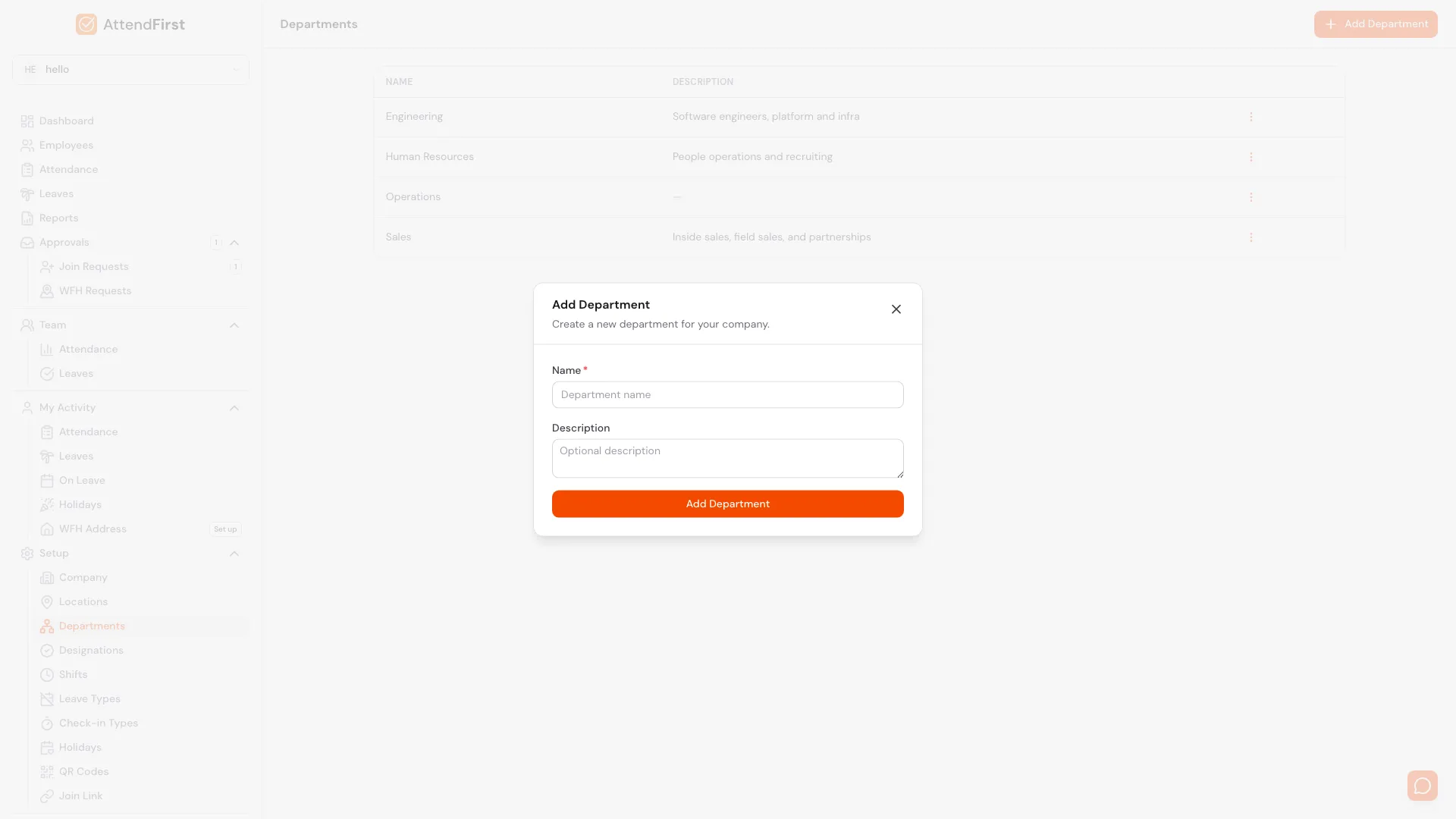
Click Add Department to open this modal. Name is required, description optional.
Click Add Department in the top right. Fill in:
- Name (required). Must be unique per company. Example: Marketing.
- Description (optional). Example: Growth, content, and brand.
Save, and the department is available immediately on the Add/Edit Employee modal and the join request review modal.
Editing and deleting
Click the three-dot menu on any row:
- Edit: rename the department or update the description. All employees assigned to it move with the rename automatically.
- Delete: only works on empty departments. If anyone is assigned, AttendFirst blocks the delete and tells you to reassign them first.
To empty a department quickly, go to Employees, filter by that department, and edit each employee to move them to a new one.
How departments drive the product
Departments are a grouping label, not an attendance rule. They show up wherever it helps you slice data or narrow a queue:
- Employees list: filter by department.
- Daily and monthly reports: filter by department, then export CSV.
- Leave approvals list: filter by department.
- Join requests and Add Employee modal: pick a department at creation.
Shifts and work schedule are company-wide, not per-department. If you need different shift timings for different teams, see the Working hours and shifts roadmap note on per-department shifts.
Typical setup
A six-person SMB might run:
| Department | Description |
|---|---|
| Engineering | Software, platform, and infra |
| Sales | Inside, field, and partnerships |
| Marketing | Growth, content, and brand |
| Operations | Back-office, procurement, vendors |
| Human Resources | People operations and recruiting |
| Finance | Accounts, compliance, payroll |
You can add or rename departments at any time - history is not affected.
Frequently asked questions
Can one employee belong to two departments?
No. Each employee has exactly one department. Use naming like Sales - India / Sales - APAC if you need finer splits.
If I rename a department, do old reports break?
No. Past records point to the employee, not a frozen department snapshot. Renaming applies retroactively.
Can I delete a department that still has employees?
No. AttendFirst blocks the delete until every employee is moved out. Empty departments delete in one click.
Does department affect shift or attendance rules?
No. Shifts, late thresholds, and half-day rules are set on the shift, not the department. Department is a grouping and filter label only.
Where do employees see their department?
On the public join form (if you’ve configured departments) and on their own profile page. Employees cannot change their own department - admins edit it from the employee record.
Related docs
- Designations. The other grouping label, usually role-based (Engineering Manager, Sales Executive).
- Managing employees. Assign or reassign departments to employees.
- Reports and CSV export. Filter monthly attendance by department.
Steps
- Open Departments.Go to Setup → Departments. Every department your company uses is listed here.
- Click Add Department.A modal opens with Name and Description fields.
- Fill in the fields.Name is the label that appears everywhere (Engineering). Description is an optional one-liner for context.
- Save.Click Add Department. The new department is available when you add or edit an employee.
Frequently asked questions
Can I have the same employee in two departments?
No. Each employee belongs to exactly one department. Use a naming convention like "Sales - India" and "Sales - APAC" if you need finer splits.
What happens to historical attendance when I rename a department?
Nothing breaks. Department is a current attribute on the employee record. Past reports continue to roll up under whatever the employee's department was at that time, not a frozen snapshot.
Can I delete a department that has employees?
No. Move every employee out first, then delete. Empty departments can be deleted in one click.
Does department filter affect attendance calculation?
No. Department is a grouping label only. Status, work hours, and late rules are driven by shifts and work schedule, not department.
Where does the department selection appear for employees?
On the join form (if enabled), the Add/Edit Employee modal, and the review modal for join requests. Admins can also bulk-reassign departments by editing employees.