Employee self-join link in AttendFirst: onboard the team
Share one link to onboard your whole team in AttendFirst. How self-join works: company slug, optional PIN, admin approval queue, and auto-created accounts.
Instead of adding each employee by hand, admins share one join link. Employees open the link, fill a short form, and land in a pending approval queue. The admin reviews, approves, and AttendFirst emails the employee their login. For a team of 30, this replaces 30 manual invites with one WhatsApp forward.
Configure the join link
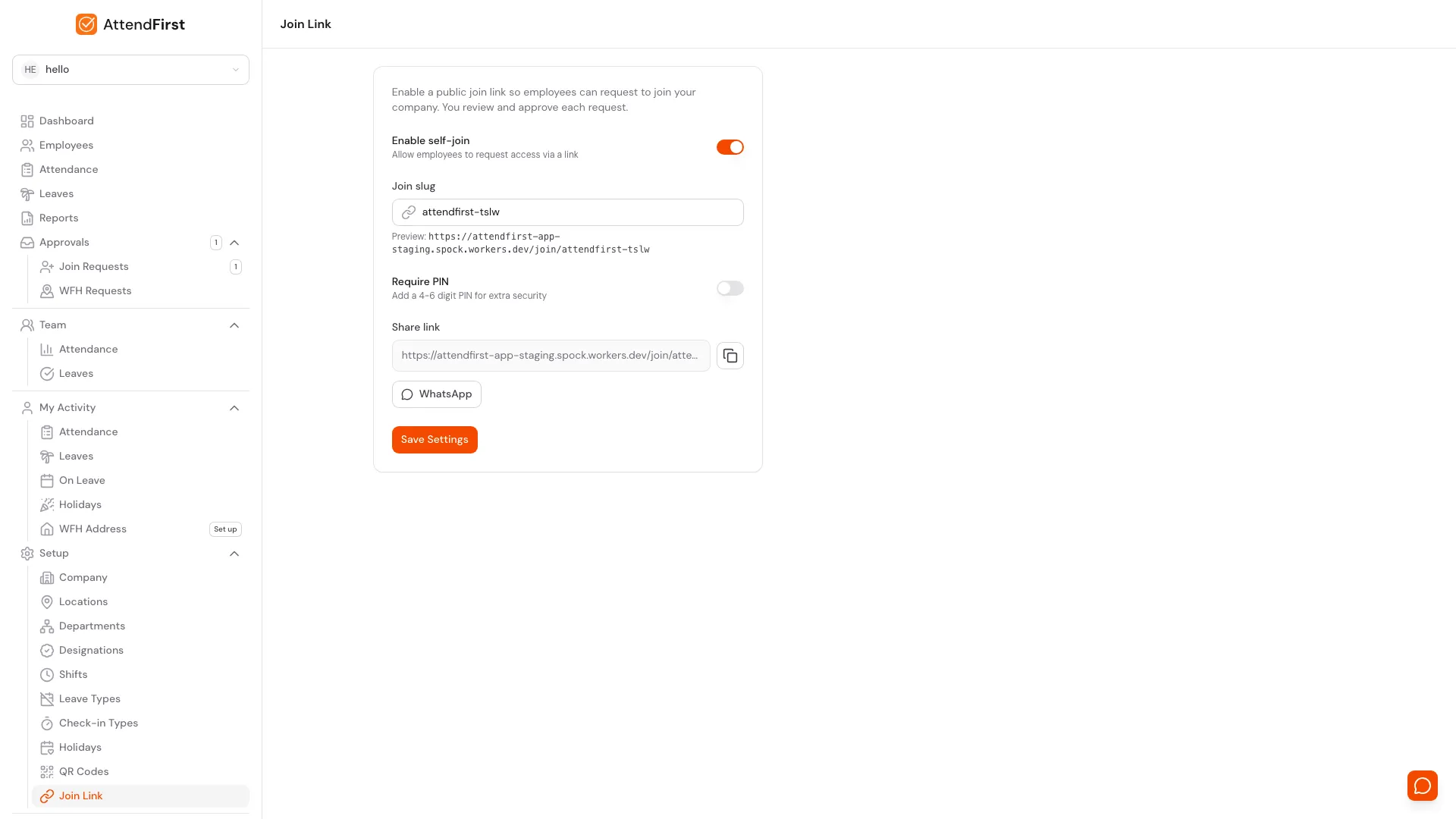
Open Setup → Join Link. The card has four controls:
- Enable self-join: master switch. Turn it off to disable the link without losing the slug.
- Join slug: the unique part of the URL. Defaults to your company name kebab-cased. Change it to rotate the link, shorten it, or make it memorable.
- Require PIN: a 4 to 6 digit code employees must enter before the form appears. Stops random submissions if the URL leaks.
- Share link: read-only preview of the full URL with a Copy button and a WhatsApp button that pre-fills a message.
Click Save Settings after any change. The URL follows the pattern
https://app.attendfirst.com/join/<slug>.
What employees see
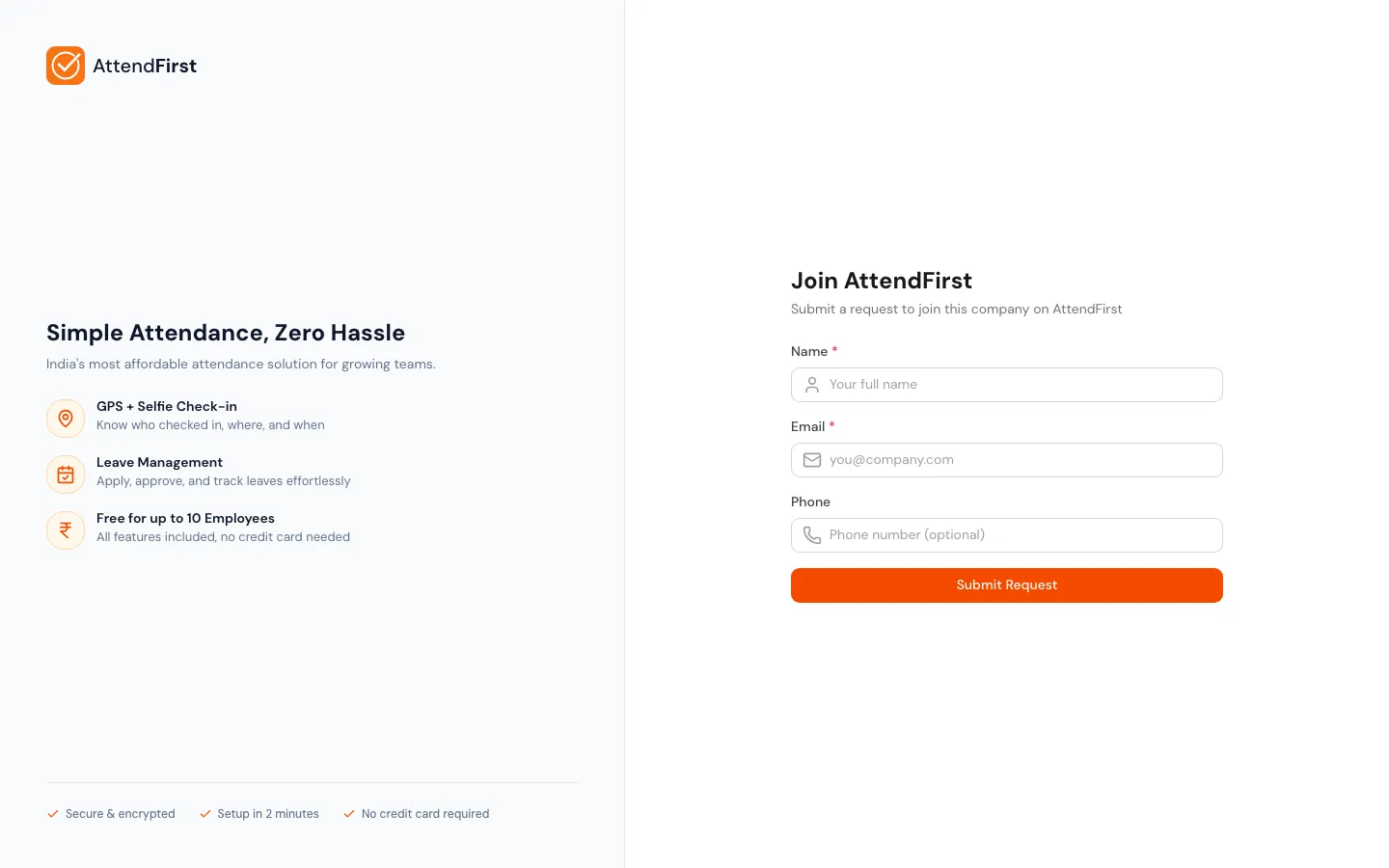
When an employee opens the link they see a two-column page. The left side describes AttendFirst; the right side is the submission form:
- Name (required)
- Email (required)
- Phone (optional)
- Department (optional, shown only if you’ve configured departments)
- Designation (optional, shown only if you’ve configured designations)
If PIN is enabled, the form is hidden behind a PIN entry step. The employee types the code,
clicks Continue, and only then sees the form. A wrong PIN shows The PIN you entered is incorrect
and sends them back to the entry step.
After a successful submit, the page switches to a green Request submitted! confirmation explaining that the admin will review and an email will arrive on approval.
The admin approval queue
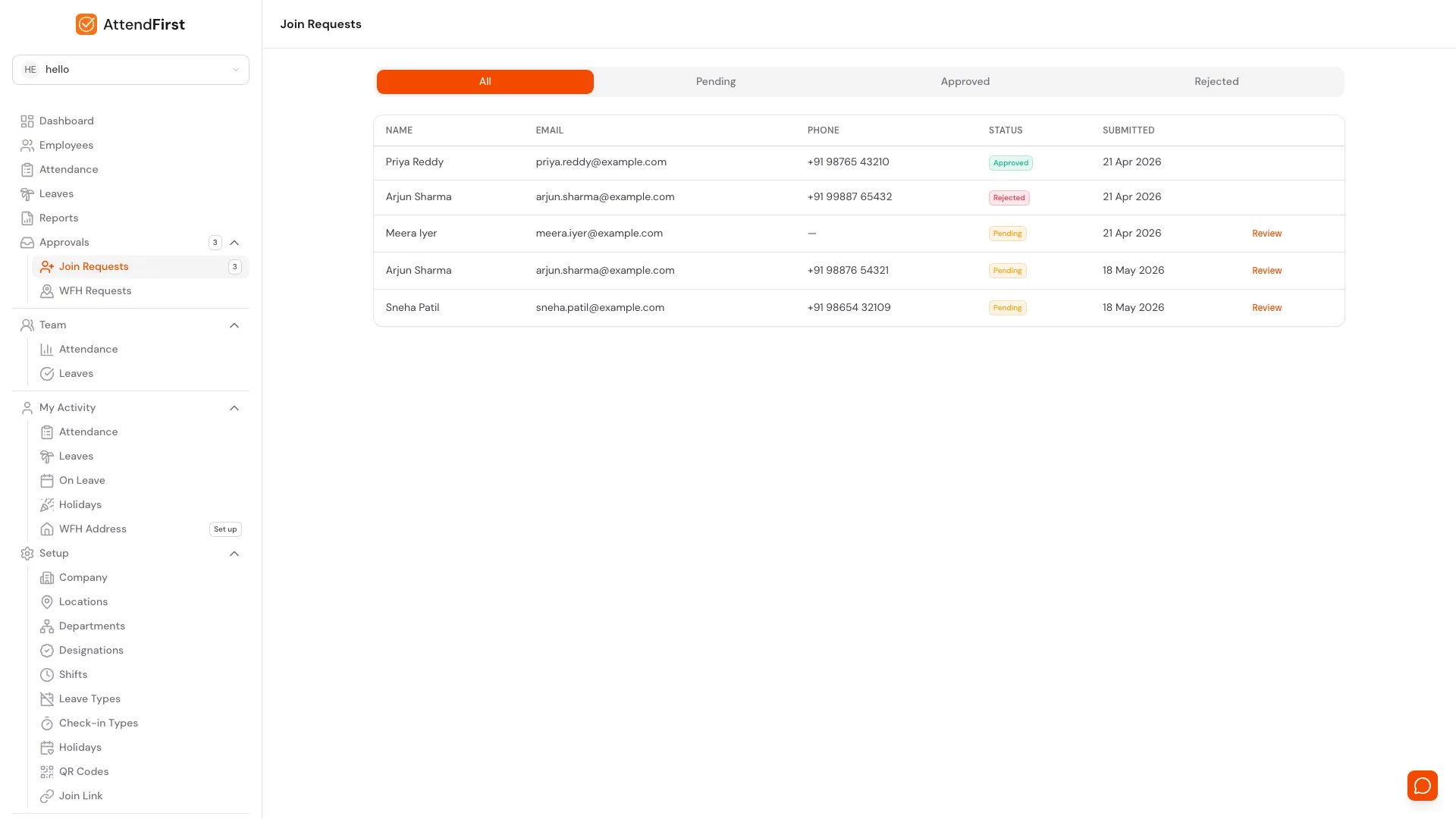
Approvals → Join Requests. Filter by status, click Review on any pending row.
Submitted requests land at Approvals → Join Requests. Four tabs filter the view: All, Pending, Approved, Rejected. Each row shows name, email, phone (blank if not provided), a colored status badge, and the submitted date.
Pending rows get a Review button that opens a modal with every submitted field editable:
- Name, Email, Phone
- Department and Designation pickers (even if the employee skipped them)
- Employee Code (optional internal identifier)
Two actions in the modal footer:
| Action | What happens |
|---|---|
| Approve | Creates an active employee with the modal’s values. Sends a welcome email with the login URL and a one-time password. Employee appears in attendance, leave, and report screens immediately. |
| Reject | Marks the request as rejected. No account, no email. The request stays in the Rejected tab for audit. |
Every join request is scoped to the company whose link was used. Only admins of that company see and act on it.
Sharing the link
The Settings page exposes two share shortcuts next to the read-only URL:
- Copy (icon button): copies the URL to the clipboard and flashes
Link copied. - WhatsApp: opens
wa.mewith a prefilled message: “Join our company on AttendFirst for daily attendance: <url>”.
Most Indian SMBs use the WhatsApp shortcut. Paste into the company group and everyone joins within a day.
Rotating the join slug
To invalidate an old link (public leak, ex-employee posted it), change the Join slug under Setup → Join Link and click Save Settings. The new URL works immediately; the old URL returns Company not found. Any requests already submitted under the old slug stay in your queue with their original data.
Frequently asked questions
Do employees need to install anything to join?
No. The join page works in any mobile or desktop browser. After approval, employees log in at
app.attendfirst.com/login with the email they submitted and the one-time password from the
welcome email.
Can I require a PIN?
Yes. Toggle Require PIN on the Settings page, enter a 4 to 6 digit code, and save. Share the PIN privately (managers-only WhatsApp, voice call) while sharing the link widely.
What if an employee submits with the wrong email?
Click Review on the pending request and edit the email before approving. The welcome email goes to the corrected address. If you’ve already approved, edit the employee record directly. See Managing employees.
Is there a limit on join requests?
No hard limit. Requests are free to submit. Approved accounts count toward your employee total. The first 3 are free, 4 to 10 pay ₹3,000/year flat, and from the 11th employee the per-seat rate applies. Rejected requests never consume billing.
Can employees track their own request status?
Not on the public page. The confirmation message explains that the admin will review and email them on approval. For status questions, they should contact the admin directly.
Related docs
- Onboarding. The wizard that exposes the join link during setup.
- Managing employees. Edit, deactivate, or mark as exited after joining.
- Departments. Set these up first so the join form can show a department picker.
- Designations. Configure job titles so the join form can show a designation picker.
Steps
- Enable self-join.Go to Setup → Join Link. Turn on Enable self-join. The unique URL format is https://app.attendfirst.com/join/<your-slug>.
- Pick a slug and optional PIN.Edit the Join slug if you want a shorter or rebranded URL. Turn on Require PIN and pick a 4-6 digit code for extra gating. Click Save Settings.
- Share on WhatsApp.Click the WhatsApp button to open a pre-filled company message with the link. Paste into your team WhatsApp group. Employees tap and fill the short form.
- Review pending requests.Go to Approvals → Join Requests. Click Review on any pending row, edit details if needed, then click Approve.
- Approve to create the account.Approval creates the employee immediately and sends a welcome email with login credentials. The employee can sign in and start checking in the same day.
Frequently asked questions
Do employees need to install anything to join AttendFirst?
No. The join page works in any mobile or desktop browser. After approval, employees log in at app.attendfirst.com/login with their email and the one-time password from the welcome email.
Can I require a PIN on the AttendFirst join link?
Yes. Toggle Require PIN under Setup → Join Link and pick a 4 to 6 digit code. Share the PIN privately while sharing the link widely.
Is there a limit on AttendFirst join requests?
No hard limit. Requests are free to submit. Only approved accounts count toward your employee total. Teams of 4 to 10 pay a flat ₹3,000/year. From the 11th employee, ₹499 per employee per year. Up to 3 employees is free, forever.
How do I rotate the join link if it leaks?
Change the Join slug under Setup → Join Link and save. Old links return "Company not found". Pending requests submitted under the old slug stay in your queue.
Can I edit a request's details before approving?
Yes. Click Review on any pending request to open a modal where every field is editable. Fix typos in the name, email, or phone, pick a department and designation, optionally set an employee code, then Approve.