Approve and manage team leave requests in AttendFirst
How admins run leave management in AttendFirst. Approve, reject, or cancel leave requests from the list or calendar view, and see what happens to attendance.
Leave Management (sidebar: Leaves) lists every leave request in your company. Review pending requests in a table, approve or reject from the three-dot menu, and switch to a monthly calendar to see the full team at once.
The Requests tab
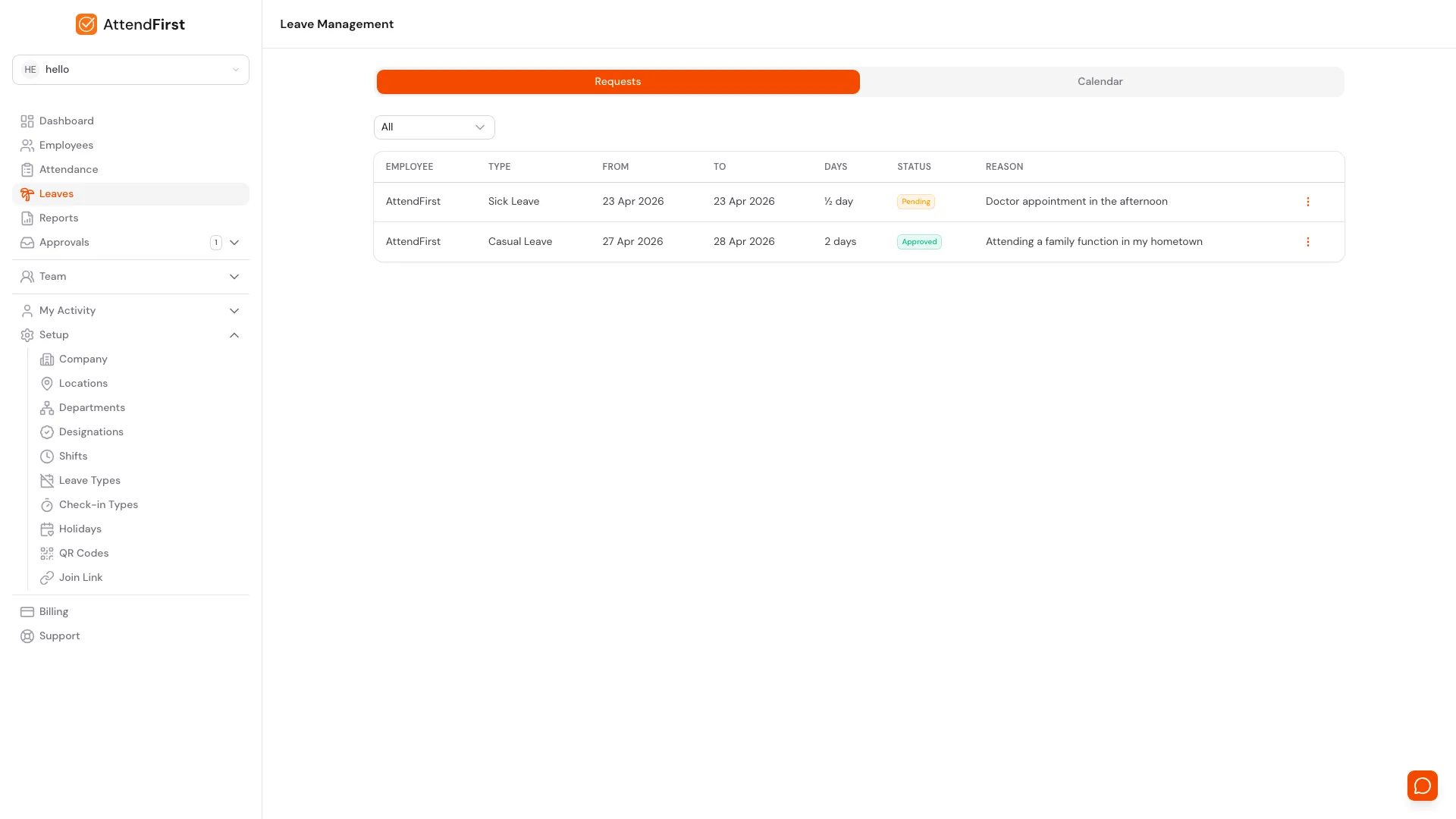
/admin/leaves Requests tab. Filter by status, then approve or reject from the three-dot menu on any pending row.
Open Leaves. The Requests tab shows a table with these columns:
- Employee: who submitted the request
- Type: the leave type (Casual, Sick, etc.)
- From: start date
- To: end date
- Days: total days, or 1/2 day for half-day requests
- Status: Pending, Approved, or Rejected
- Reason: the note the employee left
Use the status filter above the table to narrow the list to All, Pending, Approved, or Rejected. The filter persists in the URL, so you can share a direct link to the pending list.
Approving and rejecting leave
Click the three-dot menu at the end of any Pending row:
- Approve: confirms the leave immediately. AttendFirst marks those days as On leave in attendance and emails the employee.
- Reject: opens a confirmation dialog. Once confirmed, the employee is notified and the request stays visible in the table as Rejected.
Cancelling leave
You can cancel a request from two states:
- Pending: cancels the request before it is ever approved.
- Approved: cancels the leave and removes the attendance records that were created. The employee is notified.
Cancelling an approved leave is destructive. The employee’s attendance for those days reverts to normal calculation (Present, Late, Absent, etc.). A confirmation dialog warns you before this happens.
The Calendar tab
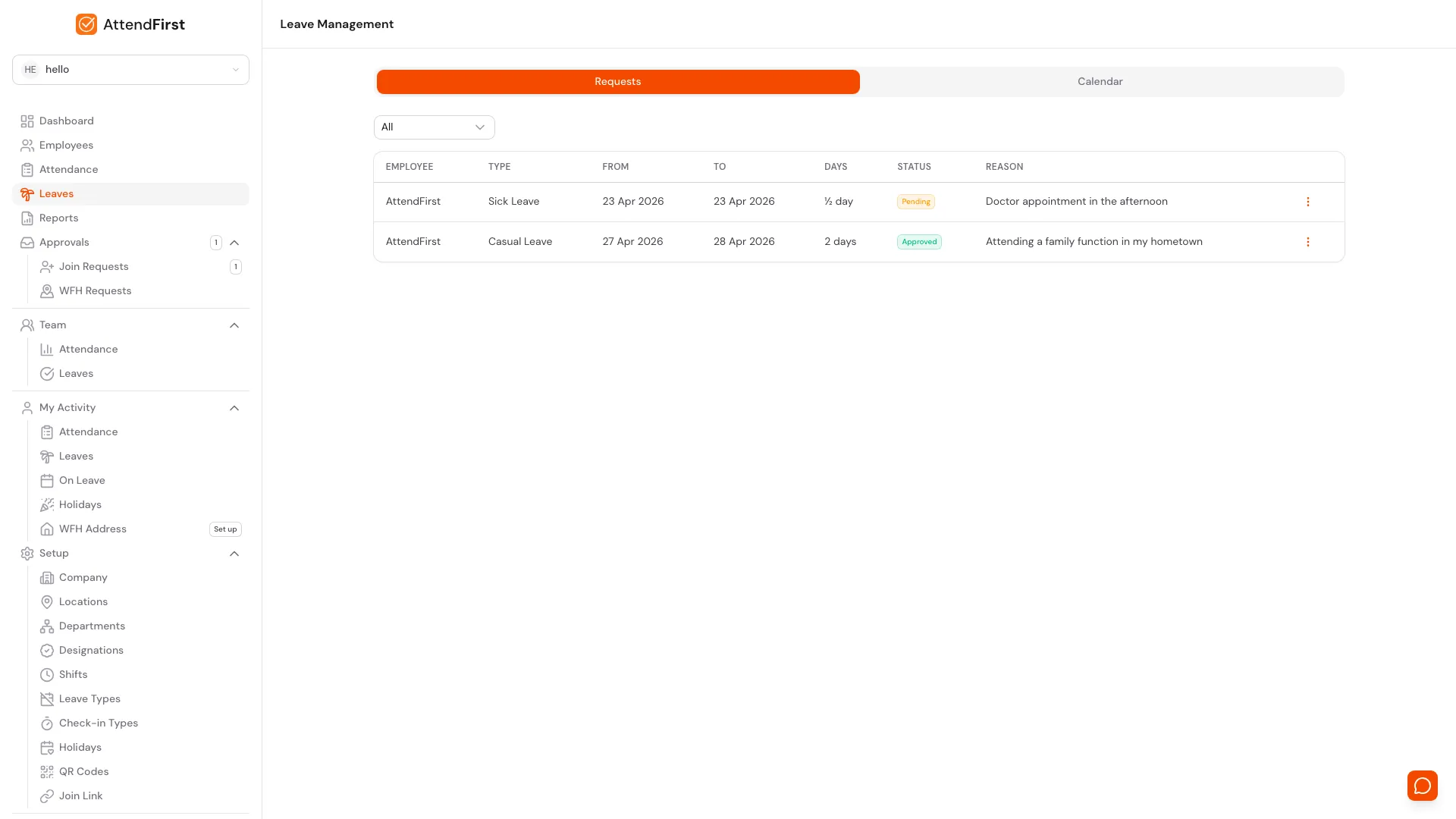
Click the Calendar tab for a monthly grid view. Each row is an employee. Each column is a day. Approved and pending leaves appear as coloured dots inside the cells.
- Use the prev and next arrows to move between months.
- Days are colour-coded: holidays in red, week offs in grey, today in blue.
- Click a dot to see the employee name, leave type, dates, status, and reason in a popover.
- Weekends and holidays are shaded so your eyes skip straight to working days.
Use this view when planning team capacity or checking for clashes before approving a request.
Frequently asked questions
Who can approve leave requests?
Only admins. Employees and managers can submit and view their own leave, but they cannot approve anyone else’s request.
Can I approve backdated leave?
Yes. AttendFirst does not block approvals for past dates. Attendance records are updated retroactively.
What happens when I cancel approved leave?
AttendFirst removes the On leave attendance records created at approval time. The employee’s attendance for those days is recalculated from scratch based on check-ins and shifts.
Does the employee get notified?
Yes. Every approval, rejection, and cancellation triggers an email to the employee.
Can I edit a leave request?
No. If dates or type are wrong, ask the employee to cancel and submit a new request.
Related docs
- Leave requests. How employees submit leave from desktop and mobile.
- Leave types. Configure Casual, Sick, and custom leave types with annual quotas.
- Holidays. Set company holidays that appear in the calendar.
Steps
- Open Leave Management.Go to Leaves. The Requests tab opens by default.
- Filter by status.Use the status filter to show All, Pending, Approved, or Rejected requests.
- Approve or reject a request.Click the three-dot menu on any pending row and choose Approve or Reject. Rejecting asks for confirmation first.
- Cancel an approved leave.Click the three-dot menu on an approved row and choose Cancel. This removes the attendance records created by the approval.
- Switch to Calendar view.Click the Calendar tab to see all approved and pending leave on a monthly grid.
Frequently asked questions
Who can approve leave requests?
Only admins. Managers and employees cannot approve leave.
Can I approve leave from past dates?
Yes. AttendFirst does not block backdated approvals.
What happens when I cancel an already-approved leave?
AttendFirst removes the attendance records that were created when the leave was approved. The employee's attendance reverts to whatever the normal rules produce for those days.
Does the employee get notified when their leave is approved or rejected?
Yes. AttendFirst sends an email notification on every status change.
Can I edit a leave request instead of rejecting it?
Not directly. Ask the employee to cancel and resubmit with the correct dates.