Manual attendance entry in AttendFirst - admin backfill
How AttendFirst admins backfill attendance for past dates. Covers the backfill form, the sessions panel, and adding, editing or deleting sessions and entries.
Manual attendance is the admin backfill flow for days an employee couldn’t or didn’t check in. You pick the employee, the date, and the status, and AttendFirst writes an attendance record identical to a real check-in. The entry appears on the daily report immediately and rolls into monthly aggregates the same way.
Phones die, office Wi-Fi drops, and someone always forgets to check out at least once. Without backfill, the monthly report shows them Absent and the admin has to chase corrections through support tickets or spreadsheets.
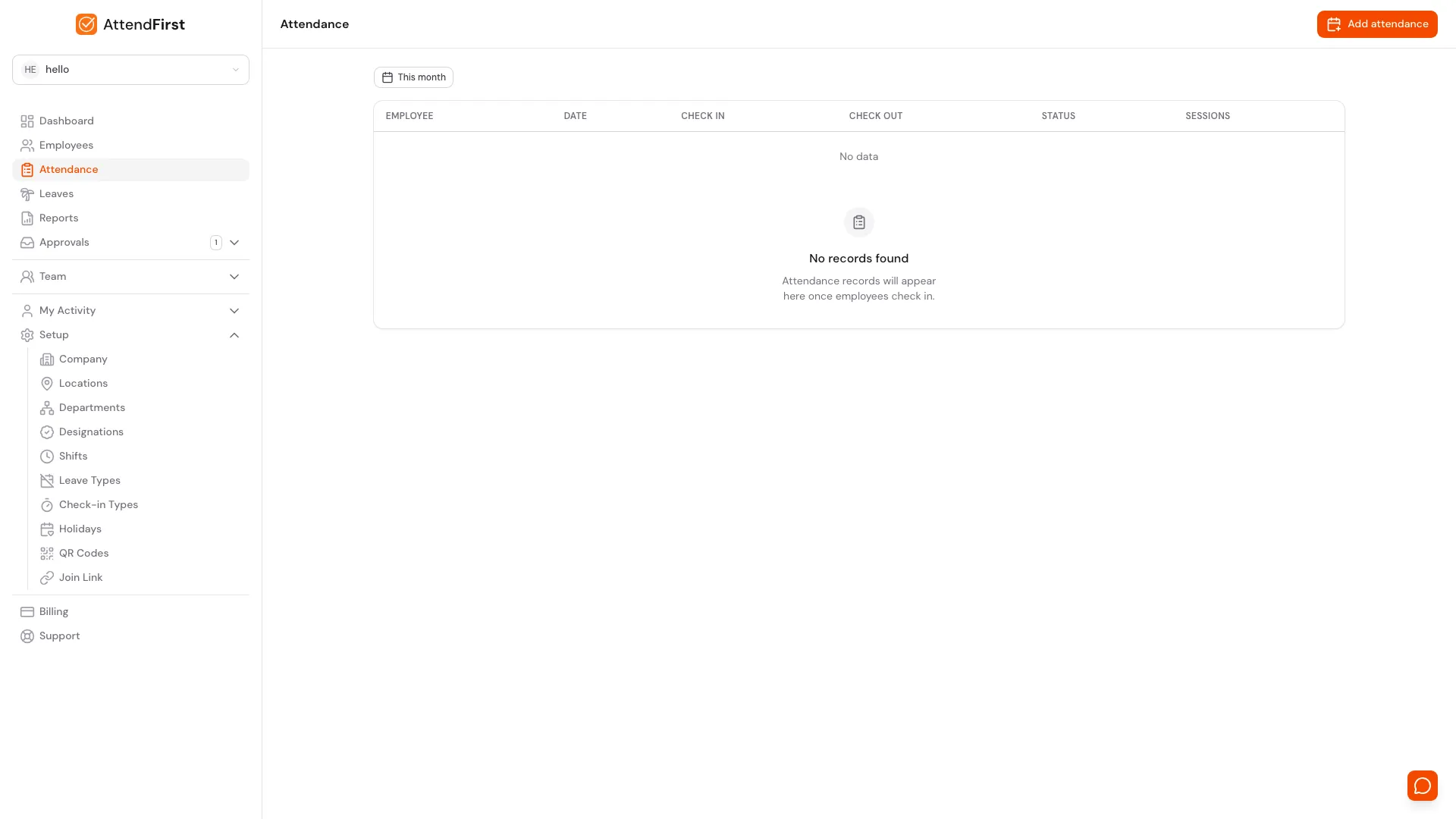
/admin/attendance. Add attendance sits in the top right; the filter row controls the date range below.
When to use it
- An employee’s phone was dead and they couldn’t check in.
- Your office Wi-Fi went down and nobody could reach the app.
- Someone forgot to check out, and the session ran past midnight.
- A half-day was worked but the check-in was skipped entirely.
- You want to correct a status from Late to Present after reviewing evidence.
Every manual entry is created by an admin account, so the audit trail is always clear.
How to add a manual entry
There are two ways into the same form:
- From the Attendance page (
/admin/attendance): click Add attendance in the top right. Pick the employee inside the form. - From an employee profile: open the employee, switch to the Attendance tab, and click Add attendance. The employee is pre-selected.
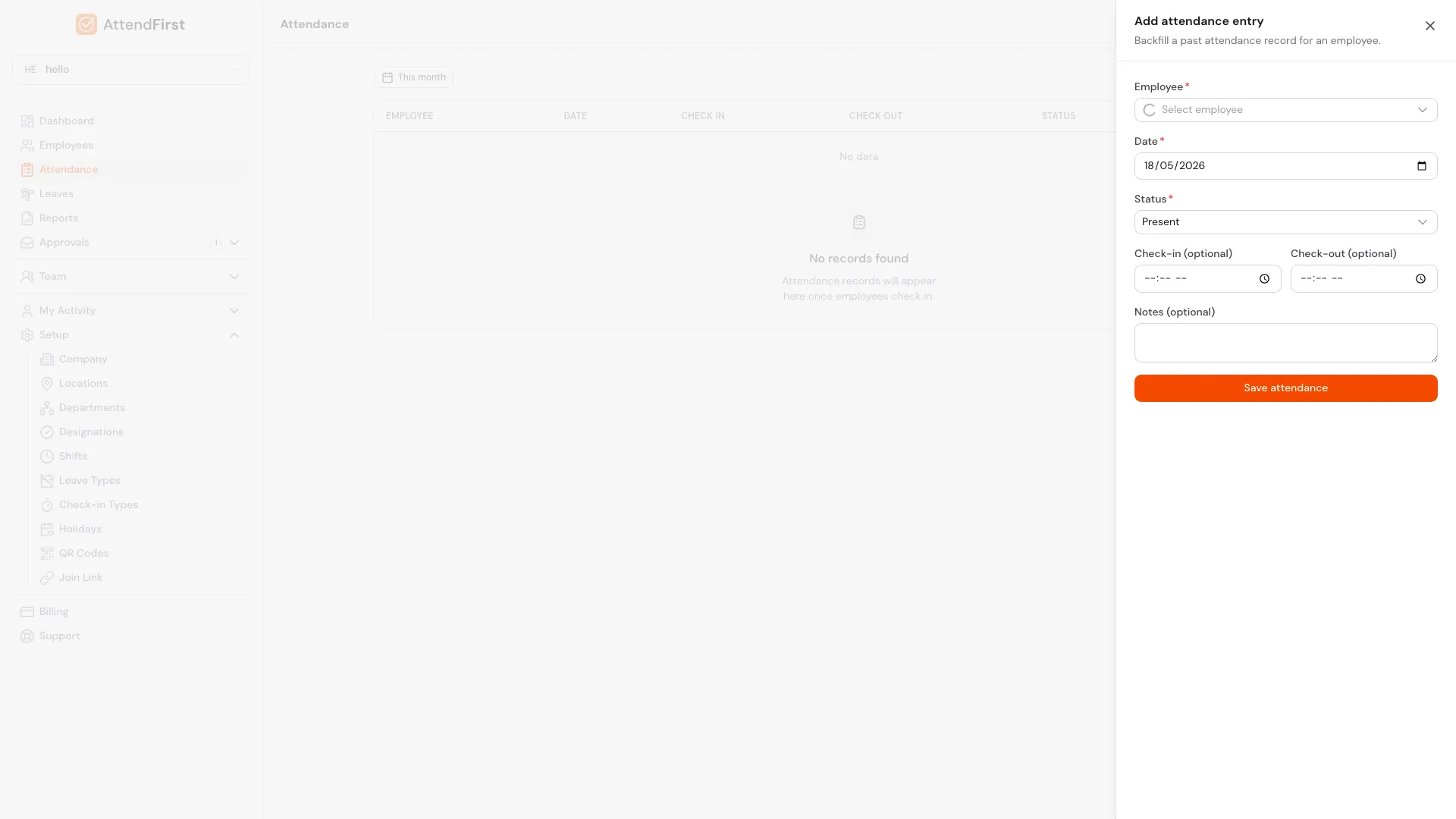
Backfill slideover. Employee, date, and status are required; check-in, check-out, and notes are optional.
Fields:
| Field | Required | Notes |
|---|---|---|
| Employee | Yes | Any active employee in your company. Pre-filled on profile. |
| Date | Yes | Any past date up to today. |
| Status | Yes | Present, Late, or Half day. |
| Check-in | Optional | Time in HH:MM. Stored as the date’s check-in time. |
| Check-out | Optional | Time in HH:MM. Stored as the date’s check-out time. |
| Notes | Optional | Up to 500 characters. Visible on the attendance record. |
Click Save attendance. The entry appears immediately on the attendance list for that date and rolls into monthly aggregates straight away.
Opening a day’s sessions
A single attendance row is a whole day. To see what actually happened inside it - every check-in, the GPS result, the selfie - click View details on that row. The Sessions panel slides in from the right.
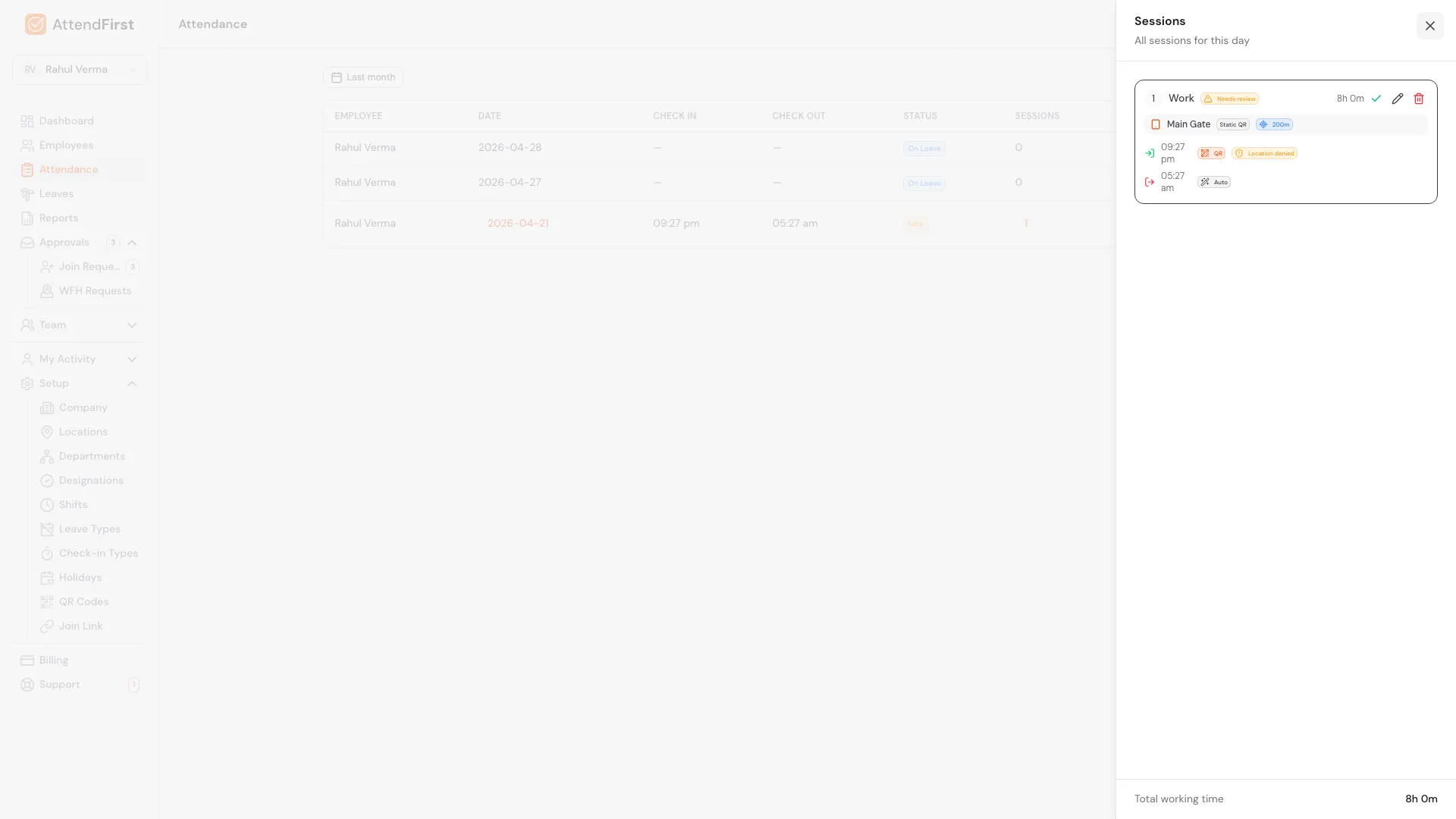
The Sessions panel. Each session shows its method, GPS result, selfie, and device, with edit and delete on the right.
The same panel opens whether you click View details, the date, or the session count - they all lead here. The panel opens for every row, including manual entries that have no sessions yet. Each session in the list shows:
- The session type - Work, Lunch Break, Site Visit - with a number and badges: Break, Active (still open), the location kind (Office, WFH, Field), Edited, and Needs review or Reviewed.
- A device row, if the check-in came from a QR device - the device name, type (Static QR or Rotating QR), its geofence, and whether it requires a selfie.
- A check-in row - the time, the method (GPS, Selfie, QR, Manual, Auto), the GPS result (Inside geofence, Just outside, coarse GPS, Outside geofence, Location denied, No geofence set), the selfie thumbnail if one was captured, and a Location link that opens the coordinates in Google Maps.
- A check-out row - the same fields for the check-out.
The footer totals the day’s working time. This panel is how an admin verifies a check-in: a selfie plus an Inside geofence result is solid proof; a Location denied flag is a prompt to follow up.
Reviewing flagged sessions
A check-in or check-out that failed its geofence carries a Needs review badge. Click the checkmark on that session once you have confirmed it is genuine - the badge changes to Reviewed and records who cleared it and when.
Days containing an unreviewed flagged session are marked Needs review in the attendance list, and a Needs review (N) button above the list filters down to just those days. The button only appears when there is something to review, so a clean account never sees it. Clearing the last flagged session on a day - by marking it reviewed, editing it, or deleting it - drops that day out of the filter and the count.
Managing sessions and the entry itself
Two icons sit on the right of every session:
- Pencil - Edit session. Adjust the check-in and check-out times, override the Work from location kind, and add an optional reason. Every edit is written to the audit log and the session gets an Edited badge.
- Trash - Delete session. Asks for confirmation, then removes the session and recalculates the day’s totals.
Above the session list, three entry-level actions are available to admins:
- Add session. Insert a session the employee missed - pick the check-in time, optionally a check-out time (leave it empty to record an active session), the Work from kind, and a reason. Admin-added sessions are marked Manual and pre-reviewed, and the day’s totals recalculate immediately.
- Edit entry. Change the day’s status, check-in and check-out times, or notes. This is the same form as Add attendance, prefilled for the day, with the date locked. Not available for leave days - those are managed through leave approvals.
- Delete entry. Removes the whole day - the entry and every session in it - after confirmation. The deletion is recorded in the audit log. This cannot be undone. Not available for leave days - cancel the leave request instead.
The employee sees the updated record in their own attendance view but cannot edit it.
Rules and constraints
- Backfill is limited to past dates and today. Future dates are not allowed.
- Manual entries for a day that already has real sessions take precedence on the status and times you set - the captured session data stays in history but the displayed status reflects your override. Later session edits recalculate the day’s status and totals, so session-level data wins again once sessions change.
- Days marked as approved leave cannot be overwritten or deleted here - cancel or manage the leave request instead.
- You cannot create manual entries for inactive employees on dates after their deactivation.
- Holidays and weekends can be manually marked as Present if your team worked that day.
Frequently asked questions
Will manual entries show up on the monthly report?
Yes. They are counted in the aggregate alongside check-in-driven entries on both the daily and monthly views.
Can managers backfill their team’s attendance?
Not today. Manual attendance is admin-only. Managers can approve leaves but cannot add or edit attendance records.
How far back can I backfill?
Any date since the employee’s joining date. There’s no 30-day cutoff or any other limit. Keep in mind that backfilling a closed payroll month may force a payroll correction.
What statuses can I set?
Three: Present, Late, and Half day.
There is no Absent option. A date with no attendance record already reads as absent in every report, so you do not need to mark it. To document why someone was away, either approve a leave request for that date or add the note to a neighbouring entry.
Can I add the same entry for multiple employees at once?
Not in one action. Repeat the flow for each employee. The slideover stays open after a save so you can switch employees and re-submit.
How do I see the GPS location and selfie for a check-in?
Click View details on the day’s row. The Sessions panel opens with every session, each showing its check-in method, GPS result, selfie photo, and a map link to the captured coordinates.
Can I delete a whole attendance entry, not just a session?
Yes. Open View details on the row and click Delete entry. It removes the day and all its sessions after confirmation, and the deletion is recorded in the audit log.
Related docs
- Check in and check out. The normal flow that produces these records.
- Managing employees. Open a profile to backfill for one person at a time.
- Reports and CSV export. Where manual entries roll up into month-end totals.
- Attendance status reference. Every status code you can set manually.
Steps
- Open the Attendance page.Go to Attendance. The Add attendance button sits in the top right. You can also backfill for a single employee from their profile Attendance tab.
- Click Add attendance.A slideover opens titled Add attendance entry. Pick the employee, the date, the status, and optionally check-in and check-out times.
- Add a note.Use the Notes field to record why the override was needed. Up to 500 characters. Notes are preserved with the attendance record.
- Save the entry.Click Save attendance. The entry appears immediately on the attendance list for that day.
- Review or edit a day later.Click View details on any row to open the Sessions panel. Use the pencil to edit a session, the trash to delete one, Add session to insert a missed session, Edit entry to change the day's status or notes, or Delete entry to remove the whole day.
Frequently asked questions
Will manual entries show up on the AttendFirst monthly report?
Yes. They are counted in the aggregate alongside check-in-driven entries. The status, check-in time, check-out time, and notes you entered all appear on the daily and monthly reports.
Can managers backfill attendance for their team?
Not today. Manual attendance is admin-only. Managers can approve leaves but cannot add or edit attendance records.
How far back can I backfill attendance in AttendFirst?
Any date since the employee's joining date. There is no fixed cutoff. Backfilling a closed payroll month may require a payroll correction.
What statuses can I set manually?
Present, Late, and Half day. There is no Absent option, because a date with no attendance record already reads as absent in every report.
Can I backfill attendance for a single employee in bulk?
Not in one action. Open the employee profile, switch to the Attendance tab, and use the Add attendance button repeatedly. Each entry is a separate save.
How do I see the GPS location and selfie for a check-in?
Click View details on the day's row on the Attendance page. The Sessions panel opens with every session, each showing its check-in method, GPS result, selfie photo, and a map link.
Can I delete a whole attendance entry, not just a session?
Yes. Open View details on the row and click Delete entry. It removes the day and all its sessions after confirmation, and the deletion is recorded in the audit log.