My attendance in AttendFirst: daily history and sessions
View your daily attendance history in the AttendFirst employee app. Filter by date range on desktop, tap through on mobile, and see what's recorded each day.
The My Attendance page shows an employee’s own attendance history - every check-in, check-out, break, and status, one row per day. The date filter defaults to the current month. Employees can view records on desktop (with a history table) or on mobile via the /m home screen, which shows today’s sessions and the active check-in state.
Desktop view
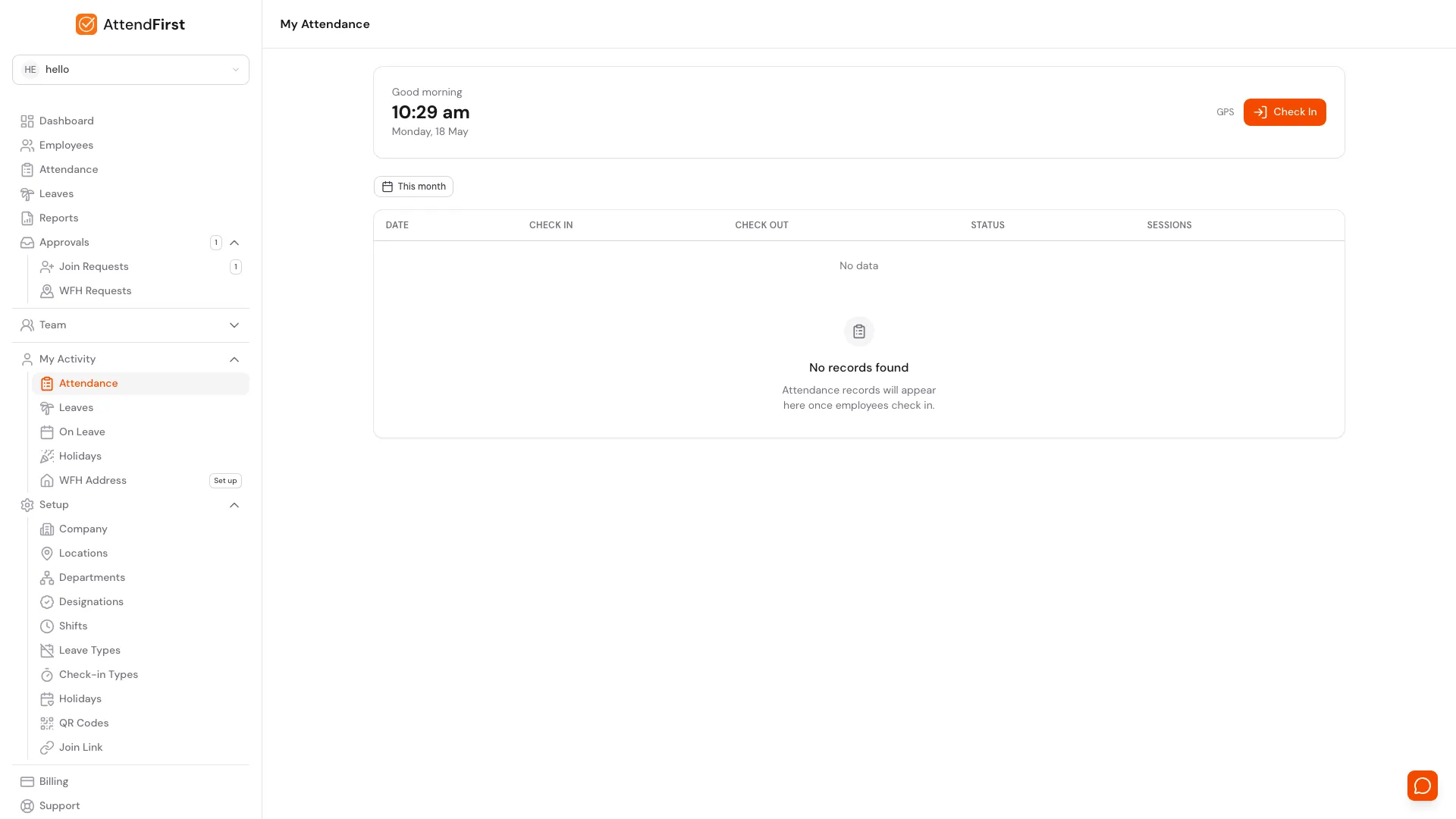
/attendance. Check-in card at the top, history table below, with a date range filter on the left.
Open My Attendance from the sidebar. The page has two parts:
The check-in card
The card at the top mirrors the mobile home. It shows:
- Greeting and a live clock.
- The current state: Checked in at HH:MM, On break, or ready to check in.
- A Break or Check Out button depending on your state.
Clicking Check Out from desktop works exactly like the mobile home. The card updates immediately and the new row appears in the table below.
The history table
The table has one row per day in the selected range. Columns:
- Date: your check-in date.
- Check In: your first check-in time for the day, or - if none.
- Check Out: your last check-out, or - if the day ended without one.
- Status: Present, Late, Half day, Absent, On leave, Holiday, or Weekend.
- Sessions: count of check-in/out pairs.
- View details: opens the day’s session panel. The date and the session count open the same panel.
Inside a day: the session panel
Click View details on any day and the Sessions panel slides in. It lists every session for that day - start and end times, duration, and the session type (Work, Lunch Break, Site Visit). For each check-in and check-out it also shows:
- The method - GPS, Selfie, QR, Manual, or Auto.
- The GPS result - whether the location was inside the geofence.
- The selfie photo, if one was captured. Tap it to view it full size.
- A Location link that opens the captured coordinates in Google Maps.
This is your own record of where and how each check-in happened. You can view it but not edit it - corrections go through an admin.
Changing the date range
Click the This month filter and pick any range. The filter is a standard calendar picker. Common ranges:
- This month: default.
- Last month: useful at the start of a new month.
- Last 7 days: quick check of the week.
- Custom range: pick any two dates.
The selected range is stored in the URL (?startDate=...&endDate=...), so you can bookmark a specific month or share a link.
Mobile view
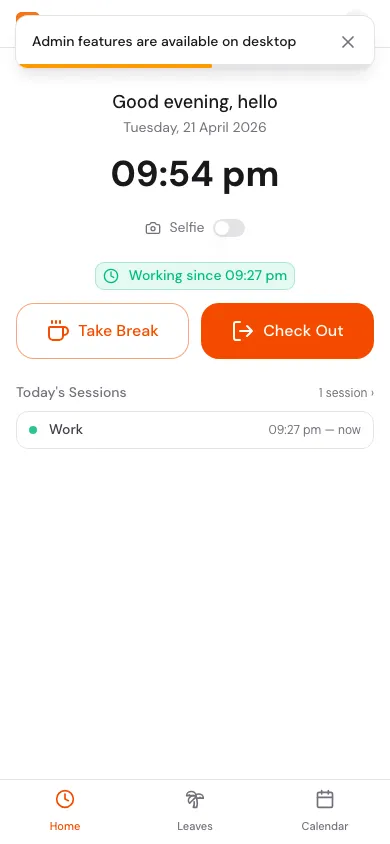
On your phone, the mobile home at /m replaces the desktop card and table. It shows:
- Greeting, date, and live time.
- The Selfie toggle (remembered per device).
- A state-aware action: Check In, Take Break + Check Out, or End Break.
- Today’s Sessions: up to three recent sessions, with a link to see all.
To see previous days on mobile, tap Calendar in the bottom nav. The calendar has the same rules and colours as the shared leave calendar.
For the full check-in flow (GPS, selfies, breaks), see Check in and check out.
What each status means
| Status | Meaning |
|---|---|
| Present | Checked in on time and worked at least the half-day threshold. |
| Late | Checked in after the late threshold, but still met the half-day floor. |
| Half day | Worked less than the half-day threshold. |
| Absent | No check-in on a working day, with no approved leave. |
| On leave | An approved leave covers the day. |
| Holiday | A company holiday. |
| Weekend | A non-working day in your company’s work schedule. |
Full rules: Attendance status reference.
Frequently asked questions
How far back does my history go?
As far back as your joining date. Every day between then and today has a record, including days with no check-in.
A past day is marked Absent but I was on leave
The leave request was probably not approved before the date passed, or it was later cancelled. Ask your admin to re-approve it. Approved leaves after the fact still convert Absent to On leave.
Can I edit a wrong check-in time?
No. Only admins can edit attendance. Tell your admin which day needs fixing and they can backfill from the admin attendance page. See Manual attendance.
Where are break sessions shown?
The history table aggregates per day. Click a date to open the slideover and see each session individually, including breaks.
How do I get a monthly total?
Ask your admin for a monthly report. Admins can export one month per employee or for everyone at once. See Reports and CSV export.
Related docs
- Check in and check out. The flow that produces these records.
- Attendance status reference. Full rules for every status code.
- Leave requests. How On leave days get into your history.
- Push notifications. Reminders so you don’t miss a check-in.
Steps
- Open My Attendance on desktop.Click Attendance under My Activity in the sidebar. The page defaults to the current month and shows every day with your check-in, check-out, status, and session count.
- Change the date range.Click the This month filter and pick any range. The filter persists in the URL so you can bookmark a specific month.
- See session details.Click View details on a day to open the Sessions panel. It shows every session's times, type, check-in method, GPS result, and selfie photo for that day.
- Check today on mobile.Open /m on your phone browser. The current state, today's sessions, and the check-in button all fit on one screen.
Frequently asked questions
How far back does my AttendFirst attendance history go?
As far back as your joining date. Every day is recorded, including days with no check-in (marked Absent) and days on approved leave (marked On leave).
Why is a past day marked Absent when I was on leave?
The leave request was probably not approved before the date passed, or it was later cancelled. Ask your admin to check the request's state and re-approve if needed.
Can I edit a wrong check-in time myself?
No. Only admins can edit attendance. Tell your admin which day is wrong and they can backfill it from the admin attendance page.
Does the attendance list include break sessions?
Break minutes are part of each day's totals, but the list shows one row per day with aggregated stats. Click the date to see individual break sessions in the slideover.
Where do I find my monthly totals?
Admins can export monthly reports with your totals. Ask your admin for the monthly report from Reports → Monthly.