AttendFirst kiosk mode and QR attendance scan guide
How the QR scan flow works in AttendFirst kiosk mode. The confirmation card, geofence and selfie checks, error states, and comparison with GPS check-in.
Kiosk mode is the QR check-in flow from the employee’s side. A QR code sits at a gate, reception desk, or site. Open your phone camera, scan the code, confirm, and your attendance is recorded. The phone’s built-in camera is enough - no app install required, no shared device login needed.
This page covers what happens between the scan and the confirmation. Admin-side setup for QR devices is in QR attendance setup.
The scan flow
- Open your phone’s camera app.
- Point it at the QR code on the wall or tablet.
- Tap the link your camera shows.
- The AttendFirst check-in card opens in your browser.
- Confirm. Your attendance is recorded.
If it is your first scan on this phone, AttendFirst asks you to log in. After that, your session is remembered and scans go through in one tap.
The confirmation card
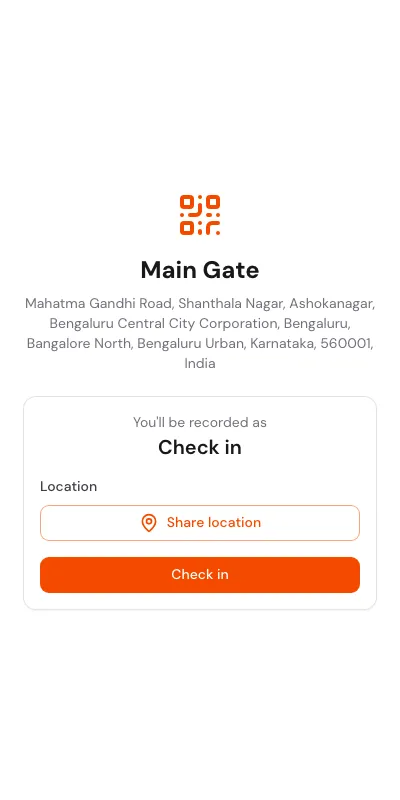
The confirmation card. Device name, address, what will be recorded, and the checks required.
Every scan opens a card with these parts:
- Device name and address at the top. Confirms you scanned the right QR.
- You’ll be recorded as - either Check in or Check out, picked automatically based on your open session for the day.
- Location (if the device has Verify location on) - a Share location button.
- Selfie (if the device has Require selfie on) - a photo input that opens your camera.
- Check in or Check out - the big button that commits the record.
Tap the button. A green success toast appears and the page redirects to your attendance view after a moment.
Location verification
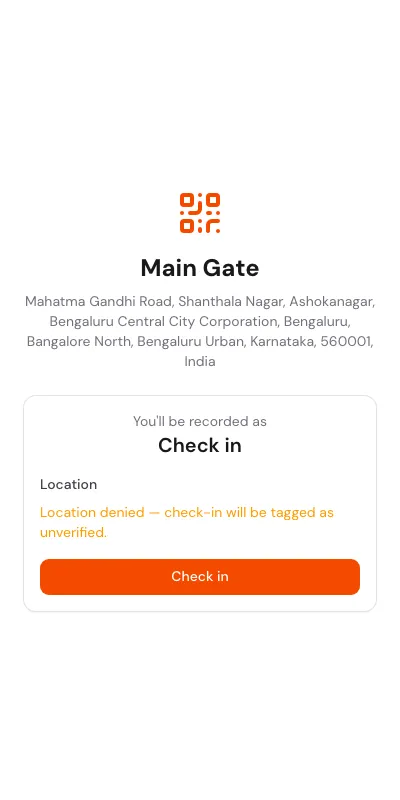
Location denied. The scan still goes through, but as an unverified record.
If the device requires location verification, the card shows a Share location button. Tap it and your phone asks for permission:
- Allow - the card captures your GPS coordinates and shows Location captured in green. Your check-in is recorded as verified if you are inside the device’s geofence radius.
- Deny or no GPS signal - the card shows Location denied - check-in will be tagged as unverified. You can still tap Check in. The scan is recorded, but admins see it as unverified in reports.
Location verification never blocks a check-in. This is deliberate. Low GPS signal, a borrowed phone, a pocket-blocked antenna - none of these should stop you from clocking in. Admins use the unverified flag for follow-up, not as a hard gate.
Selfie requirement
If the device requires a selfie, you see a photo input below the location section. Tap it. Your phone opens the front camera. Take the photo, confirm it, and the card shows Photo captured. You cannot submit the check-in without a photo when this is on.
The selfie is attached to the attendance record and visible only to your company’s admins and managers.
Intent: check-in vs check-out
| Your state when you scan | The card says | What happens on tap |
|---|---|---|
| No sessions today | Check in | Opens a new work session |
| One open session (no check-out yet) | Check out | Closes the current session |
| Session closed, day not over | Check in | Opens a new session for the afternoon or field visit |
You never have to pick manually. The intent is based on your real attendance state.
Error states
QR not recognized
The link you scanned points to a device that does not exist (wrong company, device was deleted) or the signature is malformed. Check that you scanned the current QR and try again.
This code is no longer valid
Static QR only. The admin rotated the token, so the printed QR you scanned is now invalid. Ask your admin for the fresh one.
This QR is invalid or expired
Rotating QR only. The QR you scanned belonged to a previous rotation window. The tablet should already be showing the current one - rescan from the tablet.
Display unavailable / Offline
Seen on the tablet display, not on your phone. The tablet lost internet and cannot generate new QRs. Tell the admin or wait for the connection to come back.
Comparison: QR vs GPS vs selfie check-in
AttendFirst supports three check-in methods in the same app. You are not locked into one.
| Method | Best for | Trade-off |
|---|---|---|
| QR (kiosk mode) | Physical gates and reception desks with a shared device | Employee has to walk to the gate |
| GPS | Field staff, delivery teams, remote workers | Location only. No device verification. |
| Selfie | Anywhere with camera access | Needs good light; some employees dislike photos |
QR check-in is the most tamper-resistant because it requires the employee to be physically near the device. Combined with a rotating QR and geofence, it is the closest thing to biometric attendance without any biometric hardware.
Privacy
AttendFirst captures only what your company set up:
- Account identifier (who)
- Device identifier (where)
- Timestamp (when)
- GPS coordinates (only if Verify location is on)
- Selfie (only if Require selfie is on)
AttendFirst does not access your contacts, microphone, or location in the background. The data lives inside your company’s account and is visible only to admins and managers.
Frequently asked questions
Do I need an app to scan QR codes?
No. Every modern phone camera recognises QR codes and opens the link in a browser. That browser holds your AttendFirst session.
Why does the page know whether I’m checking in or out?
It reads your attendance state for the day. With no open session, the action is Check in. With an open session, it is Check out. This avoids accidental double check-ins.
My phone denied location. Am I locked out?
No. You can still tap Check in. The record is flagged unverified and your admin sees the flag in reports.
Can I scan a QR from a different company?
No. Each QR is scoped to one company. Scanning from the wrong company returns a “QR not recognized” error.
Why does the tablet QR keep changing?
That is by design for Rotating QR devices. A changing code stops anyone from sharing a photo of the QR for later use. Scan the current one on the screen, not an old screenshot.
What if the tablet is offline?
The tablet shows an Offline message and stops rotating. Tell your admin, or try a different device if one exists nearby.
Is the selfie ever shared outside my company?
No. It is visible only to your company’s admins and managers, attached to the single attendance record.
Related docs
- QR attendance setup. Admin-side setup for QR stations.
- Check in and check out. GPS and selfie check-in from your phone’s home screen.
- Attendance status reference. How scan timestamps turn into Present, Late, or Half-day.
Steps
- Scan the device QR.Open your phone camera, point it at the QR on the wall or tablet, and tap the link that appears. You land on the AttendFirst check-in page.
- Review the intent.The card shows You'll be recorded as Check in or Check out. AttendFirst picks the right action automatically based on your current state.
- Share location if asked.If the device requires location verification, tap Share location. Allow your phone's location prompt. Scans outside the geofence are tagged unverified but not blocked.
- Take a selfie if asked.If the device requires a selfie, tap the photo input, frame yourself, and confirm. The selfie is saved with your attendance record.
- Confirm.Tap Check in or Check out. The card confirms and redirects you back to your attendance page.
Frequently asked questions
Do I need to install anything to scan a QR?
No. The phone's built-in camera app is enough. It opens the link in your browser, where you log in once and stay logged in for future scans.
Why does the card already know if I'm checking in or out?
AttendFirst reads your open session for today. If you have none, it's Check in. If you have an open session without a check-out, it's Check out.
What if my location is denied?
The scan still goes through. It's tagged as unverified so your admin knows, but you are not blocked.
Can I scan a QR that belongs to another company?
No. Every QR is tied to a specific company. Scanning a foreign QR returns an error.
The QR says Expired or Invalid. Why?
For rotating QR stations, the code you scanned was valid a few seconds ago but has since rotated. Scan the current one on the tablet.
Does QR check-in work in airplane mode?
No. QR check-in needs internet at the moment of scan so the server can record the session. Pure offline use is not supported.
What data does AttendFirst capture when I scan?
Your account, the device, a timestamp, and - if the device requires it - your GPS coordinates and a selfie. Nothing more.
Is the selfie stored permanently?
It is stored with your attendance record until the record itself is deleted. Only your company's admins and managers can see it.