Change your AttendFirst admin login email step by step
Change the login email on your AttendFirst admin account. The new address is verified before the change takes effect and all active sessions are signed out.
The Account settings page lets you change the email you use to log in to AttendFirst. Your login email stays unchanged until you click a verification link sent to the new address.
Change login email
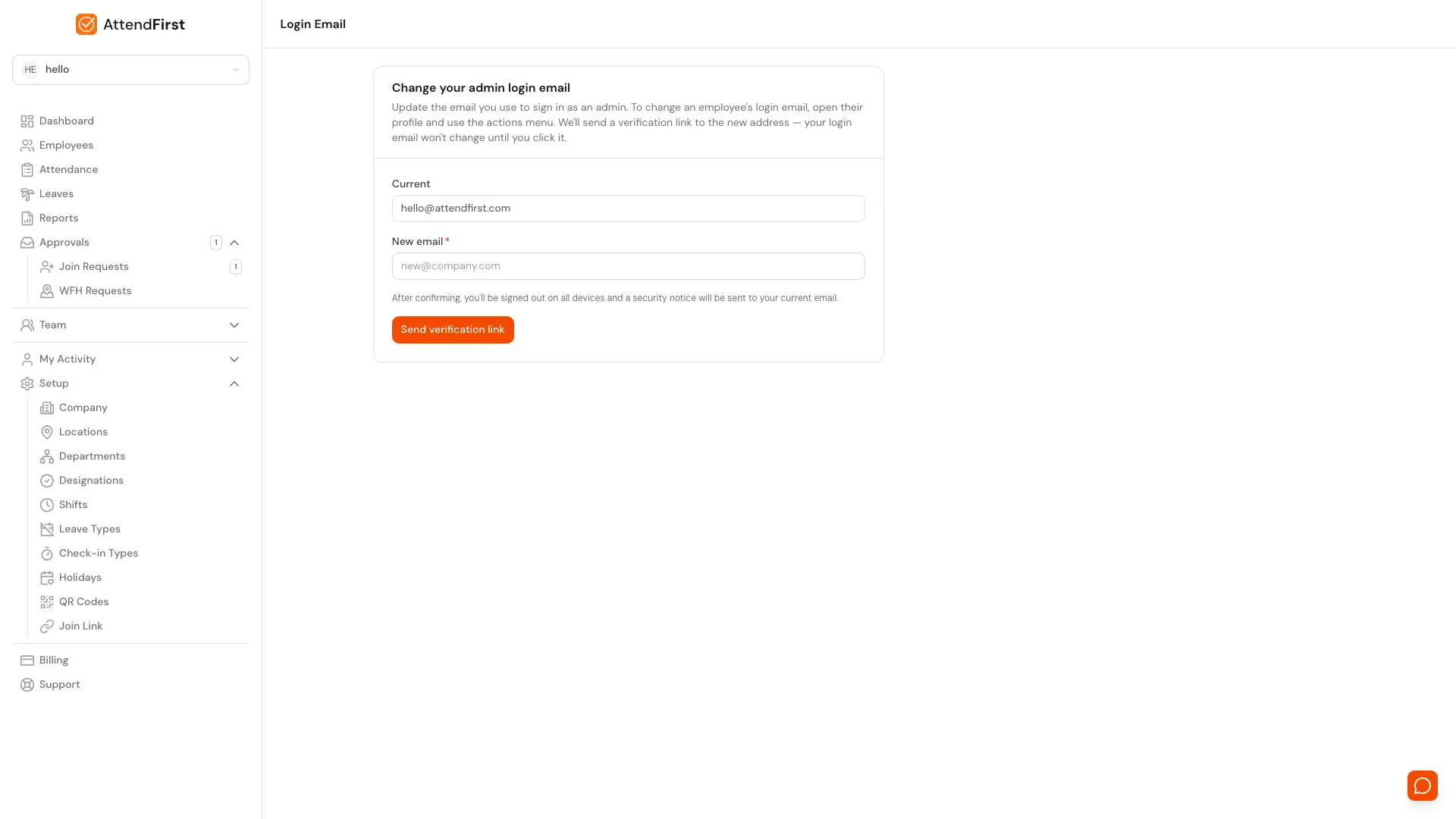
The Account page at user menu → Login Email. Type the new address and click Send verification link to receive the confirmation email.
Open user menu → Login Email. You see your Current email in a disabled field. Below it:
- Enter the new address in the New email field.
- Click Send verification link.
- AttendFirst emails a verification link to the new address. The link is valid for 24 hours.
After you click the link
The new email becomes your login address immediately. Two things happen for security:
- You are signed out on all devices: phones, laptops, tablets, everything. Sign in again with the new email and your existing password.
- A security notice is sent to your old email so you know the change happened.
If you change your mind
Until you click the verification link, your login email stays the same. Request another change any time. If the link expires, resubmit the form.
Frequently asked questions
Can I change my password here?
Not on this page. Open Account from the user menu and use the Change password card. Enter your current password and a new one (minimum 8 characters). Every other device is signed out when it changes. See Login and password.
What if the verification email does not arrive?
Check your spam folder. Then return to the Account page and click Request another change to resend.
What happens if the link expires?
Nothing. Your login email stays unchanged. Submit the form again to get a fresh link.
Why sign me out everywhere?
To prevent stale sessions under the old email from staying active. Changing the login email is a high-sensitivity action, so every session is revoked when the new address is confirmed.
Does my old email get notified?
Yes. A security notice is sent to the current address after the new one is confirmed.
Related docs
- Onboarding. Creating your admin account for the first time.
- Managing employees. Promote another employee to admin from their profile.
Steps
- Open Account settings.Go to user menu → Login Email. Your current login email is shown at the top.
- Enter the new email.Type the new address in the New email field and click Send verification link.
- Check the new inbox.Open the new email account and click the verification link inside. The link expires in 24 hours.
- Sign in again.After confirming, you are signed out on every device. Sign in with the new email and your existing password.
Frequently asked questions
Can I change my password on this page?
Not on this page. Open Account from the user menu and use the Change password card - enter your current password and a new one of at least 8 characters.
What if I don't receive the verification email?
Check your spam folder first. If it's not there, click Request another change on the Account page and resubmit.
What happens if I don't click the link within 24 hours?
The link expires and your login email stays the same. Request a new change if you still want to update it.
Why am I signed out on all devices?
To prevent an old session from staying active under the previous email. Changing the login email is a high-sensitivity action, so AttendFirst revokes every session.
Is my current email notified when I change it?
Yes. A security notice is sent to your current email after the new address is confirmed.