AttendFirst support tickets: help from any console page
Reach AttendFirst support from any page via the floating chat button. View past tickets, track their status, and reply inside the threaded ticket view.
Every page of the AttendFirst console has a floating chat bubble in the bottom-right corner. Click it to ask the docs assistant a question, or click My Support Tickets to raise a ticket or check existing ones. Email support@attendfirst.com if you prefer - it lands in the same inbox.
How to reach us
Two paths, same team:
- Raise a ticket - open the chat bubble → My Support Tickets → New Ticket. Keeps context, attachments, and replies in one thread.
- Email - send to
support@attendfirst.com. Same inbox, same people. Use this from mobile or if you are already in your email client.
The team is async-first. Written tickets and email get a reply within a few hours during Indian business hours (9 AM to 7 PM IST, Mon to Fri). There is no phone support line. Callback requests take longer to arrange - sometimes a day or more - because the team prefers written context before a voice call. For time-sensitive issues, a ticket with a screenshot is faster than waiting for a callback.
The floating chat button

The support button follows you across every page. A red badge appears if you have open tickets.
The orange circular button is fixed to the bottom-right of every console page. It stays in place as you scroll. If you have open tickets, a red counter badge appears on the button showing how many are awaiting a reply.
Click it to open the chat slideover. The docs assistant is the default view - ask any question about AttendFirst and it cites the relevant doc. Click My Support Tickets at the top of the slideover to switch to your tickets panel.
Your ticket list
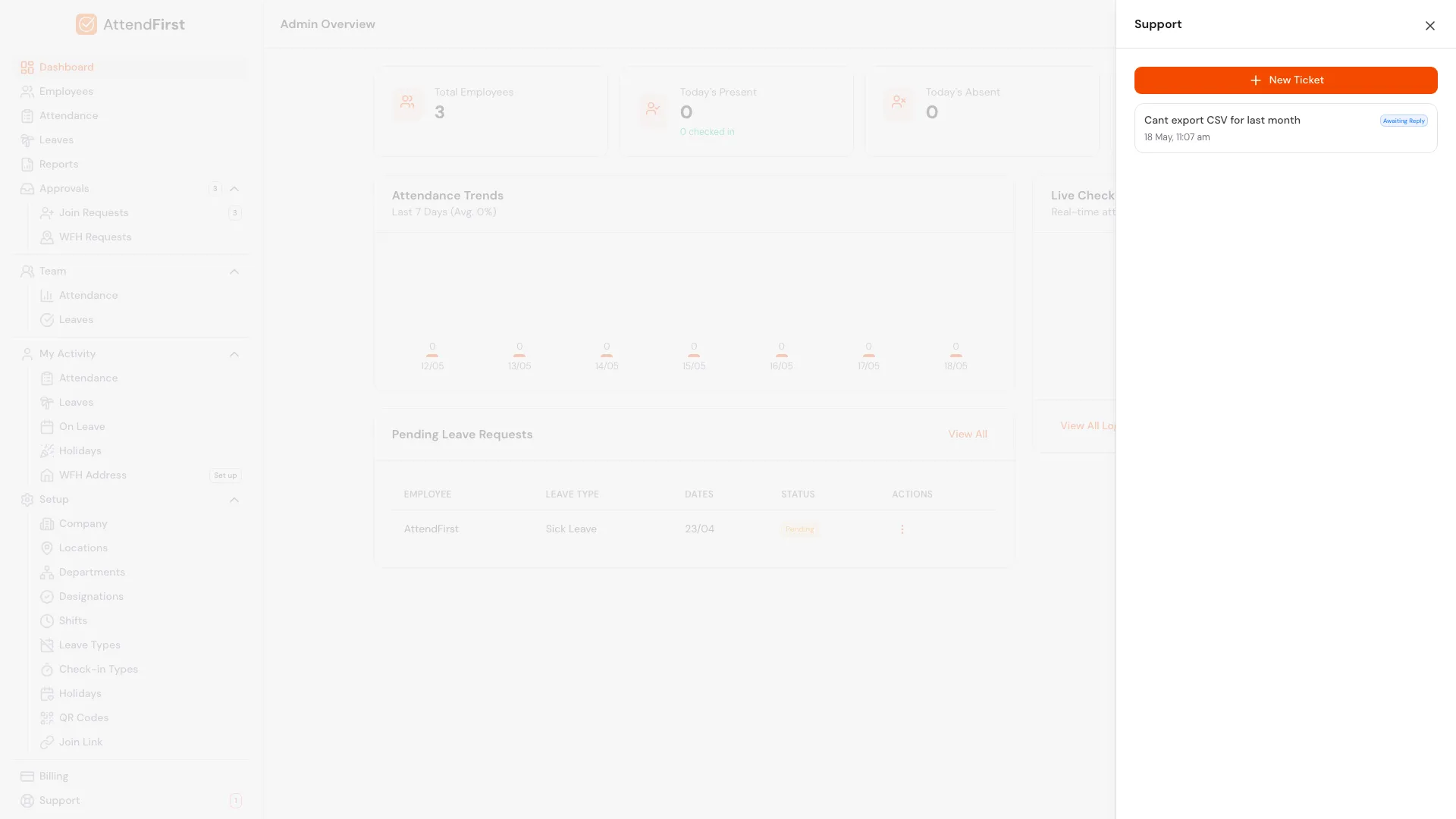
The list shows every ticket you have opened. Status badges flag open, resolved, or archived state.
The first view inside the slideover is your ticket list. Each row shows:
- Subject: the short title you gave the ticket.
- Status badge:
- Open (yellow) - waiting on you or on support.
- Resolved (green) - support has marked the issue resolved.
- Archived (grey) - old tickets moved to audit.
- Last updated date and time.
Click any row to open the thread. Click New Ticket at the top to start a fresh one.
Creating a new ticket
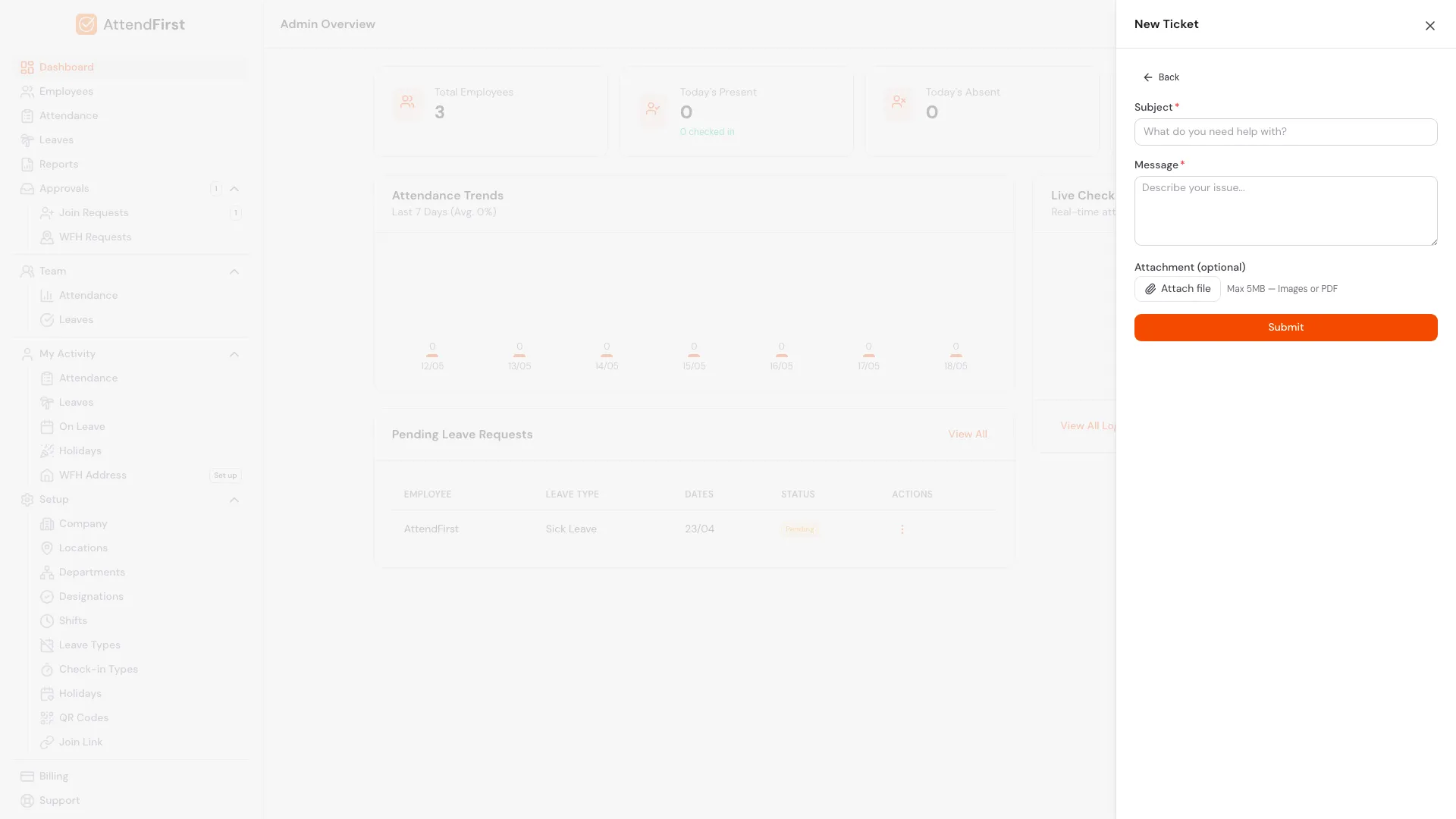
The New Ticket form. Subject and Message are required, attachment is optional.
Click New Ticket. Fill in:
- Subject: short title, one line. “Report export blank for March” is better than “Problem”.
- Message: full description. Include what you tried, what page you were on, and any error messages you saw.
- Attachment (optional): click Attach file to upload a screenshot or PDF. Maximum size is 5 MB. Accepted formats are JPEG, PNG, WebP, and PDF.
Click Submit. AttendFirst also attaches the URL of the page you opened the ticket from, so support knows the context without asking.
After submitting, the slideover switches to the thread view for the new ticket. You can keep typing follow-ups immediately.
Viewing and replying to a thread
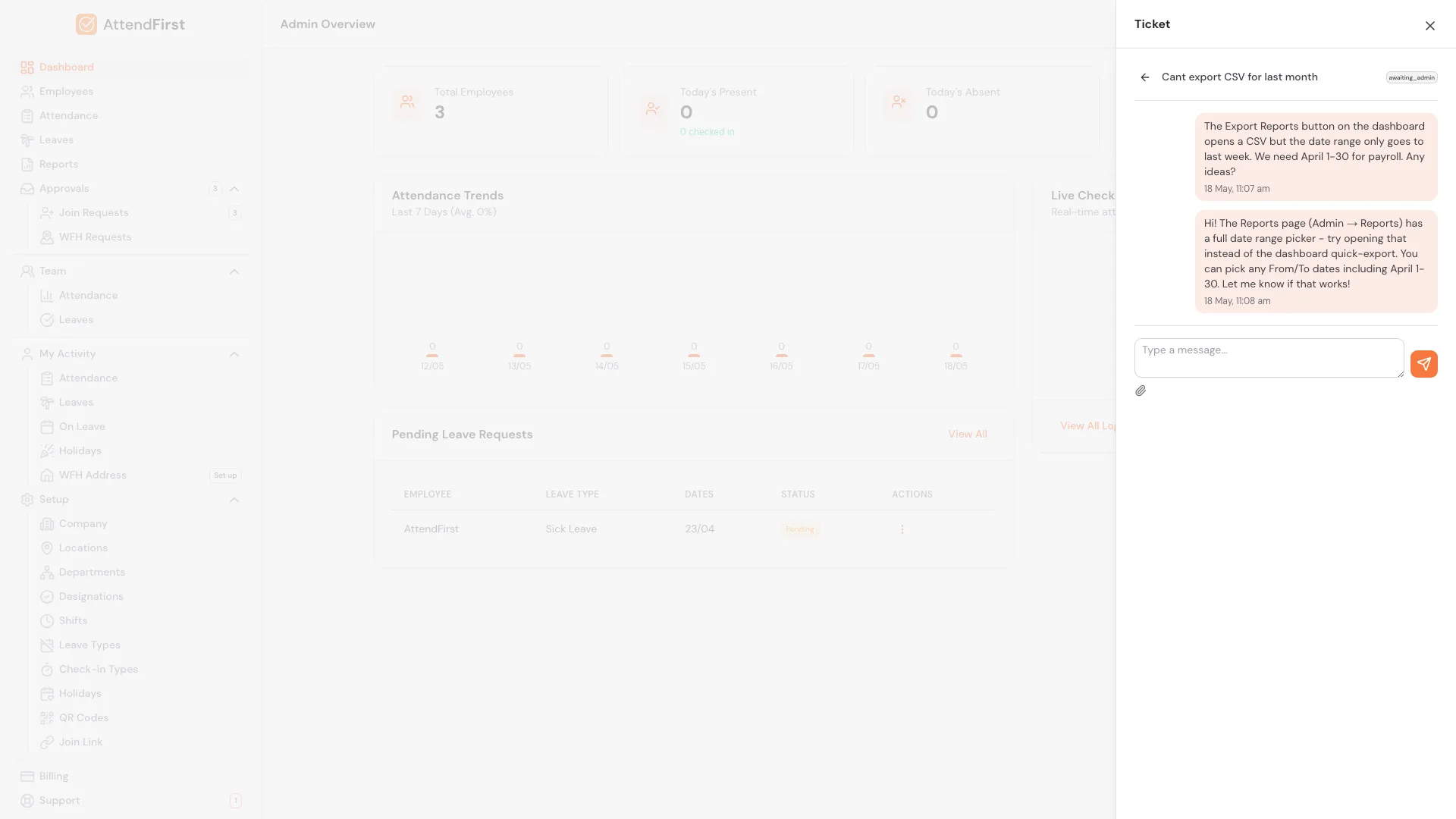
Inside a ticket. Your messages on the right; support replies on the left. Reply from the box at the bottom.
Opening a ticket shows:
- Subject and status badge at the top.
- Message thread in the middle. Your messages sit on the right with a light-orange background; support replies sit on the left with a grey background. Each message shows the timestamp and any attached file.
- Reply input at the bottom. Type a message, optionally attach a file via the paperclip icon, and hit the orange Send button.
The thread refreshes automatically every minute, so new replies appear without a page reload. Unread replies also trigger a push notification if push is enabled. See Push notifications.
When a ticket is resolved
Support marks a ticket as Resolved when the underlying issue is fixed. The badge turns green and the ticket stays in your list for reference. If the problem reappears, open a new ticket rather than replying on the resolved one. That gives support a clean starting point.
Attachments and privacy
Attachments uploaded to a ticket are stored in AttendFirst’s encrypted R2 storage with access restricted to you and the support agents assigned to the ticket. Admins cannot see each other’s ticket attachments. Screenshots of sensitive data (payroll amounts, employee IDs, etc.) are fine to attach. They are never indexed or shared.
Support hours and response time
- Indian business hours: Monday to Friday, 9 AM to 7 PM IST.
- Typical response: a few hours within business hours (tickets and email).
- Outside business hours: replies on the next business day.
- Outages: urgent incidents (login down, check-in failing for everyone) are prioritized regardless of time.
- Callbacks: our team is async-first, so scheduling a voice/video slot can take a day or more. Wherever possible, describe the issue in a ticket or email - the written path is much faster.
For a faster response during hours, include a screenshot. A one-line ticket with an image beats a long description every time.
Frequently asked questions
Who can see my tickets?
Only you and the AttendFirst support team. Admins cannot see other admins’ tickets. Employees cannot see each other’s. Every ticket is private.
Where is the support button on mobile?
The floating button is visible on the desktop console. On the mobile /m screens the button is hidden to keep the thumb zone clear. Open the desktop site on your phone browser, or email support@attendfirst.com directly from mobile.
What file types can I attach?
JPEG, PNG, WebP, and PDF. Maximum file size is 5 MB per attachment. Zip files and documents in other formats are not supported.
How long until I get a reply?
Within a few hours during Indian business hours for tickets and email. Next business day otherwise. Outages get prioritized response regardless of hour.
Can someone call me back?
There is no phone support line. Callback requests take longer to schedule - sometimes a day or more - because the team reads context in a ticket first and arranges a voice slot only when needed. For anything time-sensitive, raise a ticket or email support@attendfirst.com with a screenshot. That is always faster than waiting for a callback.
Can I close a ticket myself?
Not directly. Reply with “resolved” or “you can close this” and the support team will mark it as resolved. Closed tickets stay in your list for reference.
Do I get notified when support replies?
Yes. An email is sent to your login address, and a push notification is sent to every device where you have enabled push. See Push notifications.
Related docs
- Push notifications. Get notified when support replies to your ticket.
- Admin account. The email address replies are sent to.
Steps
- Open the chat bubble.Click the orange chat bubble in the bottom-right corner of any console page. The slideover panel opens on the right with the docs chat assistant.
- Switch to your tickets.Click My Support Tickets at the top of the chat slideover to see every ticket you have opened and their status.
- Create a new ticket.Click New Ticket, fill in a Subject and Message, optionally attach a screenshot or PDF, then click Submit.
- Email support directly.You can also reach us at support@attendfirst.com. Tickets and email land in the same inbox, so either way works.
- Reply to a ticket.Inside a thread, type a reply in the input at the bottom, optionally attach a file, and tap the send button. The support team sees it instantly.
Frequently asked questions
How do I contact AttendFirst support?
Two ways, both reach the same team. Raise a ticket from the orange chat bubble (click My Support Tickets → New Ticket) or email support@attendfirst.com directly. Tickets are preferred because they keep context, attachments, and replies in one thread.
Can someone call me back about an issue?
We are an async-first team and prefer written tickets and email, so callback requests can be slow to arrange - sometimes a day or more, depending on when our team can match a voice slot. For anything time-sensitive, a ticket with a screenshot usually gets a reply much faster than a call.
Who can see my AttendFirst support tickets?
Only you and the AttendFirst support team. Admins cannot see other employees' tickets; employees cannot see each other's tickets. Each ticket is private to the person who opened it.
Where is the support button on mobile?
The floating chat bubble appears on the desktop console. On the mobile /m screens it is hidden to keep the thumb zone clear. To reach support from mobile, open the desktop site on your phone browser or email support@attendfirst.com directly.
What file types can I attach to a ticket?
JPEG, PNG, WebP images and PDF documents. Maximum file size: 5 MB per attachment.
How long does it take to hear back?
Indian business hours (9 AM to 7 PM IST, Mon to Fri): typically within a few hours on tickets and email. Outside those hours: next business day. Urgent outages are prioritized. Callback requests take longer to schedule - written replies are always faster.
Can I close a ticket myself?
Not directly. Reply with "resolved" or "please close" and the support team will mark it as resolved. Resolved tickets stay visible in your list for reference.
Are notifications sent for ticket replies?
Yes. When support replies to a ticket, you get an email and a push notification if you have push enabled on that device. See Push notifications for setup.