Leave types in AttendFirst: configure categories and quotas
Configure leave categories in AttendFirst. Set name, code, annual quota, who the type applies to, and which locations it covers. Ships with CL, SL, PL.
A leave type in AttendFirst is one category of leave an employee can apply for, with its own annual quota. Every new company starts with Casual, Sick, and Privilege pre-configured. Add other types like Comp-off, Maternity, or Paternity under Setup → Leave Types.
What the list shows
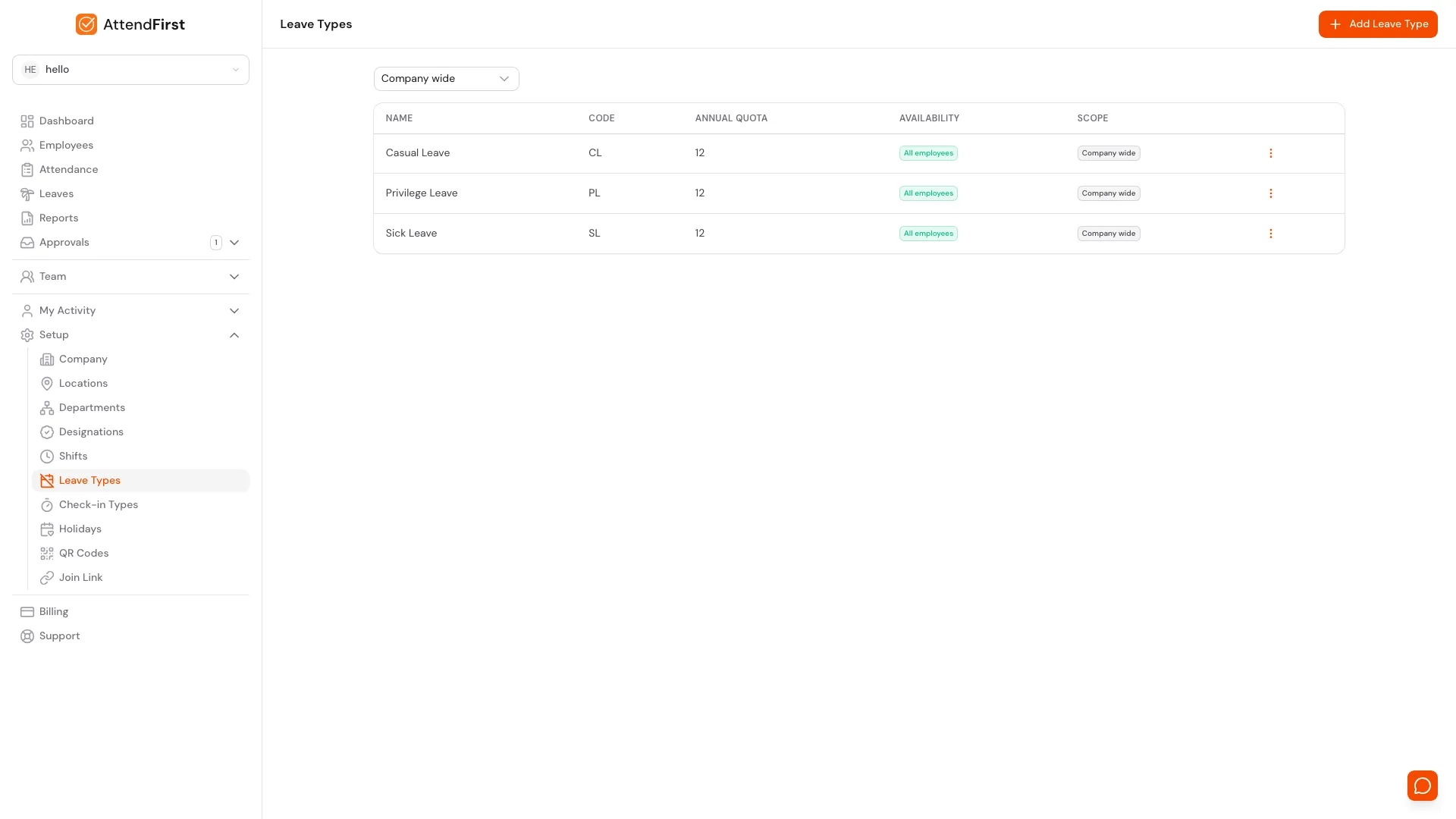
/admin/settings/leave-types. One row per type, with Availability and Scope badges that make policy explicit.
The leave types table has five columns:
| Column | What it is |
|---|---|
| Name | The label employees see on leave application forms and balance cards. |
| Code | A short uppercase tag used in CSV exports. Typically 2 letters (CL, SL, PL). |
| Annual Quota | Total days an employee can take in one calendar year. |
| Availability | All employees (default type) or Assigned only (restricted, requires per-employee assignment). |
| Scope | Company wide (applies everywhere) or a location name (applies only at that branch). |
A scope picker above the list defaults to Company wide. Pick a location to see Company wide leave types plus the location-scoped ones together.
Every new company ships with three Company wide defaults available to everyone: Casual Leave (CL, 12), Privilege Leave (PL, 12), and Sick Leave (SL, 12).
Adding a leave type
Click Add Leave Type in the top right. Fields:
- Name (required). The label employees see. Example: Comp-off Leave.
- Code (uppercase) (required). A short tag for exports. Must be unique. Example: CO.
- Annual Quota (required). Days per calendar year. Example: 6.
- Available to all employees (switch). When on, every employee can apply for this type immediately. When off, the type must be assigned per employee from their profile Leaves tab.
- Applies to (scope picker). Company wide for everyone, or pick a specific location for branch-only types.
Click Add Leave Type. The new type appears immediately.
If you add the leave type from inside a location’s detail page (Setup → Locations → click a location → Leave Types tab → Add Leave Type), the scope is auto-filled and locked to that location.
Default vs. restricted leave types
Two configurations cover most policies:
Default type (Available to all employees: on)
- Every active employee can apply for it.
- The full annual quota applies.
- Use for: Casual, Sick, Privilege, Bereavement, anything that everyone qualifies for.
Restricted type (Available to all employees: off)
- Does not appear by default on every employee’s leave form.
- Useful when defining types that only apply to a subset of roles.
To switch a type from one mode to the other, edit it and flip the switch. Existing approved leaves are unaffected; only future applications use the new policy.
Multi-location leave types
If your Mumbai branch and your Bangalore branch run different leave policies:
- Keep the universal categories (Casual, Sick, Privilege) as Company wide.
- Create branch-specific categories by picking the branch in the Applies to picker.
Employees at the Mumbai location see Company wide types plus Mumbai-scoped ones. Bangalore employees see Company wide plus Bangalore-scoped. No cross-over.
For the full multi-location flow, see Multi-location attendance.
Editing and deleting
Click the three-dot menu on any row:
- Edit: change name, code, annual quota, or Available to all employees. You cannot change the scope of an existing type - delete and re-add to move scope.
- Delete: removes the type from future application forms. Past leave requests, balances, and attendance records are preserved.
Deleting hides the type from future forms. To undo, add it back with the same name and code.
How quotas work
- Quotas are defined per calendar year. Unused days do not carry forward.
- New employees get a pro-rated quota based on their joining month. An employee who joined on July 1 with a 12-day quota gets 6 days for that year.
- On January 1, the full annual quota resets for every active employee.
- Remaining balance on My Leaves equals annual quota (or override) minus the days already approved for that year.
A common starting setup
| Type | Code | Annual Quota | Available to all | Notes |
|---|---|---|---|---|
| Casual Leave | CL | 12 | Yes | Short notice leave, personal work |
| Sick Leave | SL | 12 | Yes | Illness, medical appointments |
| Privilege Leave | PL | 15 | Yes | Planned leave, pre-booked time off |
| Comp-off Leave | CO | 6 | Yes | Earned against weekend or public holiday work |
| Maternity Leave | ML | 182 | No | Defined as restricted |
| Paternity Leave | PT | 10 | No | Defined as restricted |
Frequently asked questions
What does AttendFirst pre-configure?
Three Company wide types available to everyone: Casual, Privilege, and Sick, each with a 12-day annual quota. Edit any of them under Setup → Leave Types.
Why does the Code field exist?
The short uppercase code appears on CSV exports and compact UI lists where the full name doesn’t fit. Keep it 2-3 letters. Must be unique per company.
Can I make Maternity Leave available only to women?
AttendFirst doesn’t gate by gender automatically. Defining Maternity as a restricted type (Available to all employees: off) keeps it out of every employee’s default leave form. Per-employee assignment is on the roadmap.
I deleted a leave type. Did I lose historical data?
No. The type disappears from future application forms, but past leave requests, balances, and attendance records stay intact.
Can I raise or lower the annual quota mid-year?
Yes. Remaining balance is recomputed as (new quota - already-approved days). You cannot set a quota below what employees have already taken this year.
Do mid-year joiners get a full quota?
No - they get a proportional share based on their joining month. Someone starting July 1 with a 12-day quota gets 6 days for that calendar year. The full quota resets on January 1.
Related docs
- Locations. Set up the branches that location-scoped leave types apply to.
- Leave requests. How employees apply for leave using these types.
- Leave approvals. How admins review and approve requests.
- Holidays. Non-working days that never subtract from any leave quota.
Steps
- Open Leave Types.Go to Setup → Leave Types. Every leave type your company uses is listed here.
- Click Add Leave Type.A modal opens with Name, Code, Annual Quota, Available to all employees, and Applies to fields.
- Fill in the fields.Name is the label employees see (Casual Leave). Code is a short uppercase tag (CL). Annual Quota is days per calendar year.
- Decide who can apply for it.Leave Available to all employees on for default types (Casual, Sick, Privilege) where everyone qualifies. Turn it off for restricted types like Maternity.
- Decide which locations get it.Use Applies to. Default is Company wide (everyone). Pick a specific location to scope it to one branch.
- Save.Click Add Leave Type. The new type appears in the list and is available wherever it applies.
Frequently asked questions
What defaults does AttendFirst ship with?
Every new company starts with three Company wide types pre-seeded - Casual Leave (CL), Privilege Leave (PL), and Sick Leave (SL), each with a 12-day annual quota and Available to all employees turned on.
What does Available to all employees do?
When on, every active employee can apply for this leave type. When off, the type is restricted from showing on leave application forms by default. Per-employee assignment of restricted types is on the roadmap.
Can I have different leave types for different office locations?
Yes. Use the Applies to picker when creating the leave type. Default is Company wide. Pick a specific location to scope the type to one branch.
What is the Code used for?
The uppercase code (CL, SL, PL) is used on CSV exports and compact list views. Keep it short and unique within the company.
Are quotas pro-rated for mid-year joiners?
Yes. Employees who joined later in the year get a proportional share of the annual quota based on their joining month. Full quota resets every January 1.