AttendFirst company settings: timezone and work schedule
Update your company name, address, timezone, work schedule, employee ID prefix, and session limits in AttendFirst. One page controls the rules for everyone.
Setup → Company controls the global rules that every employee and attendance calculation follows. Company name, timezone, work schedule, and session limits all live here.
The settings form
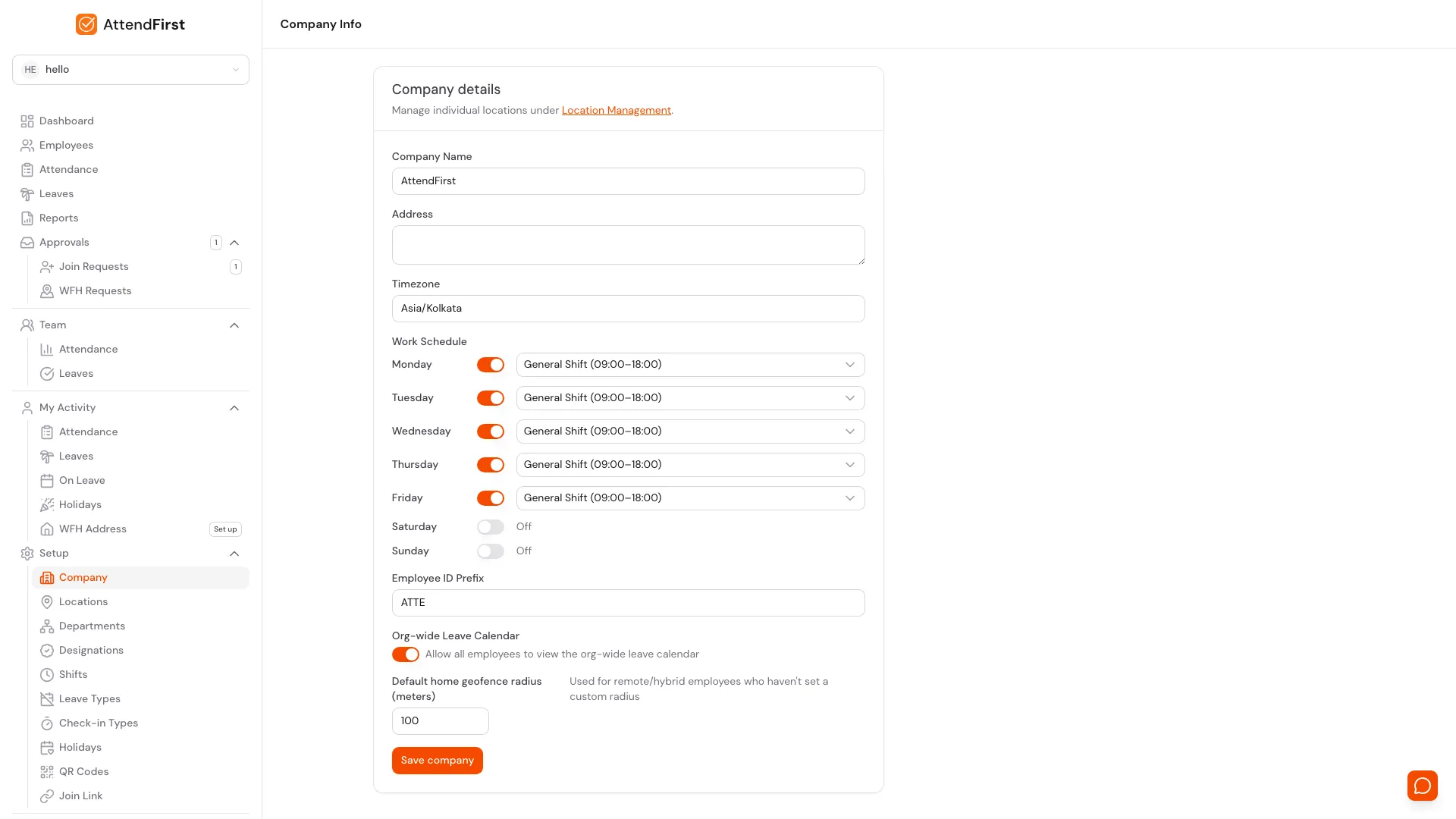
Setup → Company. One form for the global rules that every attendance calculation, welcome email, and CSV export follows.
Open Setup → Company. The form shows your current values. Edit any field and click Save. The form validates in the browser, so invalid inputs never reach the server.
Company Name
Appears on employee welcome emails, CSV exports, and the login page. Change it any time. Changes apply to new emails and exports only. Past files keep the old name.
Address
Optional. Stored for use in future exports and integrations.
Timezone
The timezone AttendFirst uses for every attendance calculation. Default is Asia/Kolkata. Changing it only affects new check-ins and reports. Past records are not recalculated.
Work Schedule
Toggle each day of the week on or off. Working days show a shift selector that defaults to General Shift (09:00-18:00). Assign different shifts to different days. See Working hours and shifts for how to create more.
Days toggled off are treated as week offs. Attendance calculations skip them unless an employee checks in voluntarily.
Employee ID Prefix
A short code like EMP or ATTE. AttendFirst appends sequential numbers to create unique employee IDs: EMP001, EMP002, and so on. The prefix must be 1-10 characters and is stored in uppercase.
If you leave this blank, AttendFirst generates a prefix from the first four letters of your company name.
Org-wide Leave Calendar
When on, every employee can open the leave calendar and see who is on leave. When off, the calendar is admin-only. Employees still see their own leave on the My Leaves page regardless of this setting.
Max Session Duration
The number of hours after which an open check-in session automatically closes. New locations default to 12 hours; a location created earlier keeps the limit it was saved with until you change it. Catches forgotten check-ins: if someone checks in and never checks out, the session closes itself at this limit and attendance is calculated normally.
Notification controls
Setup → Notifications controls which alert and reminder notifications your company sends. High-frequency emails start off so a new company is not flooded - late arrival alerts, the on-leave-tomorrow digest, and session auto-close notices stay silent until you turn them on. Occasional notifications (leave requests, the weekly summary, holiday reminders, low leave balance, flagged check-in and home location pushes) start on. Turn any toggle off to stop that notification for everyone.
The page has two groups:
- Admin alerts: late arrival alerts, leave requests, leave cancellations, the on-leave-tomorrow digest, the weekly summary email, flagged check-in pushes, and home location request pushes. Turning one off stops it for every admin and manager. Individual admins can also opt out personally from their Account page without affecting anyone else. The company toggle always wins: if an alert is off here, personal Account settings have no effect until it is turned back on.
- Employee notifications: holiday reminders, low leave balance emails, and session auto-close notices sent to employees.
Account and security emails are not on this page on purpose. Password resets, email verification, welcome emails, leave approval decisions, and support replies always send - they confirm actions someone asked for.
Frequently asked questions
Will changing the timezone recalculate past attendance?
No. The timezone only affects new check-ins and reports generated after the change.
What happens if I turn off a work day?
That day becomes a week off for attendance purposes. Employees with already-approved leave on that day keep their leave status.
Can different days have different shifts?
Yes. Each working day has its own shift selector. Create extra shifts under Working hours and shifts if the default does not cover your schedule.
Where does the employee ID prefix appear?
It is used when AttendFirst auto-generates IDs for new employees. You can also enter a custom code manually when approving a join request.
Who sees the org-wide leave calendar?
Everyone when the toggle is on. Only admins when it is off.
What if a session runs longer than the max duration?
AttendFirst auto-closes it at the limit. The employee’s attendance is calculated based on the actual check-in time and the auto-closed time.
How do I get emails when someone checks in late?
Late arrival alerts are off by default. Open Setup → Notifications and turn on Late arrival alerts - every admin then gets an email when an employee checks in late. Any admin who does not want them can opt out personally on their Account page.
Do notification toggles affect password reset or leave approval emails?
No. Security and account emails (password resets, verification links, welcome emails) and decision notices (leave approved or rejected) always send. The toggles only cover recurring alerts and reminders.
Related docs
- Working hours and shifts. Creating shifts and assigning them to days.
- Self-join link. How employees join without manual entry.
- Managing employees. What to do after people have joined.
Steps
- Open Organization settings.Go to Setup → Company. The form loads with your current configuration.
- Update company details.Edit Company Name, Address, and Timezone. Changes apply to new welcome emails and CSV exports immediately.
- Adjust the work schedule.Toggle any day on or off and pick the shift for working days. See Working hours and shifts for how to create additional shifts.
- Set the employee ID prefix.Enter a short prefix like EMP or ATTE. AttendFirst appends numbers to create unique IDs for new employees.
- Toggle org-wide leave calendar.Turn this on so every employee can see who is on leave. Turn it off to hide leave from non-admins.
- Set max session duration.Enter the number of hours after which an open check-in session auto-closes. New locations default to 12 hours.
Frequently asked questions
Will changing the timezone affect past attendance?
No. Timezone changes only affect new check-ins and reports going forward. Past records stay as they were calculated.
What happens if I turn off a work day?
That day is treated as a week off for attendance. Existing approved leave on that day is not affected.
Can I have different shifts for different days?
Yes. Each working day can be assigned its own shift. See Working hours and shifts for how to create multiple shifts.
What is the employee ID prefix used for?
It is the prefix AttendFirst uses when auto-generating employee IDs. For example, prefix ATTE creates IDs like ATTE001, ATTE002.
Who can see the org-wide leave calendar?
When enabled, every employee sees it. When disabled, only admins can view the leave calendar.
What does max session duration do?
It auto-closes any check-in session that stays open longer than the limit. Prevents a forgotten session from running indefinitely.
How do I get emails when someone checks in late?
Late arrival alerts are off by default. Open Setup → Notifications and turn on Late arrival alerts. Every admin then gets an email on late check-ins; individual admins can opt out personally from their Account page.
Do notification toggles affect password reset or leave approval emails?
No. Security and account emails and leave decision notices always send. The toggles only cover recurring alerts and reminders like late alerts, summaries, and holiday reminders.